> ## Documentation Index
> Fetch the complete documentation index at: https://support.dripos.com/llms.txt
> Use this file to discover all available pages before exploring further.
# Employee Guide
> Learn how to view and manage your schedule as an employee
📲 All employees have an account ready for use in the [Dripos Hub App](https://apps.apple.com/us/app/dripos-hub/id1502503322).
## Access the Schedule
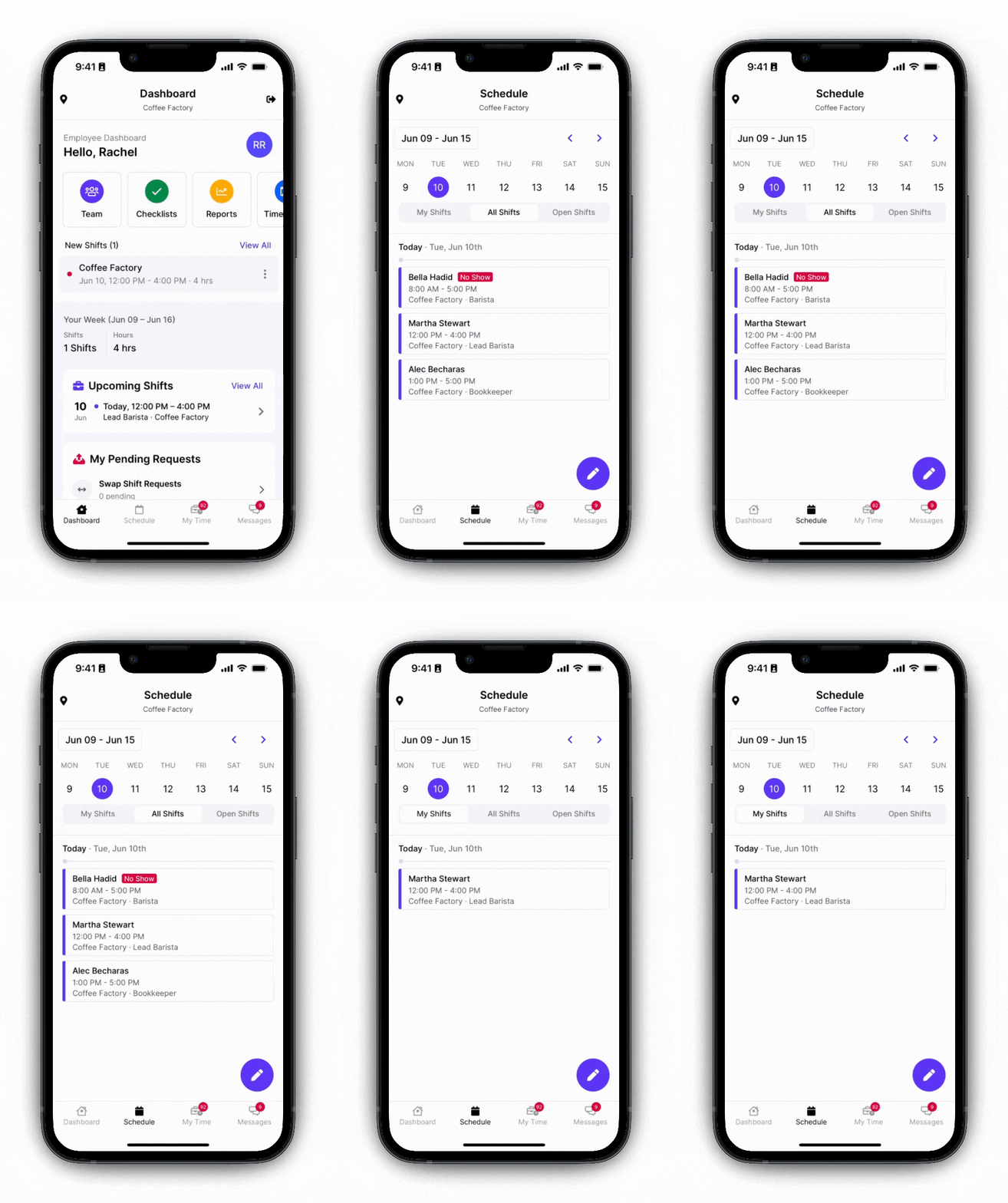
On the Hub App, press **Schedule** > by default you will see **All Shifts** for today.
Tap specific days and **My Shifts** to view your own shifts.
 ***
## Add Preferred Availability
Employees can add days and times of the week they prefer to work for their employer to view when scheduling
Press on **My Time** > **Shift Preferences**
***
## Add Preferred Availability
Employees can add days and times of the week they prefer to work for their employer to view when scheduling
Press on **My Time** > **Shift Preferences**
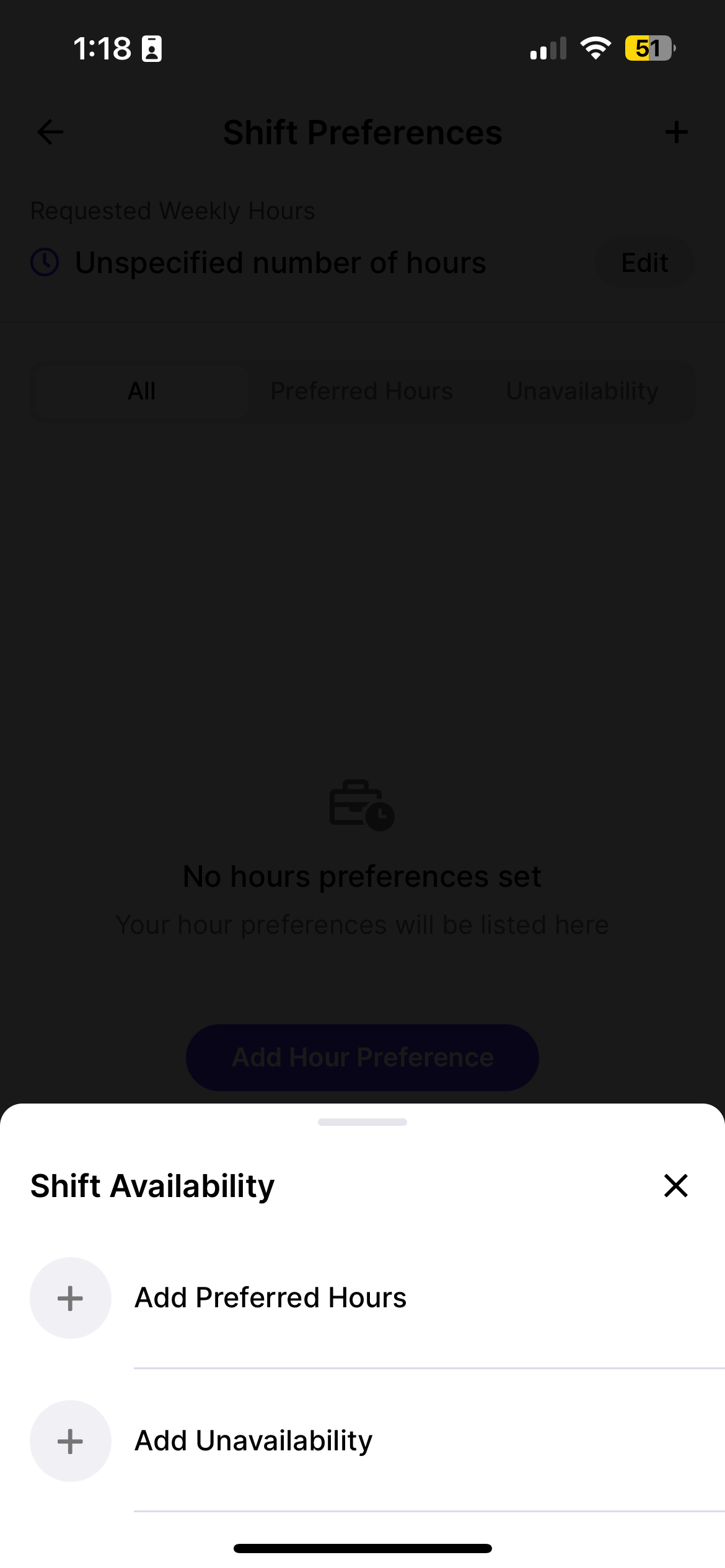
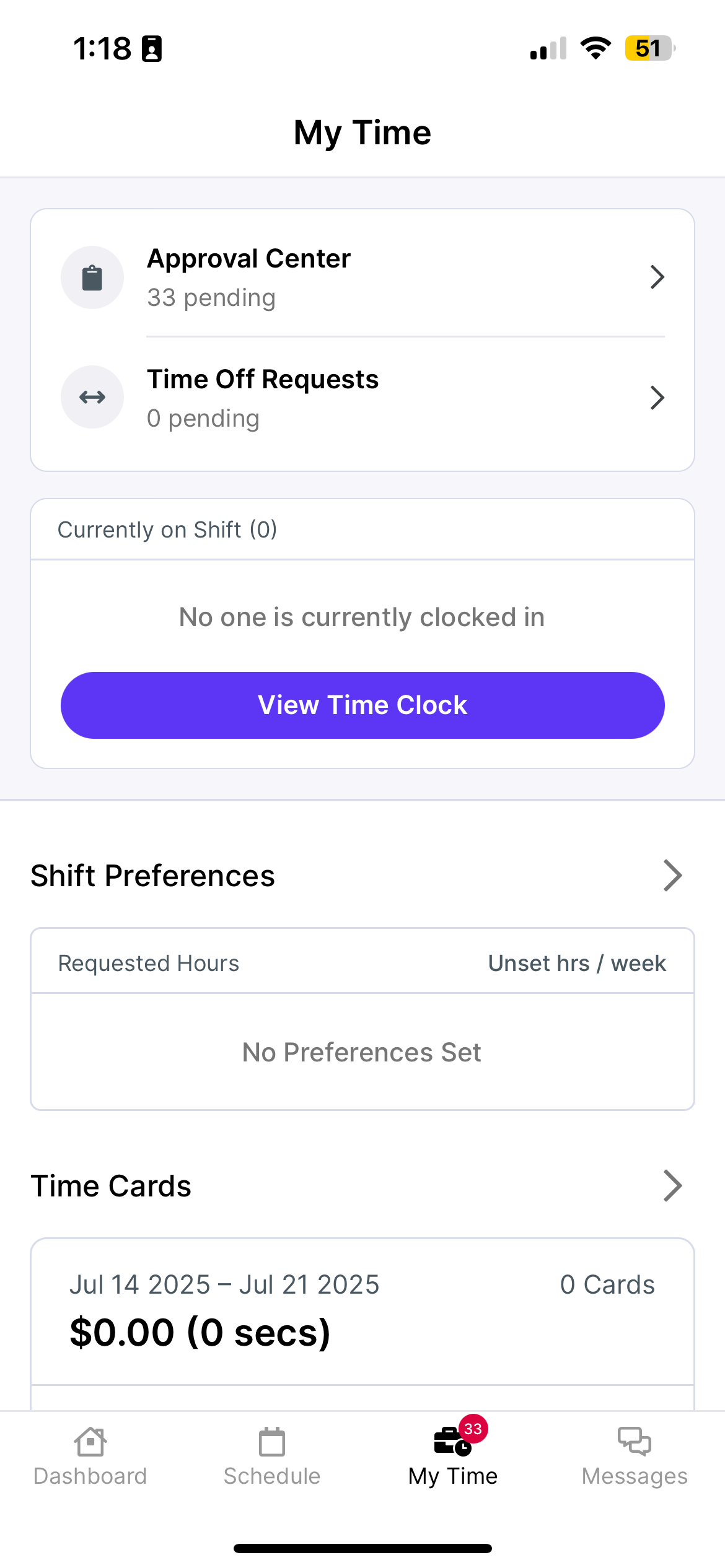 Press **Add Hour Preferences**
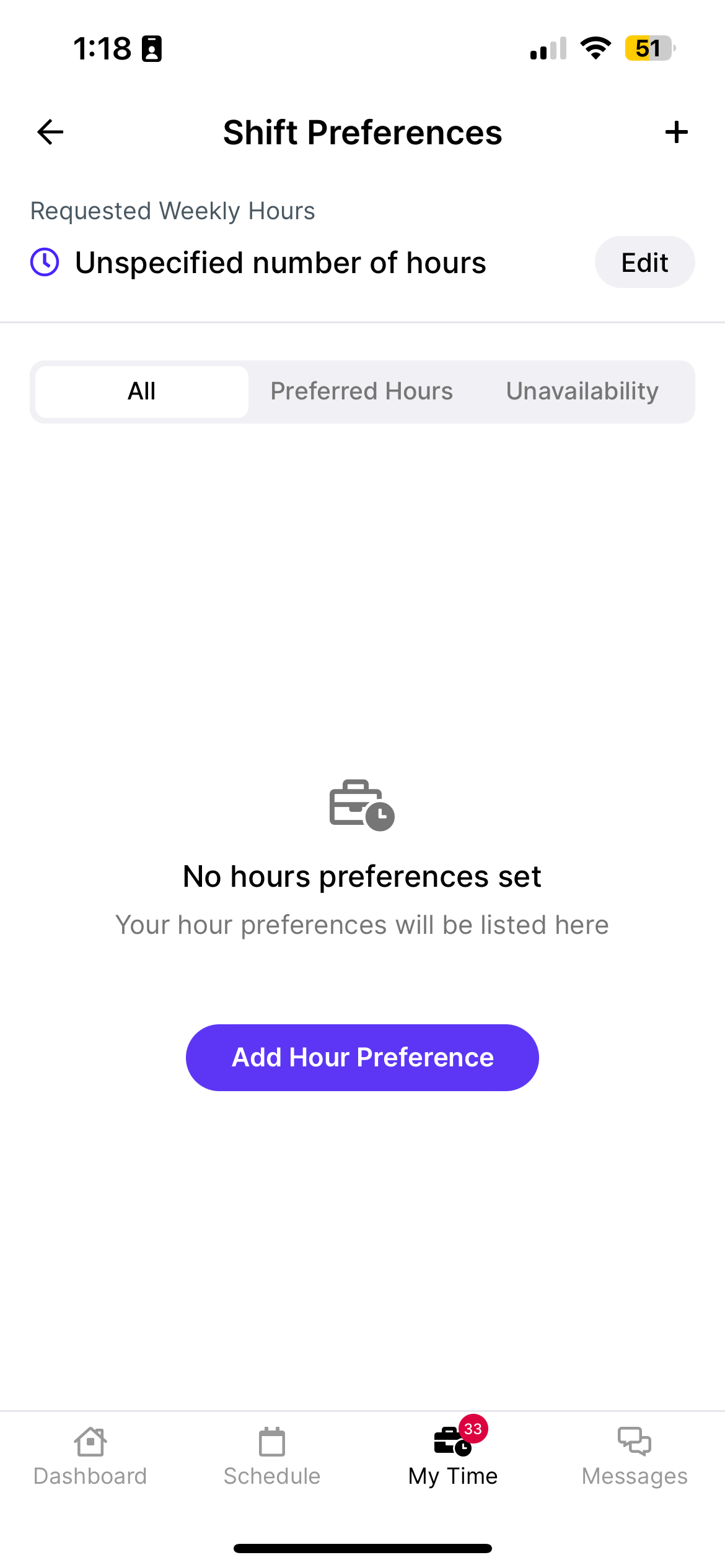 Either add recurring weekly preferred hours to work or recurring weekly unavailability
 ***
## Submit Time Off Requests
Employees can view their enrolled policies and submit time off requests directly from the Dripos Hub App.
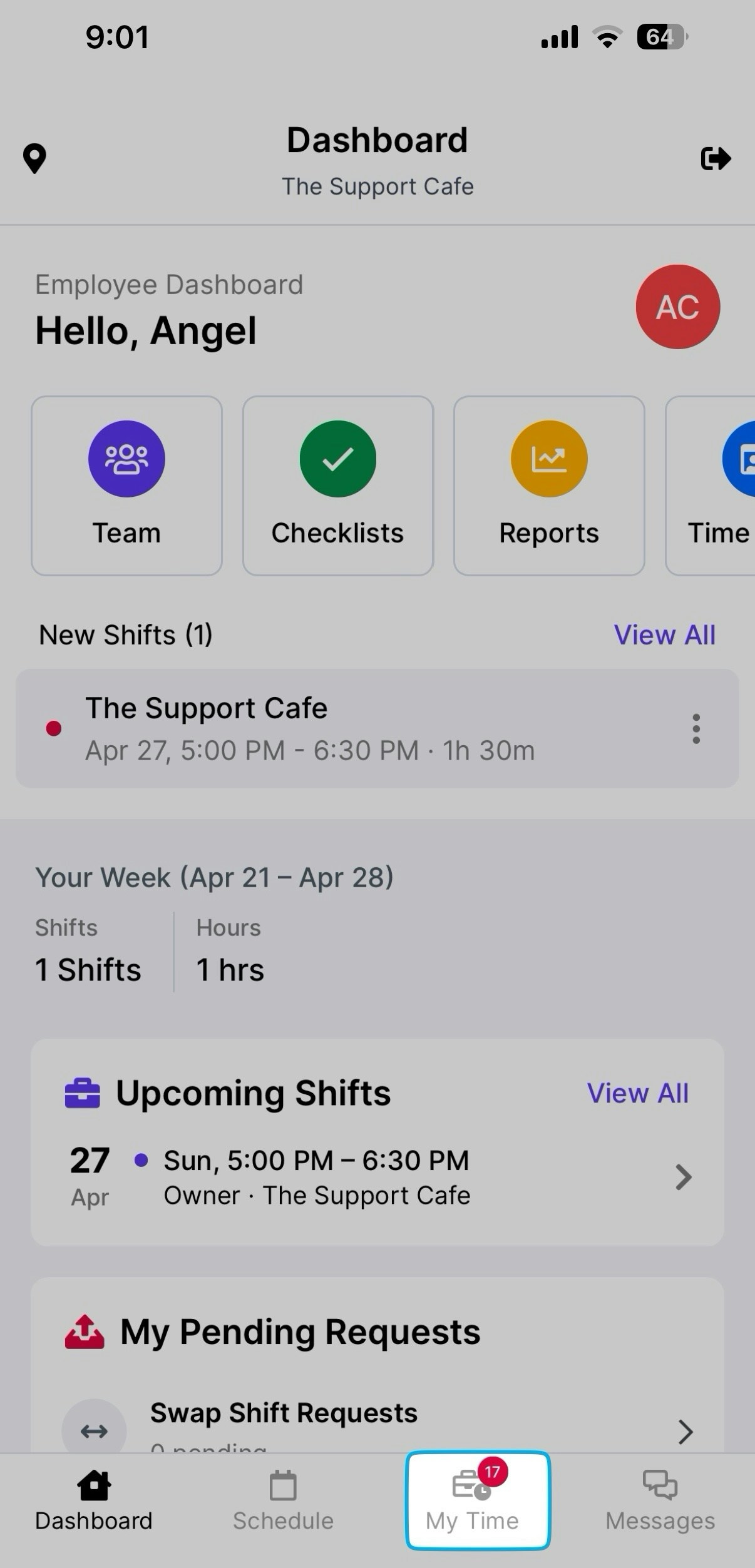
Log in to the Hub App and navigate to **My Time > Time Off Requests** to see all enrolled policies
***
## Submit Time Off Requests
Employees can view their enrolled policies and submit time off requests directly from the Dripos Hub App.
Log in to the Hub App and navigate to **My Time > Time Off Requests** to see all enrolled policies
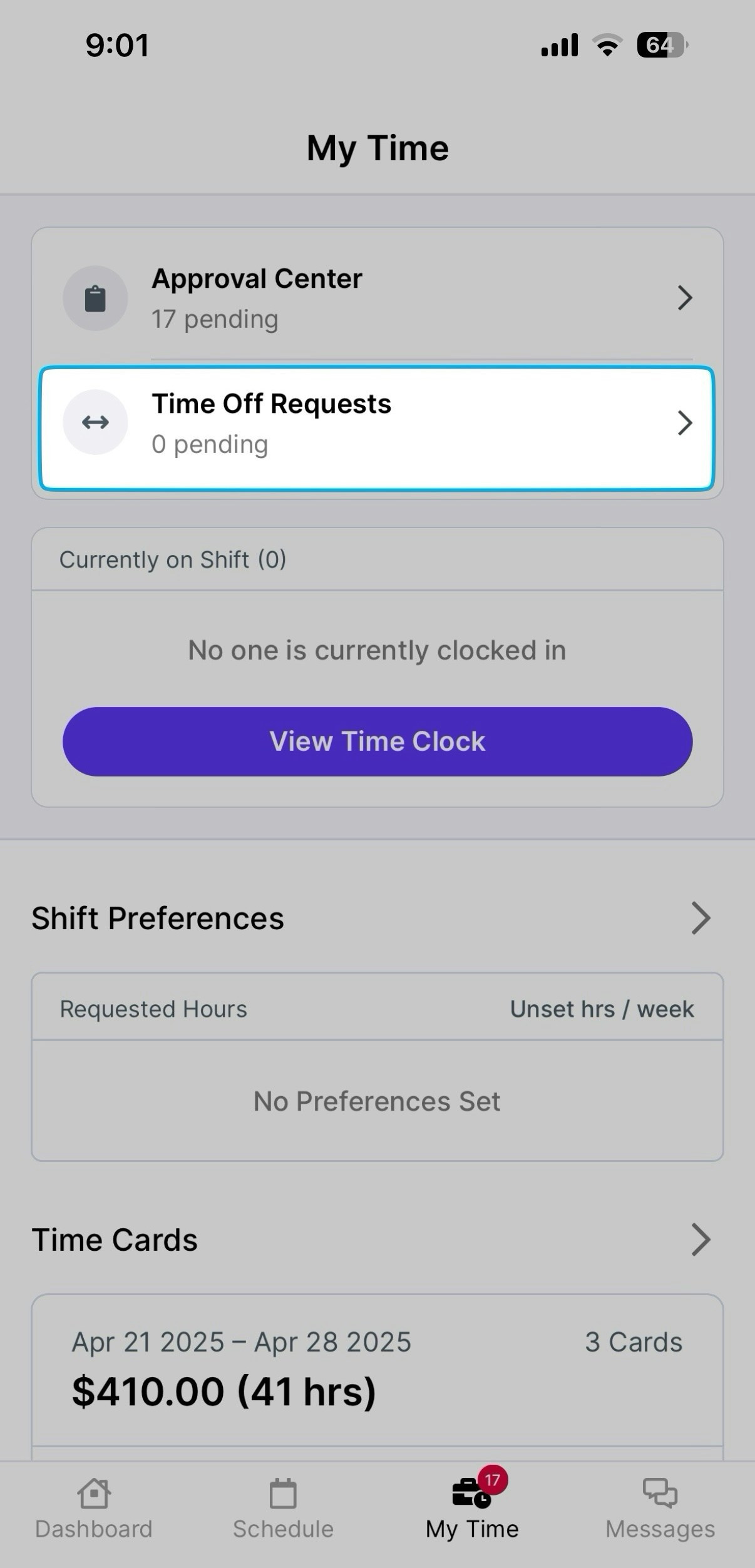 Press **View** to see additional information about **Lifetime Used Hours** and **Lifetime Accrued Hours** for that time off policy
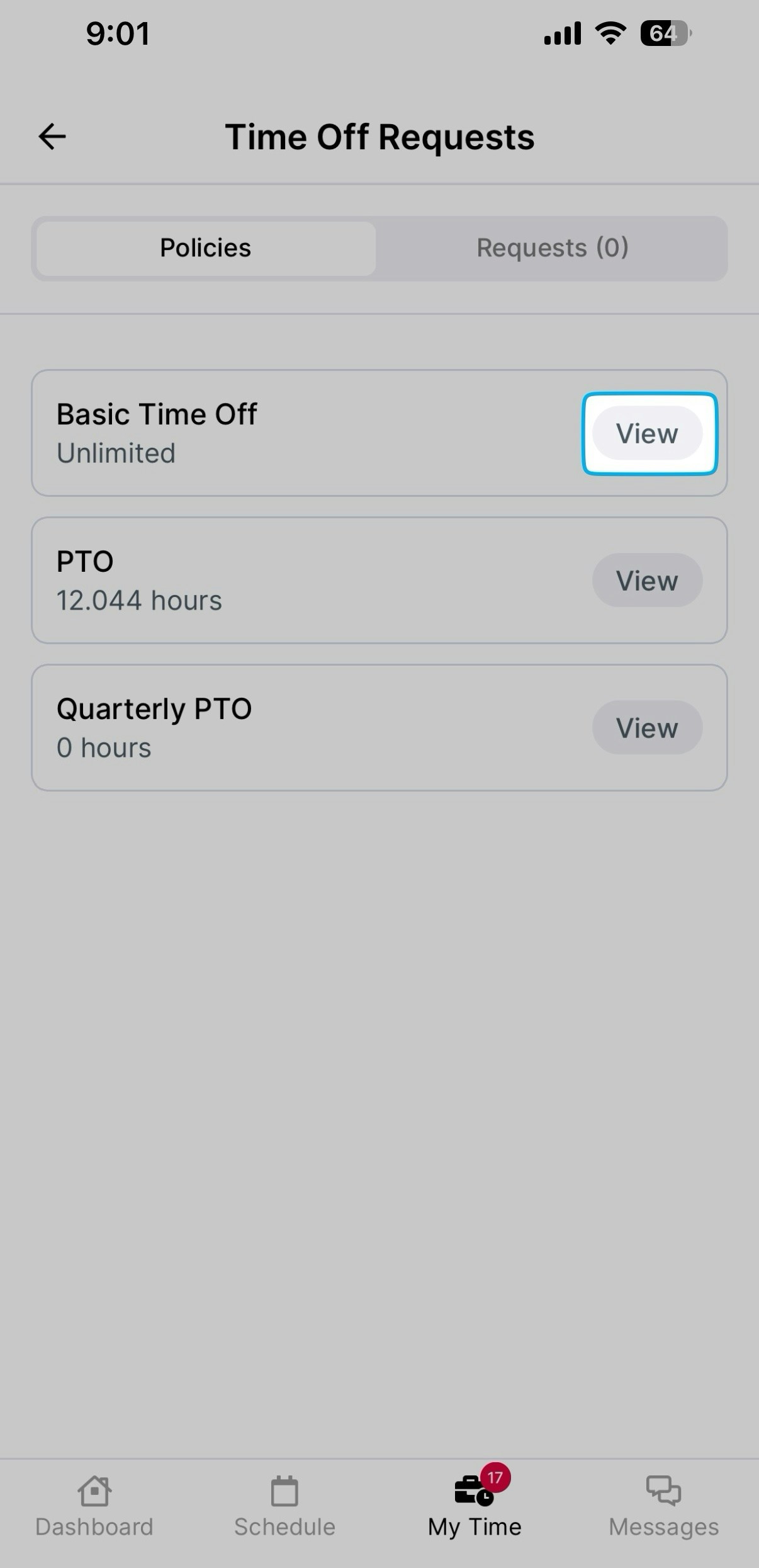
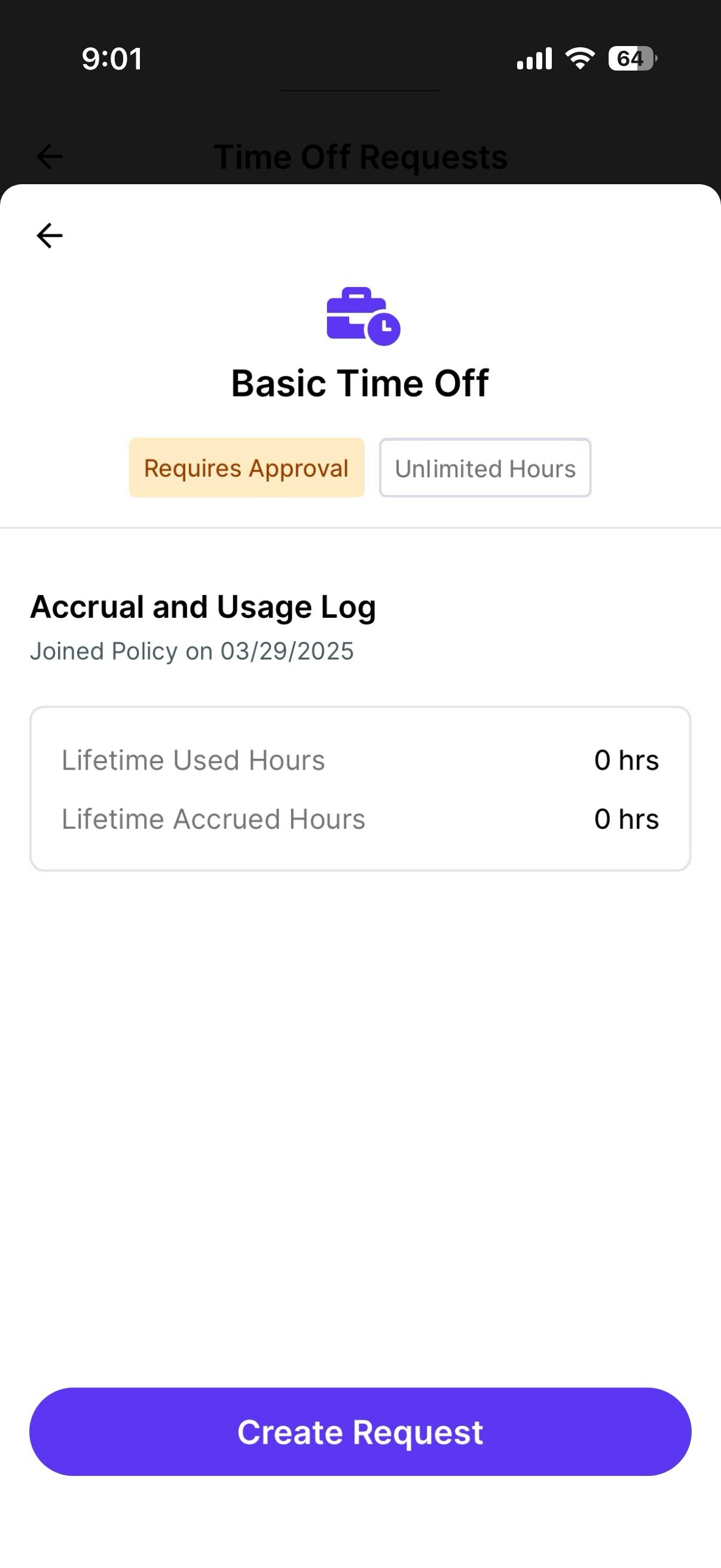 Select **Create Request,** fill in the following fields and **Submit Request.**
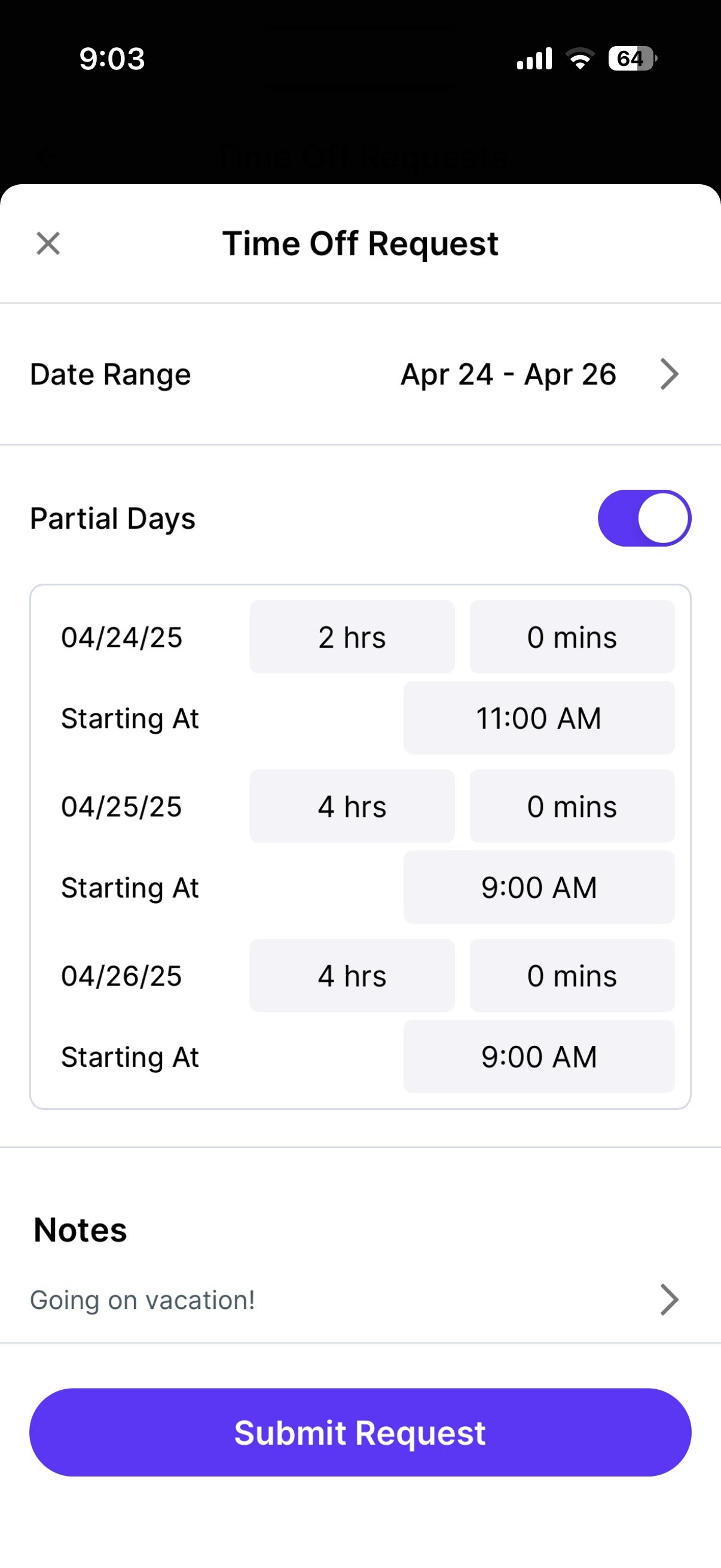 > **Date Range:** Select the date or date range you would like to request time off for.
>
> **Partial Days:** If turned on, input the number of hours and/or minutes you would like to request off per day.
>
> **Notes (Optional):** Include a note with the request.
Confirm the request appears in the **Requests** tab in the **Time Off Section**
> **Date Range:** Select the date or date range you would like to request time off for.
>
> **Partial Days:** If turned on, input the number of hours and/or minutes you would like to request off per day.
>
> **Notes (Optional):** Include a note with the request.
Confirm the request appears in the **Requests** tab in the **Time Off Section**
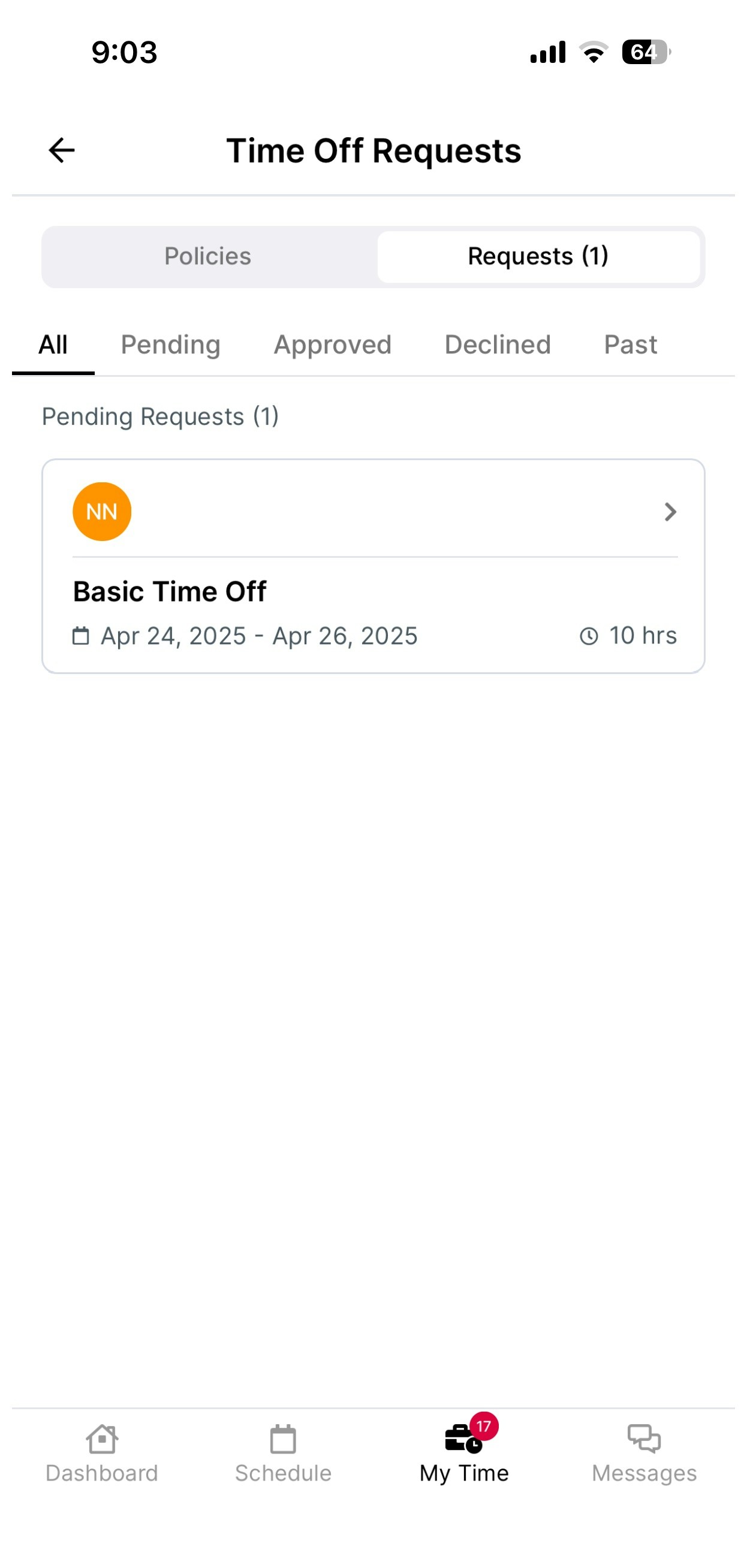 The request will remain here until approved by a manager. You can tap on the request to find the delete option.
***
## Acknowledge Shifts
If your employer requires that you acknowledge your scheduled shifts, follow these steps:
On the **Dashboard** tab, tap **View All** next to your shifts
Tap the three vertical dots > **Mark as Acknowledge**
The request will remain here until approved by a manager. You can tap on the request to find the delete option.
***
## Acknowledge Shifts
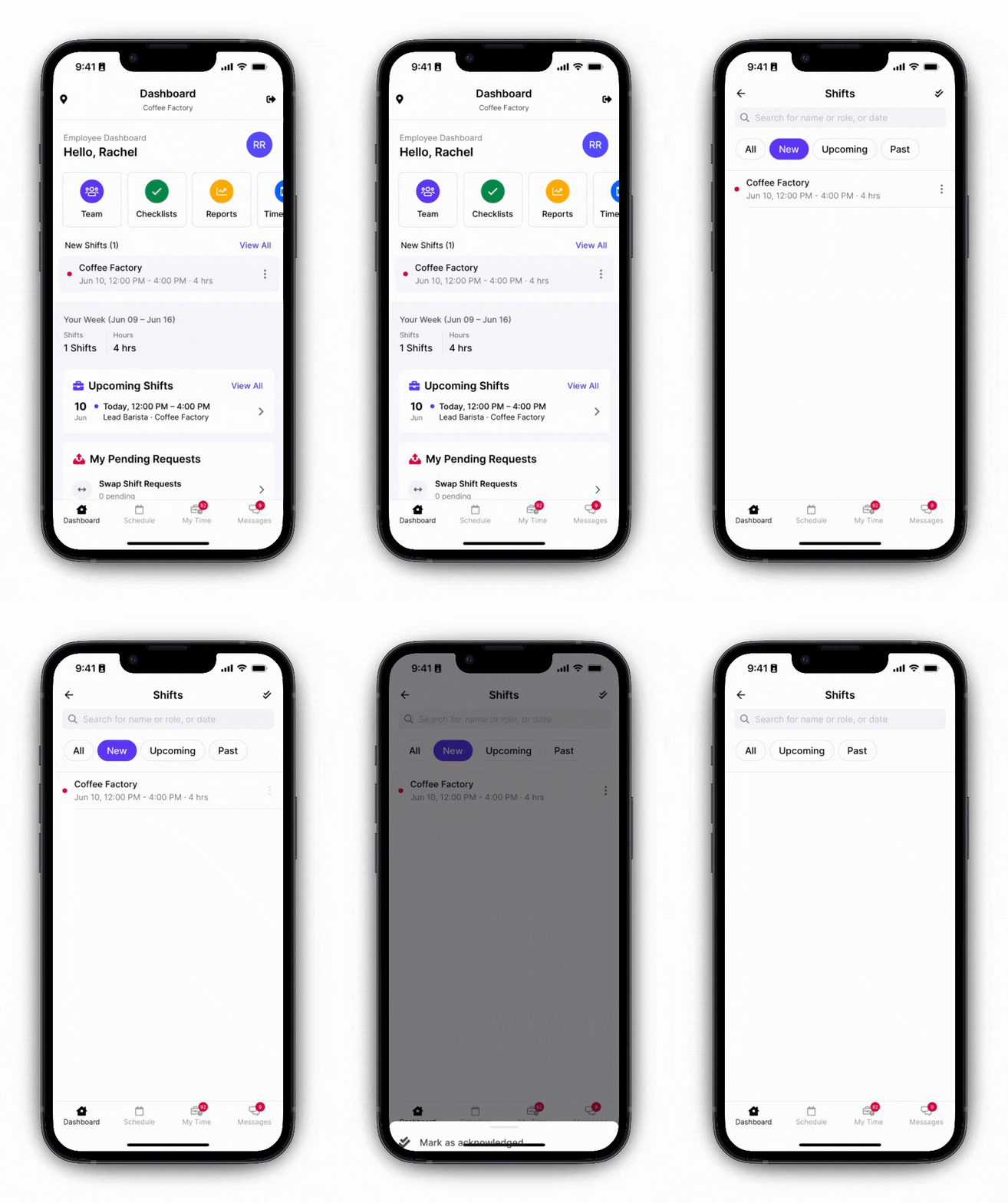
If your employer requires that you acknowledge your scheduled shifts, follow these steps:
On the **Dashboard** tab, tap **View All** next to your shifts
Tap the three vertical dots > **Mark as Acknowledge**
 ***
## Put Shifts Up for Grabs
Allows other employees with the same role to take the shift in the Open Shifts tab. If not taken, the originally-scheduled employee is responsible.
Tap your shift on the schedule to put up > tap **Put Up for Grabs**
***
## Put Shifts Up for Grabs
Allows other employees with the same role to take the shift in the Open Shifts tab. If not taken, the originally-scheduled employee is responsible.
Tap your shift on the schedule to put up > tap **Put Up for Grabs**
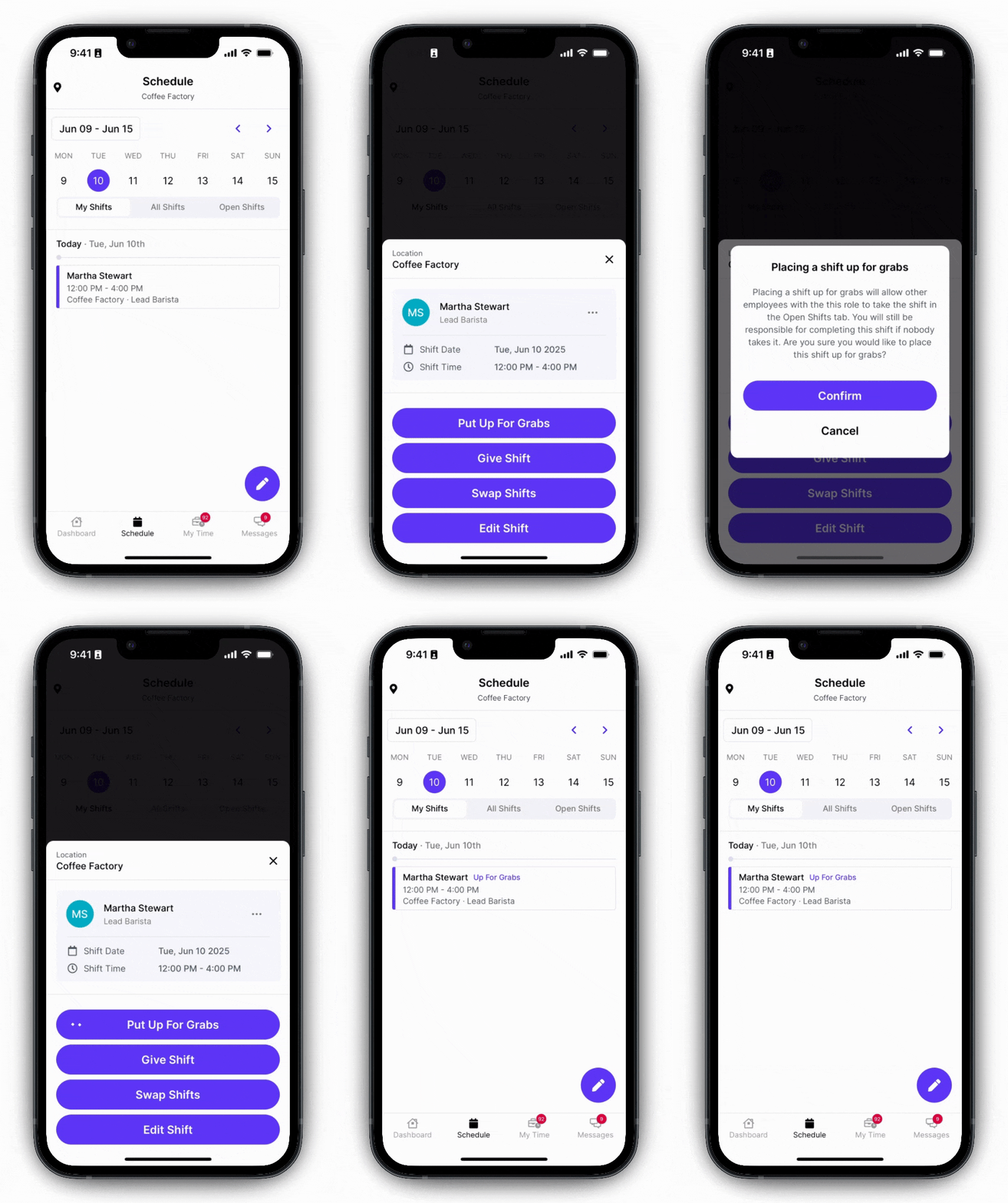 If the shift is taken, it will no longer appear under **My Shifts**
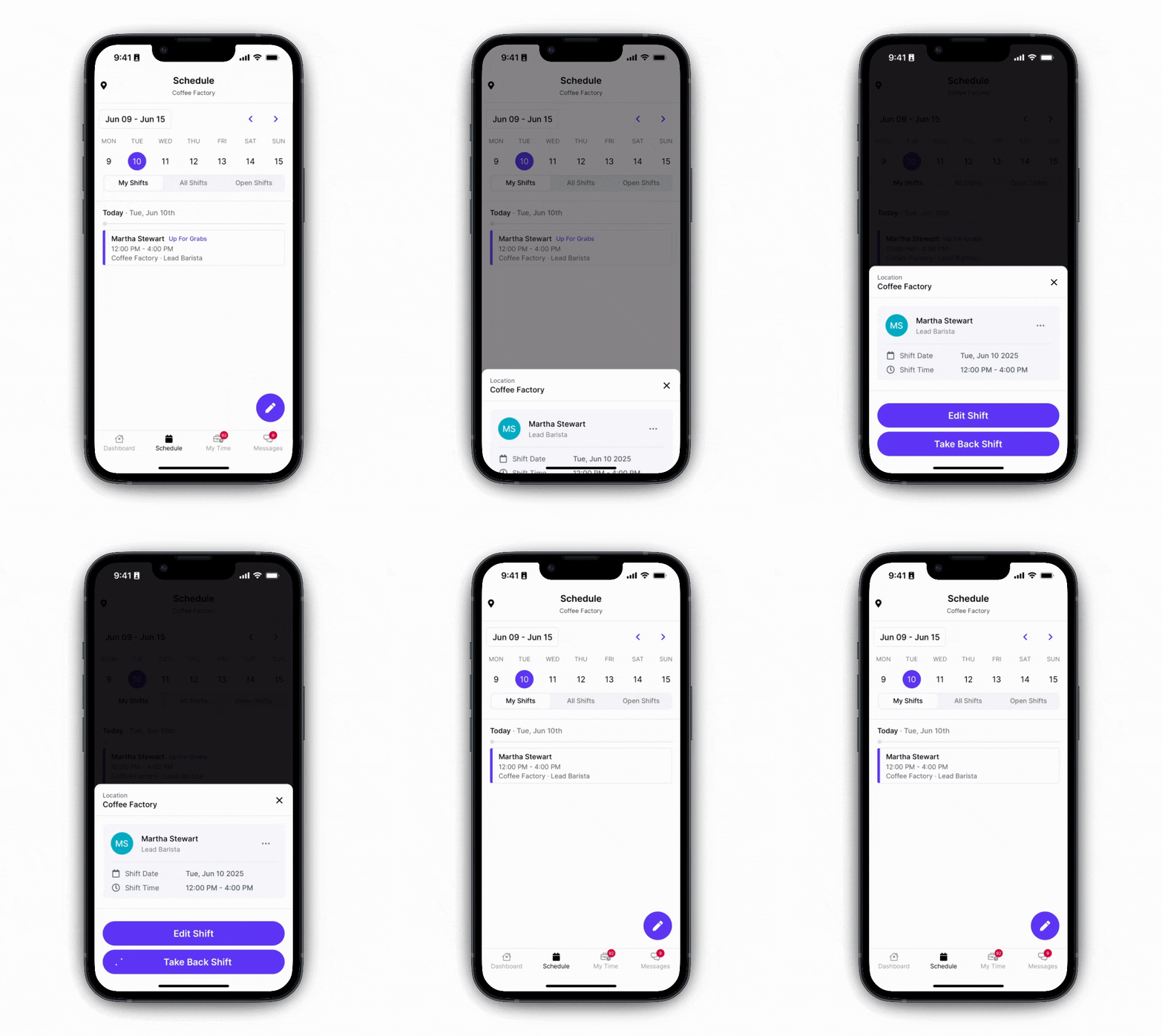
Take back the shift before anyone claims it by tapping the shift > **Take Back Shift**
If the shift is taken, it will no longer appear under **My Shifts**
Take back the shift before anyone claims it by tapping the shift > **Take Back Shift**
 ***
## Claim Open Shift
Shifts that are up for grabs or open shifts published by your employer will appear here.
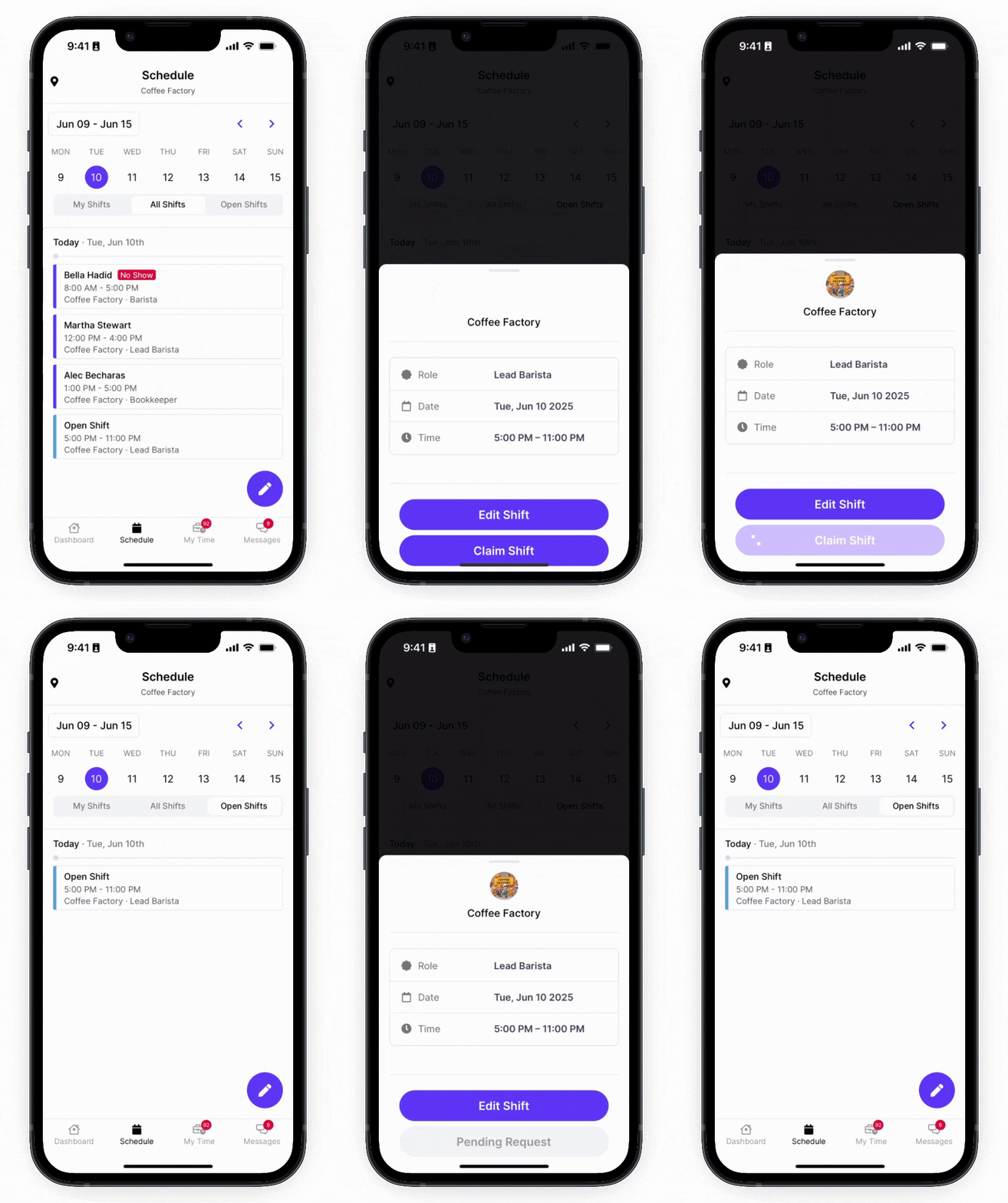
On the schedule, tap **Open Shifts** > tap the shift to claim > once approved, the shift will appear under **My Shifts**
***
## Claim Open Shift
Shifts that are up for grabs or open shifts published by your employer will appear here.
On the schedule, tap **Open Shifts** > tap the shift to claim > once approved, the shift will appear under **My Shifts**
 ***
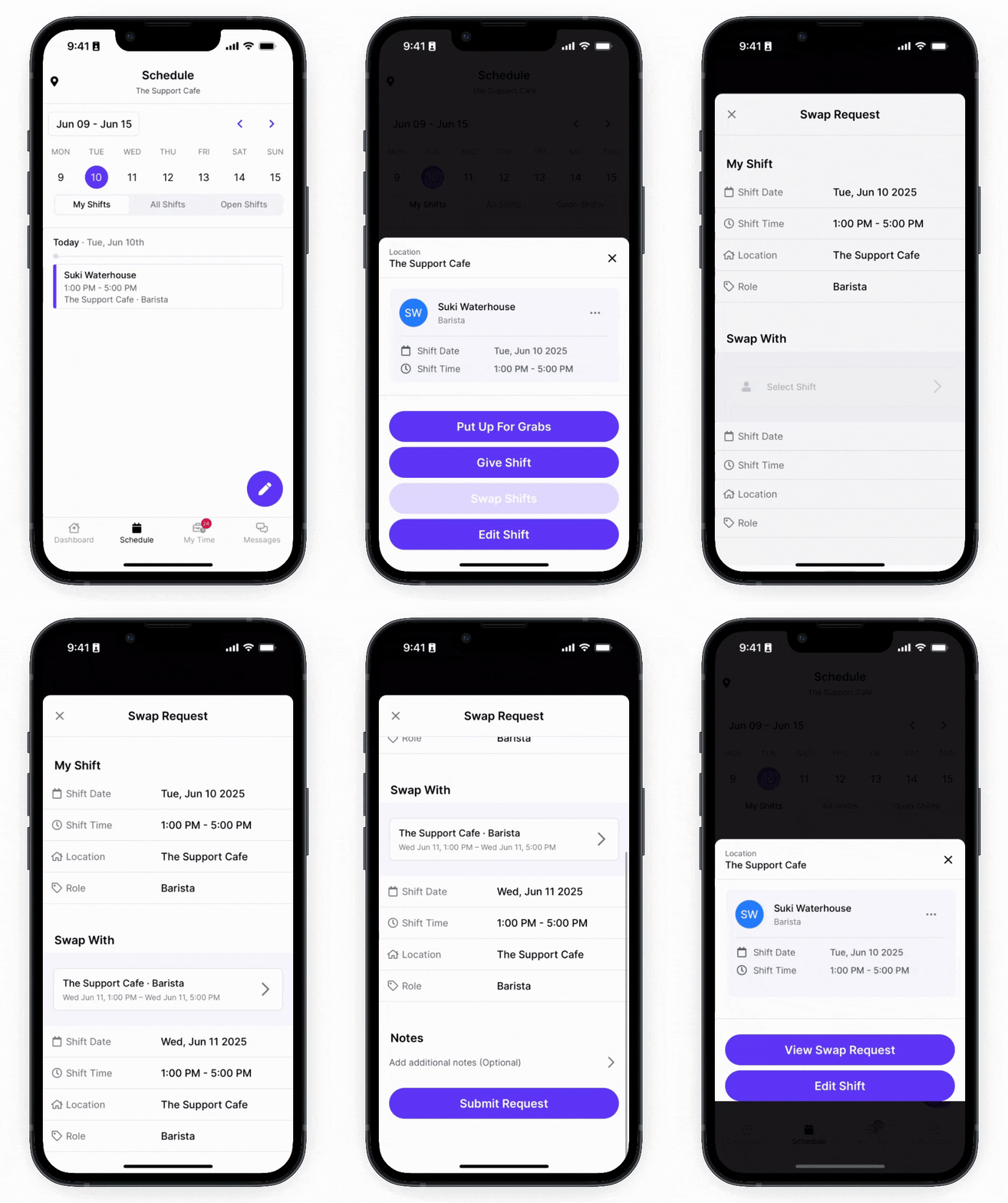
## Submit Trade Requests
Trade shifts with another employee with the same role.
Tap the shift on the schedule you'd like to trade and select the employee's shift to trade for.
***
## Submit Trade Requests
Trade shifts with another employee with the same role.
Tap the shift on the schedule you'd like to trade and select the employee's shift to trade for.