> ## Documentation Index
> Fetch the complete documentation index at: https://support.dripos.com/llms.txt
> Use this file to discover all available pages before exploring further.
# Schedule Settings
## Dashboard Settings
Click the settings icon > click **Settings** > click **Scheduler**:
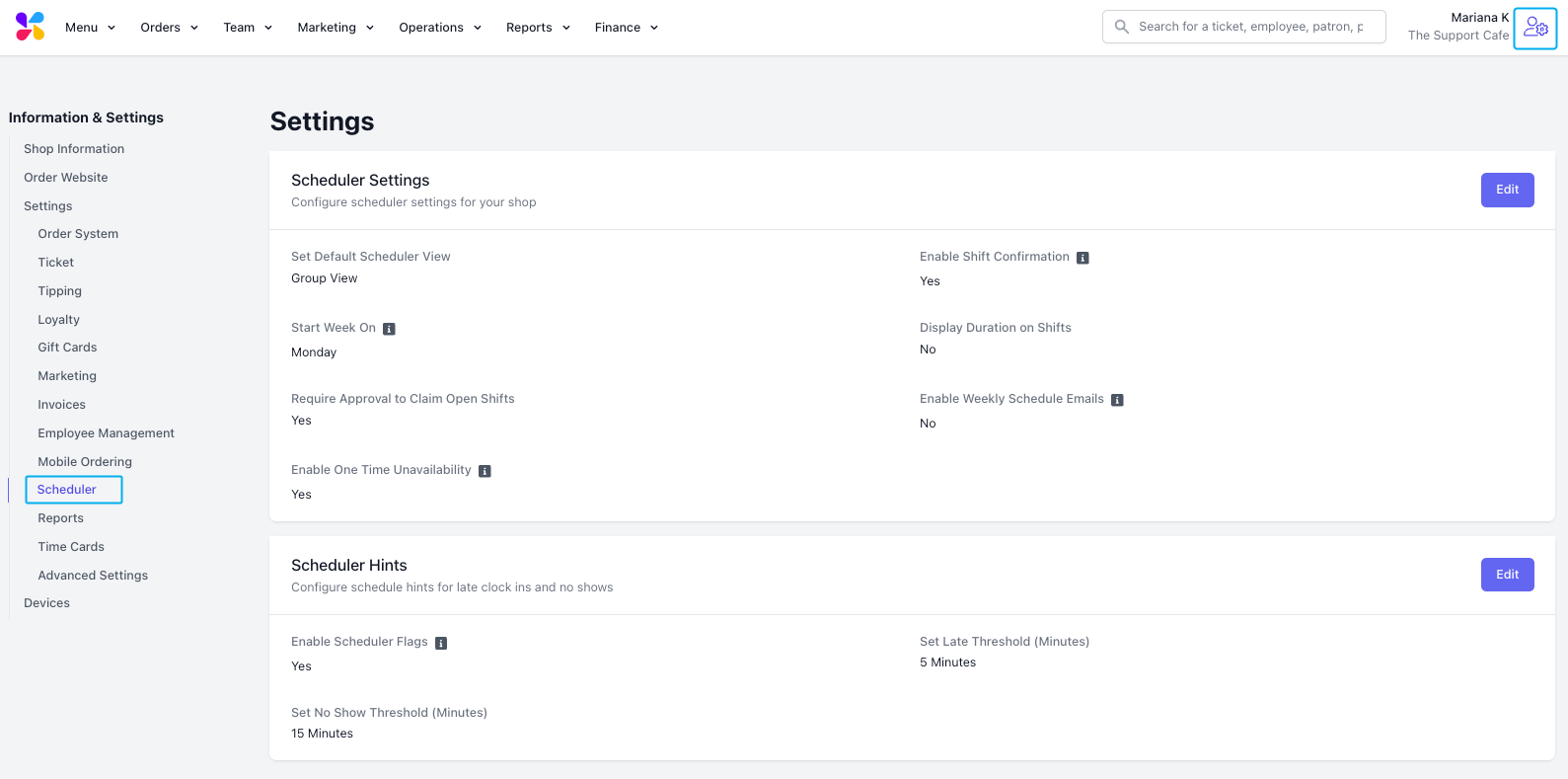 **Scheduler Settings**
Toggle to allow employees to acknowledge newly published shifts via the Hub App for shift confirmation.
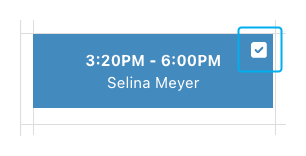
When enabled, employees will receive a confirmation prompt when new shifts are published and will need to acknowledge these shifts. Acknowledged shifts will appear on the scheduler with a checkmark.
**Scheduler Settings**
Toggle to allow employees to acknowledge newly published shifts via the Hub App for shift confirmation.
When enabled, employees will receive a confirmation prompt when new shifts are published and will need to acknowledge these shifts. Acknowledged shifts will appear on the scheduler with a checkmark.
 Toggle to change how employees and roles will display upon clicking Scheduling
The day that appears as the first day of the week on the scheduler
Toggle to display the length of a shift in hours on the shift block
Toggle to require manager approval when employees claim Open Shifts
If enabled, employees will be sent a recurring weekly schedule email with upcoming shifts and open shifts
If enabled, employees will be able to create unavailability and shift preferences for a specific date
**Unavailability and Shift Preferences are separate from Time Off Requests**
**Scheduler Hints**
Gain insights into recently completed shifts using Scheduler Hints to schedule employees more efficiently.
Toggle to change how employees and roles will display upon clicking Scheduling
The day that appears as the first day of the week on the scheduler
Toggle to display the length of a shift in hours on the shift block
Toggle to require manager approval when employees claim Open Shifts
If enabled, employees will be sent a recurring weekly schedule email with upcoming shifts and open shifts
If enabled, employees will be able to create unavailability and shift preferences for a specific date
**Unavailability and Shift Preferences are separate from Time Off Requests**
**Scheduler Hints**
Gain insights into recently completed shifts using Scheduler Hints to schedule employees more efficiently.
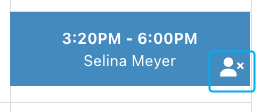
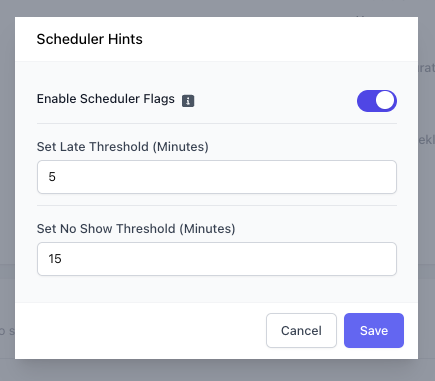 **Enable Scheduler Flags**: If enabled, scheduler shifts will display flags for late clock-ins and no shows.
Hover over the icon in the bottom right corner of the scheduler event to see those flags.
The time at which the employee’s scheduled shift will be marked as a late clock-in
**Enable Scheduler Flags**: If enabled, scheduler shifts will display flags for late clock-ins and no shows.
Hover over the icon in the bottom right corner of the scheduler event to see those flags.
The time at which the employee’s scheduled shift will be marked as a late clock-in
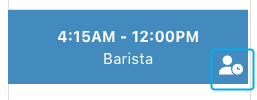 The time at which the employee’s scheduled shift will be marked as a no-show
 ***
## Access Settings from Scheduler
Use the **Scheduler Tools** to customize your schedule
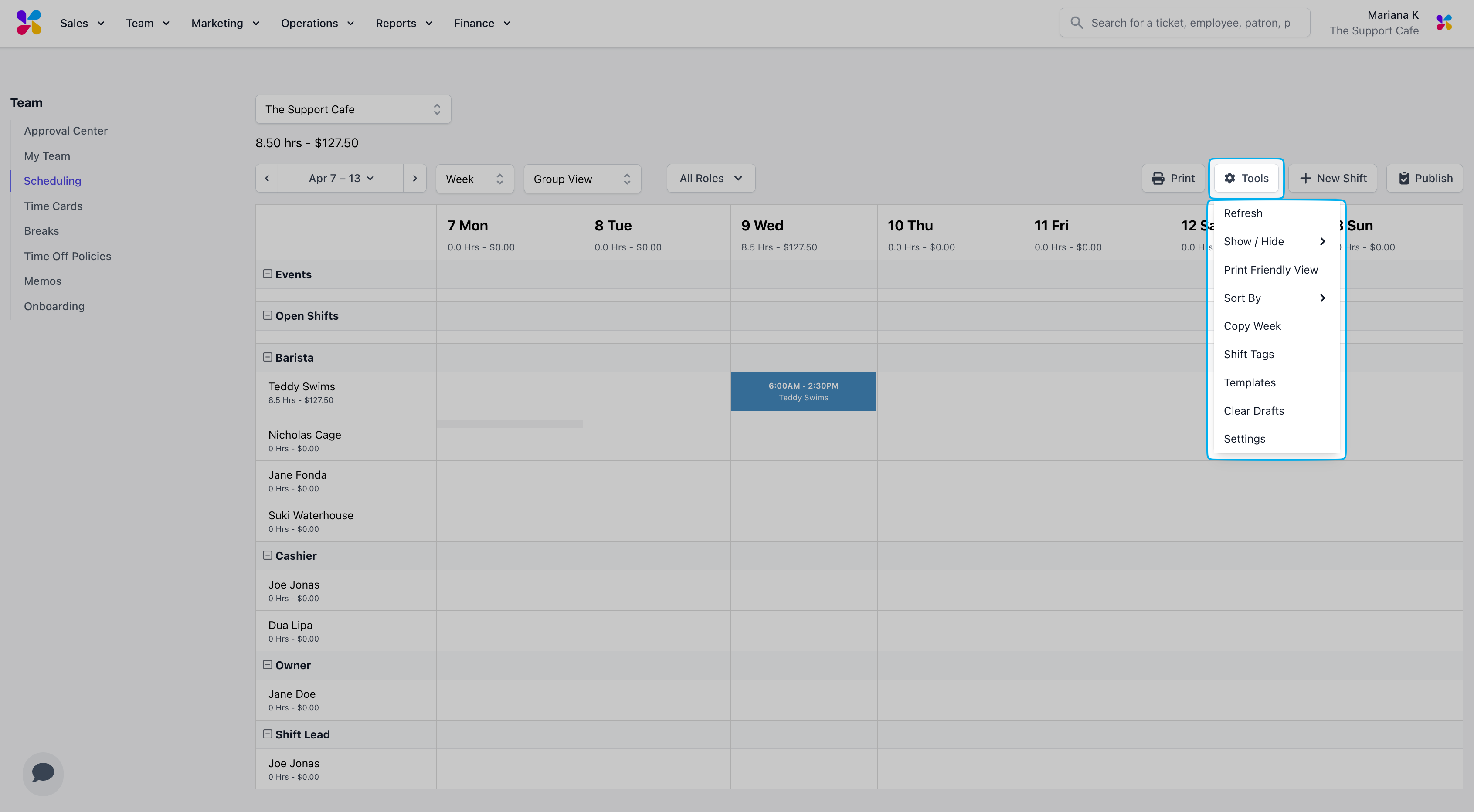
Click **Team** > click **Scheduling** > click **Tools** > **Settings**
***
## Access Settings from Scheduler
Use the **Scheduler Tools** to customize your schedule
Click **Team** > click **Scheduling** > click **Tools** > **Settings**
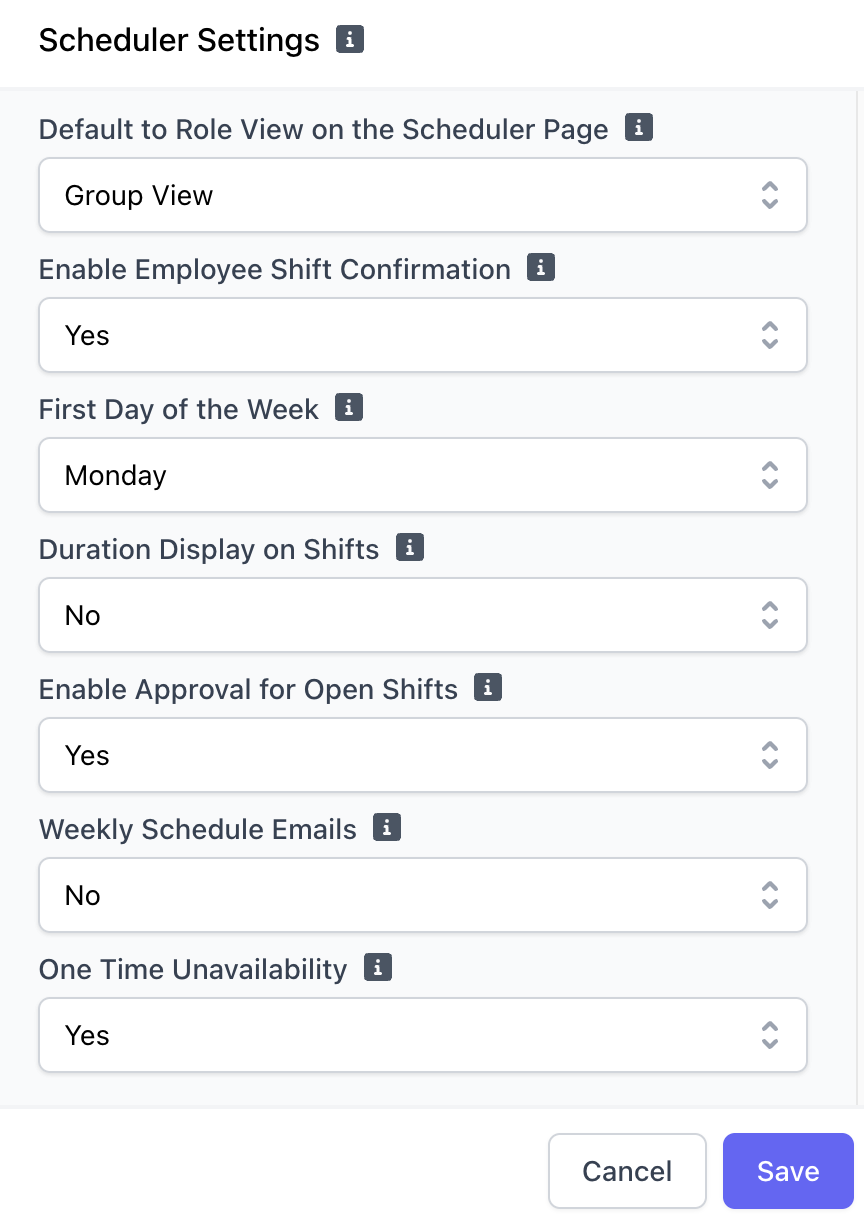 > **Default to Role View on the Scheduler Page**: Toggle to change how employees and roles will display upon clicking Scheduling
> **Enable Employee Shift Confirmation**: Toggle to allow employees to acknowledge newly published shifts via the Hub App for shift confirmation
> **First Day of the Week**: The day that appears as the first day of the week on the scheduler
> **Duration Display on Shifts**: Toggle to display the length of a shift in hours on the shift block
> **Enable Approval for Open Shifts**: Toggle to require manager approval when employees claim Open Shifts
> **Weekly Schedule Emails**: If enabled, employees will be sent a recurring weekly schedule email with upcoming shifts and open shifts
> **One Time Unavailability**: - If enabled, employees will be able to create unavailability and shift preferences for a specific date
> Unavailability and Shift Preferences are separate from Time Off Requests
> **Default to Role View on the Scheduler Page**: Toggle to change how employees and roles will display upon clicking Scheduling
> **Enable Employee Shift Confirmation**: Toggle to allow employees to acknowledge newly published shifts via the Hub App for shift confirmation
> **First Day of the Week**: The day that appears as the first day of the week on the scheduler
> **Duration Display on Shifts**: Toggle to display the length of a shift in hours on the shift block
> **Enable Approval for Open Shifts**: Toggle to require manager approval when employees claim Open Shifts
> **Weekly Schedule Emails**: If enabled, employees will be sent a recurring weekly schedule email with upcoming shifts and open shifts
> **One Time Unavailability**: - If enabled, employees will be able to create unavailability and shift preferences for a specific date
> Unavailability and Shift Preferences are separate from Time Off Requests