> ## Documentation Index
> Fetch the complete documentation index at: https://support.dripos.com/llms.txt
> Use this file to discover all available pages before exploring further.
# Employees
> Create and track your employees on your Dripos Web Dashboard
## Create an Employee
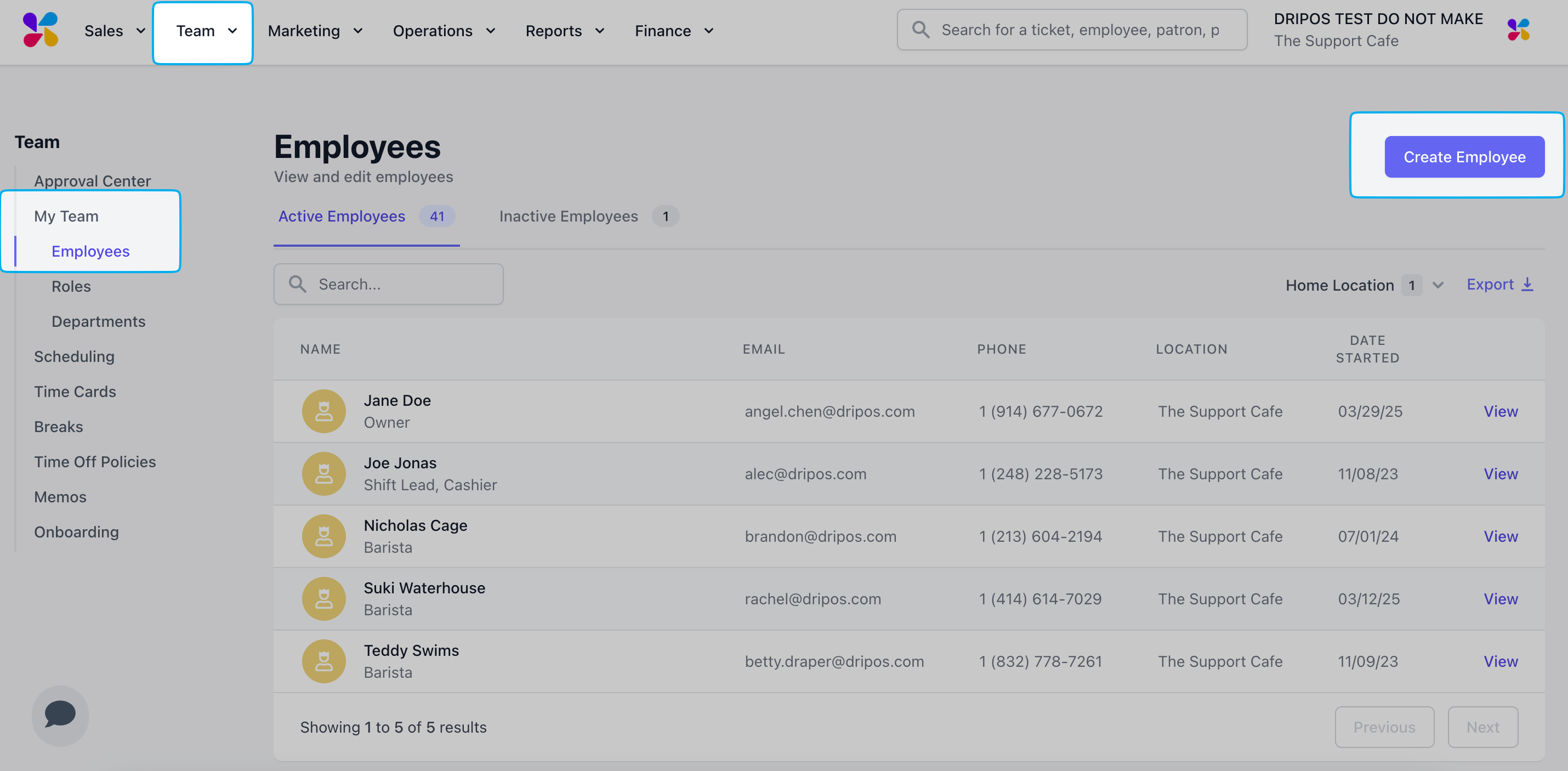
On the **Web Dashboard**, click **Team** > **My Team** > **Employees** > **Create Employee**
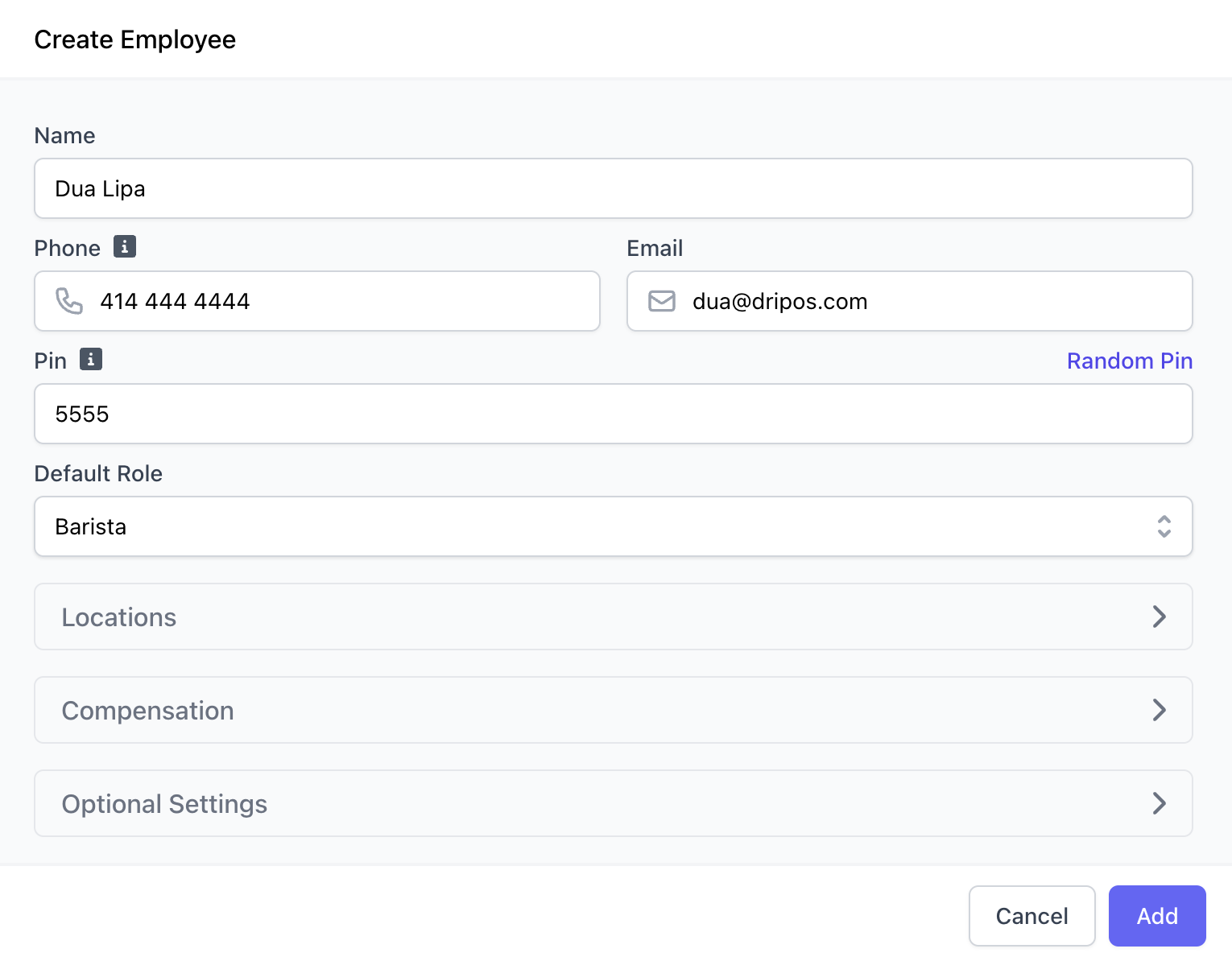 Ensure the employee's phone number is their own unique number and is able to receive text messages.
Employees cannot share phone numbers.
Unique PIN used to clock in and access PIN protected settings, if applicable.
Role that the time clock defaults to unless otherwise selected.
Ensure the employee's phone number is their own unique number and is able to receive text messages.
Employees cannot share phone numbers.
Unique PIN used to clock in and access PIN protected settings, if applicable.
Role that the time clock defaults to unless otherwise selected.
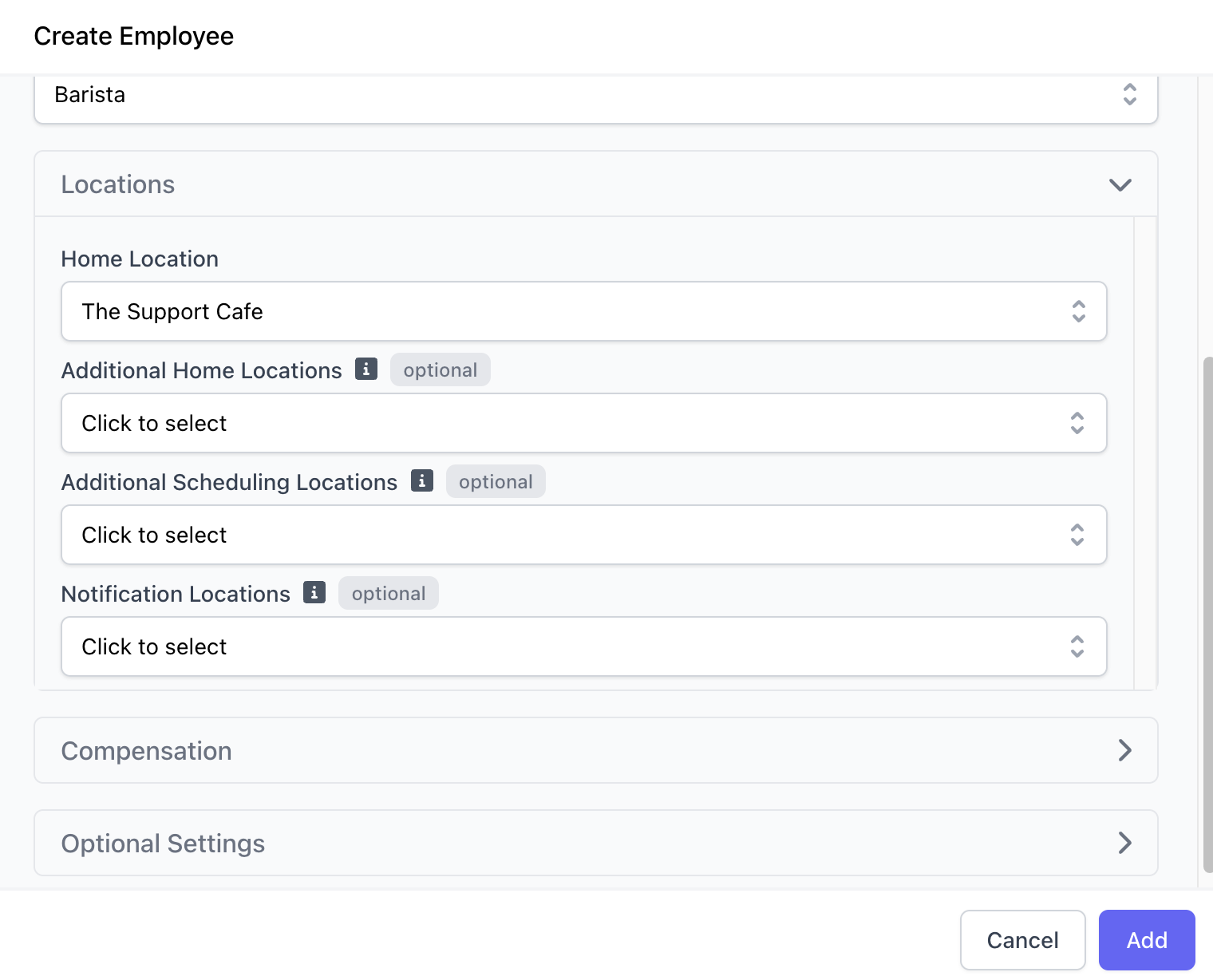 The primary location an employee has permissions at and is scheduled at.
Gives employees permissions to the following locations, in addition to their home location.
Additional locations besides the Home Location that an employee can be scheduled at.
Locations where the employee receives trade request and late clock-in notifications.
The primary location an employee has permissions at and is scheduled at.
Gives employees permissions to the following locations, in addition to their home location.
Additional locations besides the Home Location that an employee can be scheduled at.
Locations where the employee receives trade request and late clock-in notifications.
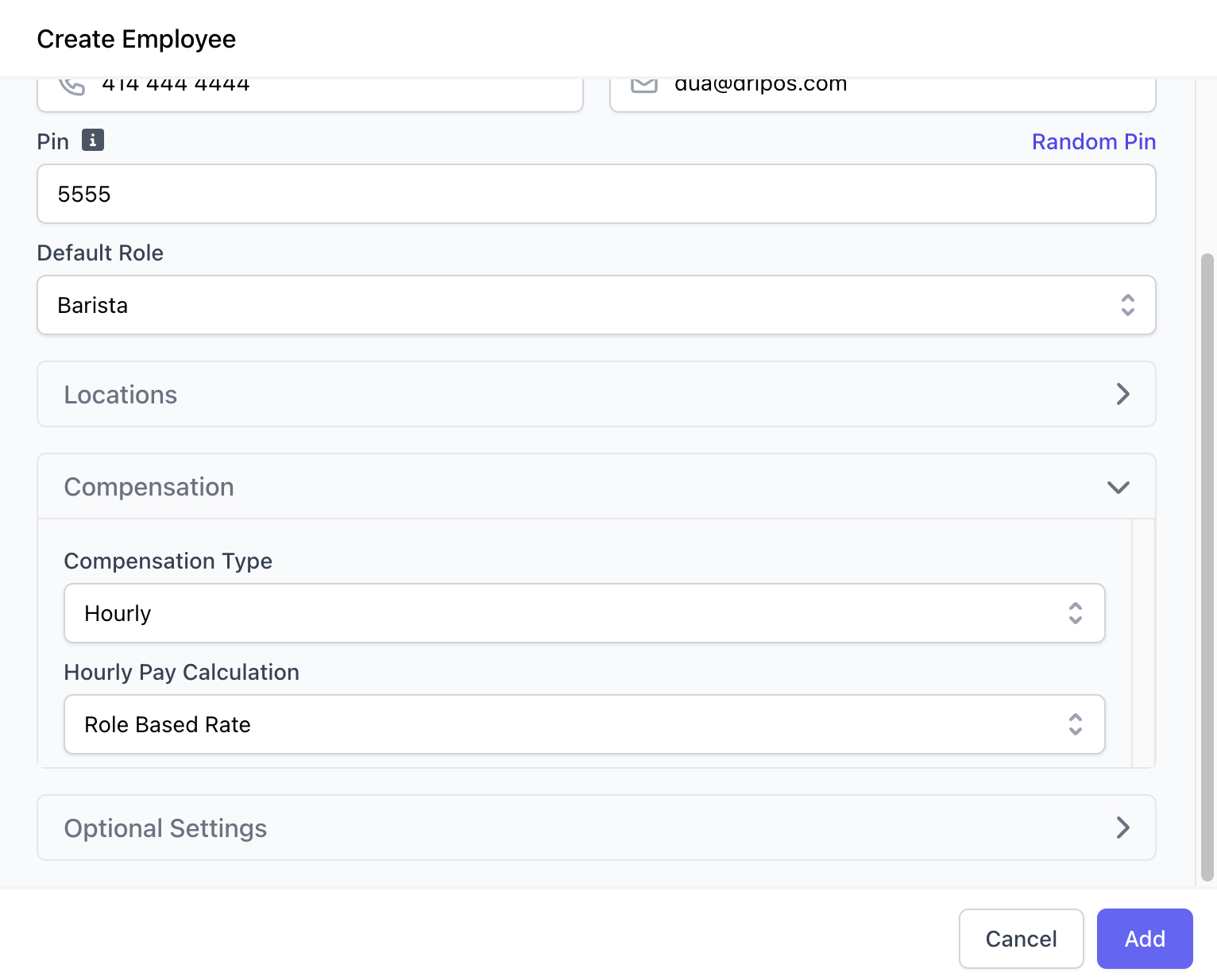 **Hourly**: Rate that employee will earn per hour clocked in
**Salary**: Lumpsum amount that an employee will earn per year. Weekly pay will automatically be calculated at Salary ÷ 52 *(i.e., a salary of \$50,000 will have a weekly pay of \$961.54)*
**Role Based Rate**: Employee will be paid a rate that is assigned to the role they clock in with
**Employee Specific Rate**: Employee will be paid a rate specific to their individual self
**Hourly**: Rate that employee will earn per hour clocked in
**Salary**: Lumpsum amount that an employee will earn per year. Weekly pay will automatically be calculated at Salary ÷ 52 *(i.e., a salary of \$50,000 will have a weekly pay of \$961.54)*
**Role Based Rate**: Employee will be paid a rate that is assigned to the role they clock in with
**Employee Specific Rate**: Employee will be paid a rate specific to their individual self
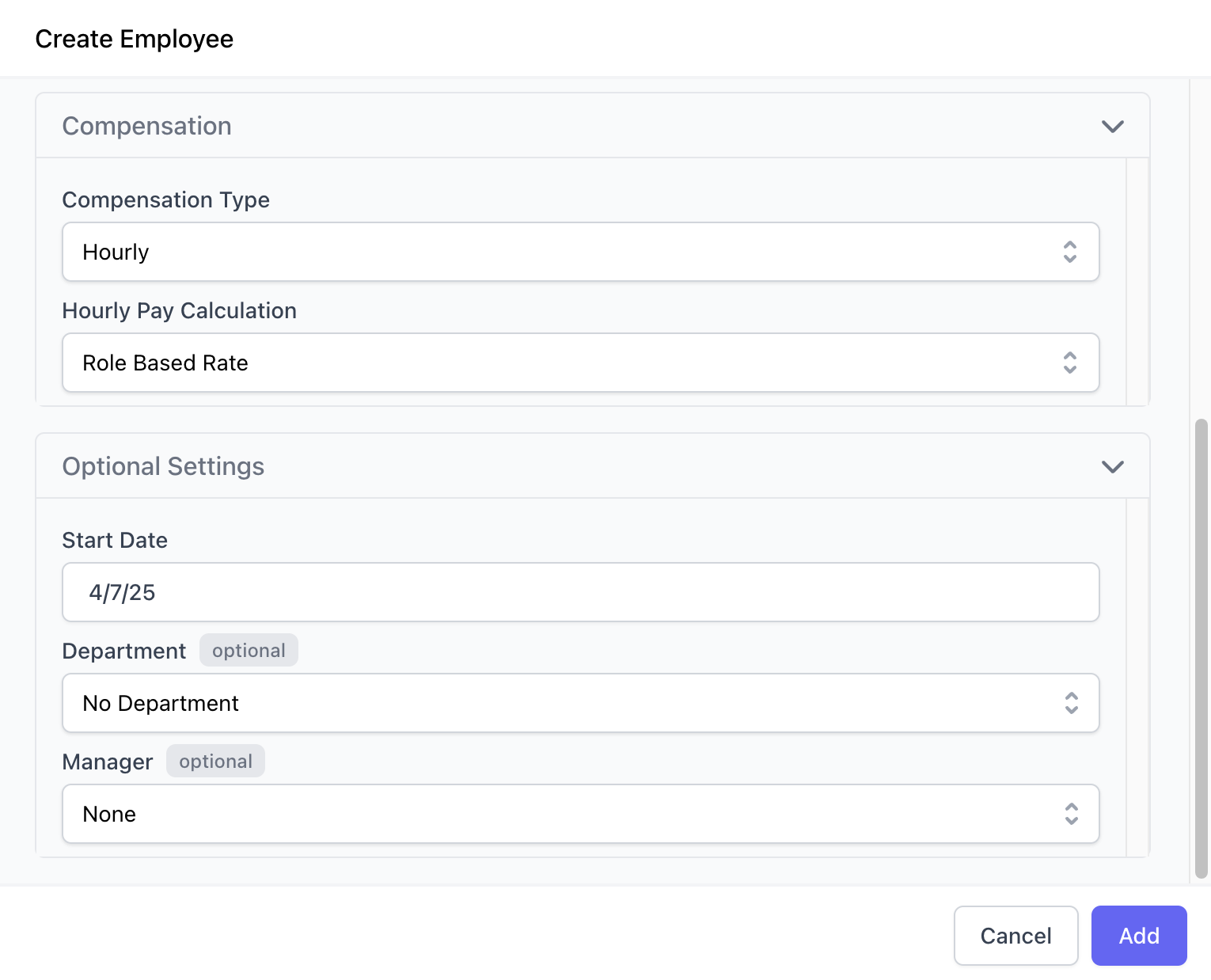 Select the employee's start date on the calander. This is solely for your viewing and will not impact payroll (if applicable).
This is an optional field that you can select if your shop has departments set up.
This is an optional field that you can utilize to assign the employee a specific manager.
***
## Terminate and Reactivate Employees
Remove an active employee through termination. Reactivate a terminated employee at any time.
Terminate an employee in Dripos if they are no longer employed at the shop or are a seasonal employee that will not return for an extended period of time.
An employee profile will always live in the Dripos system and can be reactivated at anytime.
On the **Web Dashboard** click **Team** > **My Team** > **Employees** > **Active Employees**
Select the employee's start date on the calander. This is solely for your viewing and will not impact payroll (if applicable).
This is an optional field that you can select if your shop has departments set up.
This is an optional field that you can utilize to assign the employee a specific manager.
***
## Terminate and Reactivate Employees
Remove an active employee through termination. Reactivate a terminated employee at any time.
Terminate an employee in Dripos if they are no longer employed at the shop or are a seasonal employee that will not return for an extended period of time.
An employee profile will always live in the Dripos system and can be reactivated at anytime.
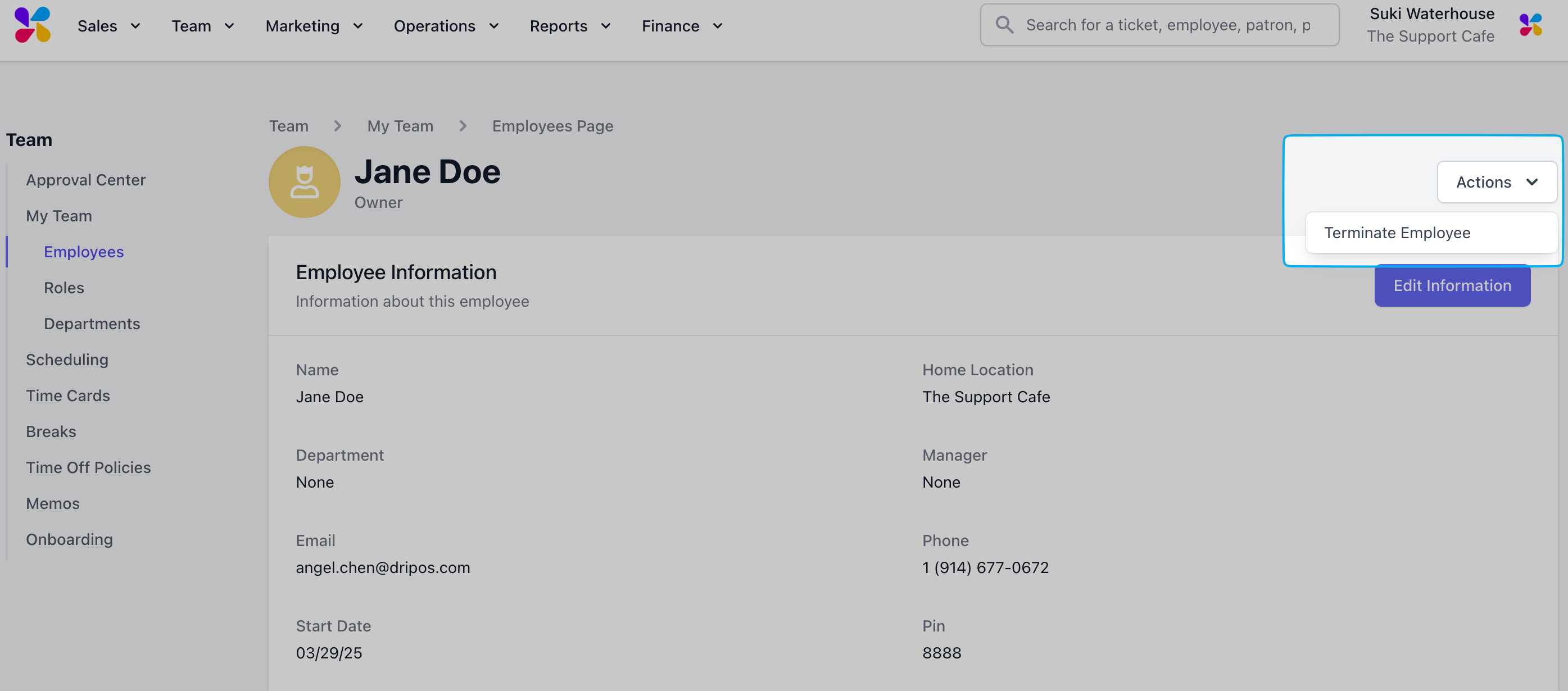
On the **Web Dashboard** click **Team** > **My Team** > **Employees** > **Active Employees**
 **View** employee > click **Action** > **Terminate Employee**
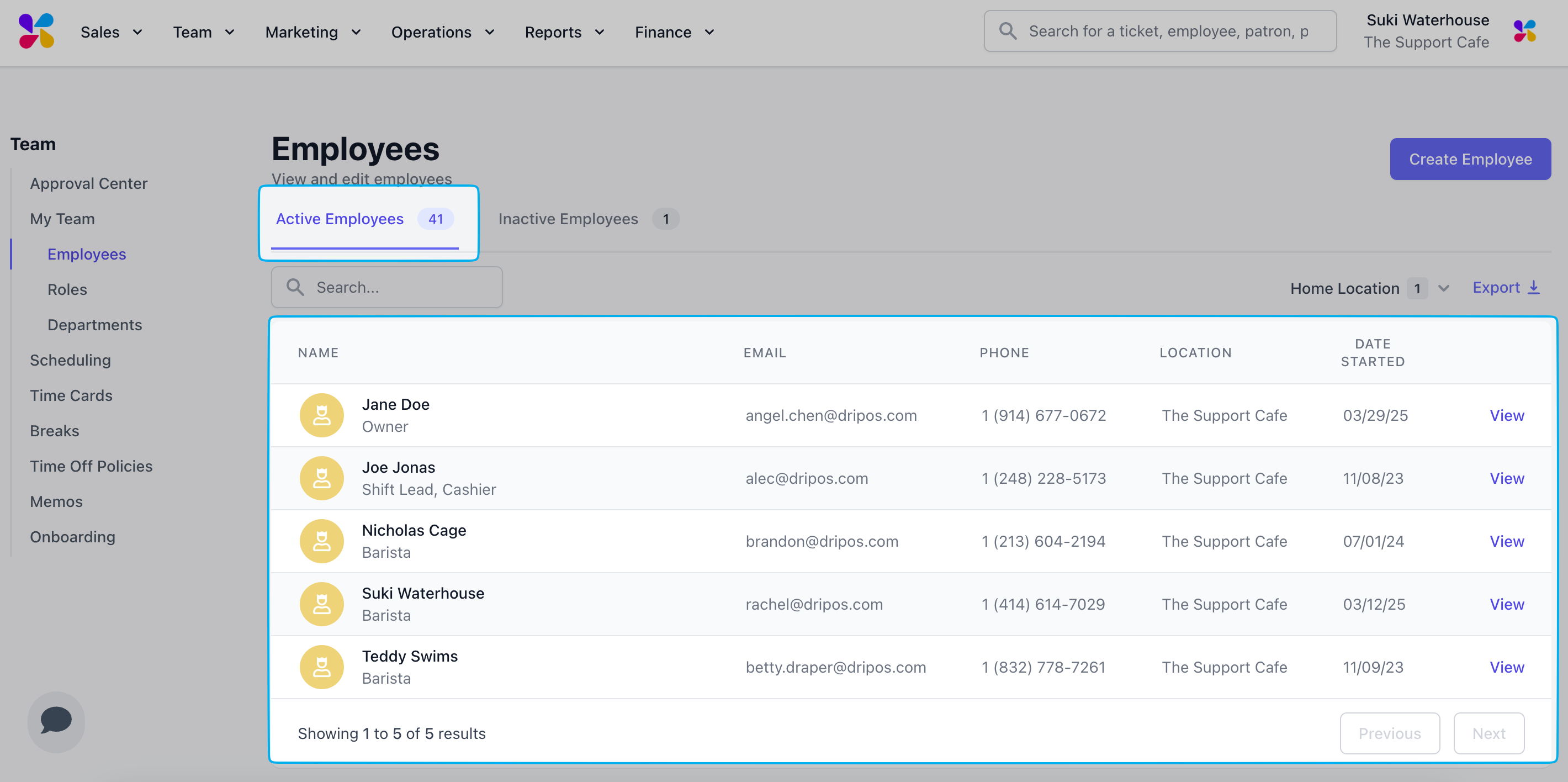
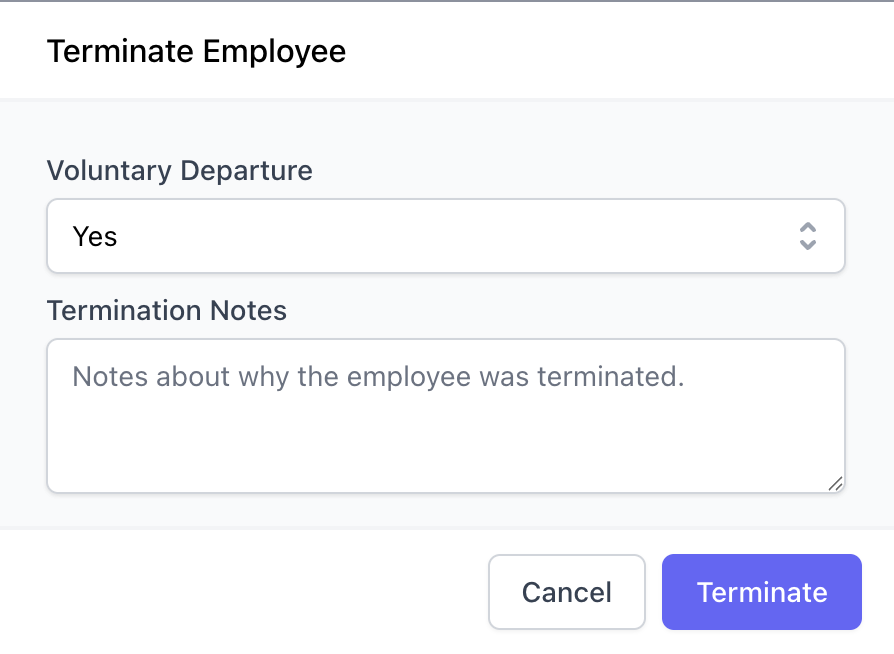 View all terminated employees in the **Inactive Employees** tab. An employee profile will always live in the Dripos system and can be reactivated at anytime.
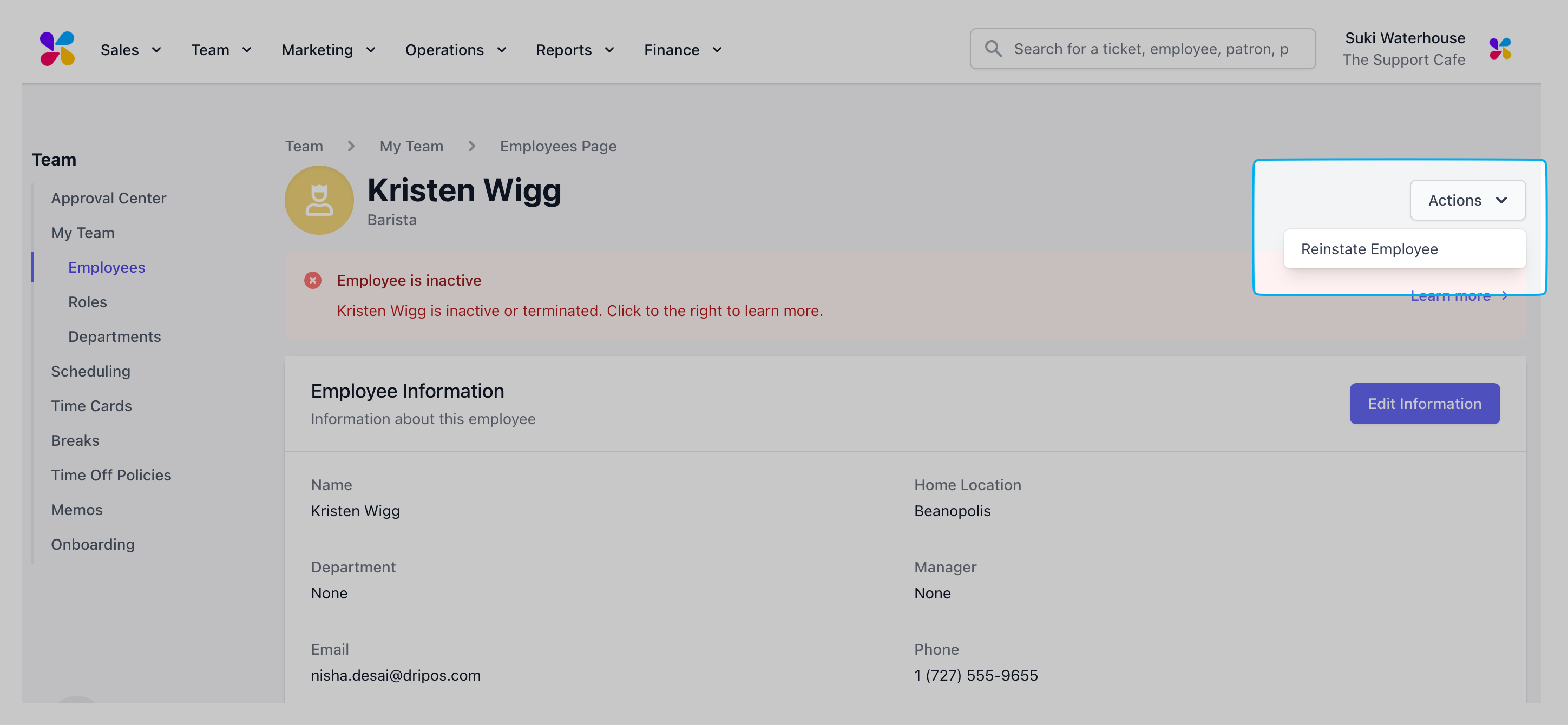
On the **Web Dashboard** click **Team** > **My Team** > **Employees** > **Inactive Employees**
View all terminated employees in the **Inactive Employees** tab. An employee profile will always live in the Dripos system and can be reactivated at anytime.
On the **Web Dashboard** click **Team** > **My Team** > **Employees** > **Inactive Employees**
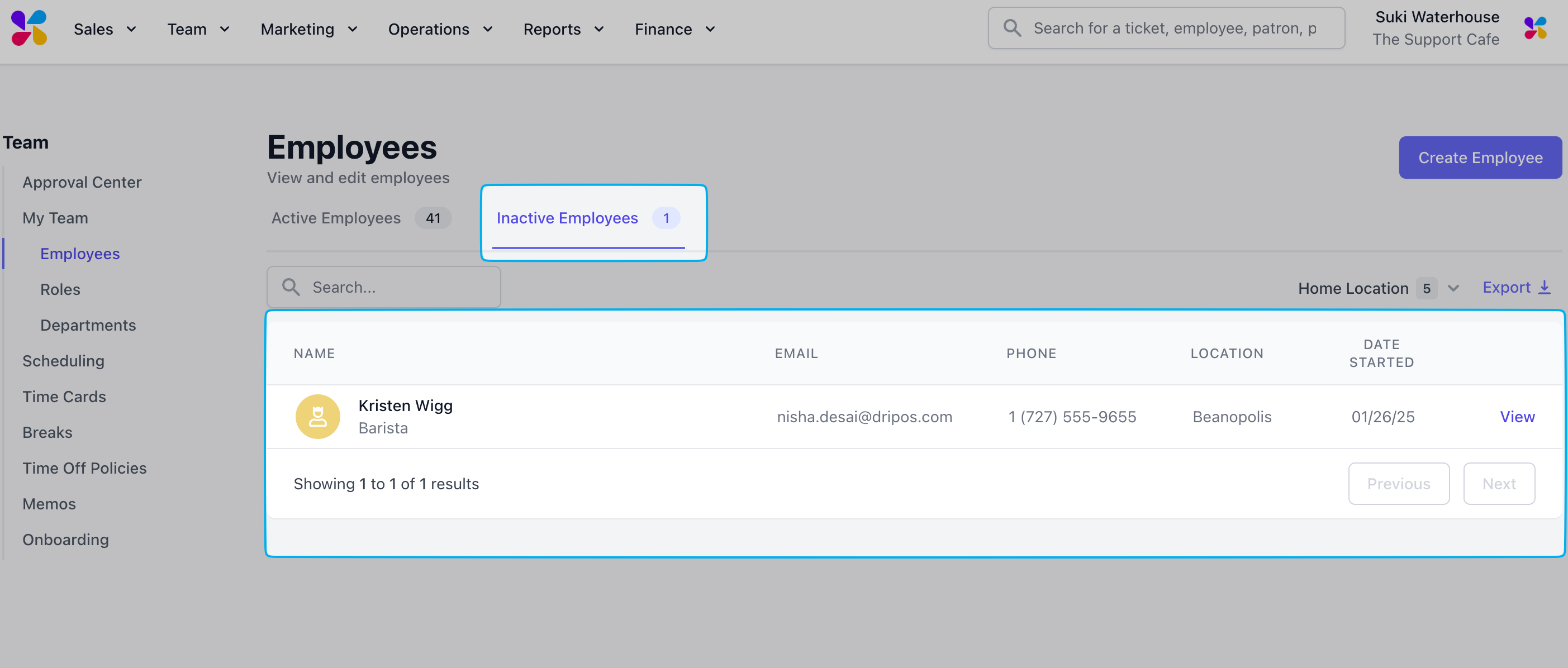 **View** employee > click **Action** > **Reinstate Employee**