> ## Documentation Index
> Fetch the complete documentation index at: https://support.dripos.com/llms.txt
> Use this file to discover all available pages before exploring further.
# Team Roles
> Create different roles to assign to employees
Roles must be created first, before adding an employee to the system.
## Create a Role
On the **Web Dashboard** click **Team** > **My Team** > **Roles** > **Add Role**
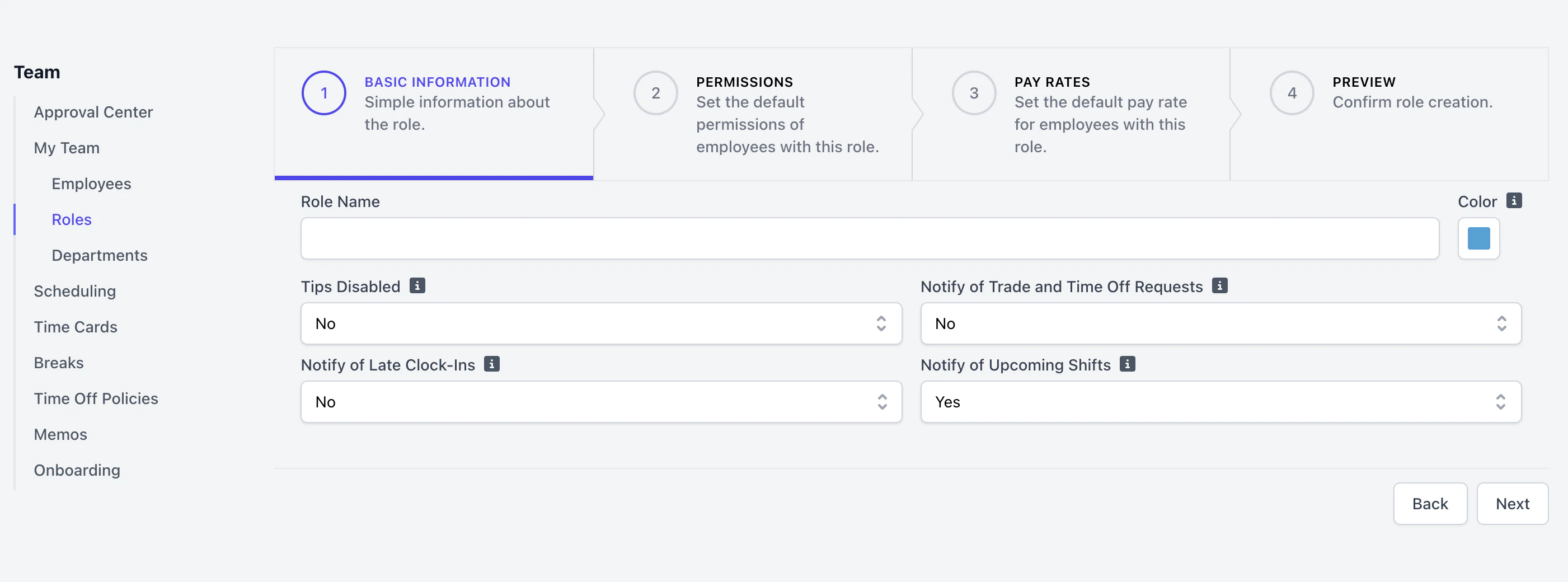 **Examples:** Barista, Cashier, Manager, Line Cook
Assign a color for this role on the scheduler
**No**: Employees clock in with this role will be included in the tipping pool
**Yes**: Employees clock in with this role will **not** be included in the tipping pool
Employees with this role will receive notifications for **all** trade and time off requests placed. This setting is mainly for Owner or Manager roles.
Select **No** for trade and time off request notifications **not** to be sent to employees with this role
Employees with this role will receive notifications for **all** late clock ins. This setting is mainly for Owner or Manager roles.
Select **No** for late clock in notifications **not** to be sent to employees with this role
Employees with this role will receive Hub app push notifications for upcoming shifts within the next 2 hours.
Select **No** for Hub app notifications **not** to be sent to employees with this role
The role must be created before this setting is visible. **Create** role > **Edit** role to see this option.
Employees with this role will receive notifications when a shift is put up for grabs.
Select **No** for up for grab shift notifications **not** to be sent to employees with this role
Employees with this role will receive notifications when an up for grabs shift is claimed and needs approval. This setting is mainly for Owner or Manager roles.
Select **No** for claimed up for grab shift notifications **not** to be sent to employees with this role
This is an optional step in the role creation process, and can always be modified after the role has been created.
See [here](/team/setup/setup-permissions) for more information on permissions.
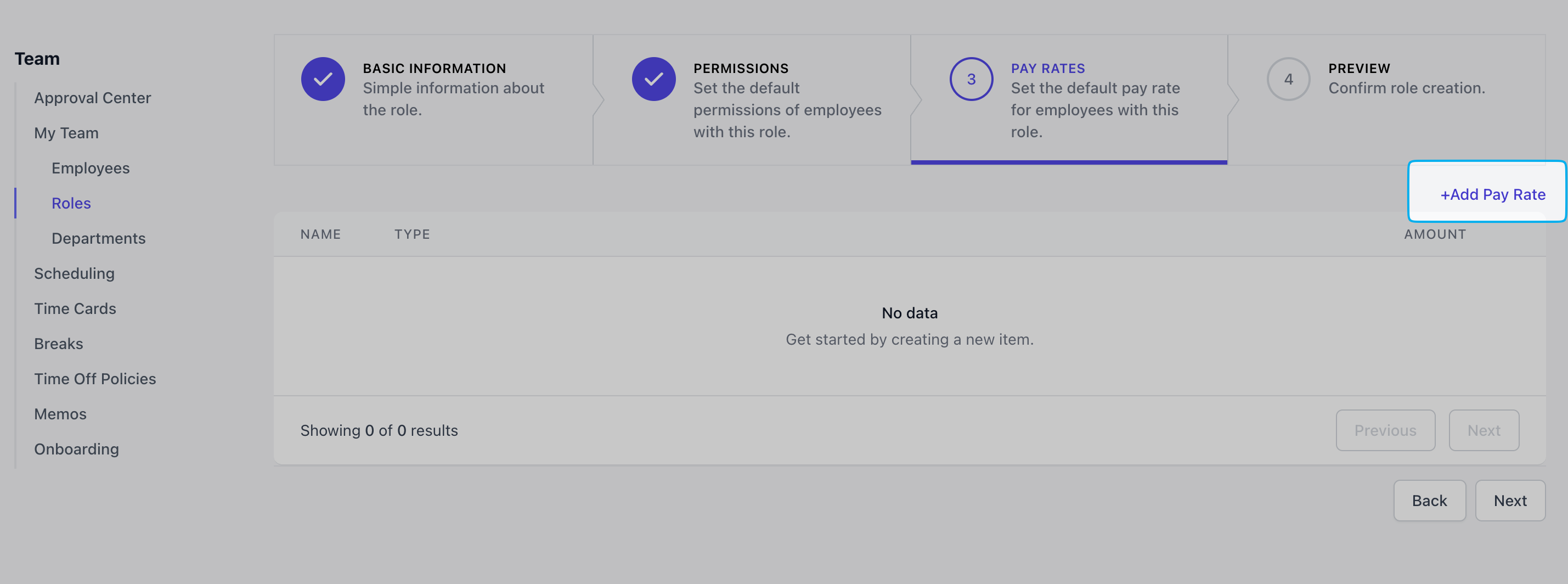
Click **Add Pay Rate** to set the default pay rate for employees with this role.
Multiple rates are allowed and a default can be select within an employee's profile if applicable.
**Examples:** Barista, Cashier, Manager, Line Cook
Assign a color for this role on the scheduler
**No**: Employees clock in with this role will be included in the tipping pool
**Yes**: Employees clock in with this role will **not** be included in the tipping pool
Employees with this role will receive notifications for **all** trade and time off requests placed. This setting is mainly for Owner or Manager roles.
Select **No** for trade and time off request notifications **not** to be sent to employees with this role
Employees with this role will receive notifications for **all** late clock ins. This setting is mainly for Owner or Manager roles.
Select **No** for late clock in notifications **not** to be sent to employees with this role
Employees with this role will receive Hub app push notifications for upcoming shifts within the next 2 hours.
Select **No** for Hub app notifications **not** to be sent to employees with this role
The role must be created before this setting is visible. **Create** role > **Edit** role to see this option.
Employees with this role will receive notifications when a shift is put up for grabs.
Select **No** for up for grab shift notifications **not** to be sent to employees with this role
Employees with this role will receive notifications when an up for grabs shift is claimed and needs approval. This setting is mainly for Owner or Manager roles.
Select **No** for claimed up for grab shift notifications **not** to be sent to employees with this role
This is an optional step in the role creation process, and can always be modified after the role has been created.
See [here](/team/setup/setup-permissions) for more information on permissions.
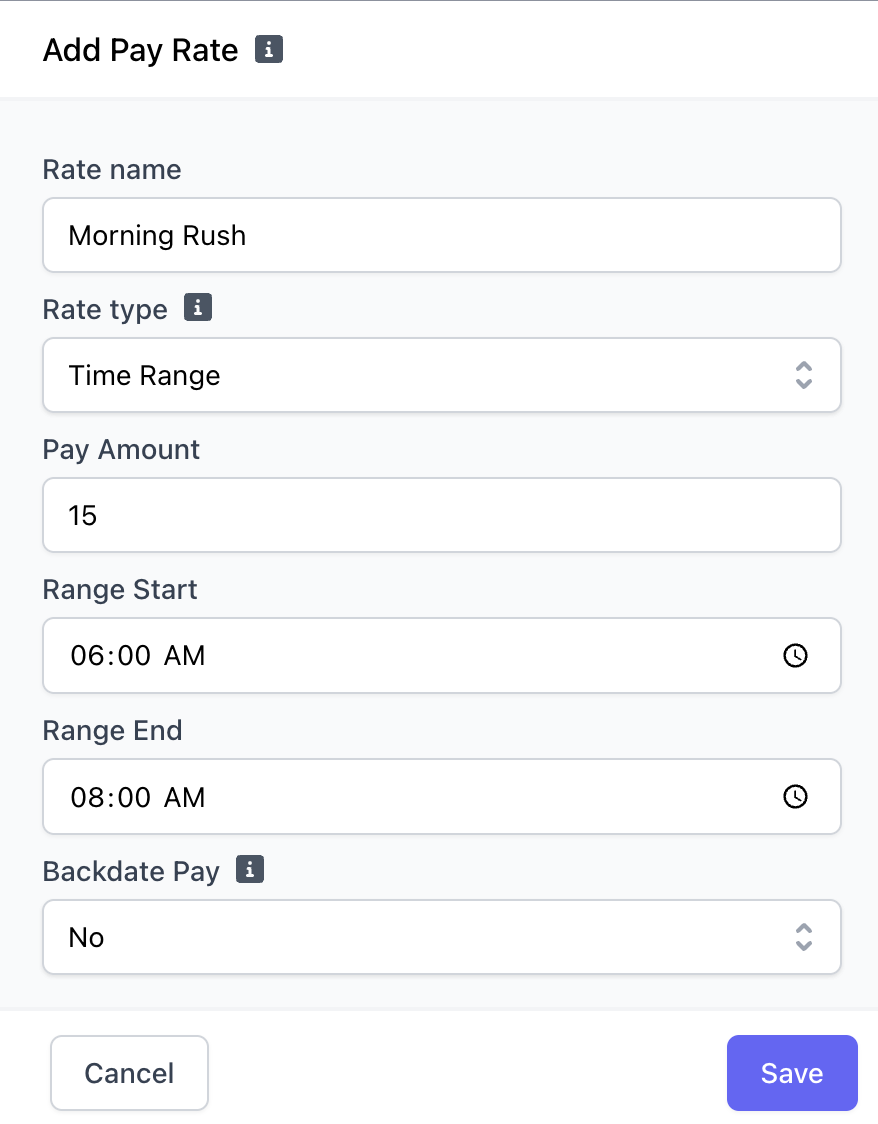
Click **Add Pay Rate** to set the default pay rate for employees with this role.
Multiple rates are allowed and a default can be select within an employee's profile if applicable.
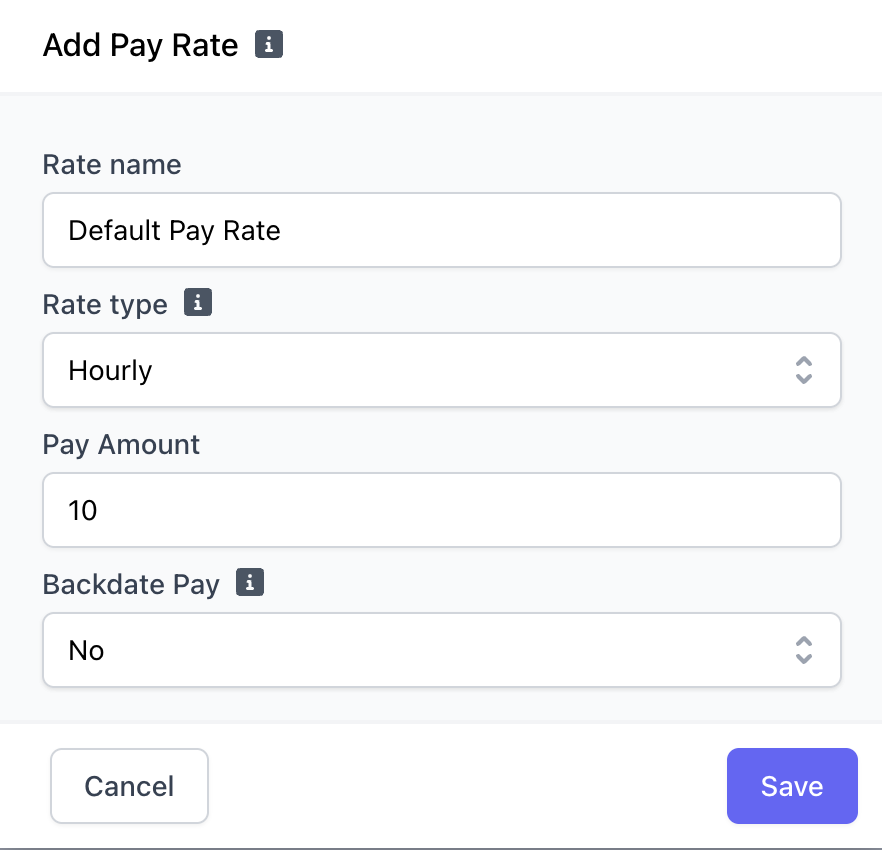 **Hourly**: Dollar amount earned per hour clocked in with this role
**Time Range**: Hourly rate to pay employees during a specifically time during the day
*(Example: employees in this role working the morning rush from 6AM-8AM are paid a rate that is 1.5x higher than the typically hourly rate)*
**Hourly**: Dollar amount earned per hour clocked in with this role
**Time Range**: Hourly rate to pay employees during a specifically time during the day
*(Example: employees in this role working the morning rush from 6AM-8AM are paid a rate that is 1.5x higher than the typically hourly rate)*
 ***
## Edit a Role
Edit an existing role and its components at any time
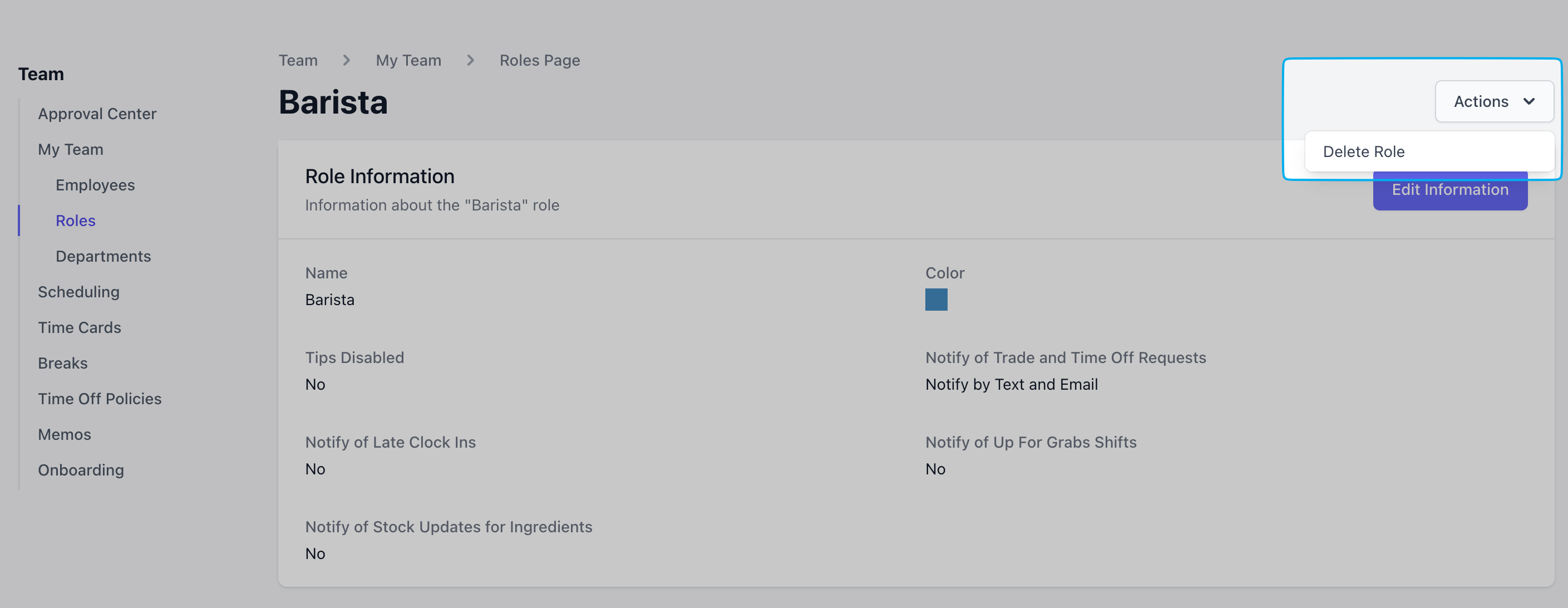
On the **Web Dashboard** click **Team** > **My Team** > **Roles** > **Edit** a role
Click the **Edit Information** button to edit the basic role information.
***
## Edit a Role
Edit an existing role and its components at any time
On the **Web Dashboard** click **Team** > **My Team** > **Roles** > **Edit** a role
Click the **Edit Information** button to edit the basic role information.
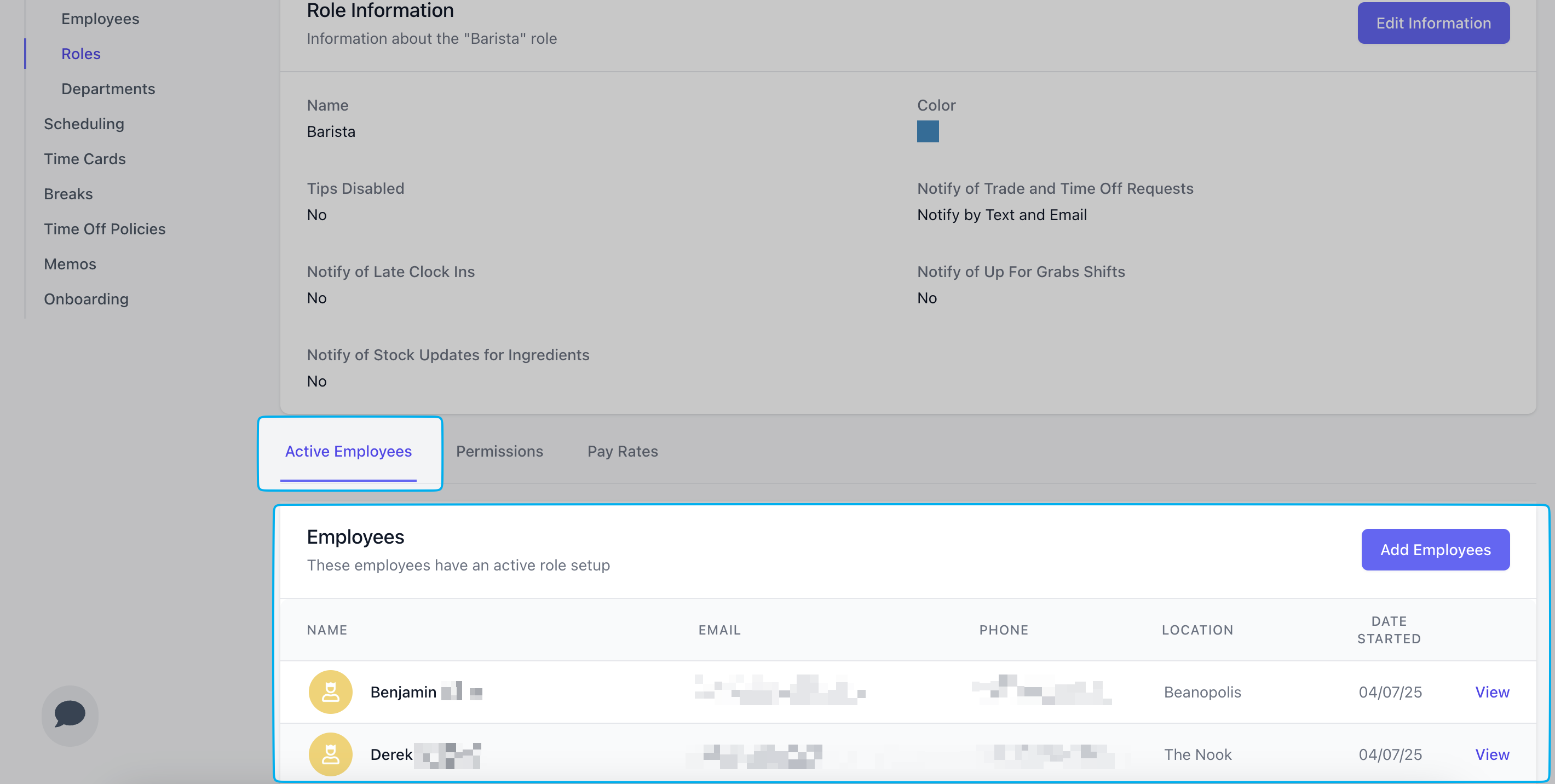
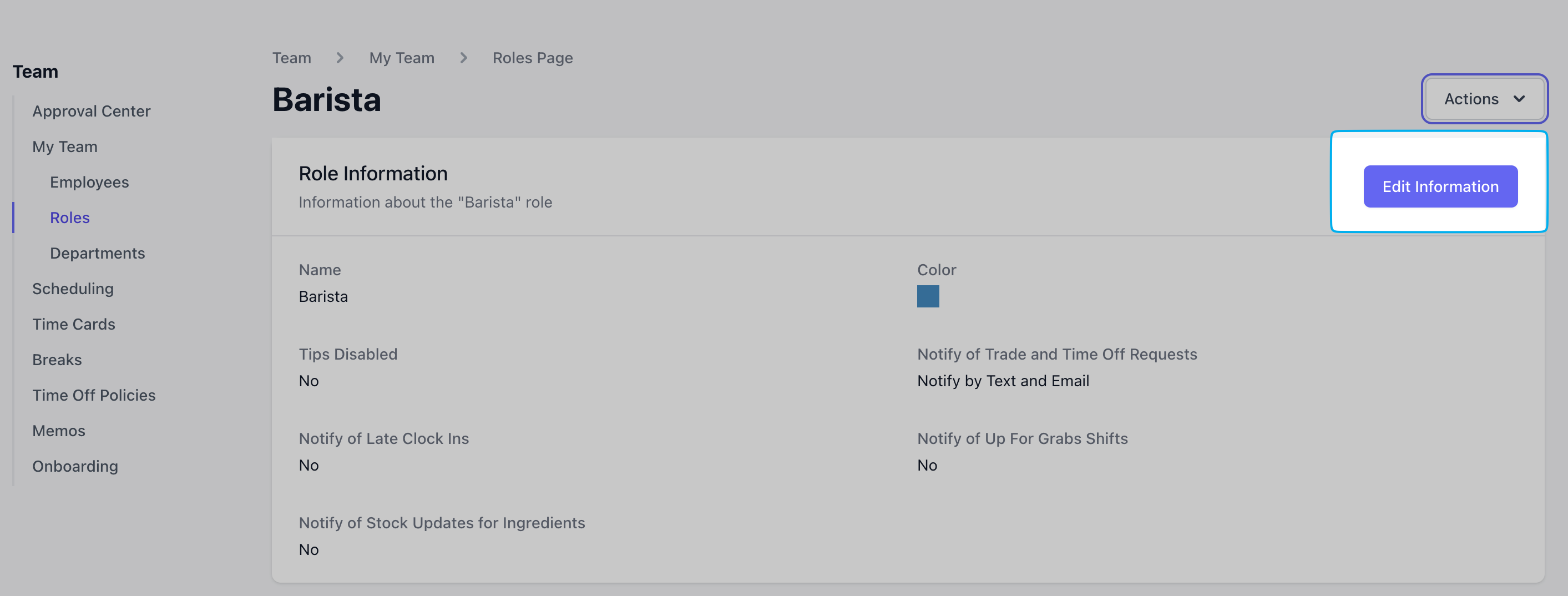 Add employees to this role by clicking **Add Employee**
Remove a roll by clicking **View** on the employee > scroll to the bottom of their employee page to **Roles** > **Edit** role > **Remove**
Add employees to this role by clicking **Add Employee**
Remove a roll by clicking **View** on the employee > scroll to the bottom of their employee page to **Roles** > **Edit** role > **Remove**
 See [here](/team/setup/setup-permissions) for more information on permissions.
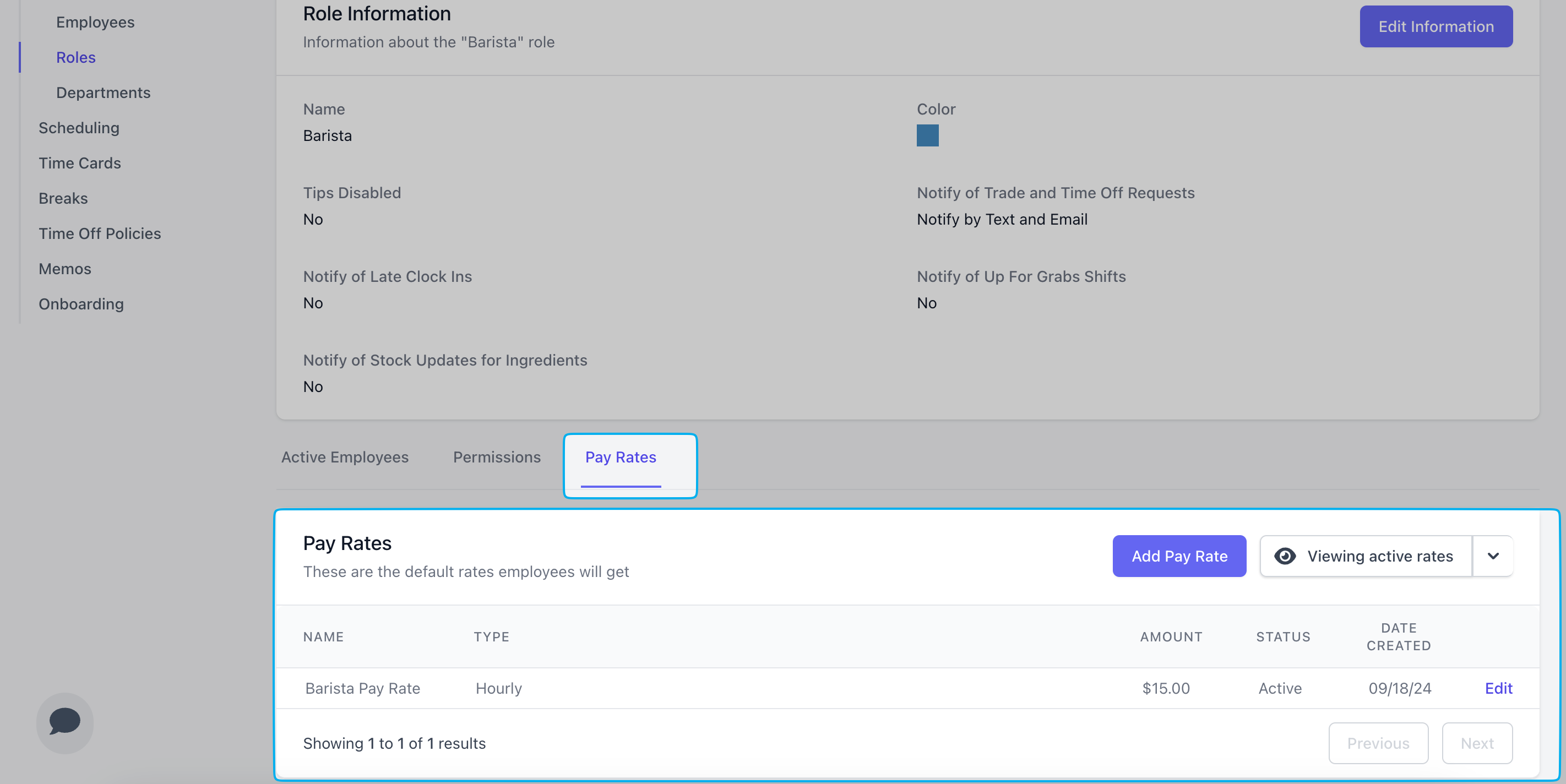
Add another pay rate to this role by clicking **Add Pay Rate**
Edit an existing pay rate by clicking **Edit** and alter the fields as needed > **Save**
Remove a pay rate from this role by clicking **Edit** > **Delete**
See [here](/team/setup/setup-permissions) for more information on permissions.
Add another pay rate to this role by clicking **Add Pay Rate**
Edit an existing pay rate by clicking **Edit** and alter the fields as needed > **Save**
Remove a pay rate from this role by clicking **Edit** > **Delete**
 To delete a role, click **Actions** > **Delete Role**