> ## Documentation Index
> Fetch the complete documentation index at: https://support.dripos.com/llms.txt
> Use this file to discover all available pages before exploring further.
# Time Card Settings
> Configure your timecard settings for your employees
Access Time Card settings from the [Dashboard](https://dashboard.dripos.com/settings?tab=auto-approval) and the Point of Sale.
## Dashboard Settings
Click the settings icon > click **Settings** > click **Time Cards**
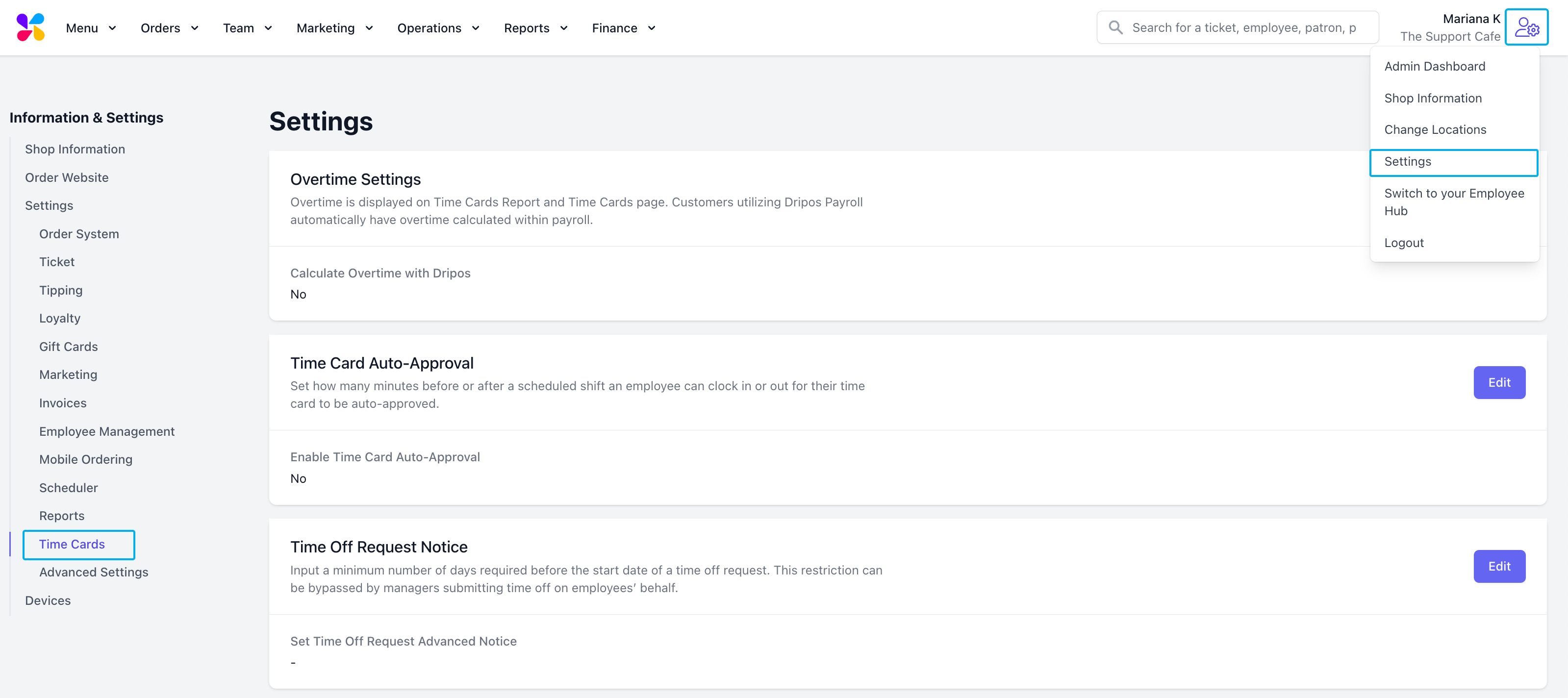 **Calculate Overtime with Dripos**
If enabled, Dripos will apply a 1.5x overtime rate to employee time cards for all hours worked past 40 hours per week.
Overtime is automatically calculated for customers utilizing Dripos Payroll.
**Time Card Auto-Approval**
If enabled, time cards will automatically be approved if clocked-in and clocked-out within **x** minutes of the scheduled shift. Otherwise, the time card will appear in the Approval Center for review.
**Calculate Overtime with Dripos**
If enabled, Dripos will apply a 1.5x overtime rate to employee time cards for all hours worked past 40 hours per week.
Overtime is automatically calculated for customers utilizing Dripos Payroll.
**Time Card Auto-Approval**
If enabled, time cards will automatically be approved if clocked-in and clocked-out within **x** minutes of the scheduled shift. Otherwise, the time card will appear in the Approval Center for review.
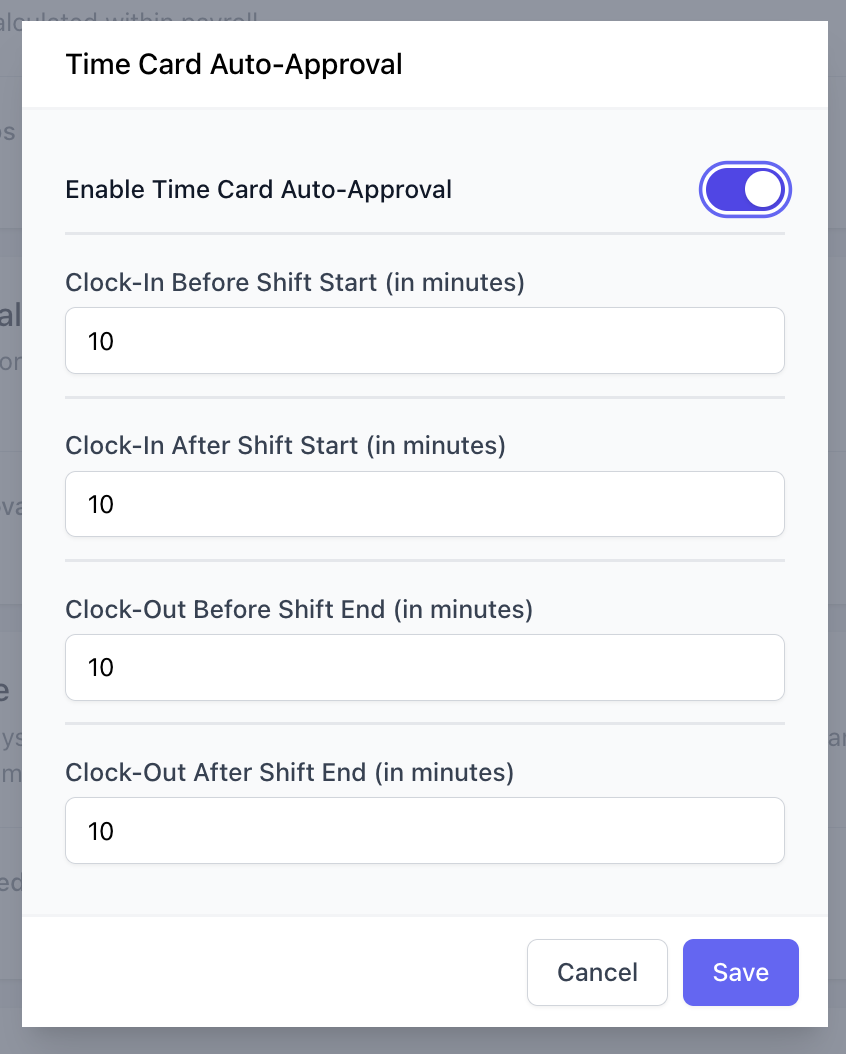 If a time card is edited but within the time card auto-approval time windows, it will appear in the Approval Center for review.
> **Clock-In Before Shift Start:** Number of minutes early an employee can clock in for a shift to be auto-approved.
>
> **Clock-In After Shift Start:** Number of minutes late an employee can clock in for a shift to be auto-approved.
>
> **Clock-Out Before Shift End:** Number of minutes early an employee can clock out for a shift to be auto-approved.
>
> **Clock-Out After Shift End:** Number of minutes late an employee can clock out for a shift to be auto-approved.
**Time Off Request Notice**
**Set Time Off Request Advanced Notice:** Set the minimum number of days in advance an employee must submit a time off request before the request’s start date.
This restriction can be bypassed by managers submitting time off on employees’ behalf.
**Approval Center Settings**
**Enable No Pay Time Card Approval**: If enabled, time cards with no pay rates attached will be approved when “approve all” selected in the Approval Center.
***
## Point of Sale Settings
If a time card is edited but within the time card auto-approval time windows, it will appear in the Approval Center for review.
> **Clock-In Before Shift Start:** Number of minutes early an employee can clock in for a shift to be auto-approved.
>
> **Clock-In After Shift Start:** Number of minutes late an employee can clock in for a shift to be auto-approved.
>
> **Clock-Out Before Shift End:** Number of minutes early an employee can clock out for a shift to be auto-approved.
>
> **Clock-Out After Shift End:** Number of minutes late an employee can clock out for a shift to be auto-approved.
**Time Off Request Notice**
**Set Time Off Request Advanced Notice:** Set the minimum number of days in advance an employee must submit a time off request before the request’s start date.
This restriction can be bypassed by managers submitting time off on employees’ behalf.
**Approval Center Settings**
**Enable No Pay Time Card Approval**: If enabled, time cards with no pay rates attached will be approved when “approve all” selected in the Approval Center.
***
## Point of Sale Settings
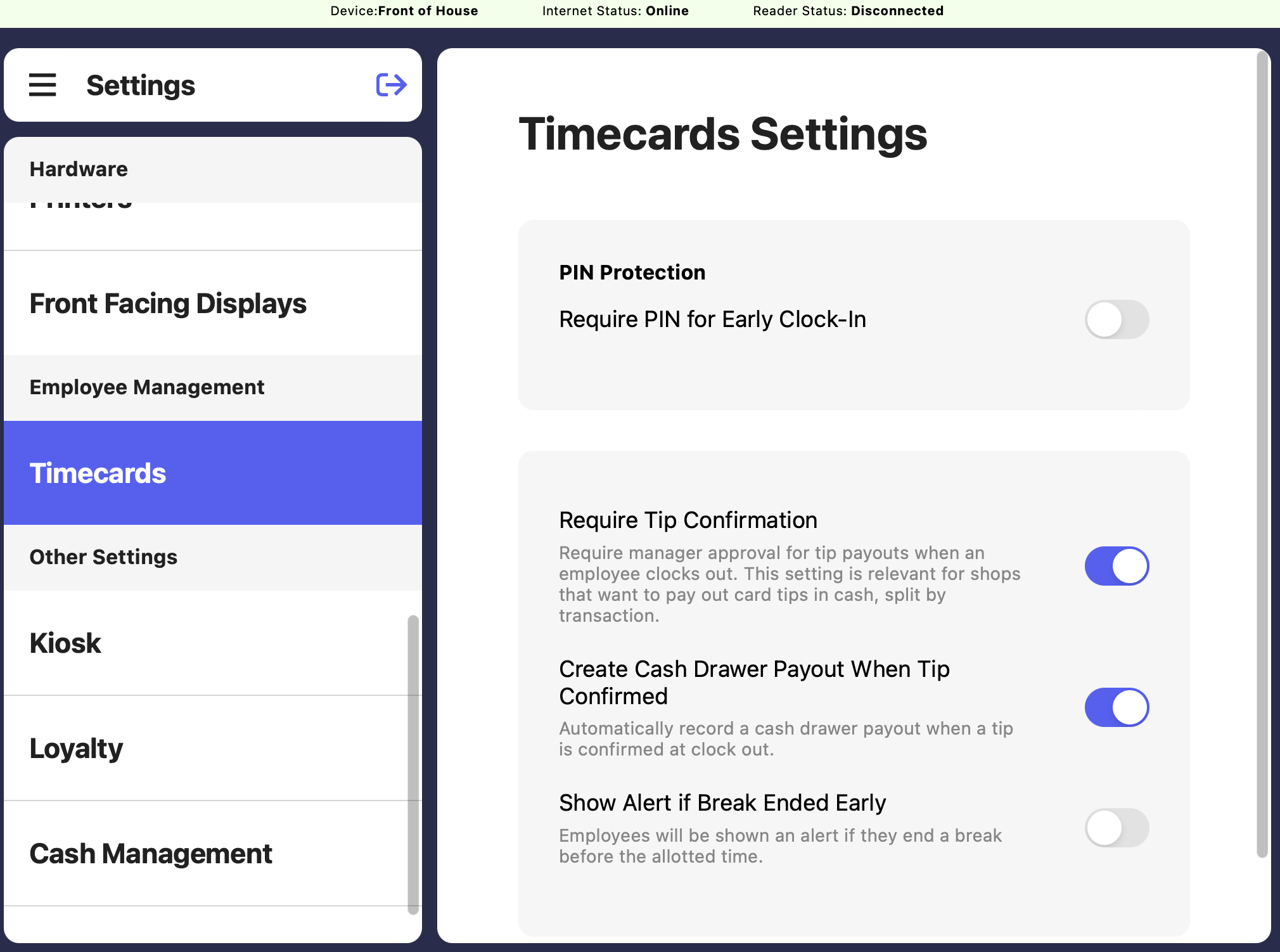 If enabled, employee must enter manager’s PIN if they clock in early for their shift.
If enabled, manager pin must be entered to approve tip payouts when an employee clocks out.
*Relevant for shops that pay out credit card tips in cash.*
If enabled, tip payouts will automatically create a cash drawer payout at the end of employees shift.
*Relevant for shops that pay out credit card tips in cash.*
If enabled, employees will receive an alert if they end a break before the alloted time.
If enabled, employee must enter manager’s PIN if they clock in early for their shift.
If enabled, manager pin must be entered to approve tip payouts when an employee clocks out.
*Relevant for shops that pay out credit card tips in cash.*
If enabled, tip payouts will automatically create a cash drawer payout at the end of employees shift.
*Relevant for shops that pay out credit card tips in cash.*
If enabled, employees will receive an alert if they end a break before the alloted time.