> ## Documentation Index
> Fetch the complete documentation index at: https://support.dripos.com/llms.txt
> Use this file to discover all available pages before exploring further.
# Time Cards
> Keep track of hours worked & tips earned by your employees with Time Cards
## Create a Time Card
Time cards are created when an employee clocks in and out for a shift.
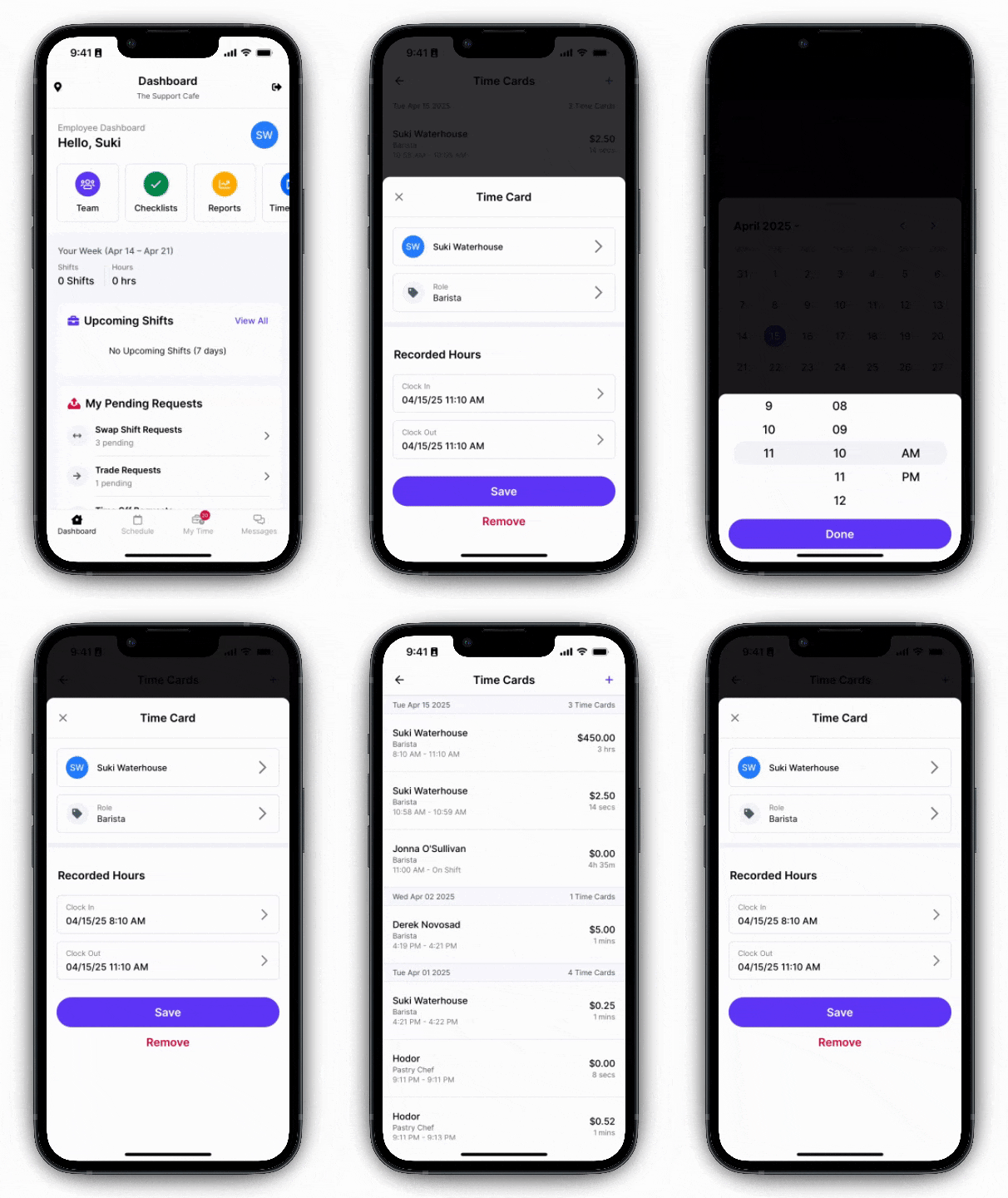
Time cards can also be created manually by the employer from the Web Dashboard or the Hub app.
### Using the Time Clock
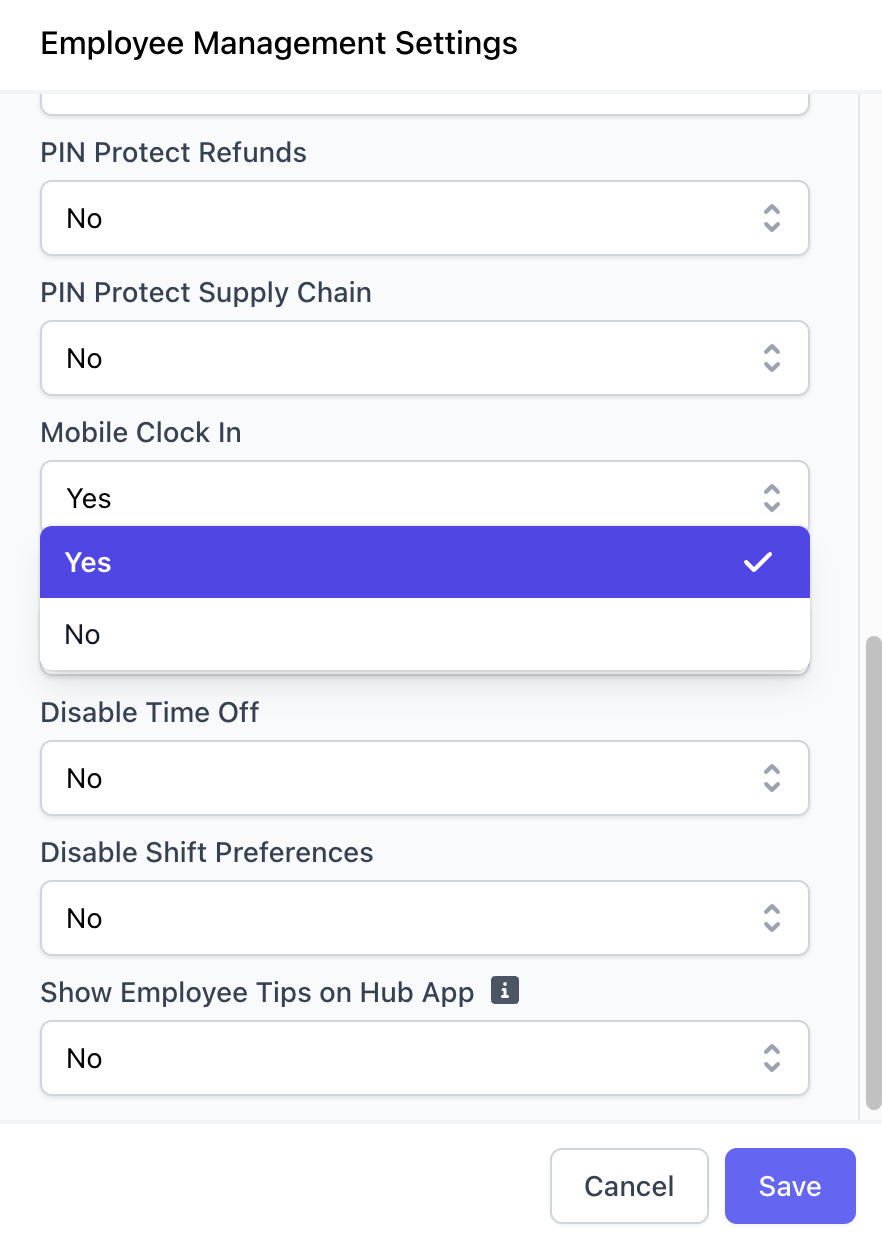
To allow only specific employees to clock in via the Hub App, enable the Mobile Clock In permission instead. Learn more about Team permissions [here](team/setup/setup-permissions#team).
To allow for **all** employees to clock in using the Hub App:
On the Web Dashboard click the **Dripos logo** in the upper right corner > **Settings** > **Employee Management**
Click **Edit** > **Mobile Clock In** = **Yes** > **Save**
 ### Manual Creation
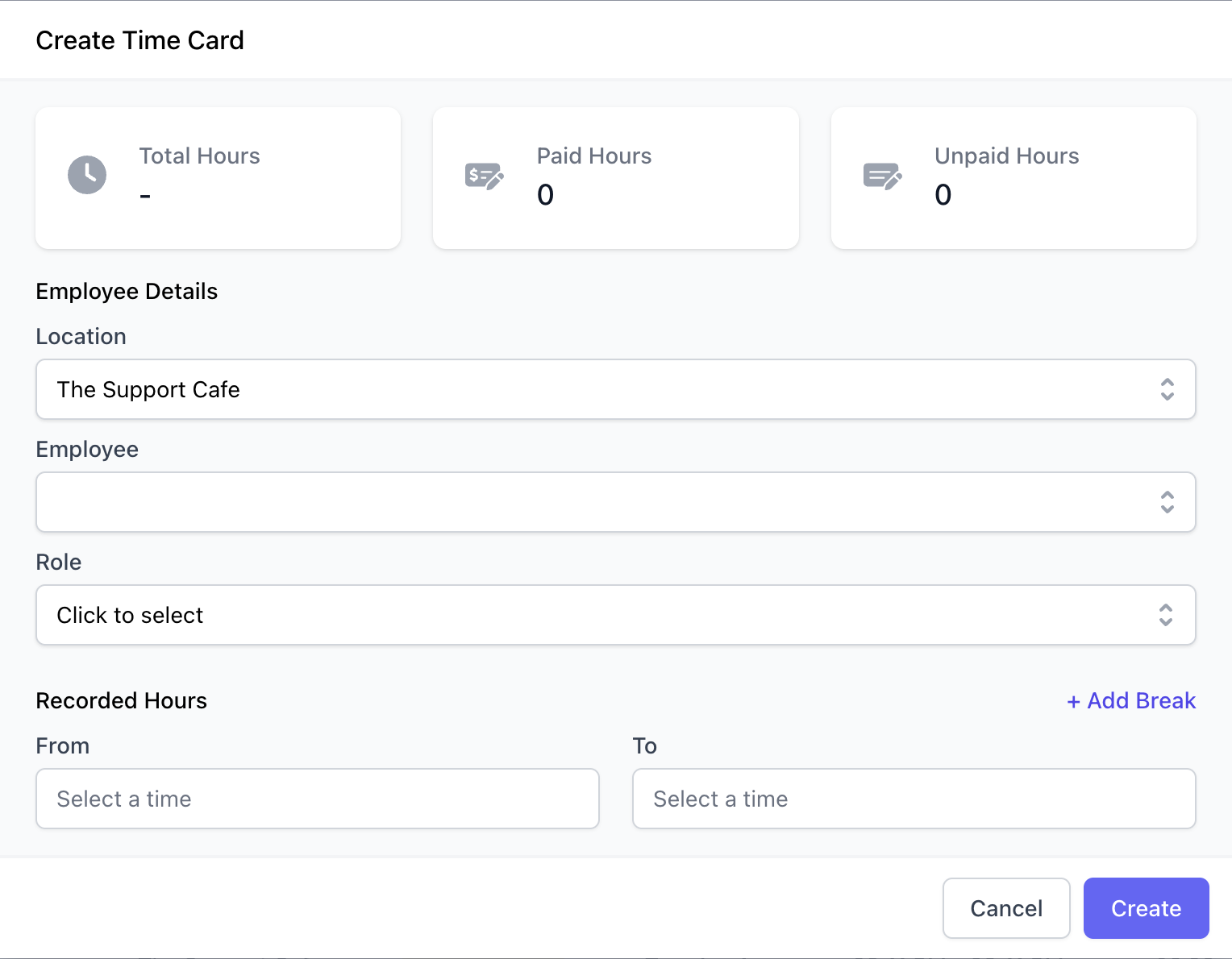
Did an employee forget to clock in today? No worries! You can easily create a time card with their correct start—and end—time, if needed.
If this time card should be included in the tip pool, make sure to resave each time card from that day to reallocate tips accordingly.
Click **Team** > **Time Management** > **Create**
Complete the following fields.
If the employee is still clocked in, leave the **To** field blank.
### Manual Creation
Did an employee forget to clock in today? No worries! You can easily create a time card with their correct start—and end—time, if needed.
If this time card should be included in the tip pool, make sure to resave each time card from that day to reallocate tips accordingly.
Click **Team** > **Time Management** > **Create**
Complete the following fields.
If the employee is still clocked in, leave the **To** field blank.
 If the employee is still clocked in, leave the **Clock Out** field blank.
***
## Time Card Components
Learn what makes up a Dripos time card.
If the employee is still clocked in, leave the **Clock Out** field blank.
***
## Time Card Components
Learn what makes up a Dripos time card.
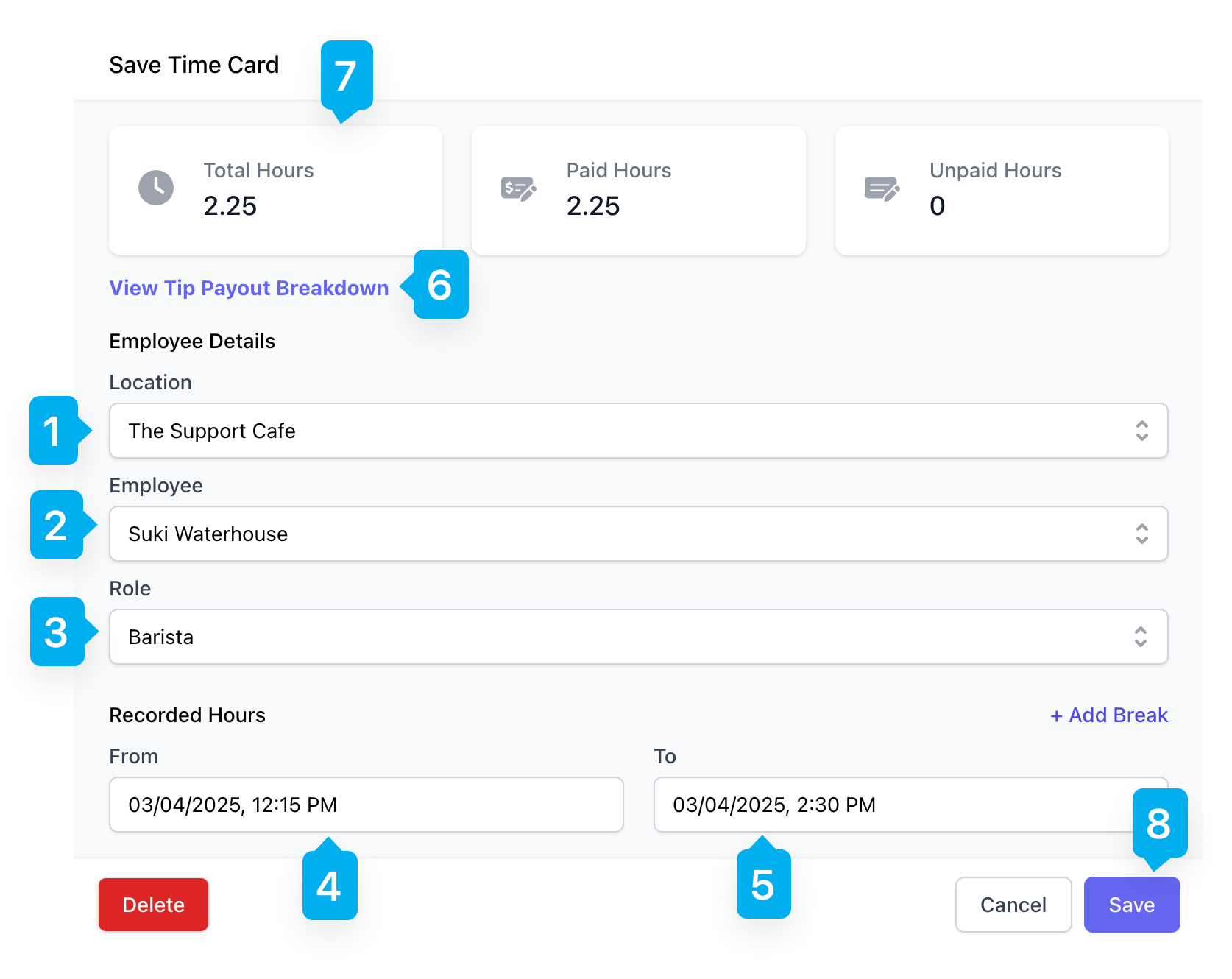 **Location**
The shop that this employee clocked in at
**Employee**
The employee whose time card this is
**Role**
The role the employee was clocked in as
**From**
The clock-in time
**To**
The clock-out time
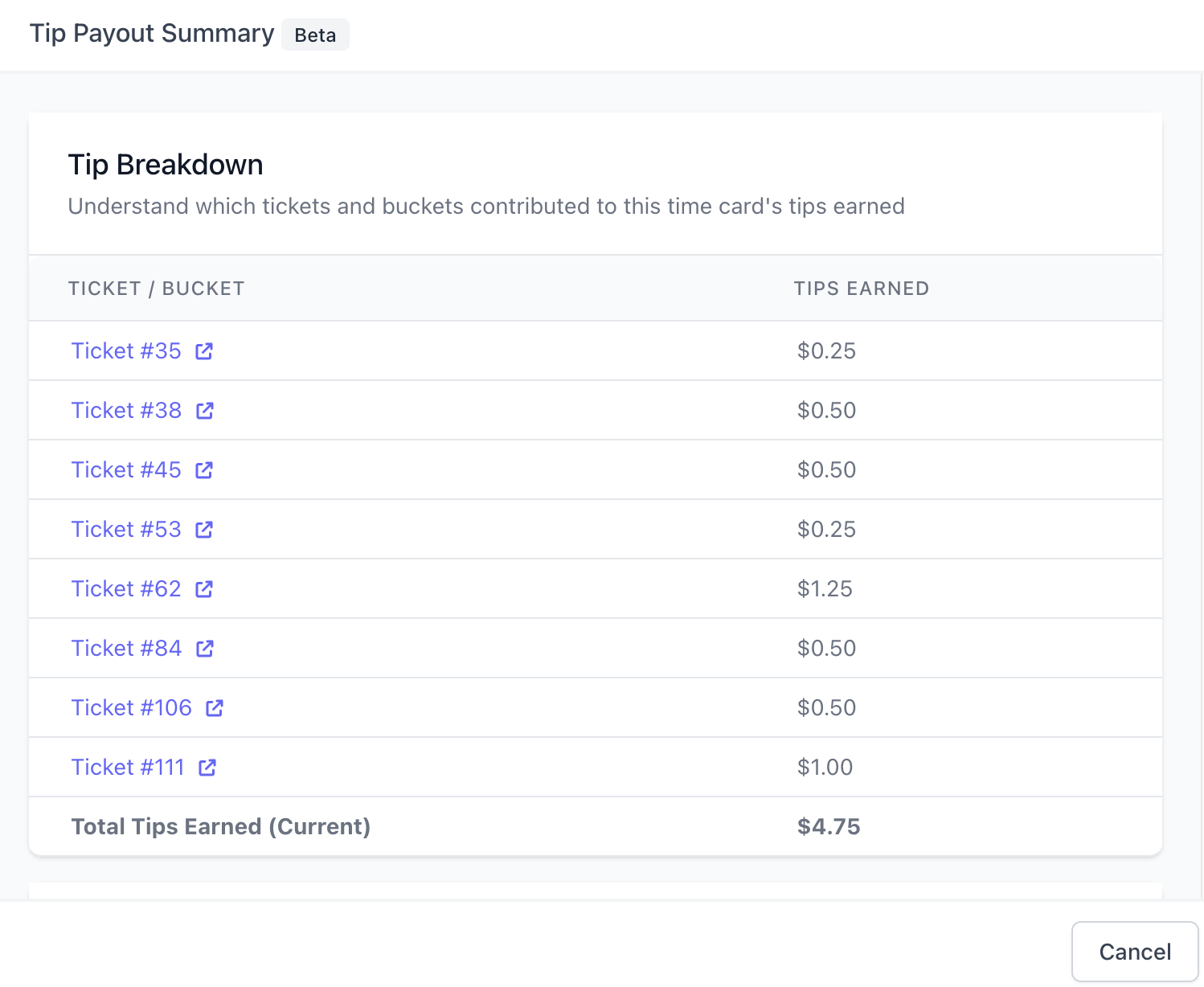
**View Tip Payout Breakdown**
View the tips the employee earned during this shift
The tip payout displayed on a time card will be calculated as tips split by transaction. Learn more about tip splitting methods [here](/orders/tipping/tipping-split#tip-splitting-methods).
**Location**
The shop that this employee clocked in at
**Employee**
The employee whose time card this is
**Role**
The role the employee was clocked in as
**From**
The clock-in time
**To**
The clock-out time
**View Tip Payout Breakdown**
View the tips the employee earned during this shift
The tip payout displayed on a time card will be calculated as tips split by transaction. Learn more about tip splitting methods [here](/orders/tipping/tipping-split#tip-splitting-methods).
 **Total Hours**
The duration of this shift in hours
**Save**
To save changes made to a time card, or to simply resave a time card, click **Save**
***
## View and Manage Time Cards
Review, edit, and understand tip breakdowns within employee time cards from multiple places within Dripos.
If editing a time card will affect how the tip pool is divided, make sure to resave each time card from that day to reallocate tips accordingly.
### Time Cards Page
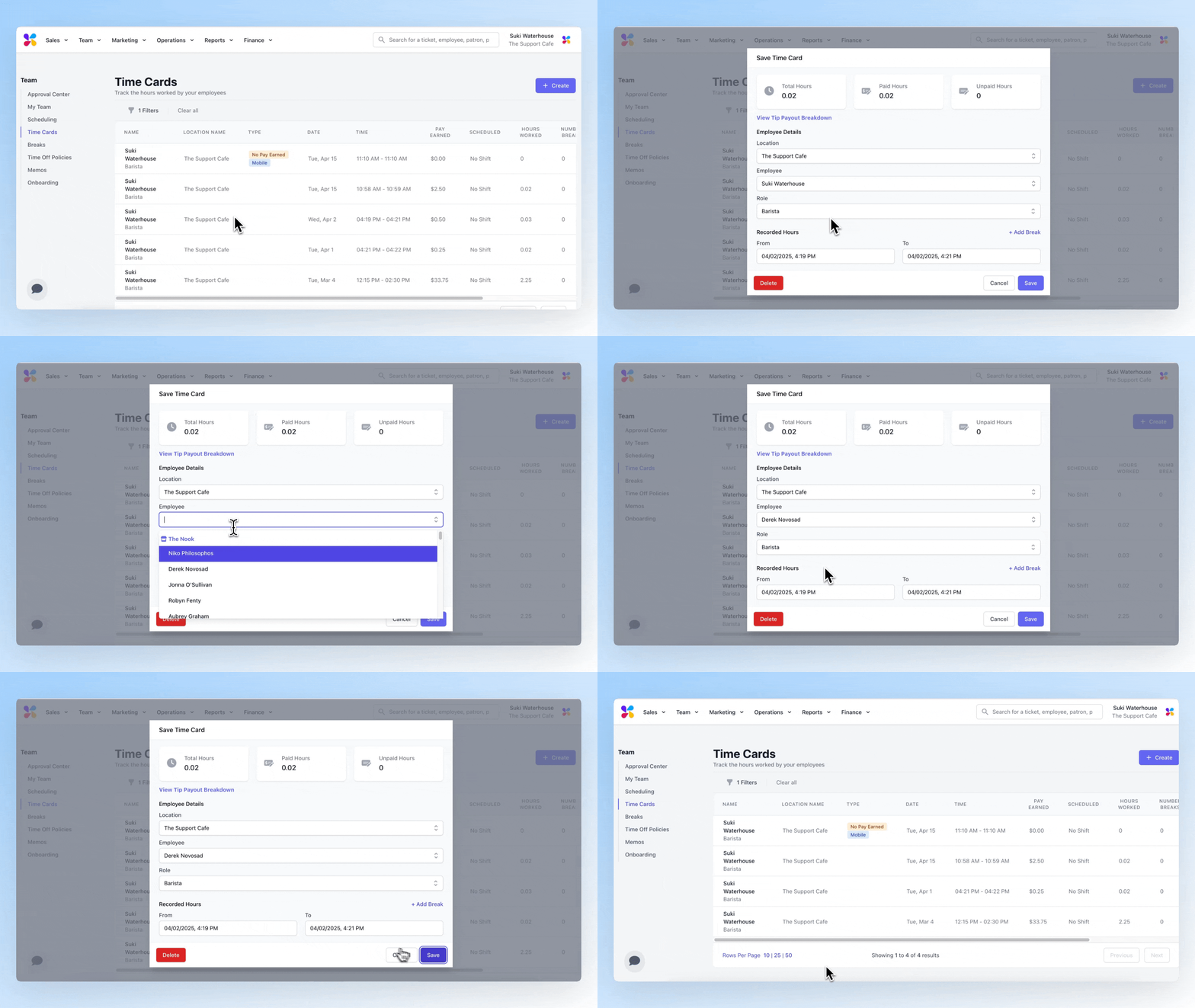
View and manage time cards from the [Time Cards](https://dashboard.dripos.com/cards) page on the Web Dashboard.
(Team > Time Management)
Filter the Time Cards page by employee name, role, date range, and location.
Edit a time card's location, employee, role, and clock in & out times.
View the tips earned on the time card by clicking **View Tip Payout Breakdown**
**Total Hours**
The duration of this shift in hours
**Save**
To save changes made to a time card, or to simply resave a time card, click **Save**
***
## View and Manage Time Cards
Review, edit, and understand tip breakdowns within employee time cards from multiple places within Dripos.
If editing a time card will affect how the tip pool is divided, make sure to resave each time card from that day to reallocate tips accordingly.
### Time Cards Page
View and manage time cards from the [Time Cards](https://dashboard.dripos.com/cards) page on the Web Dashboard.
(Team > Time Management)
Filter the Time Cards page by employee name, role, date range, and location.
Edit a time card's location, employee, role, and clock in & out times.
View the tips earned on the time card by clicking **View Tip Payout Breakdown**
 ### Employee Page
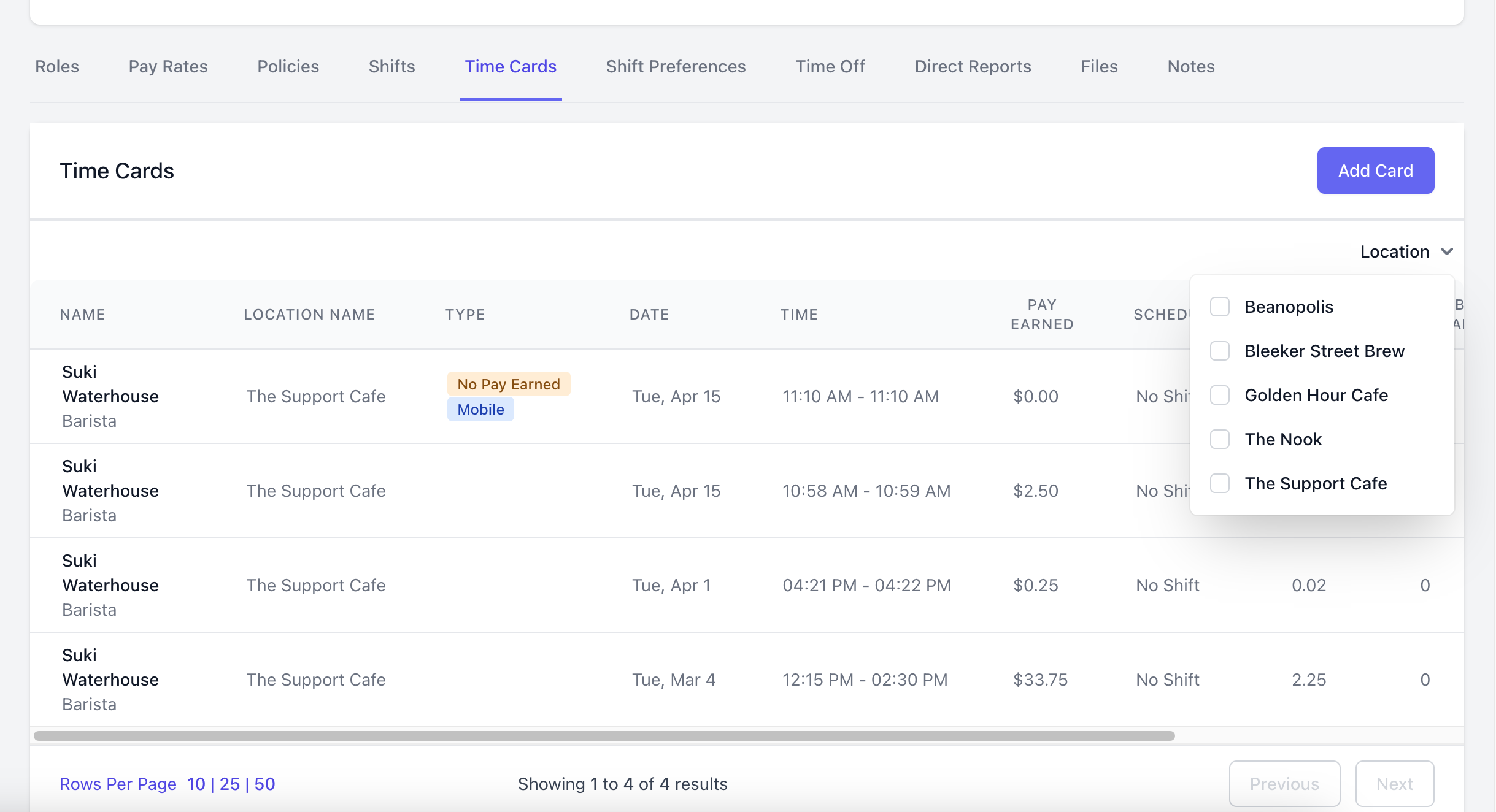
View and manage time cards from an Employee profile on the Web Dashboard
(Team > My Team > Employees > View Employee)
Filter time cards by location
### Employee Page
View and manage time cards from an Employee profile on the Web Dashboard
(Team > My Team > Employees > View Employee)
Filter time cards by location
 Edit a time card's location, employee, role, and clock in & out times.
View the tips earned on the time card by clicking **View Tip Payout Breakdown**
Edit a time card's location, employee, role, and clock in & out times.
View the tips earned on the time card by clicking **View Tip Payout Breakdown**
 ### Time Card Report
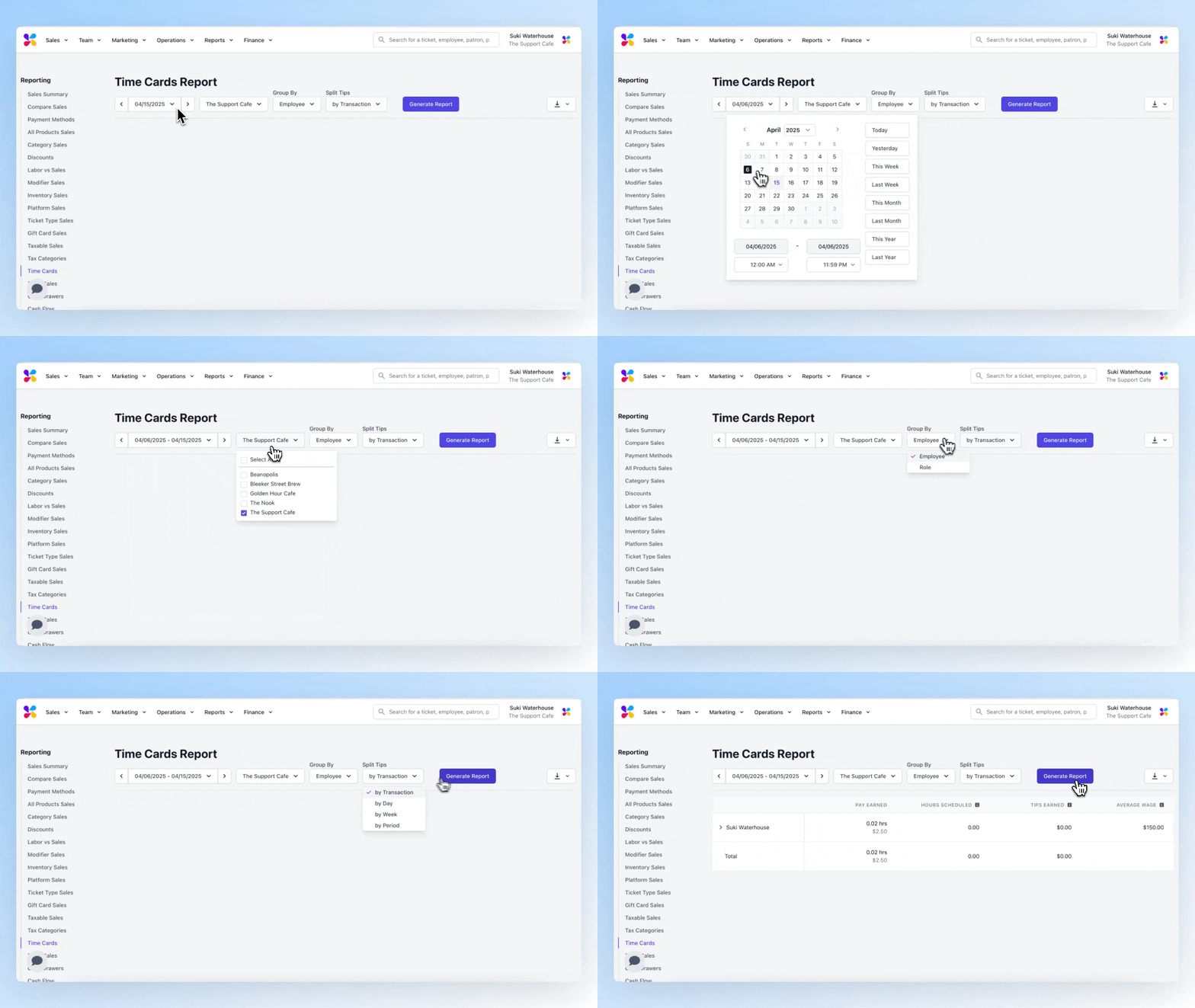
View and manage time cards from the [Time Card Report](https://dashboard.dripos.com/reports/time-cards) on the Web Dashboard
(Finance > Reports > Time Cards)
Filter the Time Card report by date, location, employee or role, and tip splitting methods
### Time Card Report
View and manage time cards from the [Time Card Report](https://dashboard.dripos.com/reports/time-cards) on the Web Dashboard
(Finance > Reports > Time Cards)
Filter the Time Card report by date, location, employee or role, and tip splitting methods
 Edit a time card's location, employee, role, and clock in & out times.
View the tips earned on the time card by clicking **View Tip Payout Breakdown**
Edit a time card's location, employee, role, and clock in & out times.
View the tips earned on the time card by clicking **View Tip Payout Breakdown**
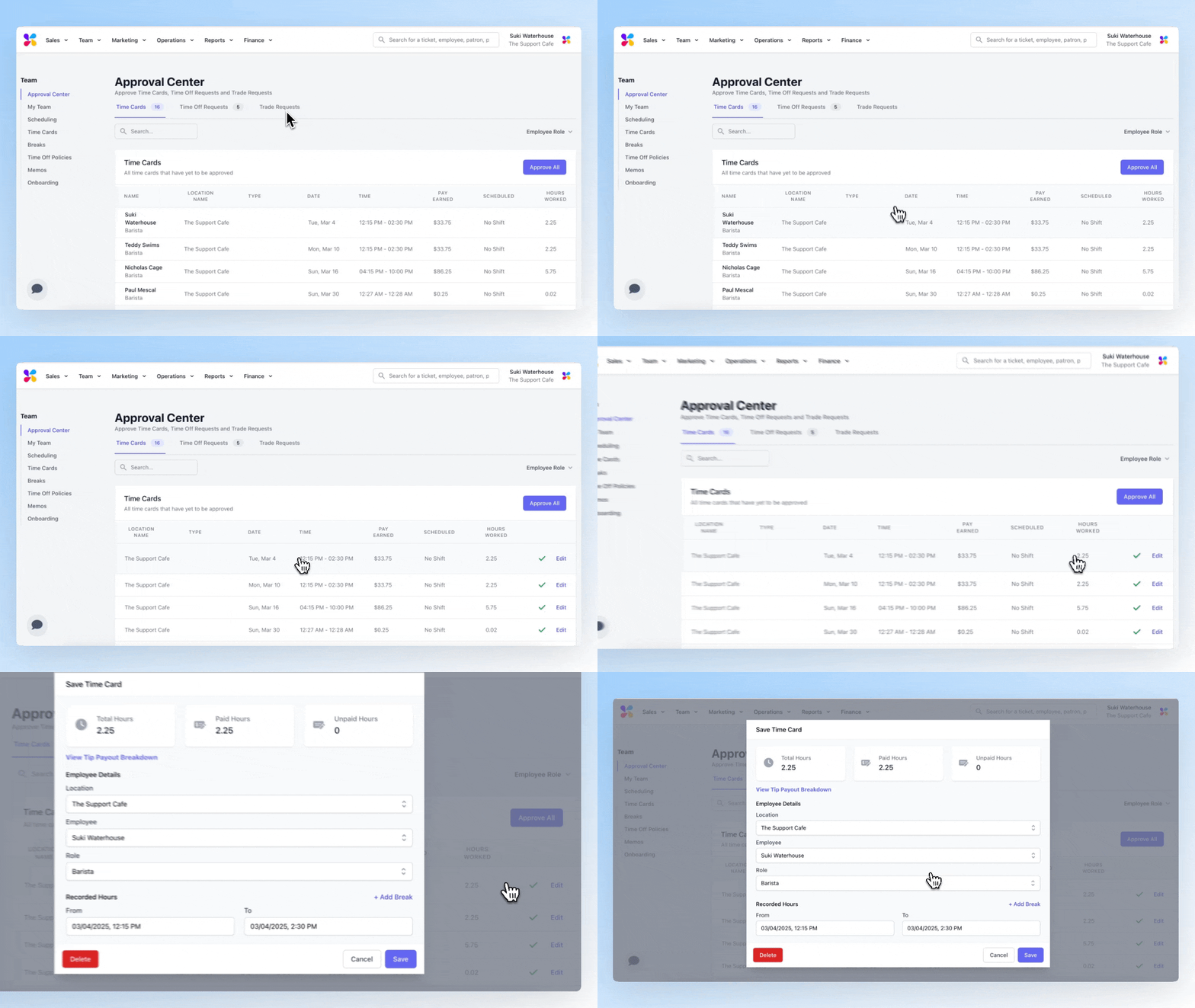
 ### Approval Center
View and manage time cards from the [Approval Center](https://dashboard.dripos.com/approvals) on the Web Dashboard
Learn more about the Approval Center [here](/team/approval/approval-overview)
(Team > Approval Center)
### Approval Center
View and manage time cards from the [Approval Center](https://dashboard.dripos.com/approvals) on the Web Dashboard
Learn more about the Approval Center [here](/team/approval/approval-overview)
(Team > Approval Center)
 ### Point of Sale
View and manage time cards from the Point of Sale
### Hub App
View and manage time cards from the Hub App
### Point of Sale
View and manage time cards from the Point of Sale
### Hub App
View and manage time cards from the Hub App