> ## Documentation Index
> Fetch the complete documentation index at: https://support.dripos.com/llms.txt
> Use this file to discover all available pages before exploring further.
# Create Time Off Policies
> Create, edit and run time off policies
## **Create Time Off Policies**
All Dripos locations start with an unpaid “Basic Time Off” policy that employees are automatically enrolled in. You can create additional paid and unpaid time off policies on the Web Dashboard.
Log in to the Web Dashboard and navigate to **Team > Time Off Policies**
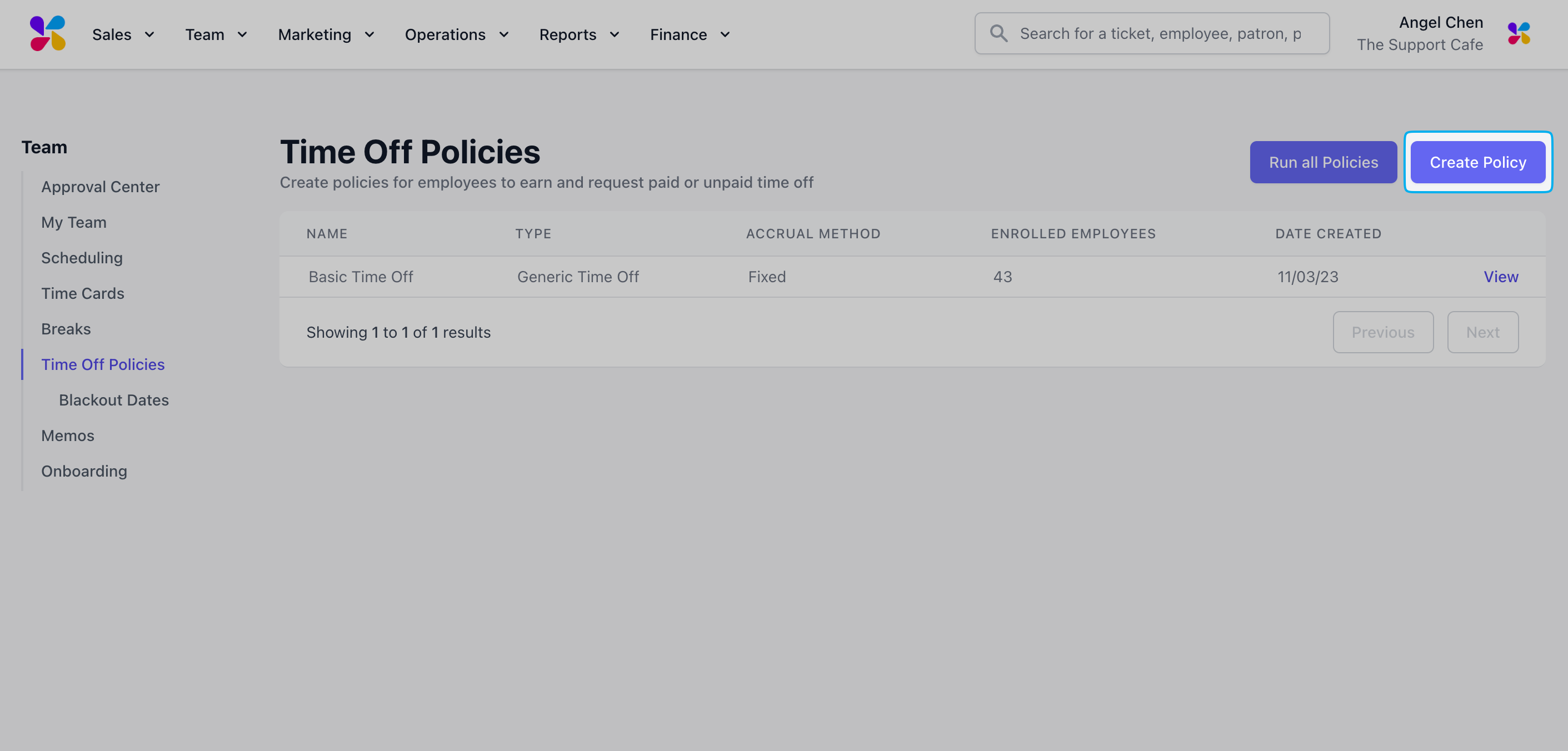
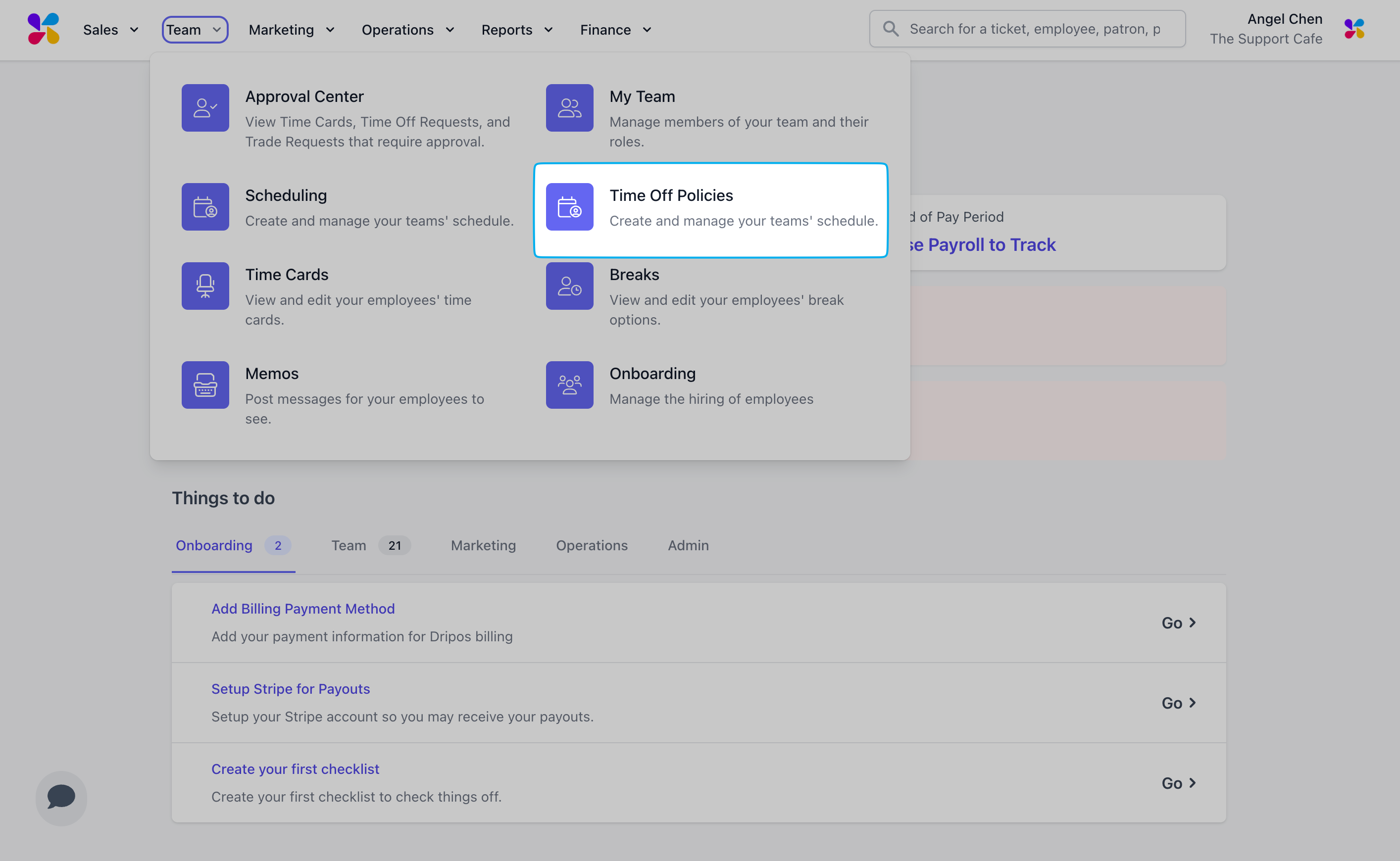 Click **Create Policy** in the top right corner
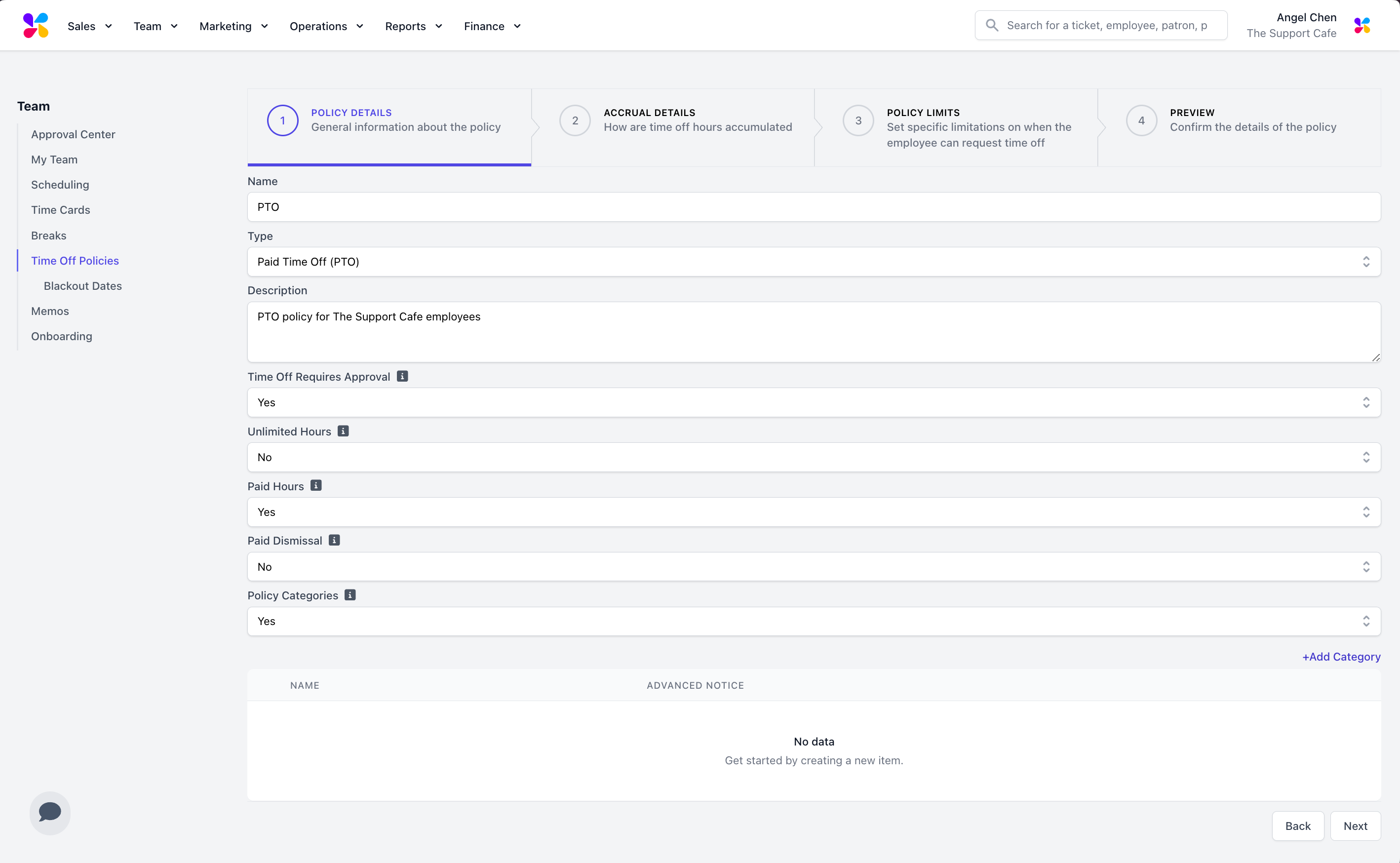 **Type:** Generic Time Off, Paid Time Off (PTO), Parental Leave, Sick Leave, Vacation, Personal Time, or Holiday.
**Description (Optional):** Input a description for the time off policy.
**Time Off Requires Approval:** If set to Yes, Time Off Requests will need to be approved by a manager in the Approval Center. Learn more about approving Time Off Requests [here](/team/approval/approval-overview).
**Unlimited Hours:** If set to Yes, there is no limit on the number of hours an employee can request under this policy.
**Paid Hours:** If set to Yes, employees will be paid for hours they take off under this policy.
**Paid Dismissal:** If set to Yes, employees will be paid out any accrued time off hours upon dismissal.
**Policy Categories:** If set to Yes, employees will need to select the category under this policy they would like to request time off from.
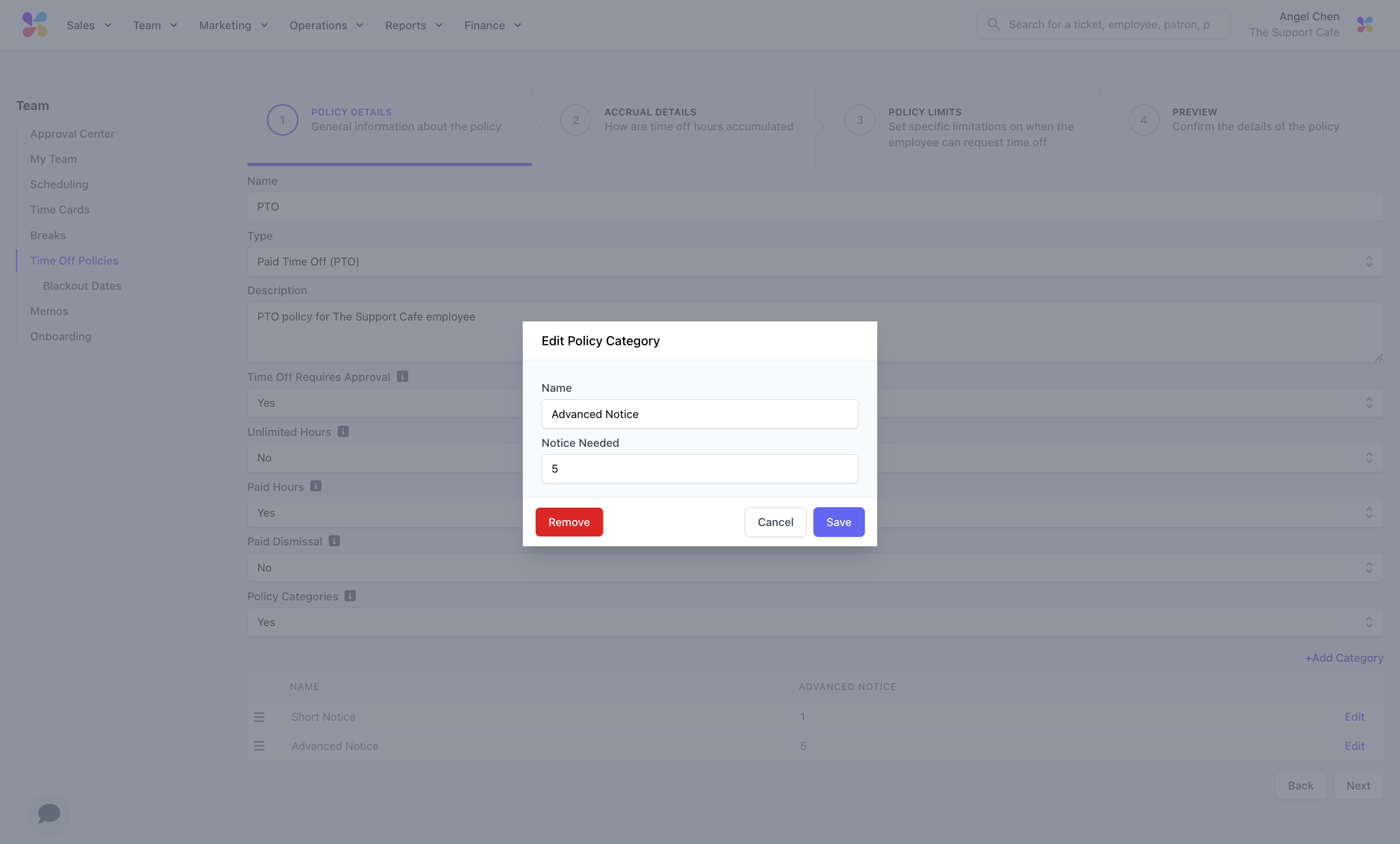
**Notice Needed:** If **Policy Categories** is set to Yes, use the **+Add Category button** to input a **Name** and **Notice Needed** (in days).
**Type:** Generic Time Off, Paid Time Off (PTO), Parental Leave, Sick Leave, Vacation, Personal Time, or Holiday.
**Description (Optional):** Input a description for the time off policy.
**Time Off Requires Approval:** If set to Yes, Time Off Requests will need to be approved by a manager in the Approval Center. Learn more about approving Time Off Requests [here](/team/approval/approval-overview).
**Unlimited Hours:** If set to Yes, there is no limit on the number of hours an employee can request under this policy.
**Paid Hours:** If set to Yes, employees will be paid for hours they take off under this policy.
**Paid Dismissal:** If set to Yes, employees will be paid out any accrued time off hours upon dismissal.
**Policy Categories:** If set to Yes, employees will need to select the category under this policy they would like to request time off from.
**Notice Needed:** If **Policy Categories** is set to Yes, use the **+Add Category button** to input a **Name** and **Notice Needed** (in days).
 Select the applicable Accrual Method for the policy.
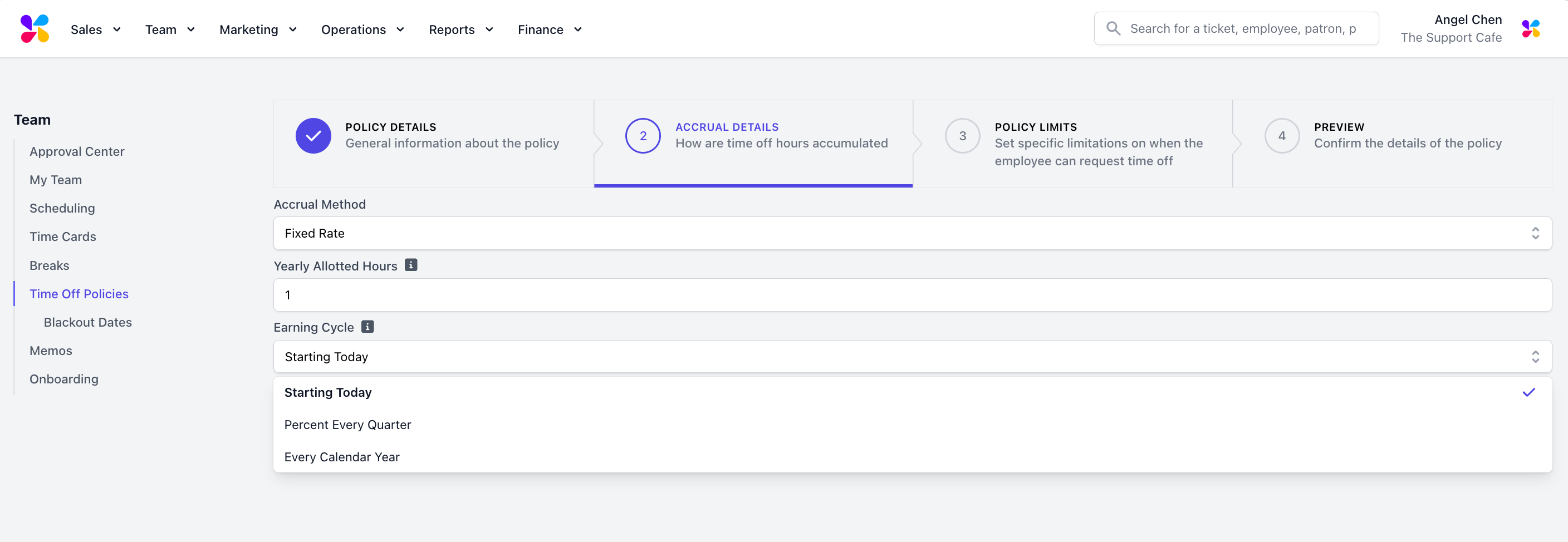 **Yearly Allotted Hours (Optional):** The number of hours allotted per earning cycle.
**Earning Cycle:** Set the policy earning cycle to **Percent Every Quarter, Starting Today,** or **Every Calendar Year**.
**Percent Every Quarter:** This will allocate 25% of the Yearly Allotted Hours amount to enrolled employees every quarter.
**Yearly Allotted Hours (Optional):** The number of hours allotted per earning cycle.
**Earning Cycle:** Set the policy earning cycle to **Percent Every Quarter, Starting Today,** or **Every Calendar Year**.
**Percent Every Quarter:** This will allocate 25% of the Yearly Allotted Hours amount to enrolled employees every quarter.
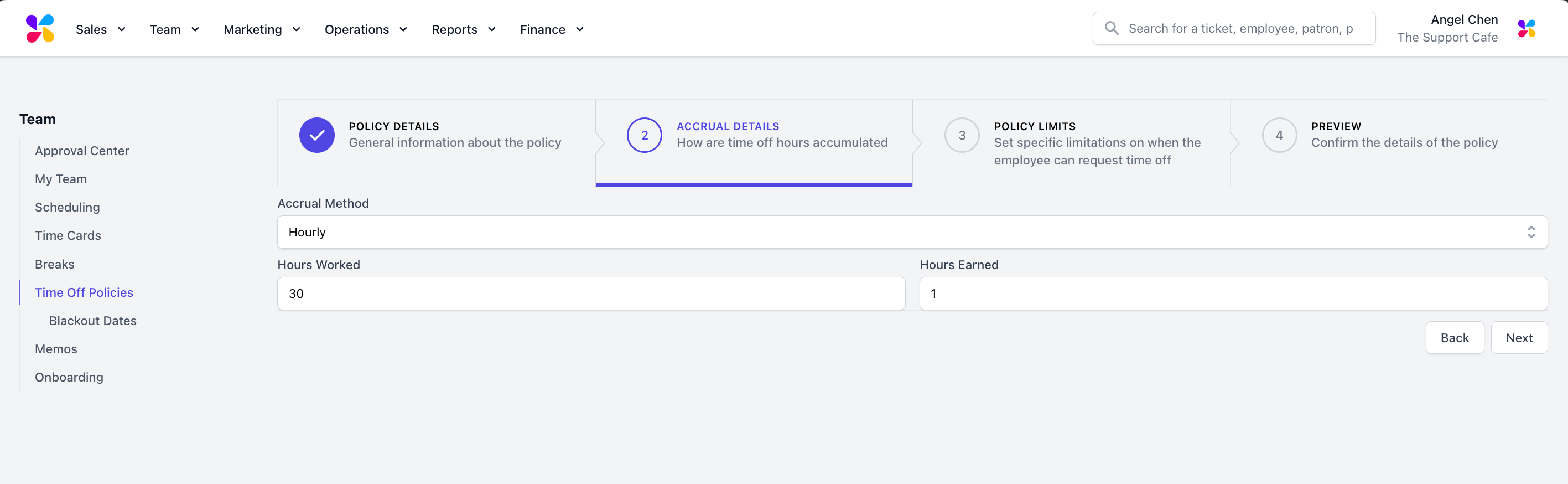 Input the hourly accrual rate.
**Hours Worked:** Number of hours the employee must work to earn time off.
**Hours Earned:** The number of hours earned per the number of Hours Worked.
*For example, the employee may need to have 30 Hours Worked per 1 Hour Earned.*
Determine specific limitations for the policy.
Input the hourly accrual rate.
**Hours Worked:** Number of hours the employee must work to earn time off.
**Hours Earned:** The number of hours earned per the number of Hours Worked.
*For example, the employee may need to have 30 Hours Worked per 1 Hour Earned.*
Determine specific limitations for the policy.
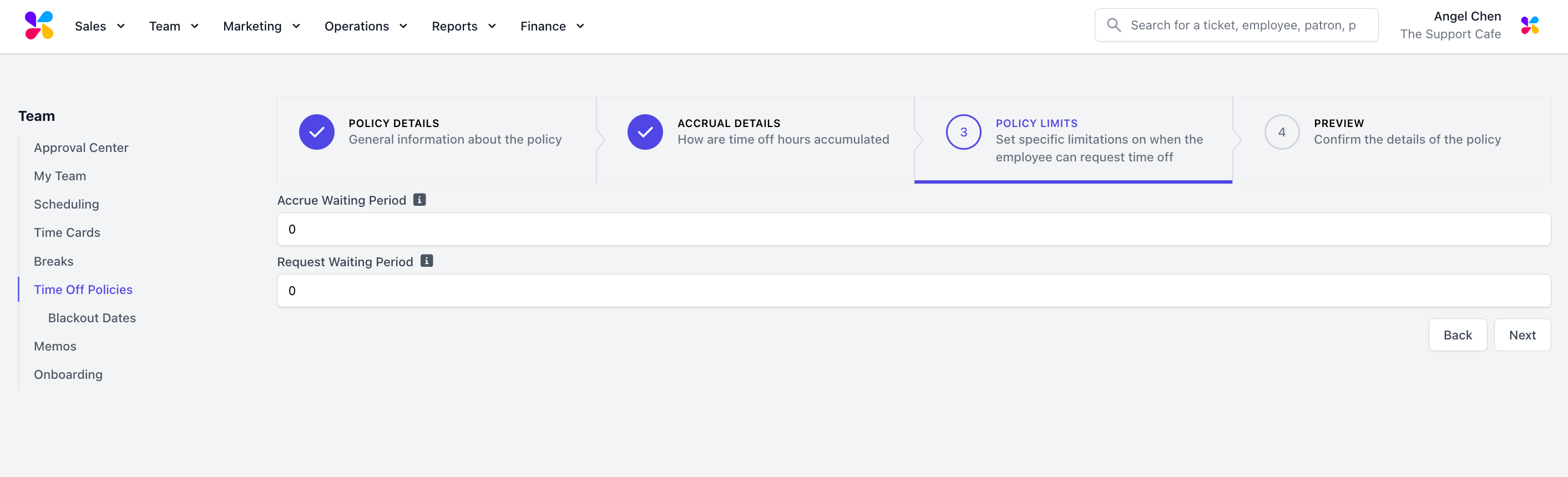 **Accrue Waiting Period:** The number of days an employee must wait before accruing hours under this policy.
**Request Waiting Period:** The number of days an employee must wait before requesting time off under this policy.
**Accrue Waiting Period:** The number of days an employee must wait before accruing hours under this policy.
**Request Waiting Period:** The number of days an employee must wait before requesting time off under this policy.
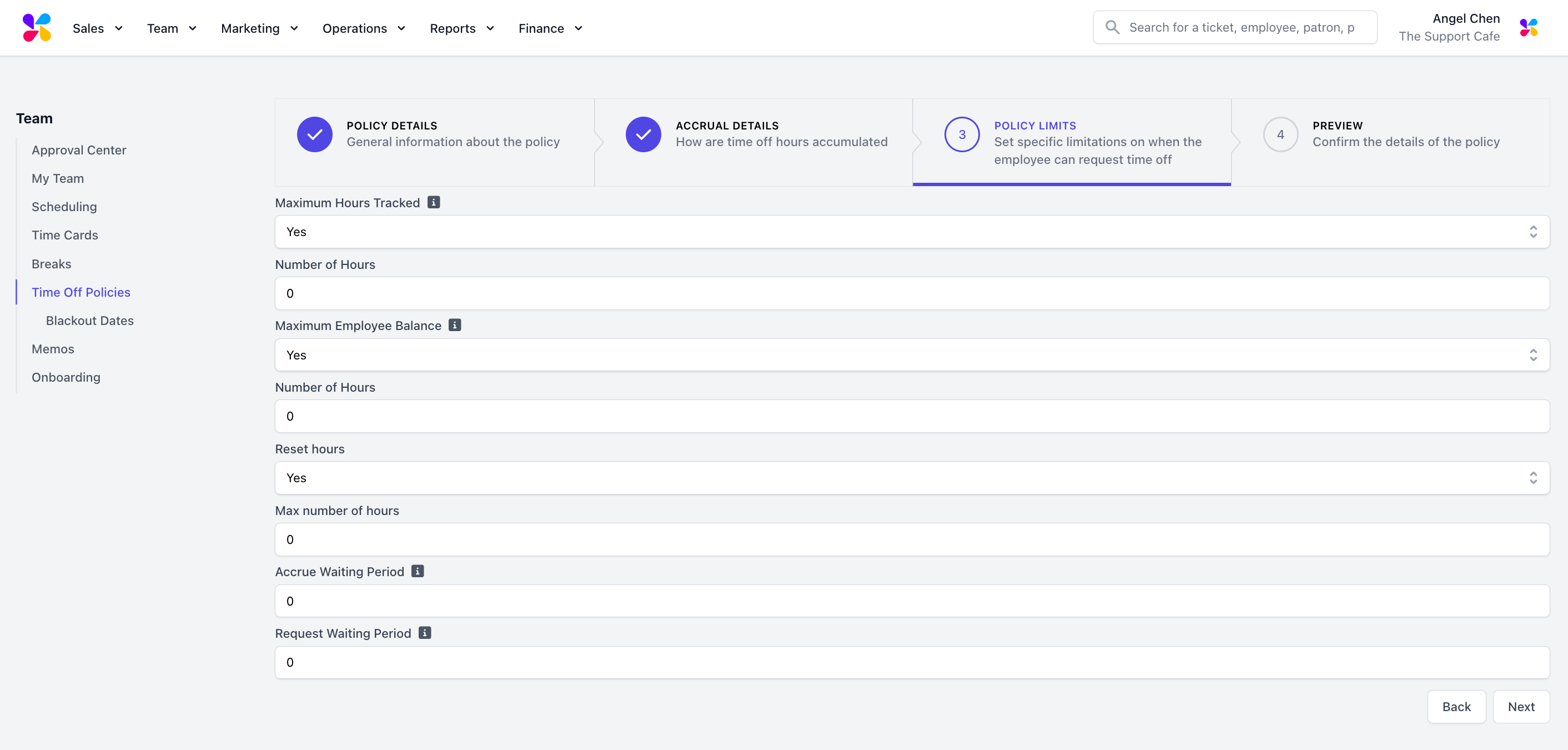 **Maximum Hours Tracked:** The maximum amount of hours in a calendar year that will be tracked and used to calculate time off accrual.
*For example, if the Maximum Hours Tracked is 1440, the employee will not be awarded any policy hours after working 1440 hours.*
If the policy has a maximum amount that can be earned in a calendar year, use Maximum Hours Tracked to implement this limit.
*For example, a policy with an accrual rate of 1 Hour Earned per 30 Hours Worked and a maximum calendar year accrual limit of 48 hours, the Maximum Hours Tracked should be set to 1440.*
**Maximum Employee Balance:** The maximum amount of hours an employee can earn before hours are no longer accumulated.
**Reset Hours:** If set to Yes, balances accrued under this policy will reset the next calendar year.
**Max Number of Hours:** If Reset Hours is set to Yes, this is the maximum number of hours that can be carried over to the next policy year.
**Accrue Waiting Period:** The number of days an employee must wait before accruing hours under this policy.
**Request Waiting Period:** The number of days an employee must wait before requesting time off under this policy.
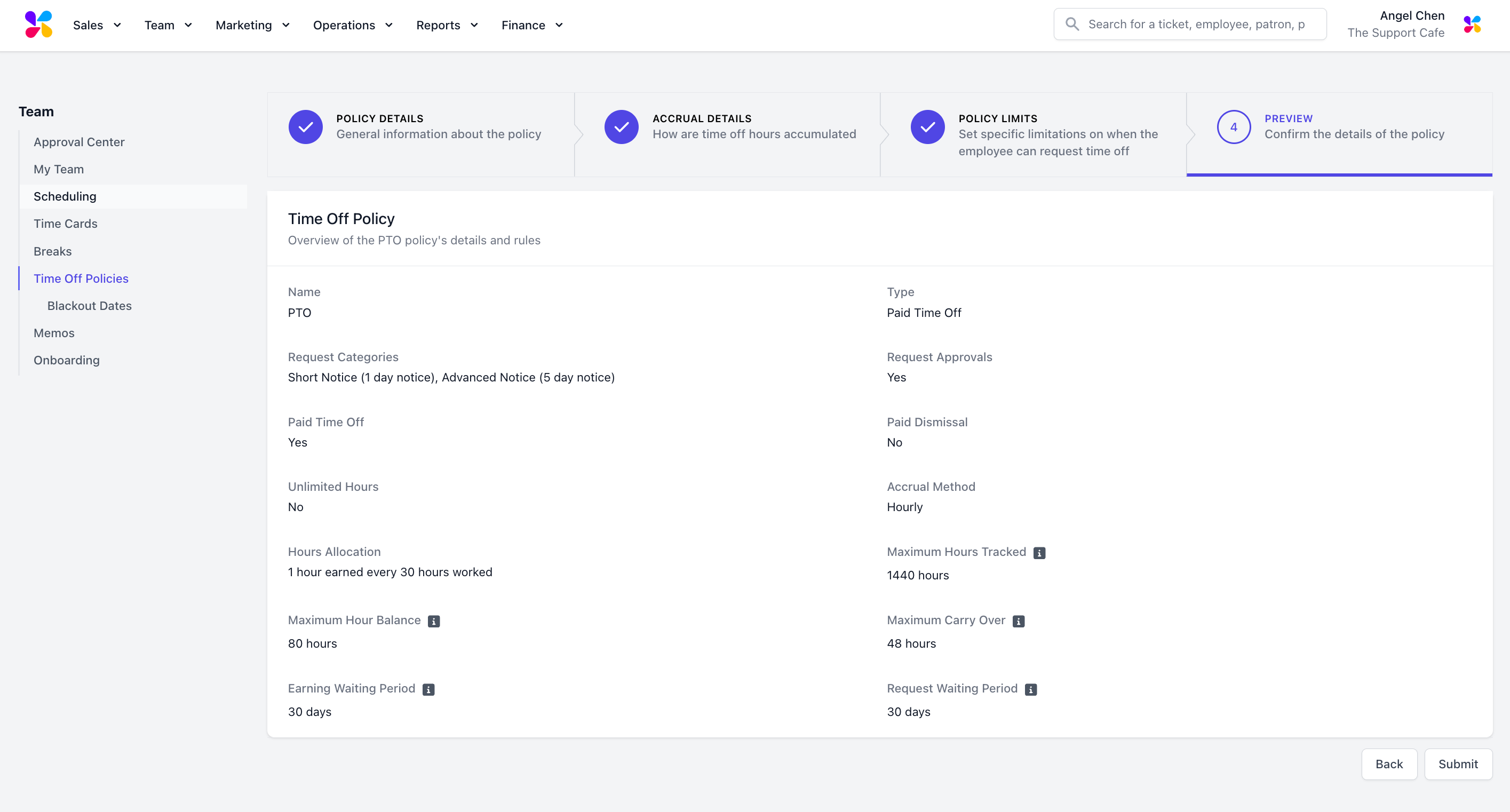
Confirm the details of the policy before clicking **Submit**.
**Maximum Hours Tracked:** The maximum amount of hours in a calendar year that will be tracked and used to calculate time off accrual.
*For example, if the Maximum Hours Tracked is 1440, the employee will not be awarded any policy hours after working 1440 hours.*
If the policy has a maximum amount that can be earned in a calendar year, use Maximum Hours Tracked to implement this limit.
*For example, a policy with an accrual rate of 1 Hour Earned per 30 Hours Worked and a maximum calendar year accrual limit of 48 hours, the Maximum Hours Tracked should be set to 1440.*
**Maximum Employee Balance:** The maximum amount of hours an employee can earn before hours are no longer accumulated.
**Reset Hours:** If set to Yes, balances accrued under this policy will reset the next calendar year.
**Max Number of Hours:** If Reset Hours is set to Yes, this is the maximum number of hours that can be carried over to the next policy year.
**Accrue Waiting Period:** The number of days an employee must wait before accruing hours under this policy.
**Request Waiting Period:** The number of days an employee must wait before requesting time off under this policy.
Confirm the details of the policy before clicking **Submit**.
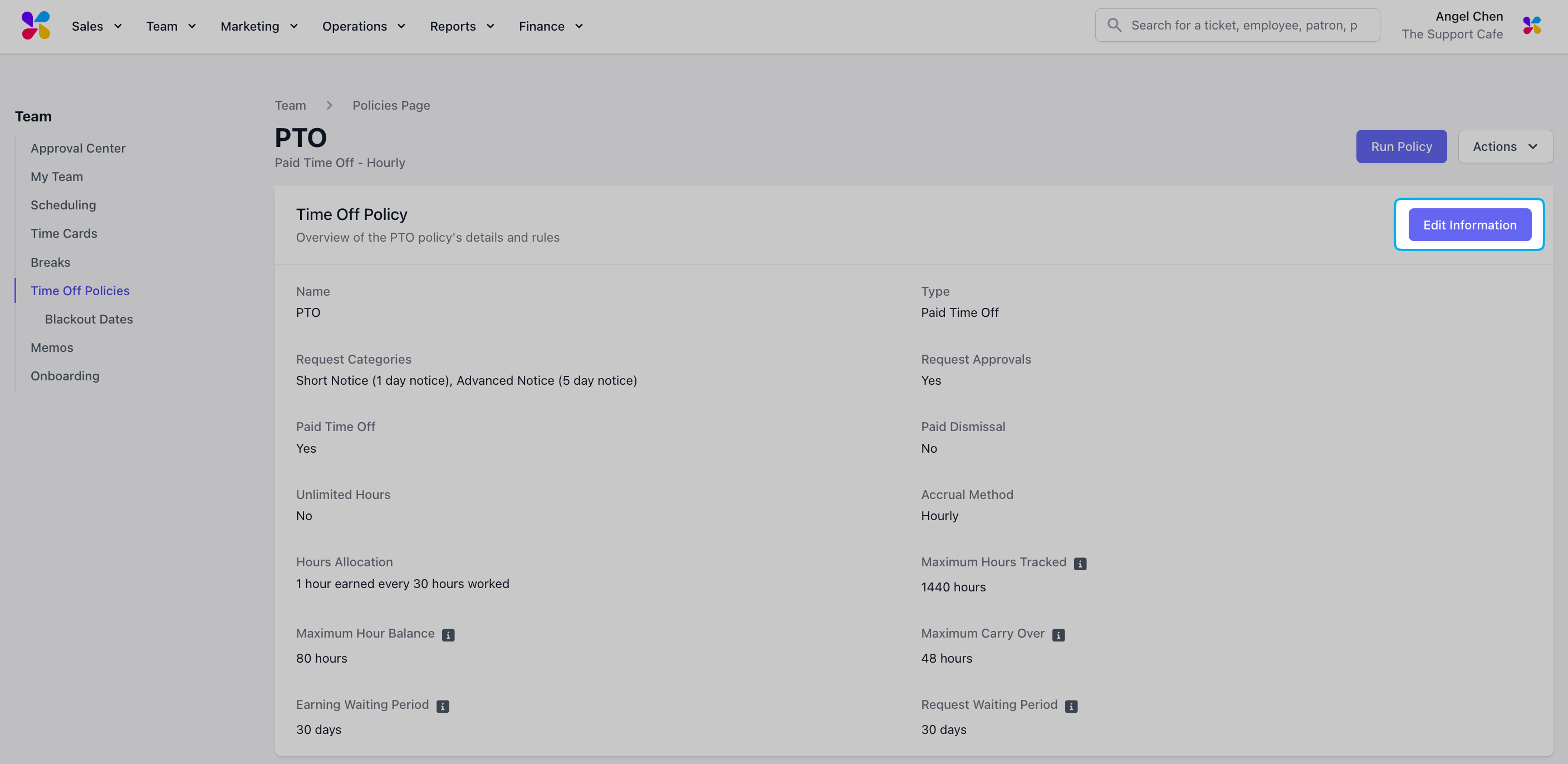
 Time off policies can be updated by clicking **Edit Information** on the Time Off Policy information page.
 ***
## Enroll Employees in Time Off Policies
After creating Time Off Policies, enroll employees to start accruing hours under applicable policies.
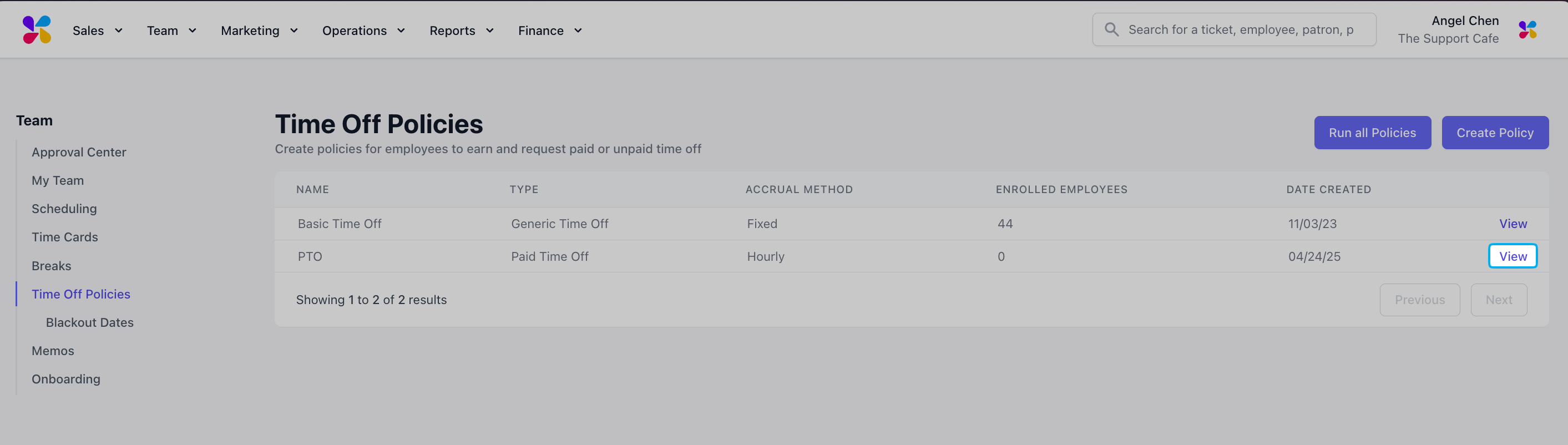
Log in to the Web Dashboard and navigate to **Team > Time Off Policies**
Click **View** for the policy to enroll employees in.
***
## Enroll Employees in Time Off Policies
After creating Time Off Policies, enroll employees to start accruing hours under applicable policies.
Log in to the Web Dashboard and navigate to **Team > Time Off Policies**
Click **View** for the policy to enroll employees in.
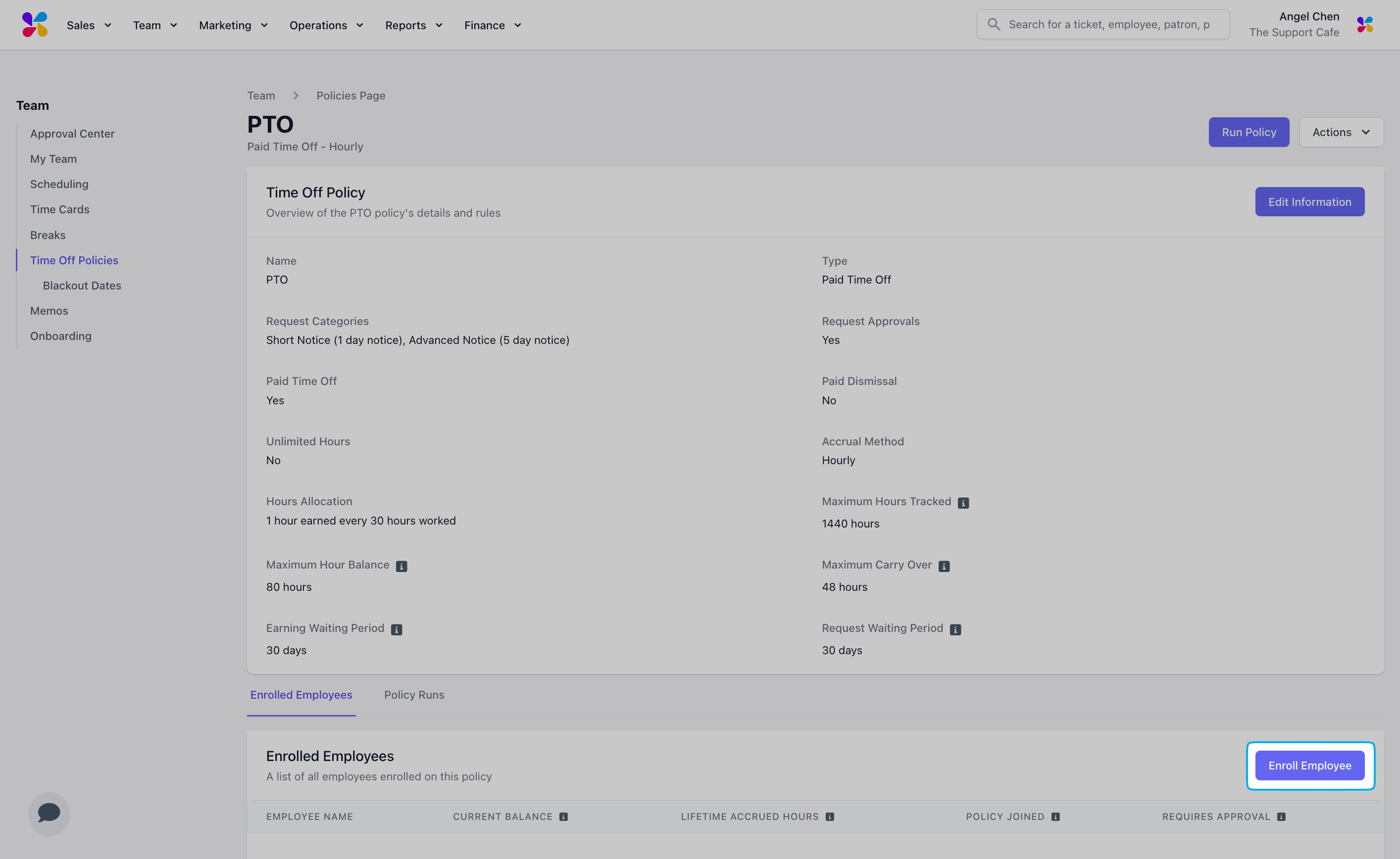
 Navigate to the **Enroll Employees** tab and click the **Enroll Employee** button.
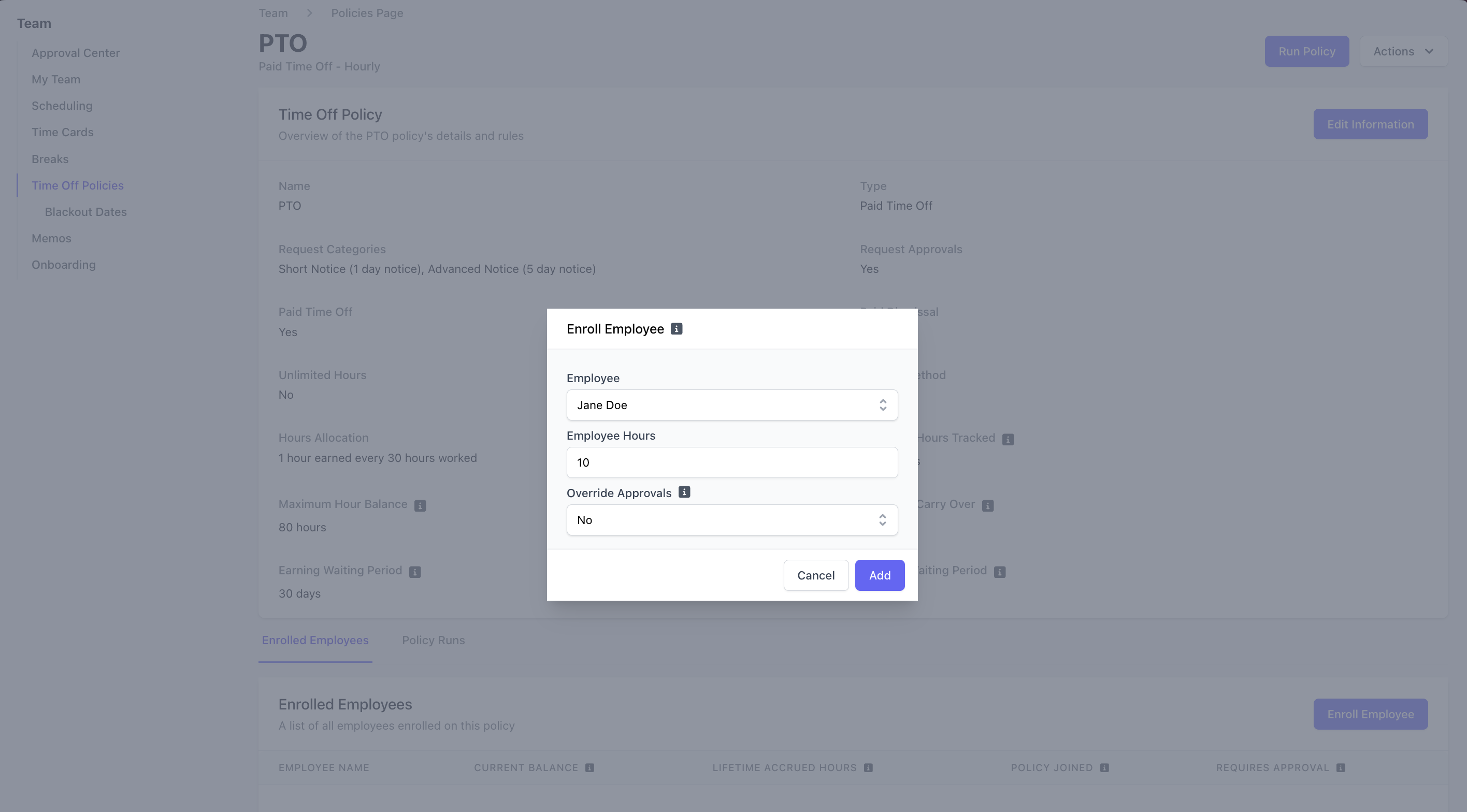 **Employee:** Select the employee to enroll.
**Employee Hours (Optional):** Input any hours the employee has already accrued under this policy to include in their current balance.
**Override Approvals:** If set to Yes, time off requests from this employee will be automatically approved.
Click **Add** and enroll other employees as needed.
***
## **Run a Time Off Policy**
If your shop is not using Dripos payroll, time off policies must be ran manually before totaling payroll.
For policies with an Hourly Rate accrual method, running the time off policy calculates the hours accrued by employees based on existing time cards and adds to their current balance.
Log in to the Web Dashboard and navigate to **Team > Time Off Policies**
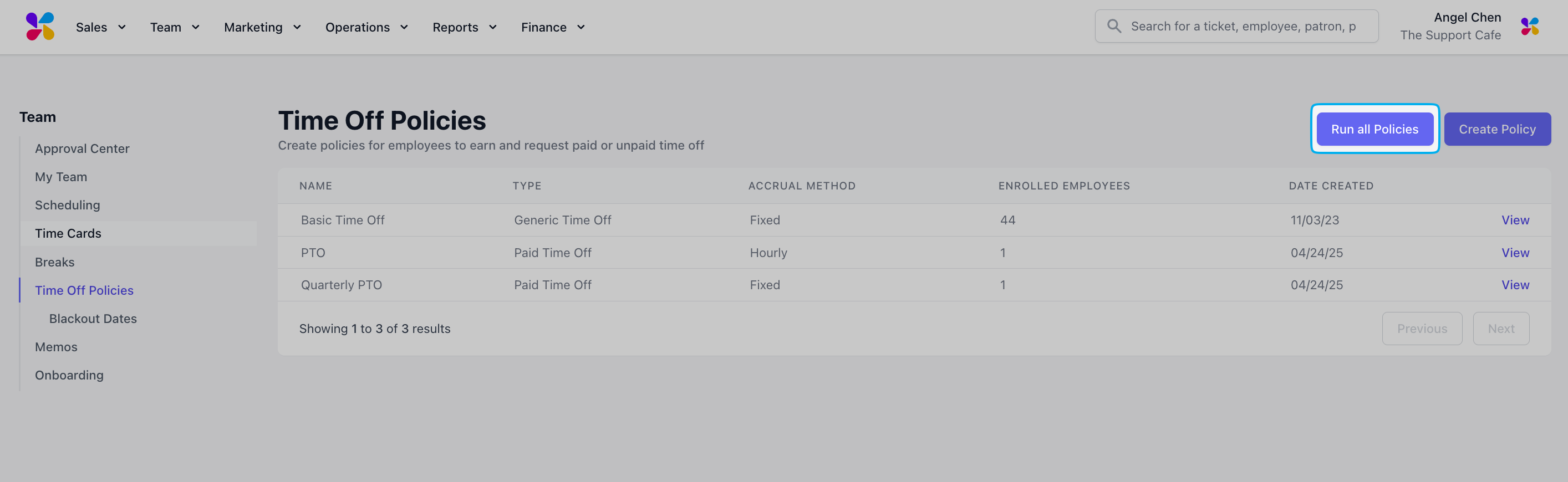
Click the **Run all Policies** button.
**Employee:** Select the employee to enroll.
**Employee Hours (Optional):** Input any hours the employee has already accrued under this policy to include in their current balance.
**Override Approvals:** If set to Yes, time off requests from this employee will be automatically approved.
Click **Add** and enroll other employees as needed.
***
## **Run a Time Off Policy**
If your shop is not using Dripos payroll, time off policies must be ran manually before totaling payroll.
For policies with an Hourly Rate accrual method, running the time off policy calculates the hours accrued by employees based on existing time cards and adds to their current balance.
Log in to the Web Dashboard and navigate to **Team > Time Off Policies**
Click the **Run all Policies** button.
 Review the total **Hours Worked, Hours Earned,** and **Hours Balance** for each time off policy.
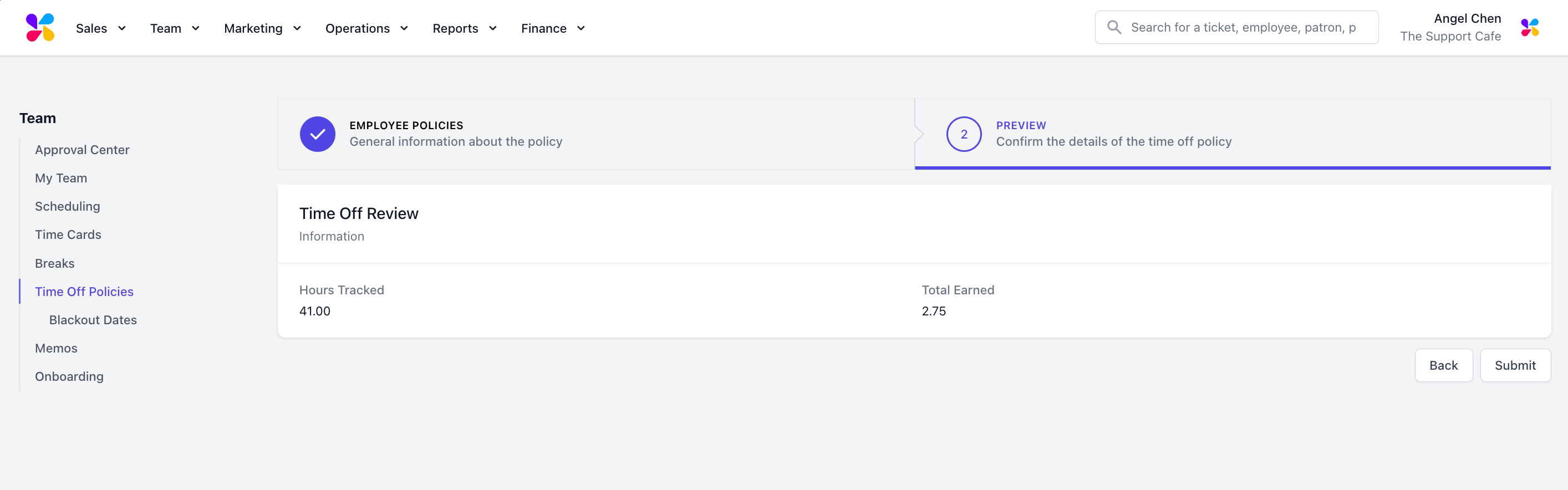
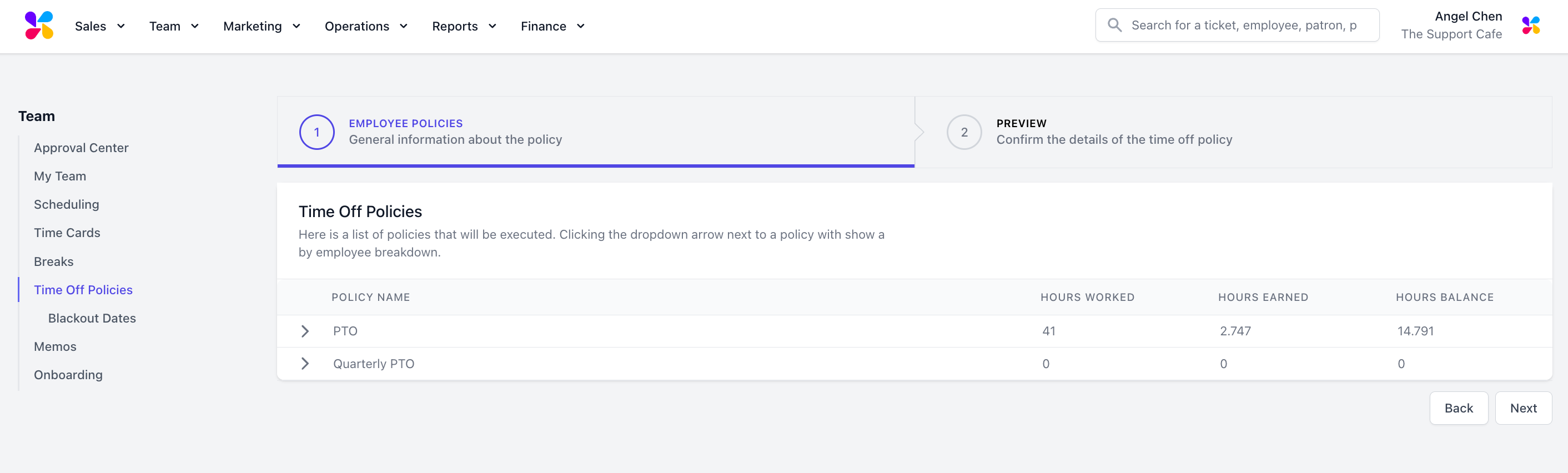 After confirming, click **Next** to review the **Hours Tracked** and **Total Earned**. After reviewing, click **Submit**.
 ***
## **Review Time Off Settings**
Update relevant time off settings in the Dashboard.
Require advanced notice for time off requests.
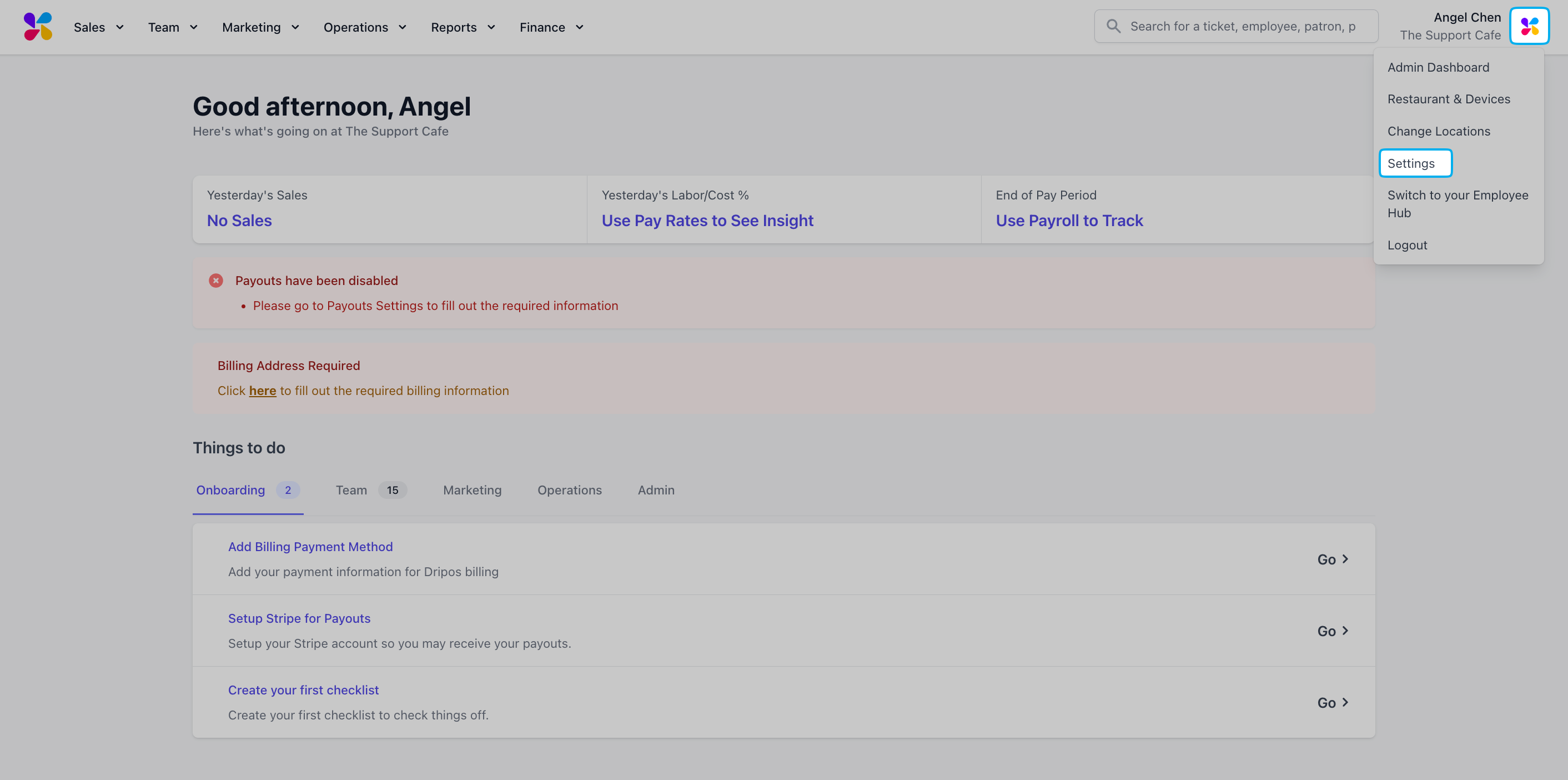
Log in to the Web Dashboard and click on the Dripos icon in the top right corner to access **Settings**
***
## **Review Time Off Settings**
Update relevant time off settings in the Dashboard.
Require advanced notice for time off requests.
Log in to the Web Dashboard and click on the Dripos icon in the top right corner to access **Settings**
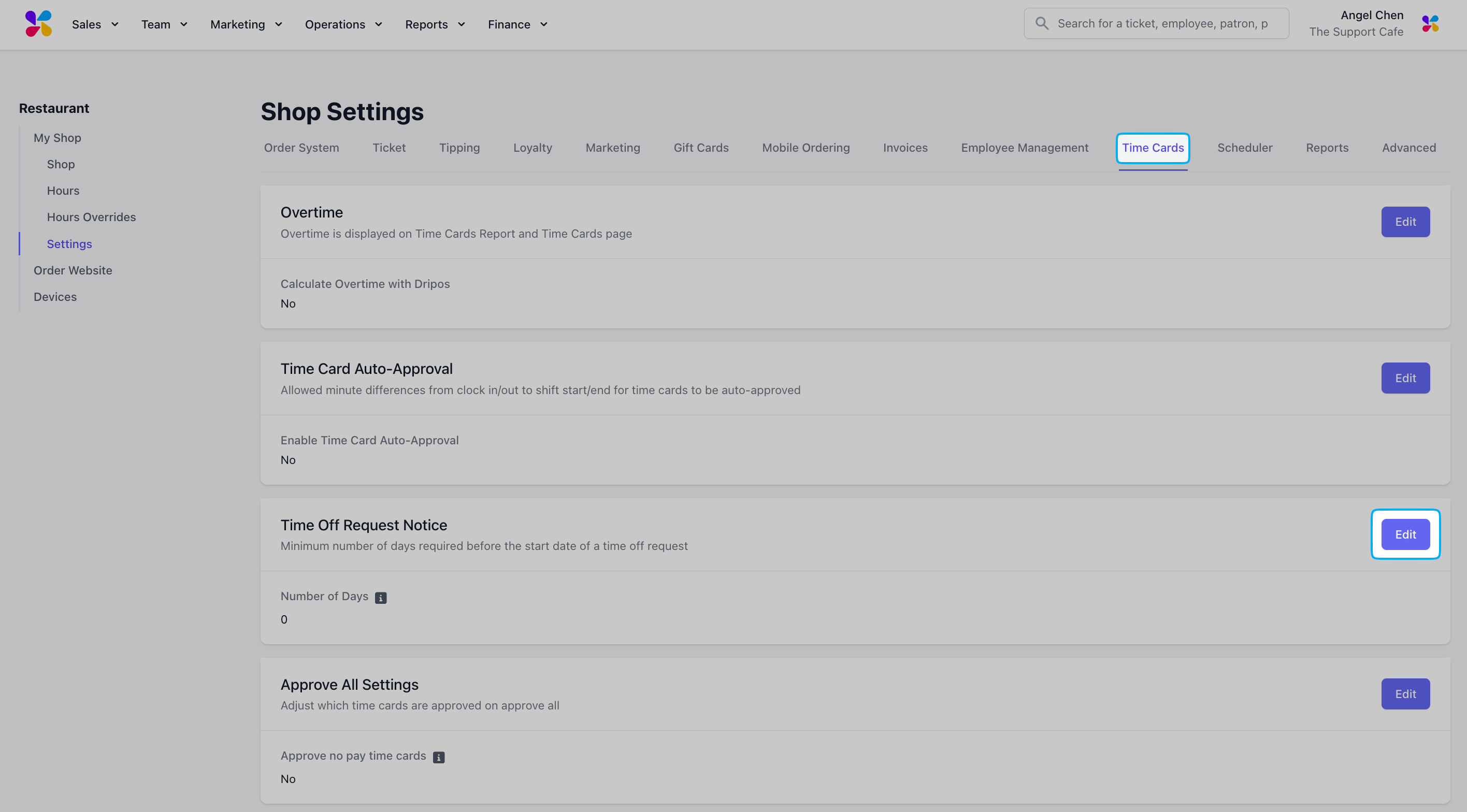
 Navigate to the **Time Cards** tab and click **Edit** next to **Time Off Request Notice**
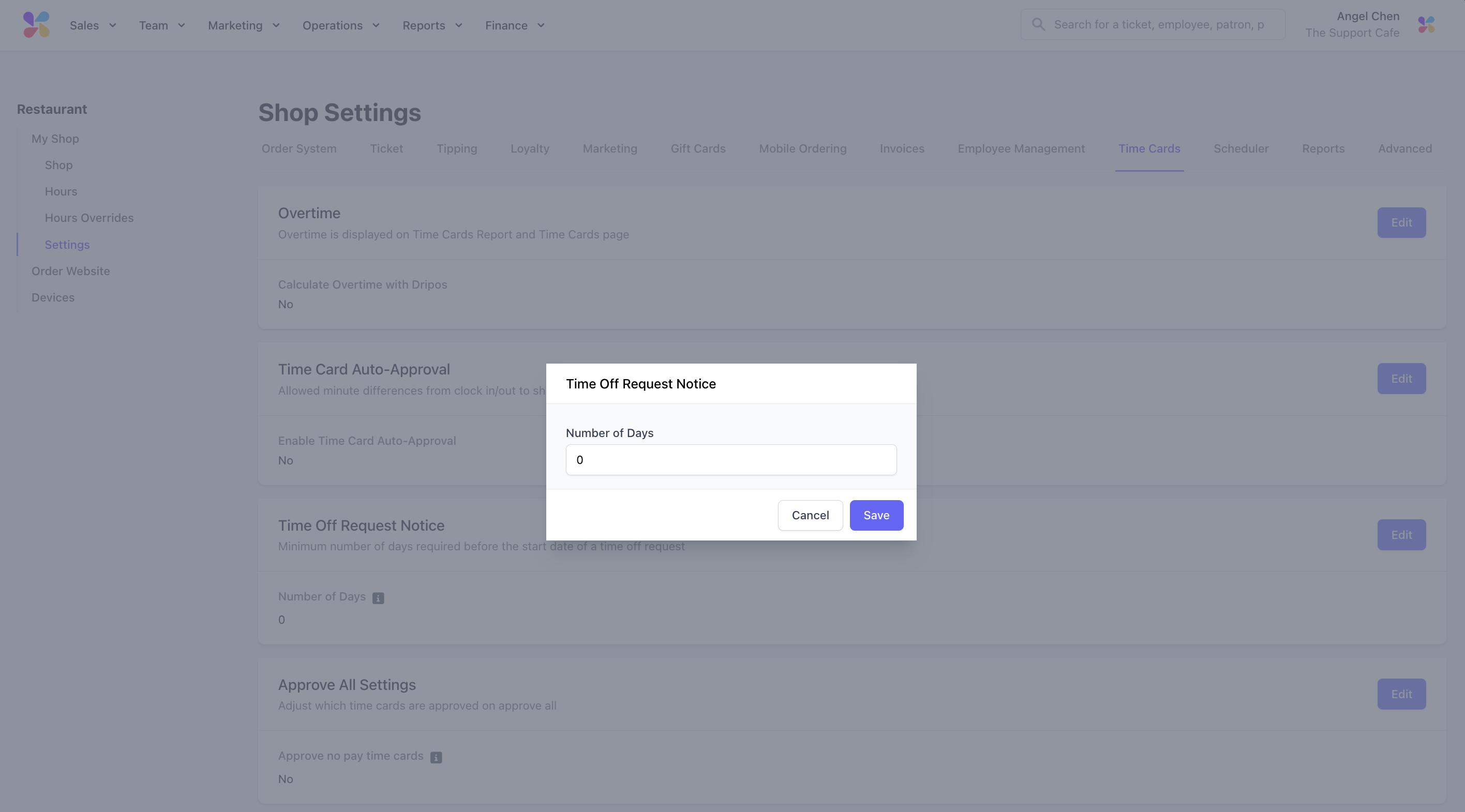
 Input the minimum number of days notice required before the start date of a time off request and **Save**
 Ensure applicable roles have permissions to review time off requests.
Log in to the Web Dashboard and navigate to **Team > My Team**
Ensure applicable roles have permissions to review time off requests.
Log in to the Web Dashboard and navigate to **Team > My Team**
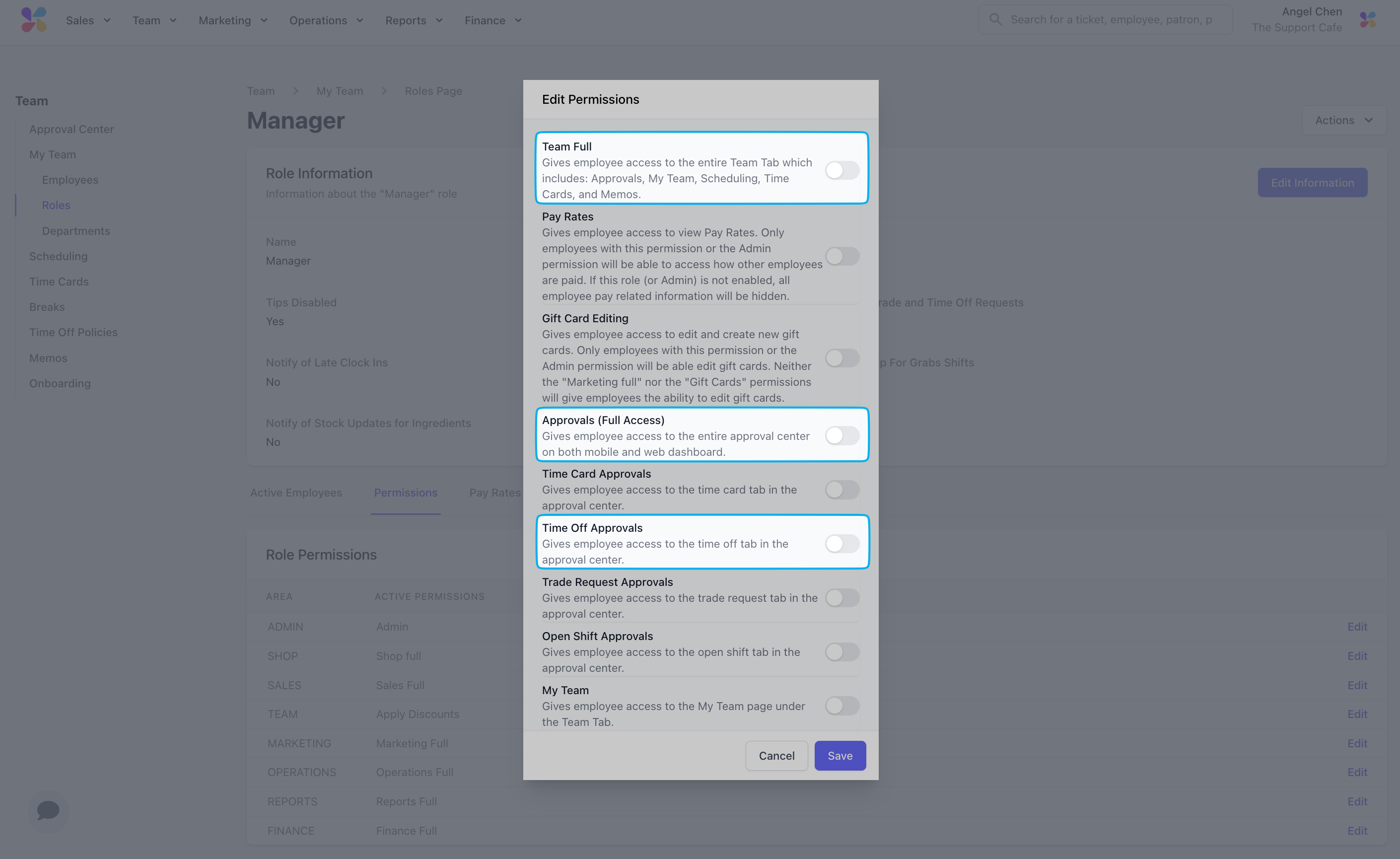
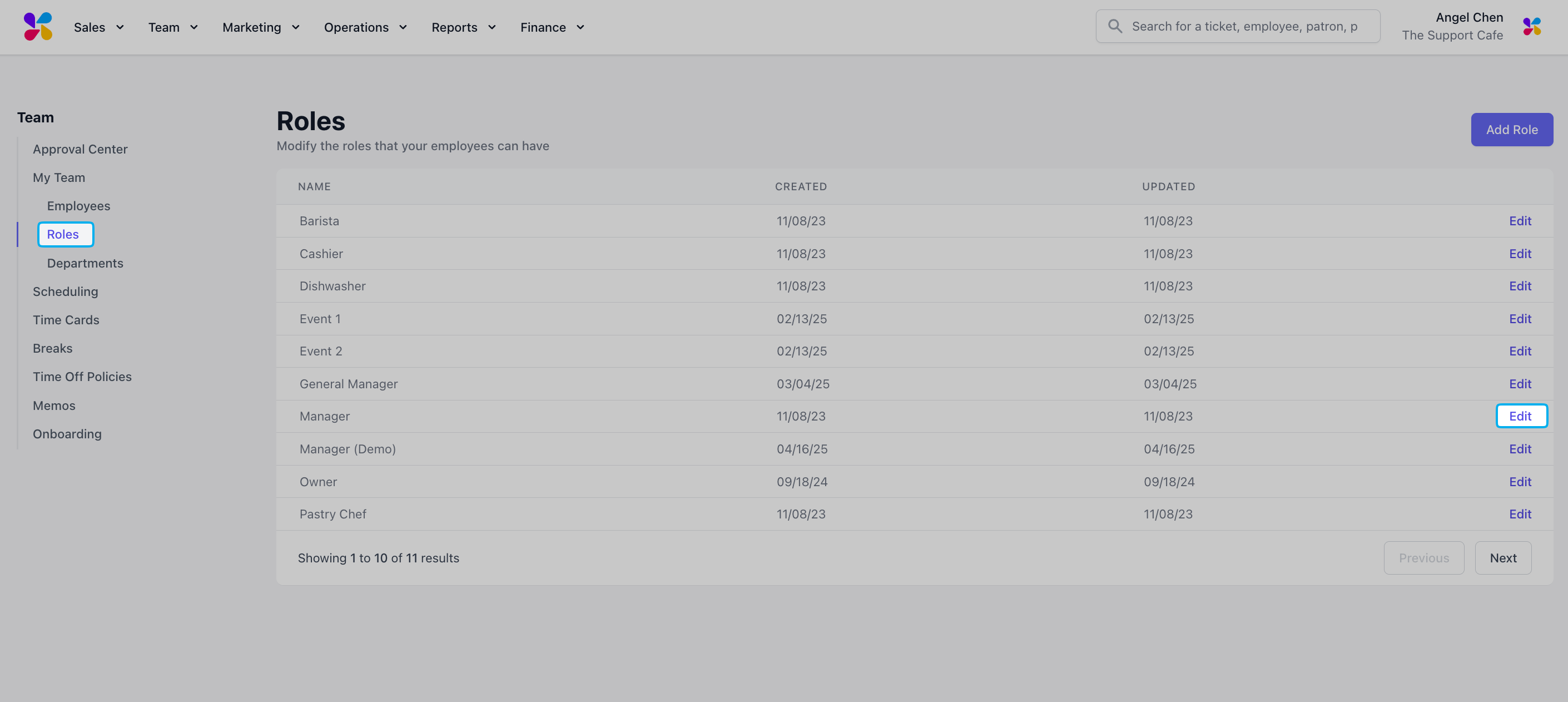
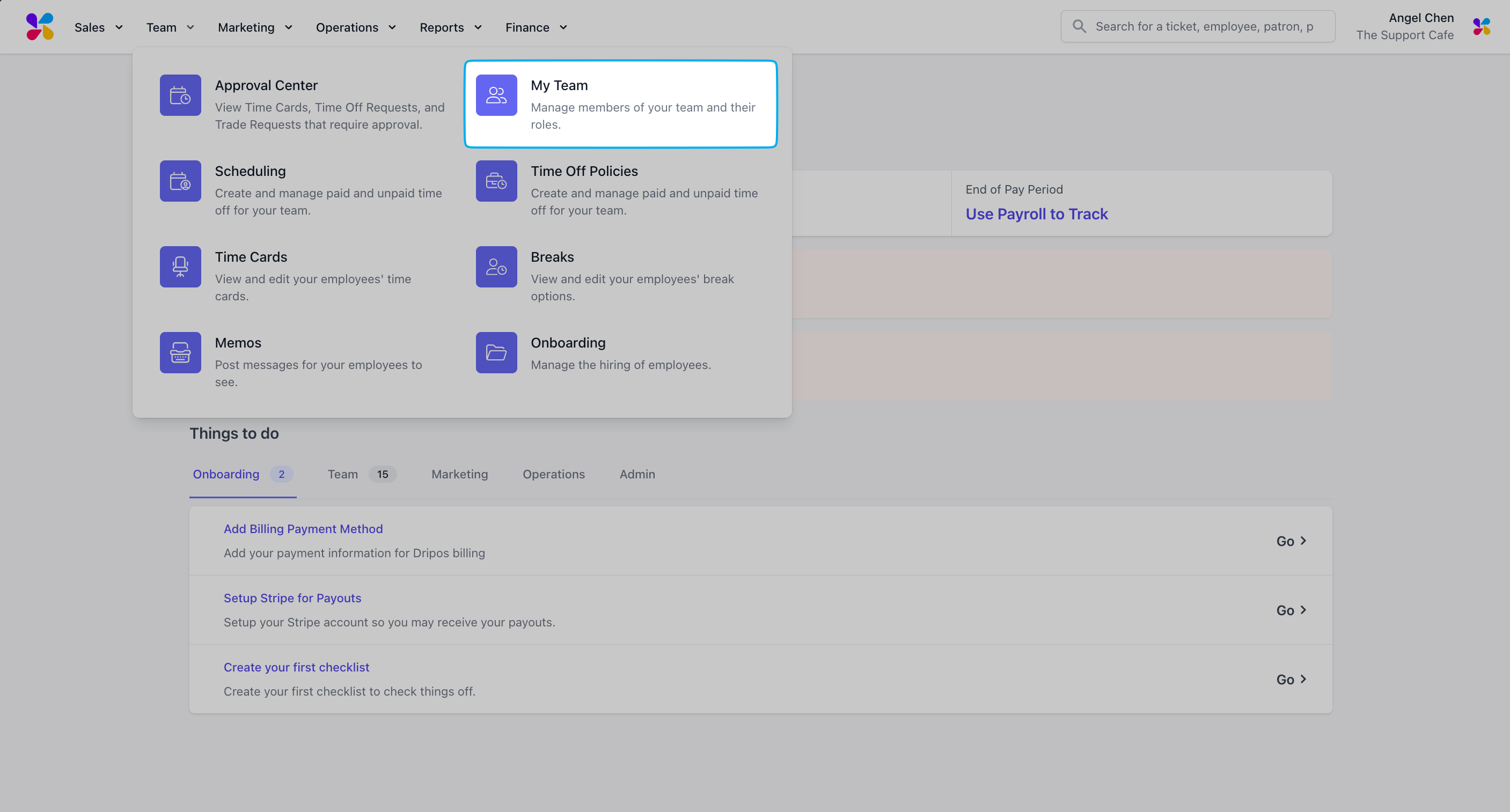 Navigate to **Roles** and **View** the applicable role
 Navigate to the **Permissions** tab and click **Edit** next to **Team**
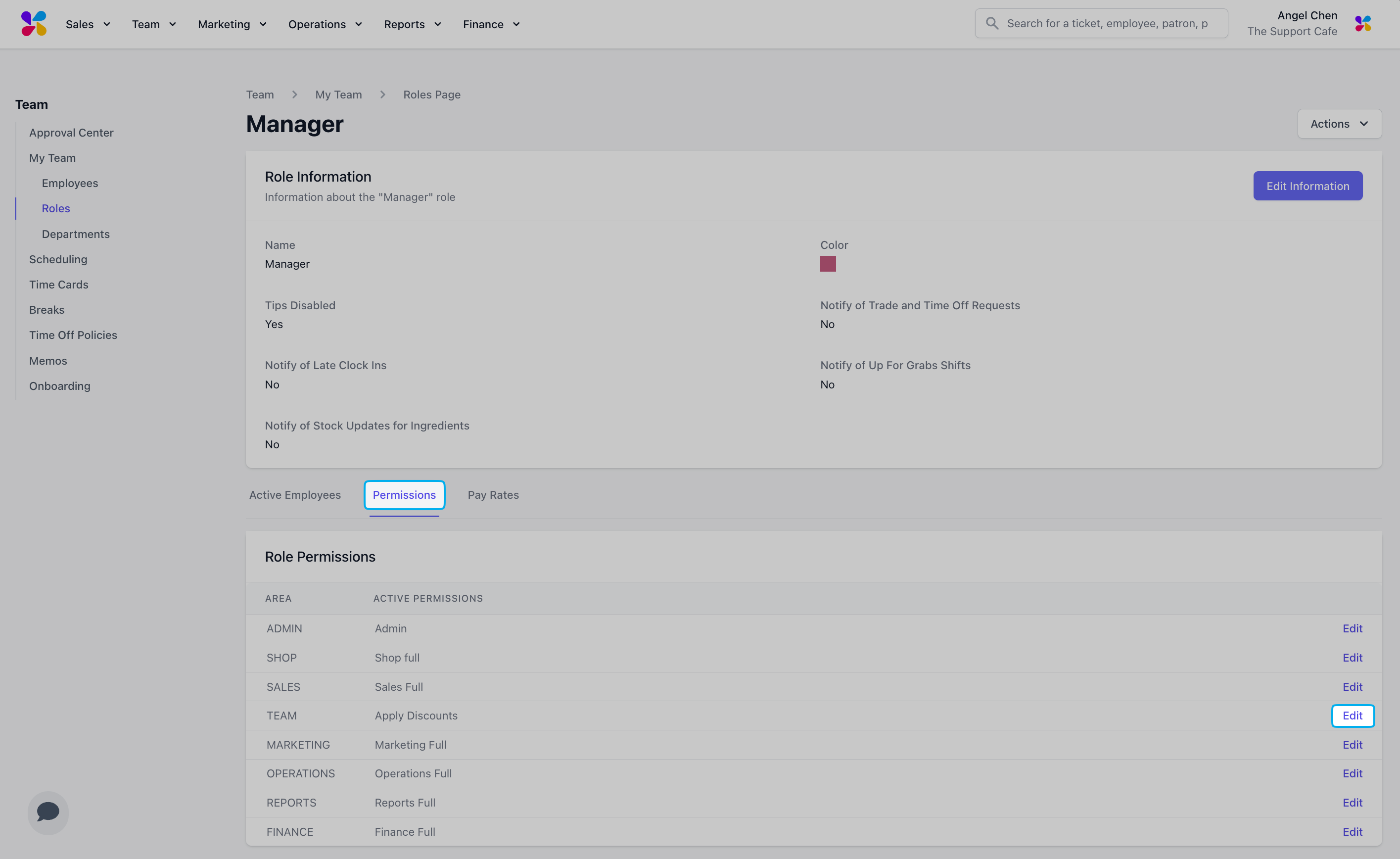 Ensure the role has either **Team Full, Approvals (Full Access)** or **Time Off Approvals** turned on and **Save**.
**Time Off Policies** should be turned on only if this role should be able to to create and edit time off policies.
Ensure the role has either **Team Full, Approvals (Full Access)** or **Time Off Approvals** turned on and **Save**.
**Time Off Policies** should be turned on only if this role should be able to to create and edit time off policies.