> ## Documentation Index
> Fetch the complete documentation index at: https://support.dripos.com/llms.txt
> Use this file to discover all available pages before exploring further.
# Manage Time Off Requests
> Creating and approving time off requests
## Create Time Off Requests
Managers can manually submit time off requests on behalf of employees on the Dashboard.
Log in to the Web Dashboard and navigate to **Team > My Team**
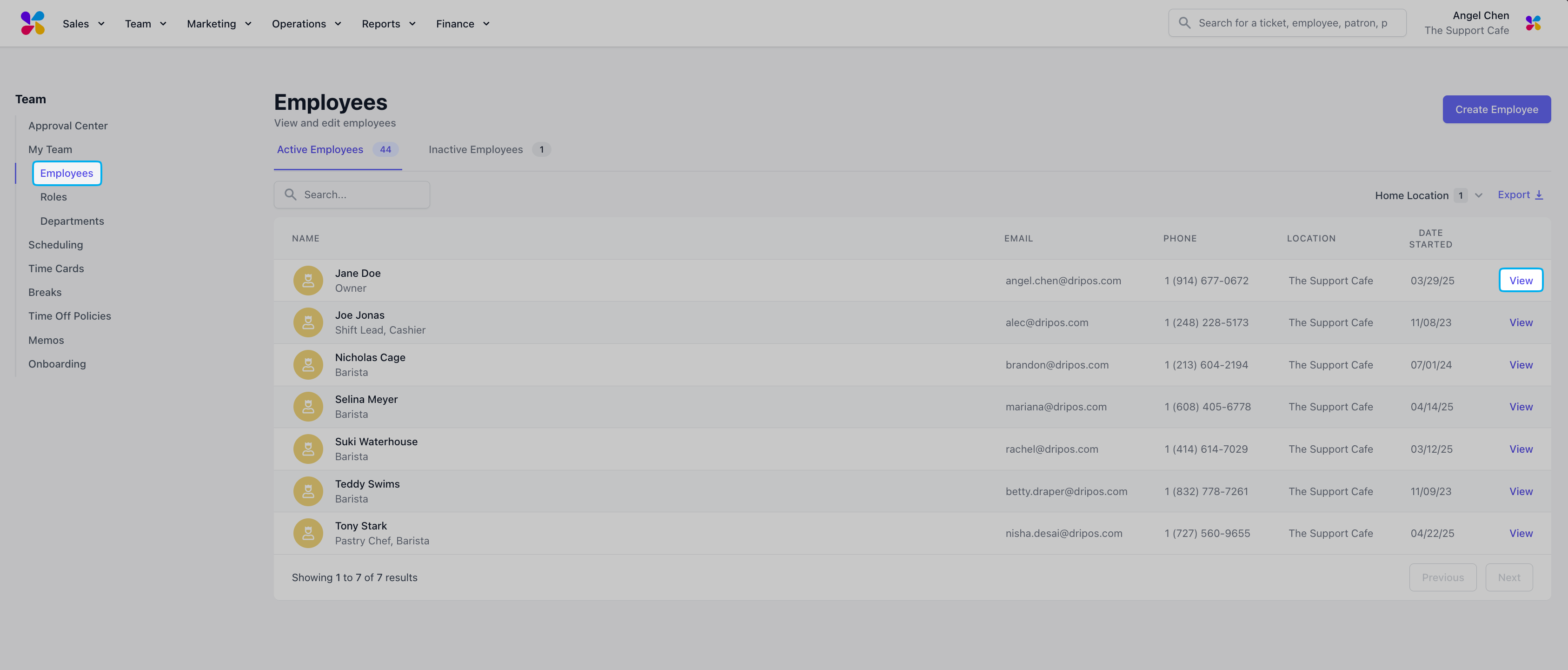
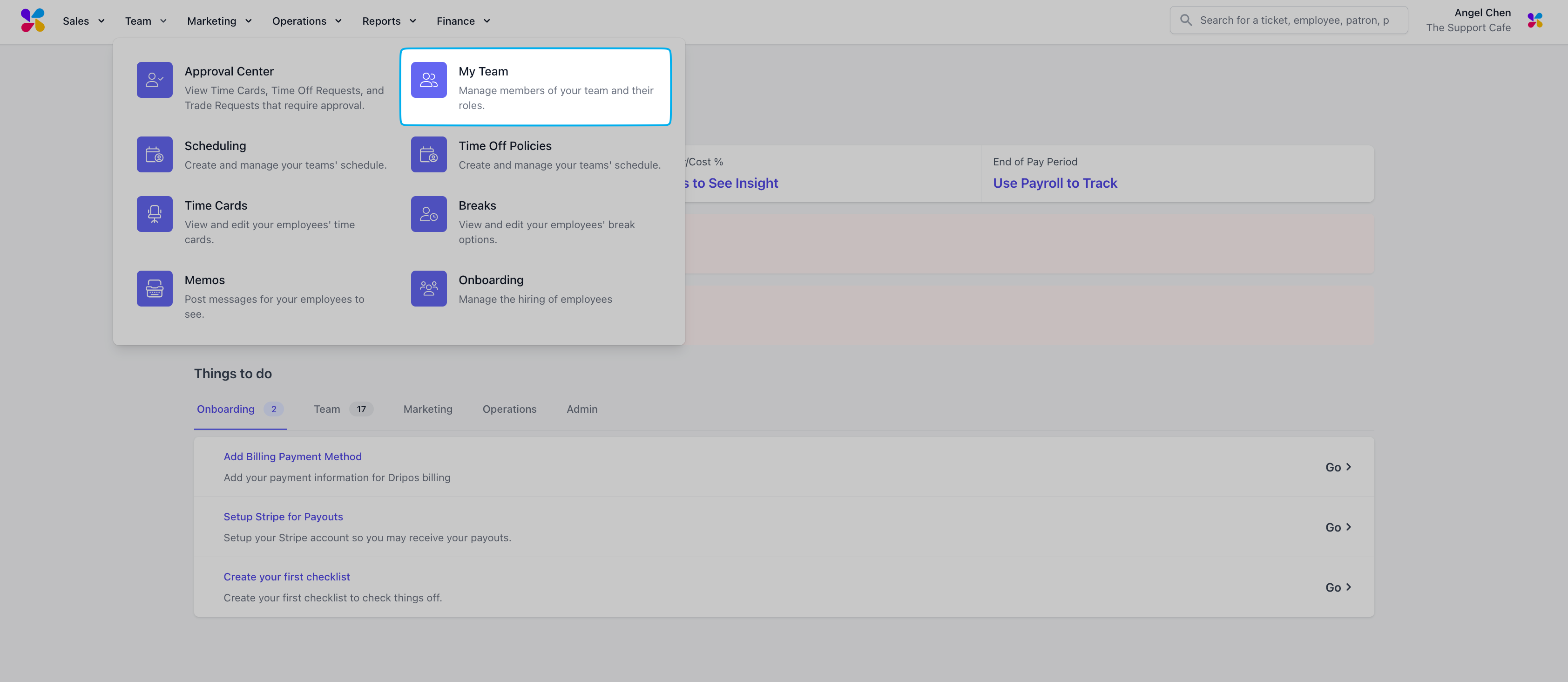 Navigate to **Employees** and click **View** for the employee you wish to submit a time off request for
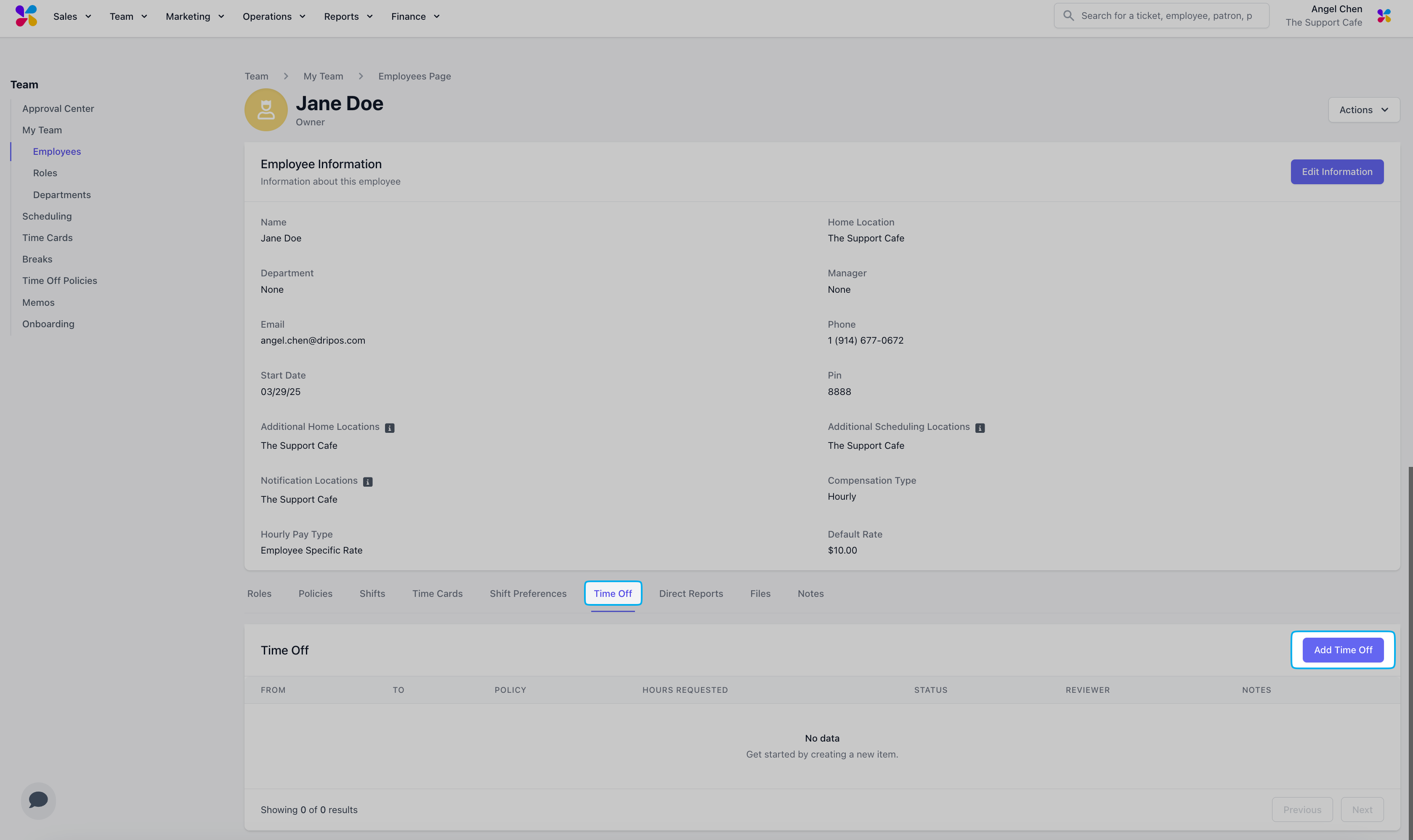
 Navigate to the **Time Off** tab in the employee page and select the **Add Time Off b**utton
 Input the time off request details in the pop-up and click **Add Time Off** when finished
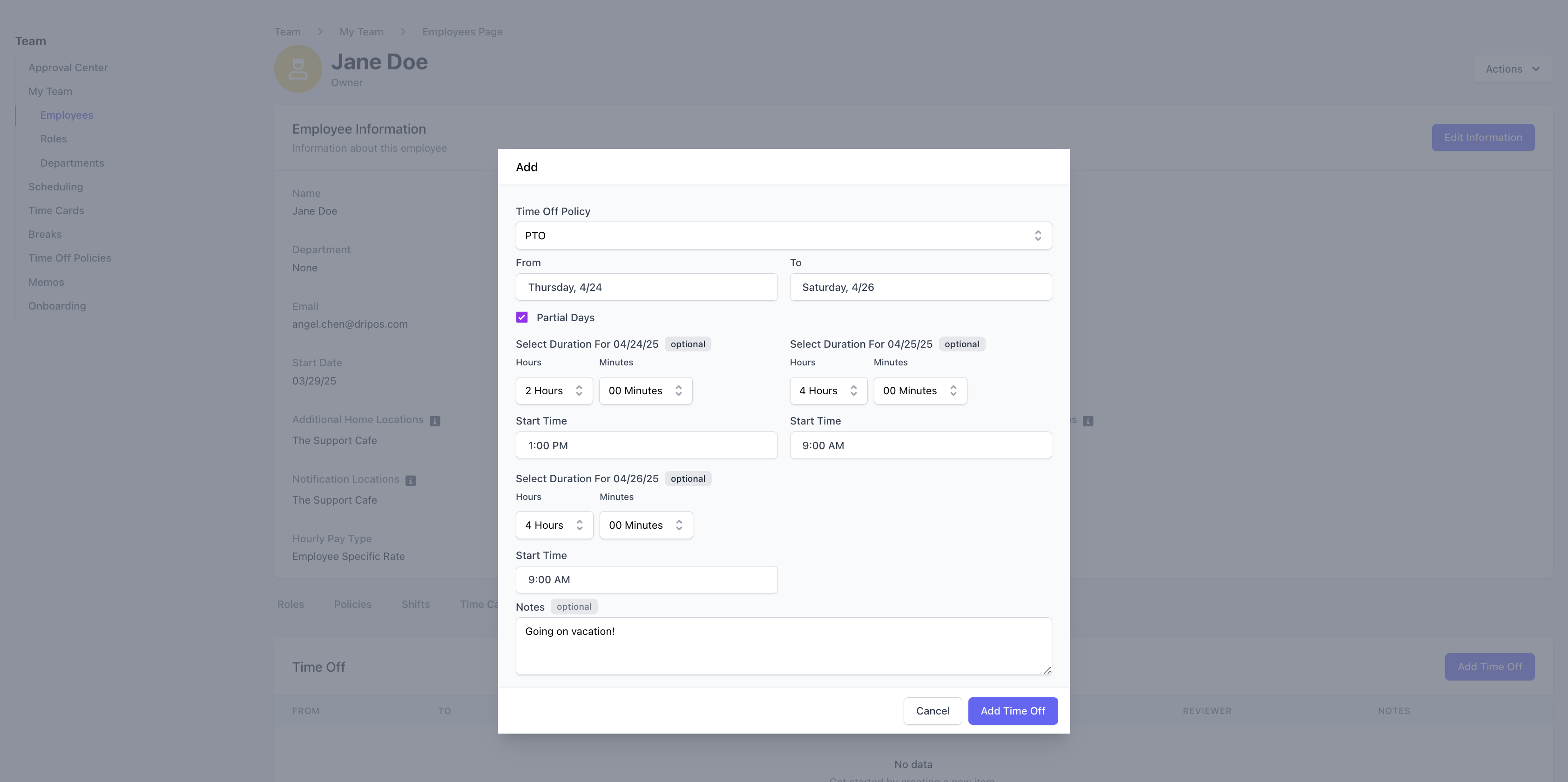 > **Time Off Policy:** Select which enrolled time off policy to use for the request.
>
> **From:** Select the request start date.
>
> **To:** Select the request end date.
>
> **Partial Days:** Check the box to input the number of hours and/or minutes to request off per day.
>
> **Notes (Optional):** Include a note with the request.
***
## Submit Time Off Requests - Employee Guide
Employees can view their enrolled policies and submit time off requests directly from the Dripos Hub App.
Log in to the Hub App and navigate to **My Time > Time Off Requests** to see all enrolled policies
> **Time Off Policy:** Select which enrolled time off policy to use for the request.
>
> **From:** Select the request start date.
>
> **To:** Select the request end date.
>
> **Partial Days:** Check the box to input the number of hours and/or minutes to request off per day.
>
> **Notes (Optional):** Include a note with the request.
***
## Submit Time Off Requests - Employee Guide
Employees can view their enrolled policies and submit time off requests directly from the Dripos Hub App.
Log in to the Hub App and navigate to **My Time > Time Off Requests** to see all enrolled policies
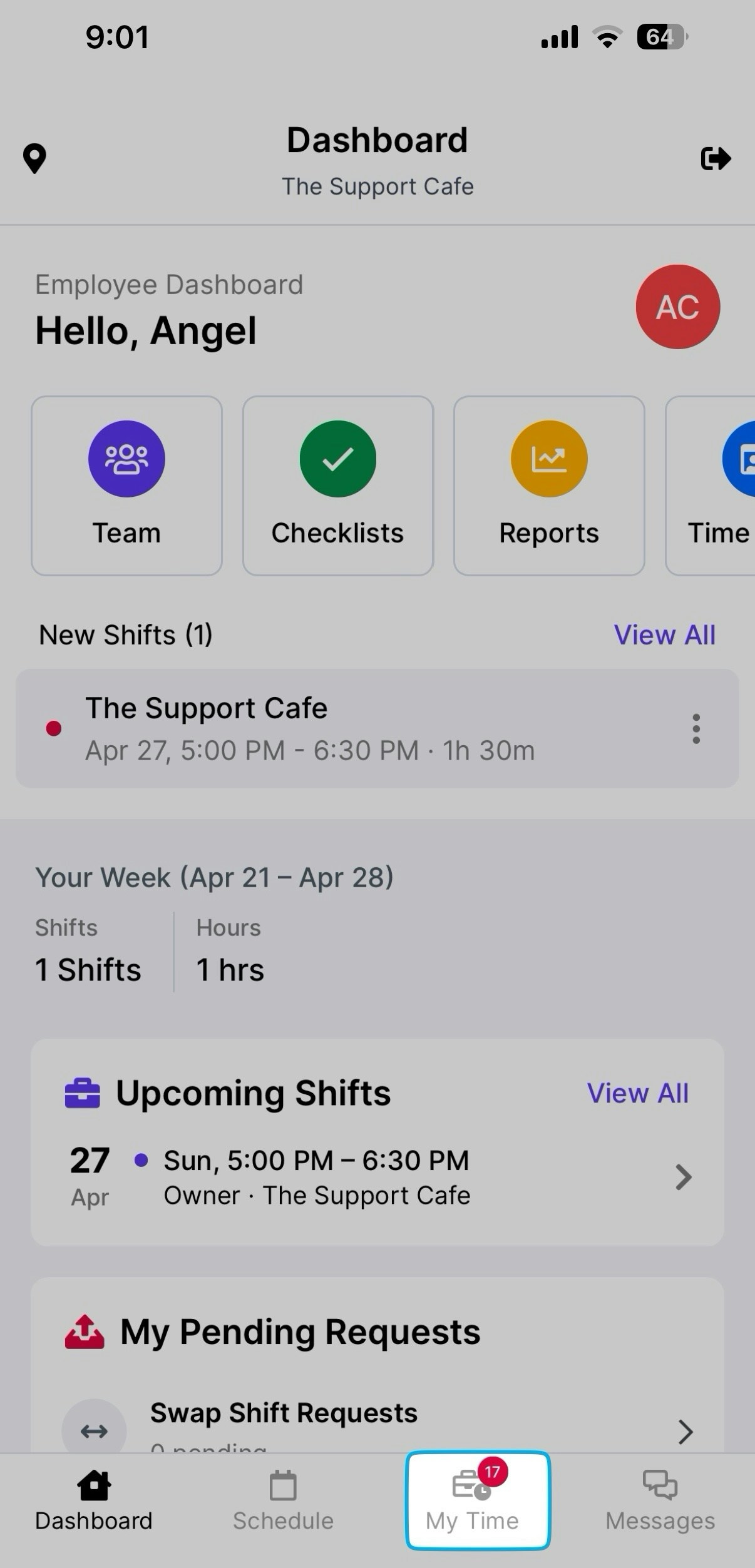
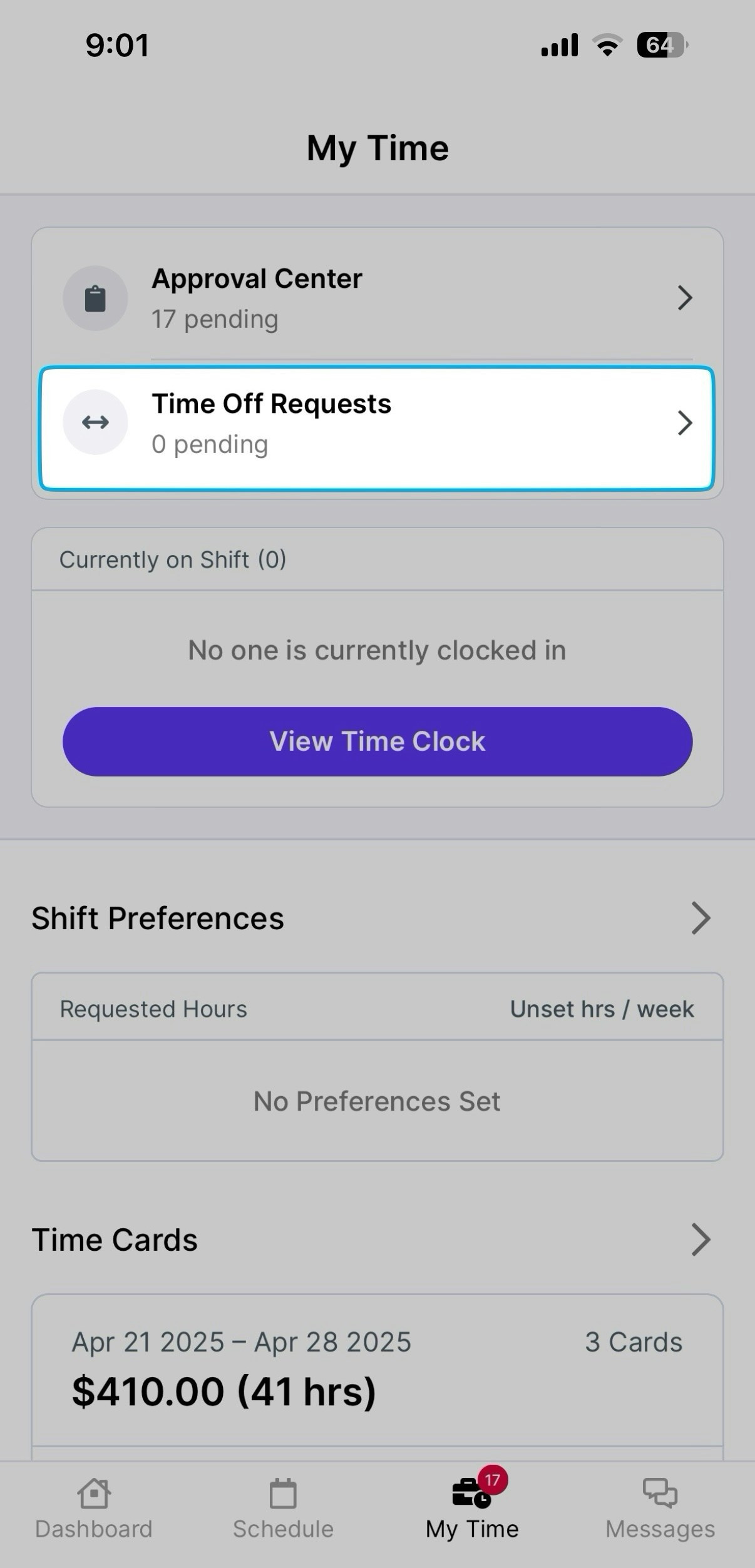 Press **View** to see additional information about **Lifetime Used Hours** and **Lifetime Accrued Hours** for that time off policy
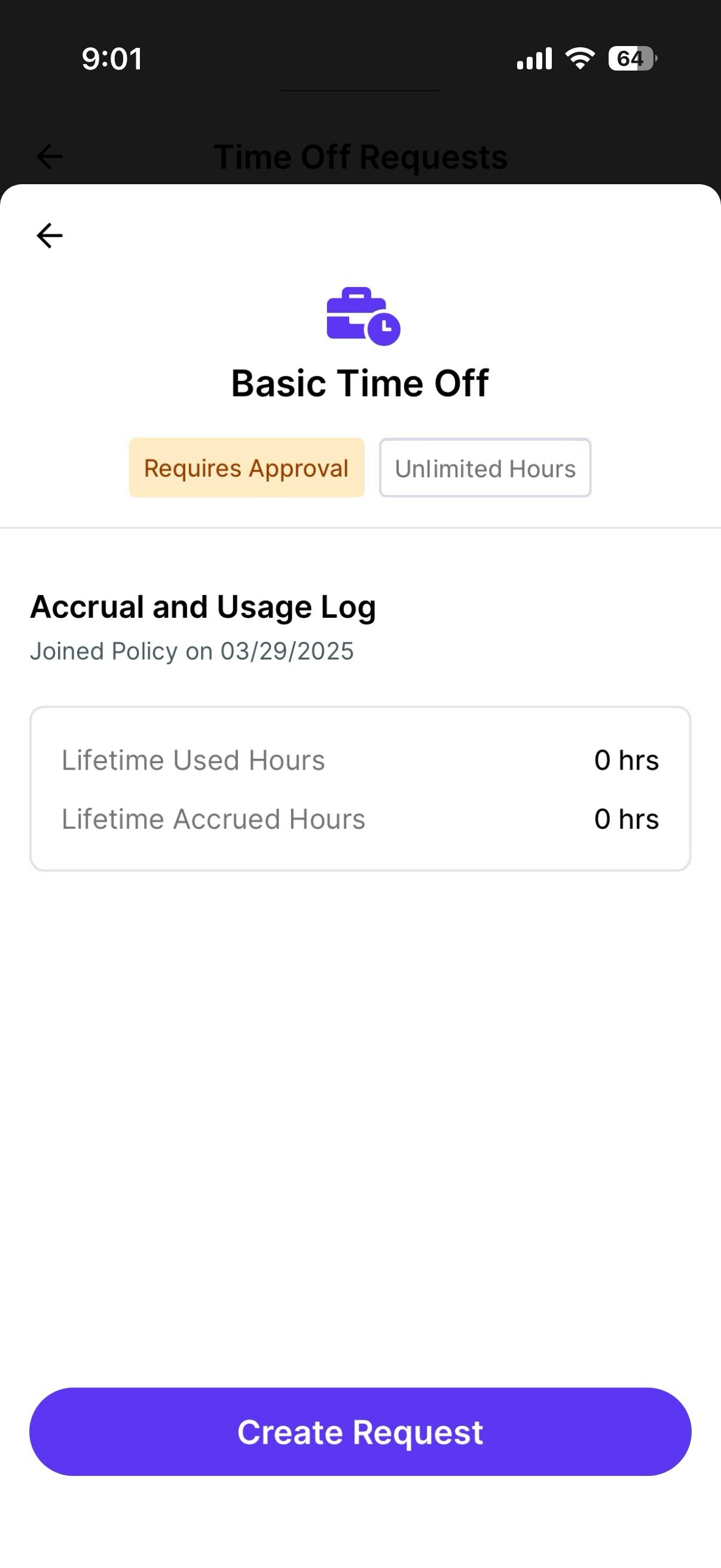 Select **Create Request,** fill in the following fields and **Submit Request.**
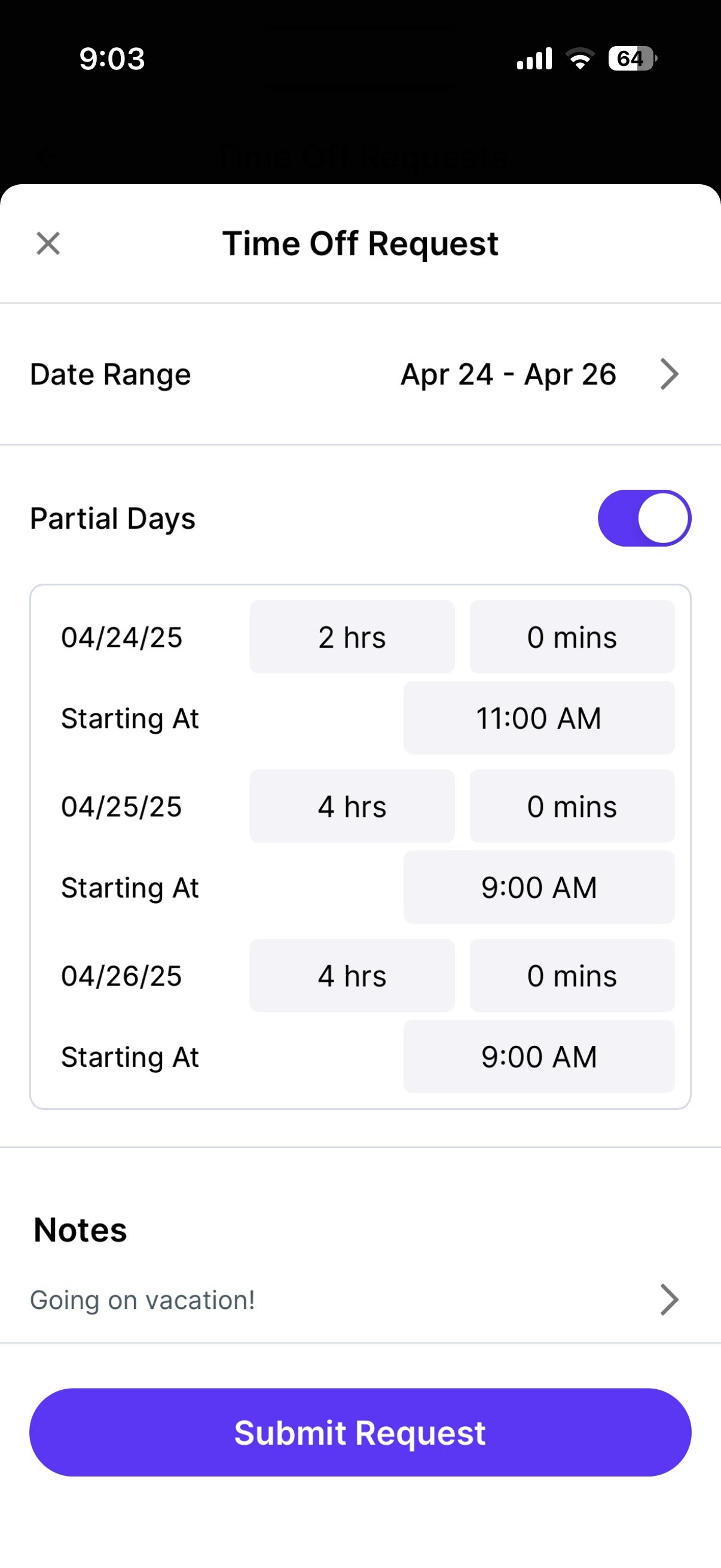 > **Date Range:** Select the date or date range you would like to request time off for.
>
> **Partial Days:** If turned on, input the number of hours and/or minutes you would like to request off per day.
>
> **Notes (Optional):** Include a note with the request.
Confirm the request appears in the **Requests** tab in the **Time Off Section**
> **Date Range:** Select the date or date range you would like to request time off for.
>
> **Partial Days:** If turned on, input the number of hours and/or minutes you would like to request off per day.
>
> **Notes (Optional):** Include a note with the request.
Confirm the request appears in the **Requests** tab in the **Time Off Section**
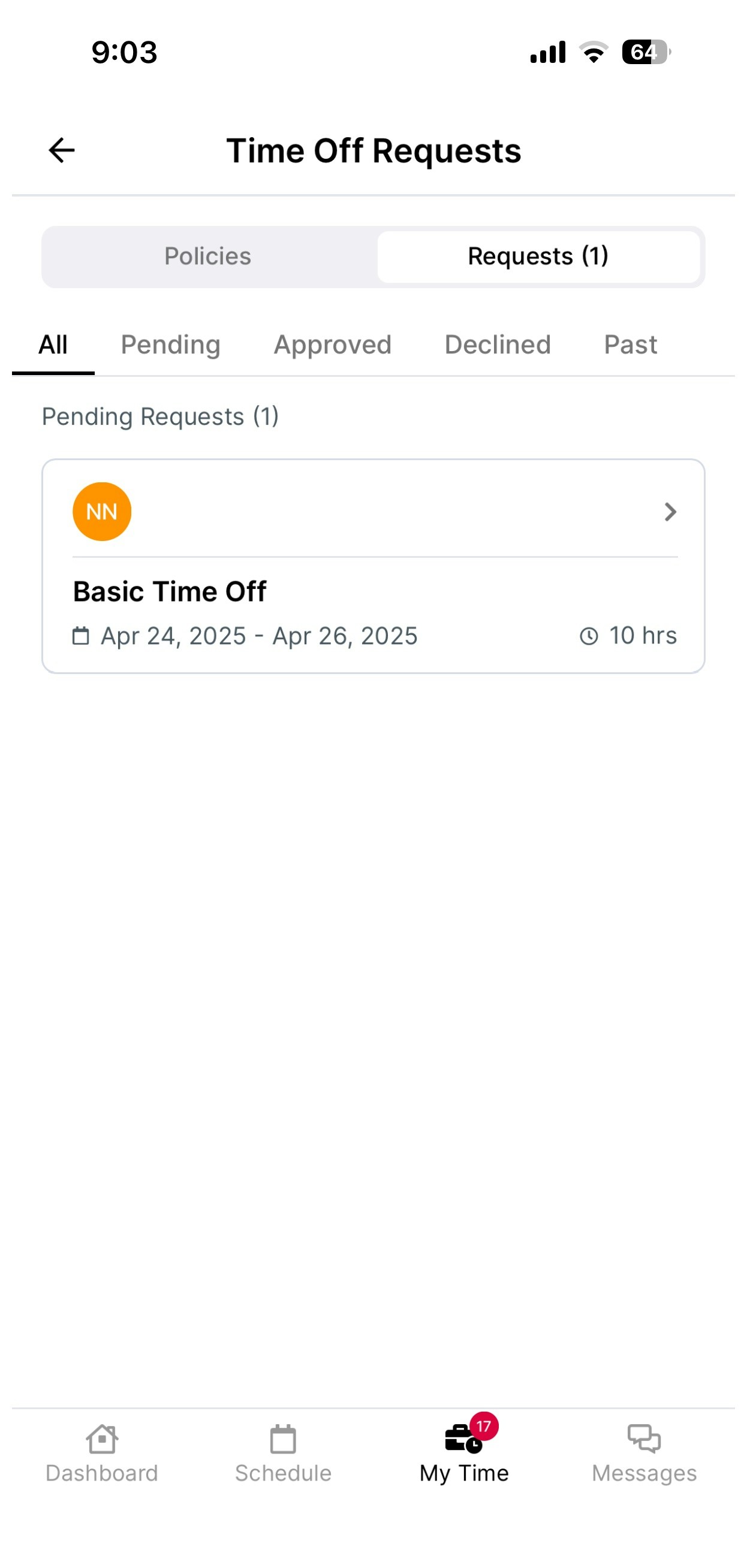 The request will remain here until approved by a manager. You can tap on the request to find the delete option.
***
## **Approve Time Off Requests**
Managers can approve time off requests on the Dashboard and Hub App.
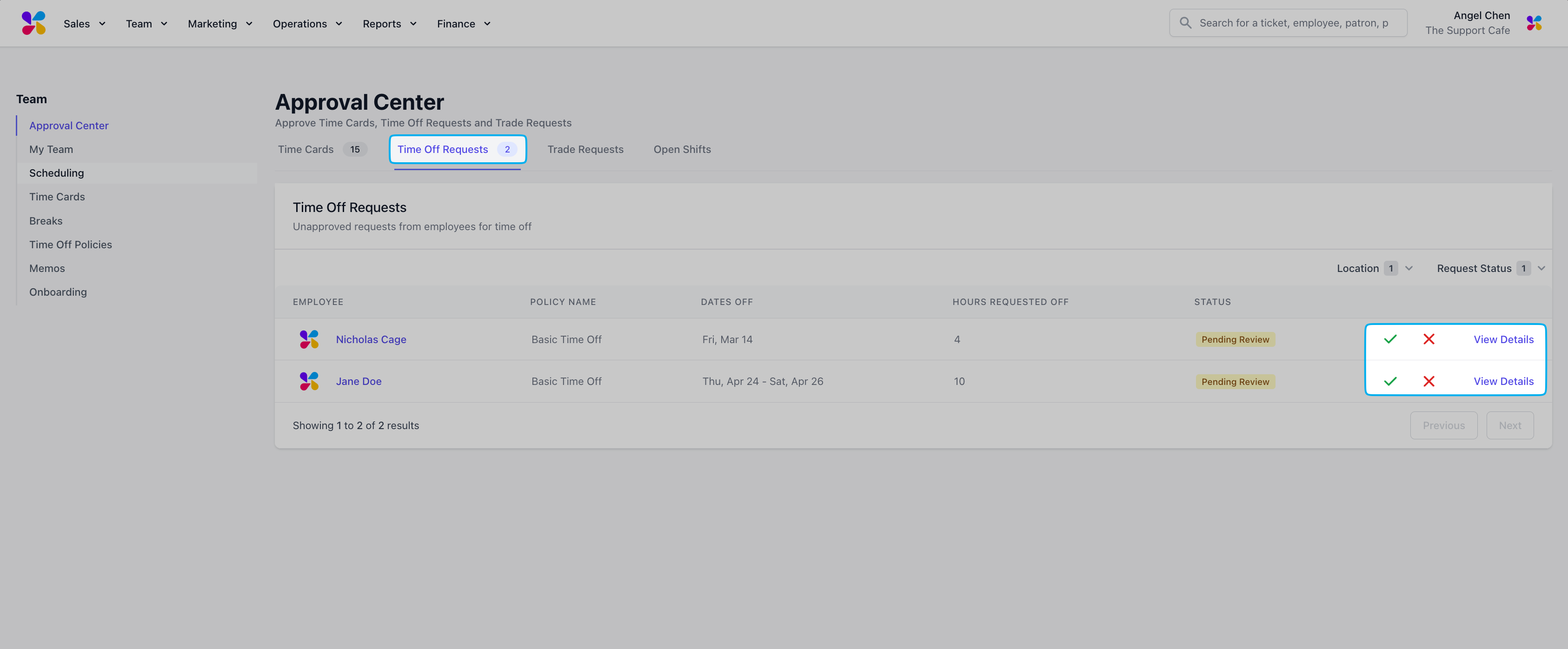
Log in to the Dashboard and navigate to **Team > Approval Center**
The request will remain here until approved by a manager. You can tap on the request to find the delete option.
***
## **Approve Time Off Requests**
Managers can approve time off requests on the Dashboard and Hub App.
Log in to the Dashboard and navigate to **Team > Approval Center**
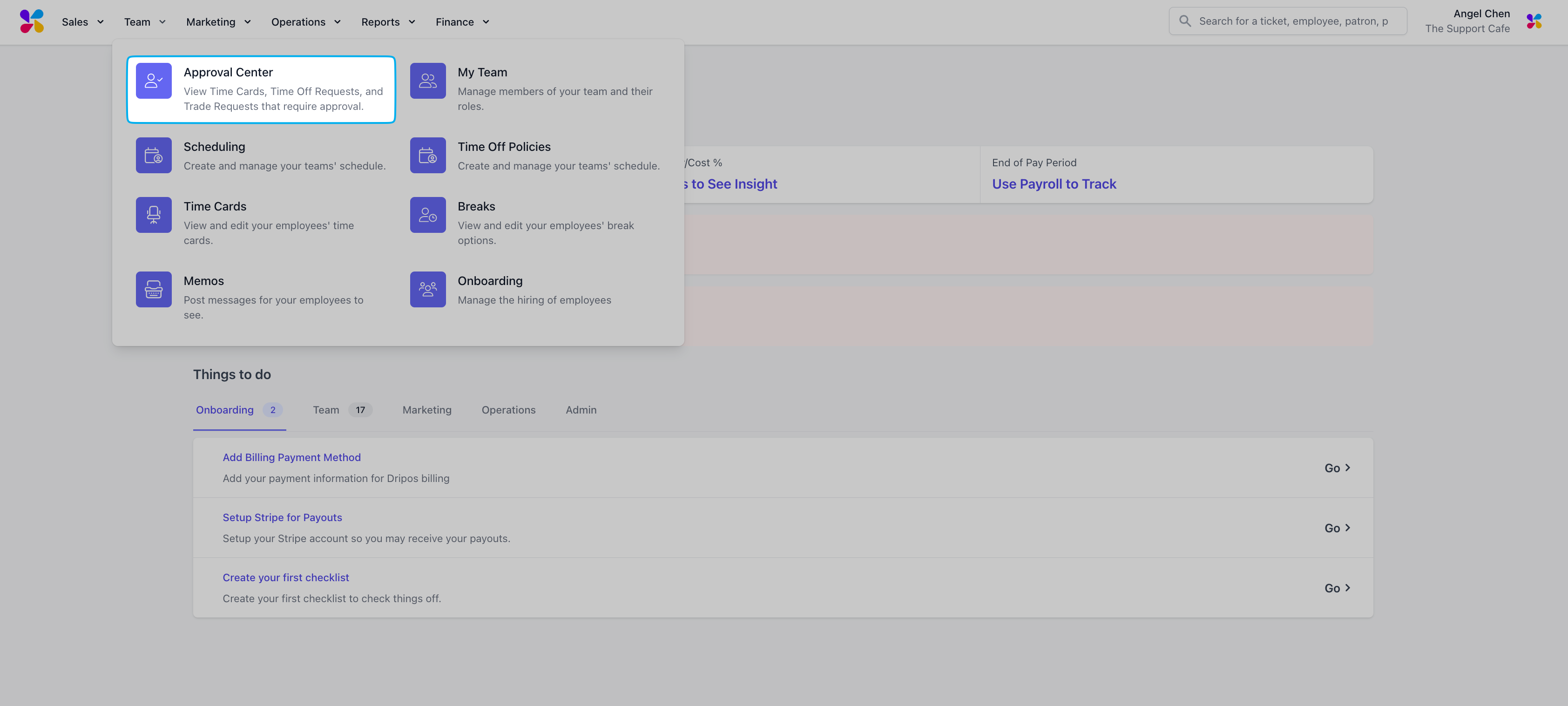 Navigate to the **Time Off Requests** tab and use the ✓ to approve or X to reject requests. To include a note alongside the approval or rejection, use the **View Details** button.
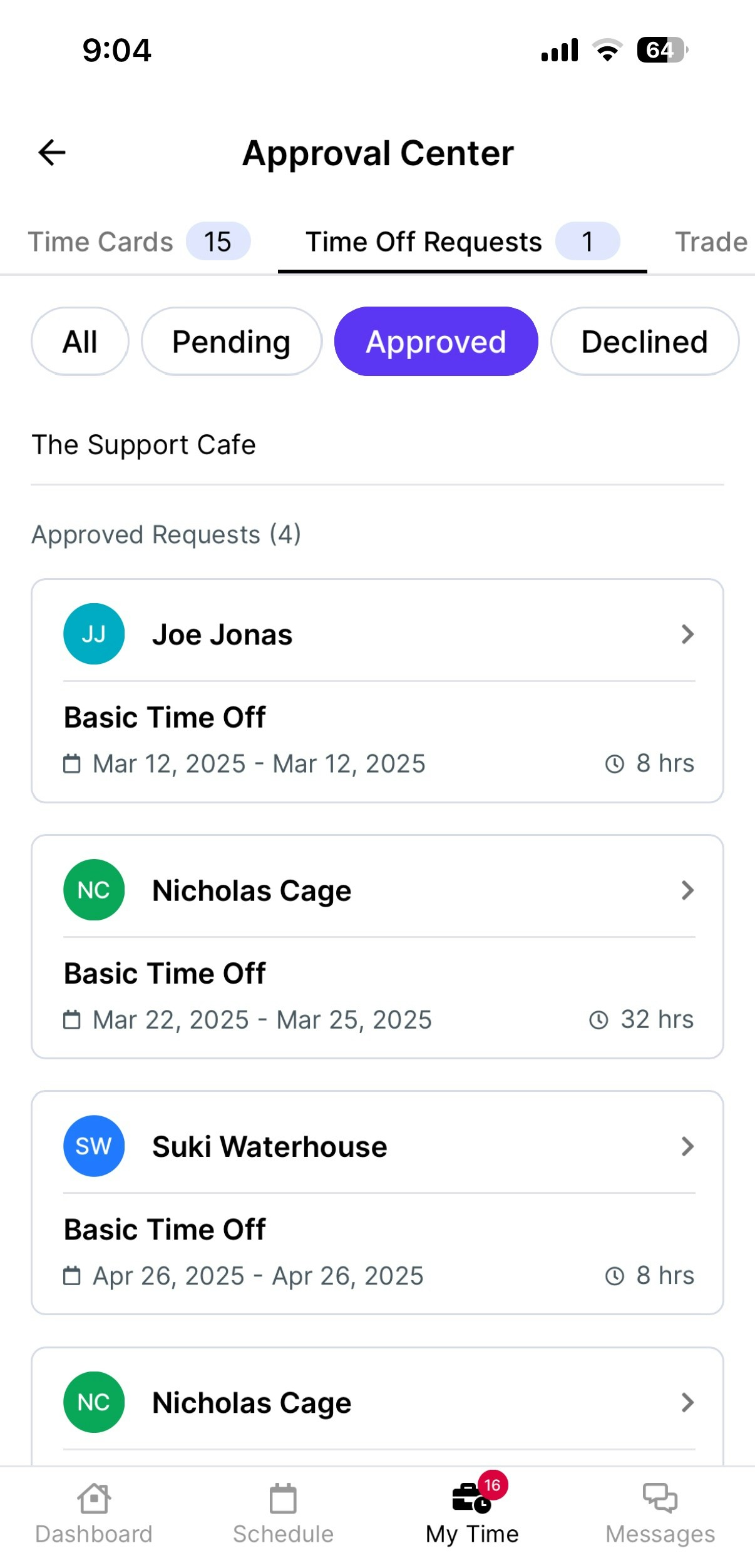
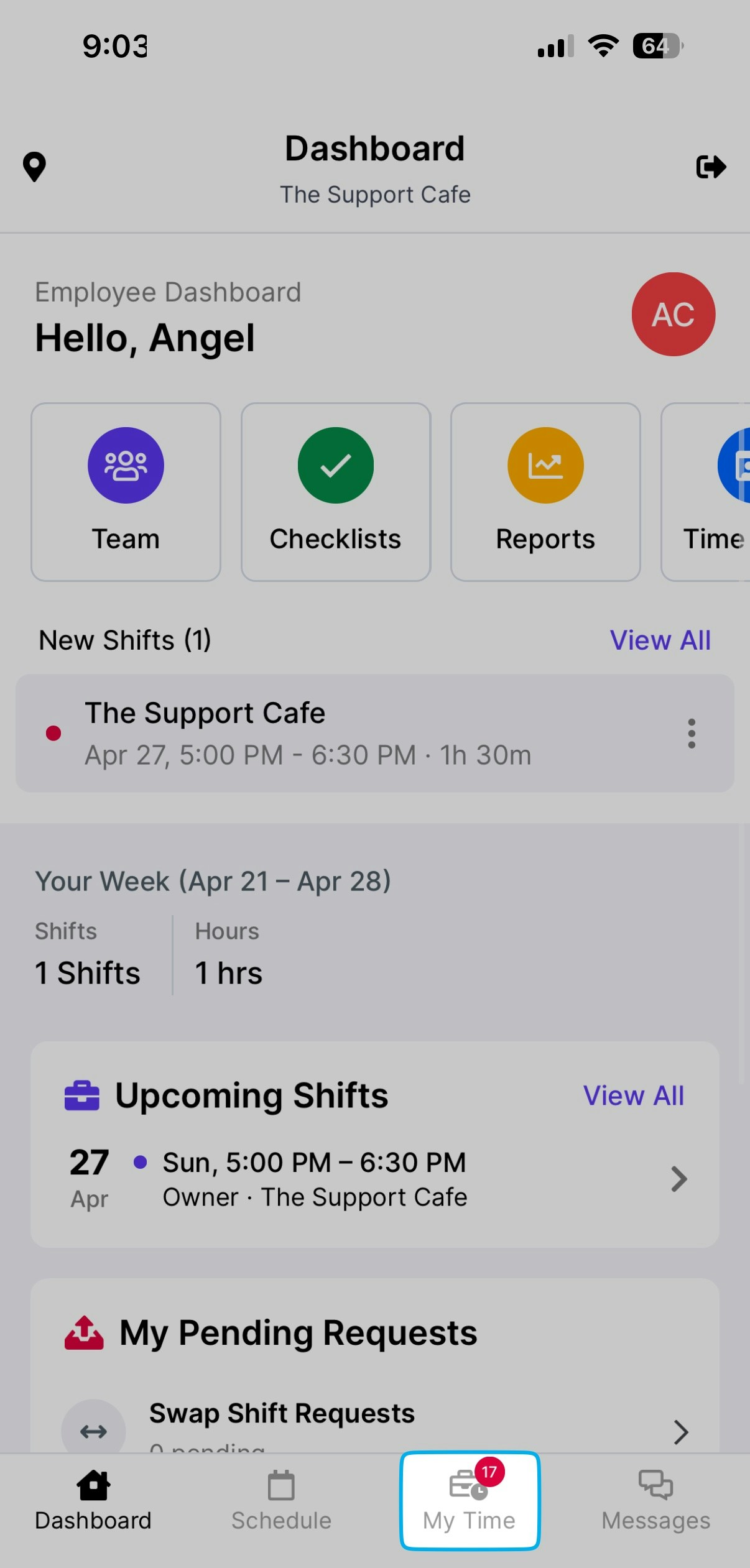
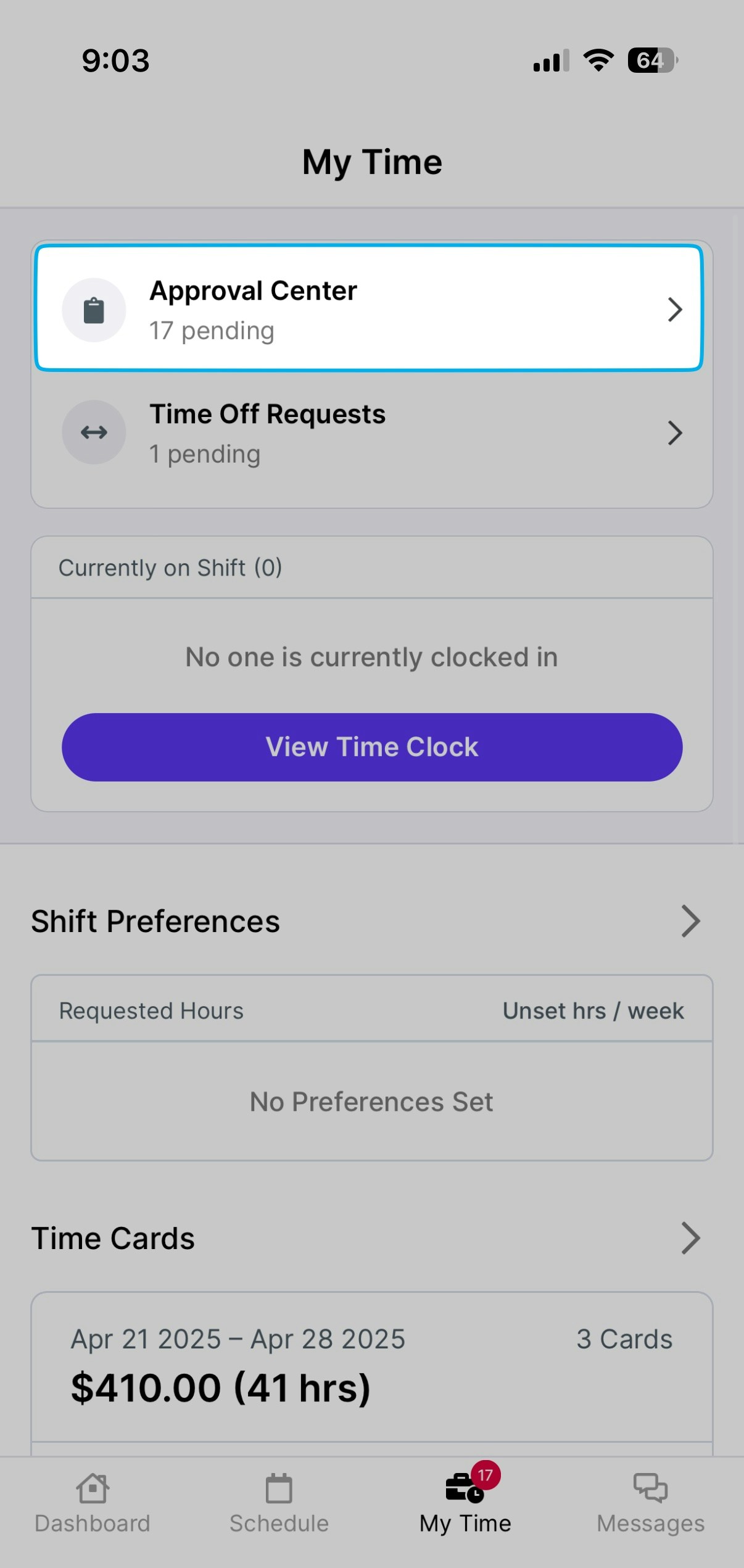
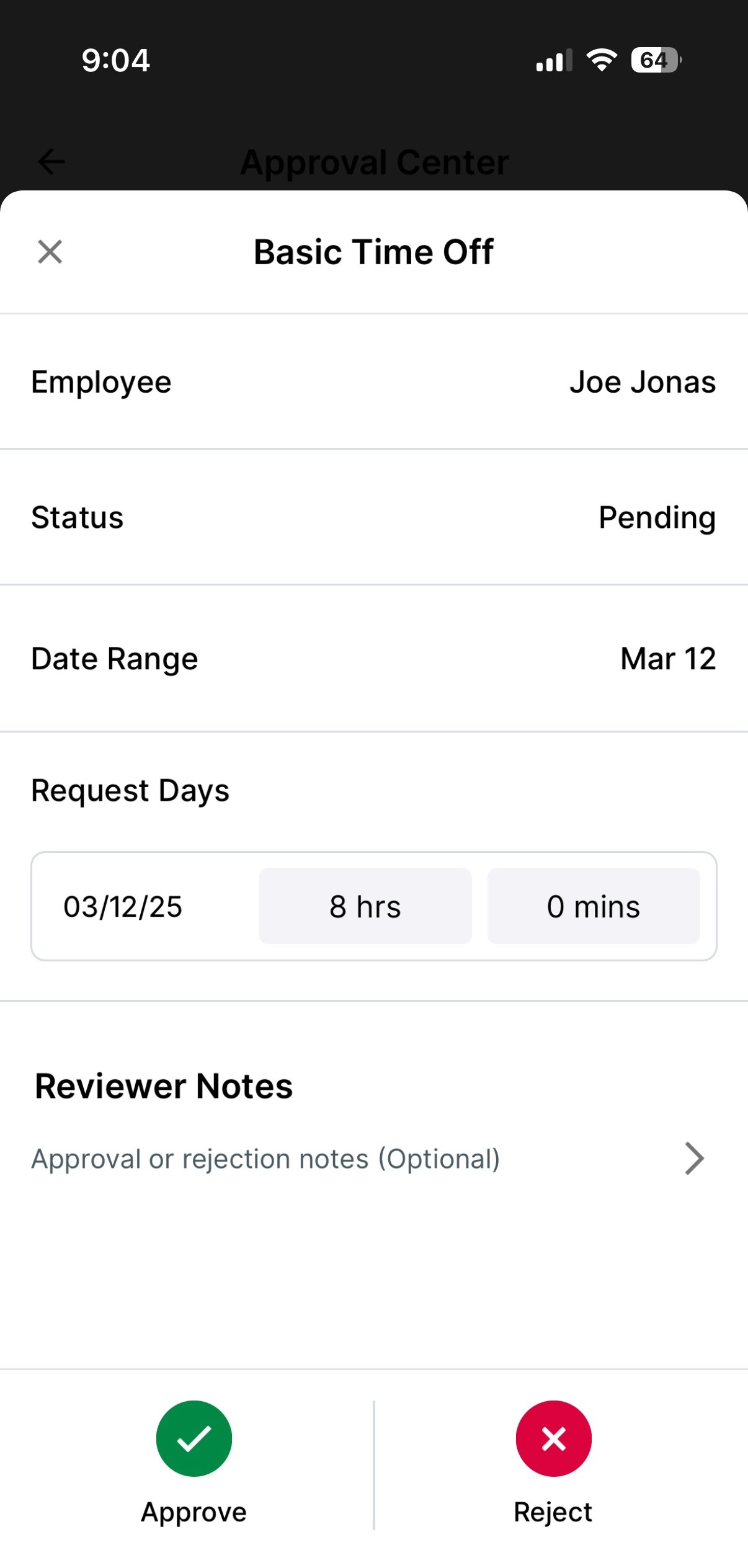
 Log in to the Hub App and navigate to **My Time > Approval Center**
 Navigate to the **Time Off Requests** tab and view **Pending** requests
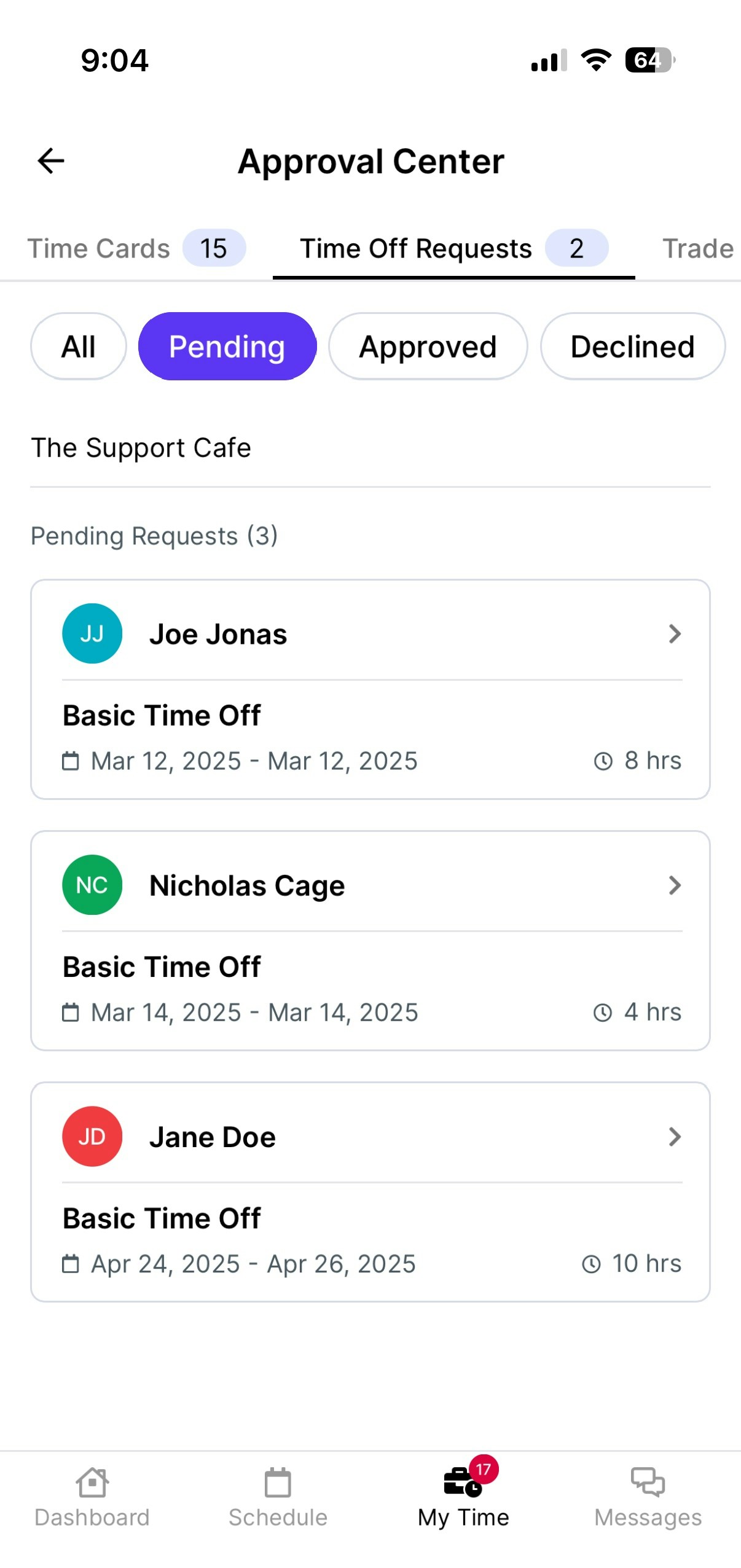 Select the request to review and use the ✓ to approve or X to reject. Optional approval or rejection notes can be included in the Reviewer Notes section.
 View all **Approved** or **Declined** requests.