> ## Documentation Index
> Fetch the complete documentation index at: https://support.dripos.com/llms.txt
> Use this file to discover all available pages before exploring further.
# Card Reader Tips and Troubleshooting
> Fix a Stripe S700 card reader that won't process payments, connect to Wi-Fi, charge, or respond.
## Card Reader Tips and Troubleshooting
* To open the settings menu, swipe right from the left edge of the reader screen to reveal a Settings button. Tap the Settings button and enter the admin PIN *07139*. This is Stripe's default admin PIN for all Stripe Reader S700 devices.
* By default, the user interface of your Stripe Reader S700 reader uses a light theme. You can change the appearance of the UI to use a different theme in the settings menu.
* Stripe readers aren’t liquid-proof! Stripe recommends that users make appropriate efforts to make sure their devices remain dry. If your device has experienced liquid ingress, we recommend that you stop using the device and let it dry thoroughly before attempting to re-use or charge the device.
### Battery and Charging Status
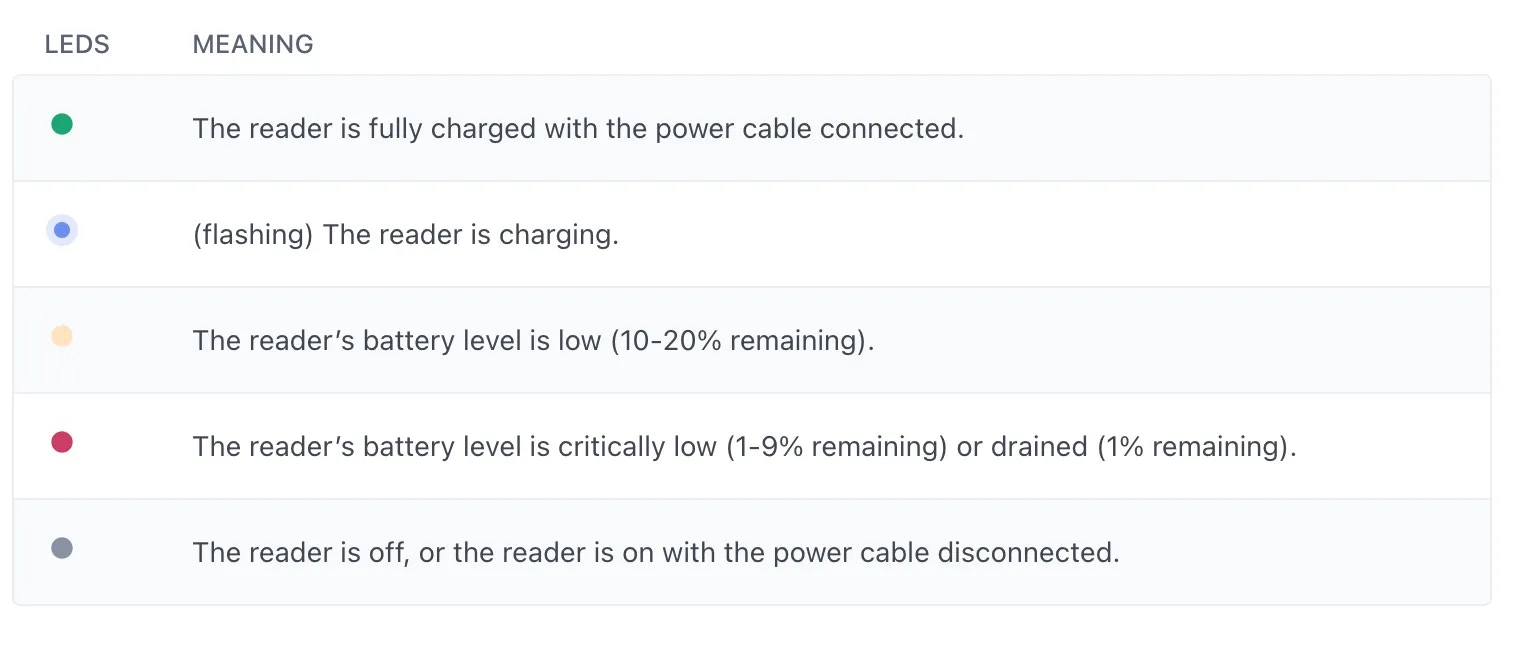
When the Stripe Reader S700 is on, you can check the battery level in the charging LED indicator:
 ### Troubleshoot your Stripe Card Reader
**My reader isn't processing payments/checking out orders successfully**
When your card reader is failing to fully process a payment or react to your POS, try the following workflow to troubleshoot:
1. Check on your network connection and ensure both the POS Device and Card Reader are connected to a stable internet source.
2. Restart the card reader by pressing the **Power Button** to the right of the reader until the **Restart Button** appears on your card reader touch screen.
3. Navigate to the POS Card Reader Settings to Delete the Reader Pairing and then Re-Pair the Card Reader as a New Instance.
> See the [Stripe S700 Pairing Guide](/hardware/reader/reader-s700) for pairing and re-pairing a card reader in both front-facing display mode and POS mode.
**My reader can’t connect to the internet/Wi-Fi**
To check connectivity, go to the reader settings and select Wi-Fi settings. This displays all available WiFi networks. To see more details about the connection, tap the connected network name.
* Make sure the network is connected and has internet access.
* The signal strength is good.
* The device has an IP address assigned.
* The subnet matches the one that your application is connected to.
**My card reader battery won't charge/hold a charge**
If the card reader is having difficulty charging, it may be helpful to try to use a different cord, charging block, or outlet.
**My card reader is slow/has bad connection**
If your card reader is experiencing delayed and slow connection, try the following troubleshooting steps:
1. Make sure you are on a stable network with consistent speeds. If offline, try another network if available.
2. Restart the card reader.
3. Delete the Card Reader Pairing and Repair the Card Reader (guide on pairing [here](/hardware/reader/reader-s700)).
**My card reader is frozen/stuck**
If the card reader screen is unresponsive for an extended period, it may be best to force restart the reader by pressing and holding the power button for \~12 seconds.
**My card reader is beeping twice**
If your card reader is beeping twice or asynchronously doing actions, your reader may be connected twice on both Kiosk Reader mode and Advanced Card Reader settings.
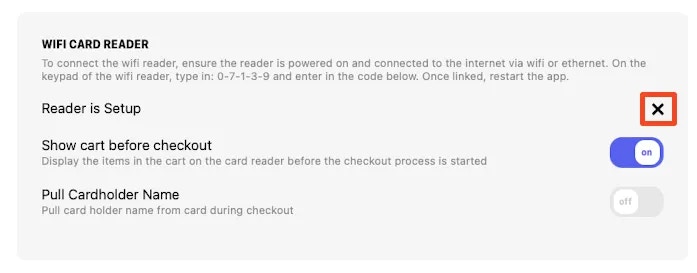
To disconnect and unpair your Card Reader on Wi-Fi Pairing, click the "X" on the right of where it says "Reader is Set up":
### Troubleshoot your Stripe Card Reader
**My reader isn't processing payments/checking out orders successfully**
When your card reader is failing to fully process a payment or react to your POS, try the following workflow to troubleshoot:
1. Check on your network connection and ensure both the POS Device and Card Reader are connected to a stable internet source.
2. Restart the card reader by pressing the **Power Button** to the right of the reader until the **Restart Button** appears on your card reader touch screen.
3. Navigate to the POS Card Reader Settings to Delete the Reader Pairing and then Re-Pair the Card Reader as a New Instance.
> See the [Stripe S700 Pairing Guide](/hardware/reader/reader-s700) for pairing and re-pairing a card reader in both front-facing display mode and POS mode.
**My reader can’t connect to the internet/Wi-Fi**
To check connectivity, go to the reader settings and select Wi-Fi settings. This displays all available WiFi networks. To see more details about the connection, tap the connected network name.
* Make sure the network is connected and has internet access.
* The signal strength is good.
* The device has an IP address assigned.
* The subnet matches the one that your application is connected to.
**My card reader battery won't charge/hold a charge**
If the card reader is having difficulty charging, it may be helpful to try to use a different cord, charging block, or outlet.
**My card reader is slow/has bad connection**
If your card reader is experiencing delayed and slow connection, try the following troubleshooting steps:
1. Make sure you are on a stable network with consistent speeds. If offline, try another network if available.
2. Restart the card reader.
3. Delete the Card Reader Pairing and Repair the Card Reader (guide on pairing [here](/hardware/reader/reader-s700)).
**My card reader is frozen/stuck**
If the card reader screen is unresponsive for an extended period, it may be best to force restart the reader by pressing and holding the power button for \~12 seconds.
**My card reader is beeping twice**
If your card reader is beeping twice or asynchronously doing actions, your reader may be connected twice on both Kiosk Reader mode and Advanced Card Reader settings.
To disconnect and unpair your Card Reader on Wi-Fi Pairing, click the "X" on the right of where it says "Reader is Set up":
 **My card reader says error loading screen**
The error loading screen appears when the card reader loses its connection to the Dripos POS App. To troubleshoot this, restart the POS app and re-pair the Card Reader using a new pairing code (guide on pairing [here](/hardware/reader/reader-s700)).
**My card reader says error loading screen**
The error loading screen appears when the card reader loses its connection to the Dripos POS App. To troubleshoot this, restart the POS app and re-pair the Card Reader using a new pairing code (guide on pairing [here](/hardware/reader/reader-s700)).