Billing
How do I change the bank account my subscription is being charged to?
How do I change the bank account my subscription is being charged to?
How do I change the bank account my payouts are going to?
How do I change the bank account my payouts are going to?
Reports
How is the Taxable Sales report broken down?
How is the Taxable Sales report broken down?
Why don't Pass Processing Collected and (Processing) line items match my expectations?
Why don't Pass Processing Collected and (Processing) line items match my expectations?
- This line item shows only the processing fees you passed on to customers (when that feature was available).
- As of May 7, 2025, the ability to pass on processing fees was removed from Dripos.
- After that date, the Pass Processing Collected line item will no longer increase. You may still see a historical amount there from before May 7, 2025.
- This line item at the bottom of the Sales Summary Report shows all processing-related fees, including card processing fees and payout fees (the fee charged each time funds are paid out to your bank).
Payroll
How are tips split, including invoice tips, when no one is clocked in?
How are tips split, including invoice tips, when no one is clocked in?
- Tips are split based on time cards, not just payroll enrollment.
- As long as employees are clocking in/out and time cards exist before payroll, tips are included for all eligible employees on that shift, even if some are not enrolled in payroll.
- Currently, tips are split equally among eligible employees.
- If your tips are split By Transaction, invoice tips are not automatically split among employees.
- Invoice tips are included in your payouts, and can be manually split by you outside the system or added to payroll manually.
- Determine the total invoice tips (via Orders → Invoicing → Invoice List → View or Reports → Invoicing).
- Decide how to split (equal or weighted).
- When running payroll, on Hours & Pay, click + Additional Tips for each employee and enter the amount as Paycheck Tips or Cash Tips as appropriate.
- Tips are always part of your daily payouts, even if no one is clocked in at that moment.
- If you use Dripos payroll to calculate tips, tips are debited from your payroll bank account based on time cards. If no tips need to be distributed (e.g., no eligible time cards), the money simply remains in your bank account.
Can time cards be paid even if unapproved?
Can time cards be paid even if unapproved?
- When you run payroll, Dripos automatically pulls in all unpaid time cards for the Pay Period, regardless of approval status.
- The Approval Center is mainly for review and internal control, not a requirement for payment.
- There is no risk of double-paying the same time card; each time card can only be paid once.
Why are some time cards showing 'No pay earned' or not appearing in the payroll flow?
Why are some time cards showing 'No pay earned' or not appearing in the payroll flow?
- Each time card can only be paid once. If a time card shows No pay earned, it may have already been included in a previous payroll.
- When running payroll, only unpaid time cards within the selected Work Period are pulled in.
- If the date range is wrong, some time cards won’t appear.
- Time cards with missing clock-in/clock-out times or obvious errors may need to be edited before they calculate correctly.
- Time cards that are attached to roles without pay rates will show as no pay earned until the role/employee is assigned a pay rate.
- Confirm the Pay Period when running payroll includes the dates you expect.
- Edit and re-save any incorrect time cards, then re-run or adjust payroll as needed.
Why hasn't an employee been paid on time?
Why hasn't an employee been paid on time?
- Payroll wasn’t submitted or was submitted late
- Go to the Web Dashboard → Finance → Payroll → History to confirm the pay run was created and approved before the deadline.
- Incorrect or failed bank info
- In Finance → Payroll → Employees, open the employee and confirm their bank info is complete and correct.
- If a payment failed, you’ll typically see a failed payment status; in many cases, the payment can be retried after the employee updates their bank details, or funds can be returned to your account for manual payment.
- Time cards not included in the pay run
- Confirm the employee’s time cards are in the correct pay period and were included when you ran payroll.
Why does an employee's paystub not match their expected pay?
Why does an employee's paystub not match their expected pay?
- Check hours and time cards
- Go to the specific payroll run → expand the employee.
- Confirm: all expected time cards are present; clock-in/clock-out times and total hours are correct; overtime hours (if any) look right.
- Check pay rate and earnings types
- Confirm the employee’s hourly rate or salary is correct in Finance → Payroll → Employees.
- Look for additional earnings (overtime, bonuses, tips) that may increase pay.
- Review deductions and withholdings
- On the paystub, review pre-tax and post-tax deductions, and federal, state, and local taxes.
- Changes to W-4 or new deductions can change net pay even if hours are the same.
How do I run an off-cycle payroll or correct an overpayment?
How do I run an off-cycle payroll or correct an overpayment?
- Go to Finance → Payroll on the Dashboard.
- Click Run Payroll → under Other Payroll Options, select Off-Cycle.
- Choose: Method of Payment (Employee Preference [direct deposit/manual per employee], or Manual [you pay employees outside the system; Dripos only handles taxes and reporting]); Work Period (date range you’re paying for); Payday (next available or a custom future date; any future date if Method of Payment = Manual).
- On Hours & Pay, confirm or add hours, regular pay, and any Additional Tips (Paycheck Tips or Cash Tips).
- Review and Submit.
How do I pay time-and-a-half for holidays?
How do I pay time-and-a-half for holidays?
- Go to Team → My Team → Roles and create a new role (e.g. “Holiday - Barista”) with the 1.5x pay rate.
- Assign this role to the employees who worked the holiday.
- Go to Time Cards on the Dashboard, open each holiday time card, and change the Role to the new holiday role.
- Re-save each time card so the updated rate applies for payroll.
- Go to Team → My Team → Employees, open the employee, and update their pay rate to the 1.5x rate.
- Go to Time Cards, open each holiday time card, and click Save again so the new rate is applied.
- After that, change the employee’s pay rate back to their normal rate so future time cards use the regular pay.
When are W-2s available, and how do we access them?
When are W-2s available, and how do we access them?
- W-2s are typically available by mid-January for the previous tax year.
- Go to Finance → Payroll → Employee Tax Documents on the Dashboard.
- Download W-2s and 1099-NECs that have been filed.
- Employees can access their own W-2s directly through their payroll dashboard (Hub) once they’re available.
- For employees who did not opt in to electronic delivery, physical W-2s are mailed to the address on file.
How do I change the bank account payroll is debited from, or handle an EIN change?
How do I change the bank account payroll is debited from, or handle an EIN change?
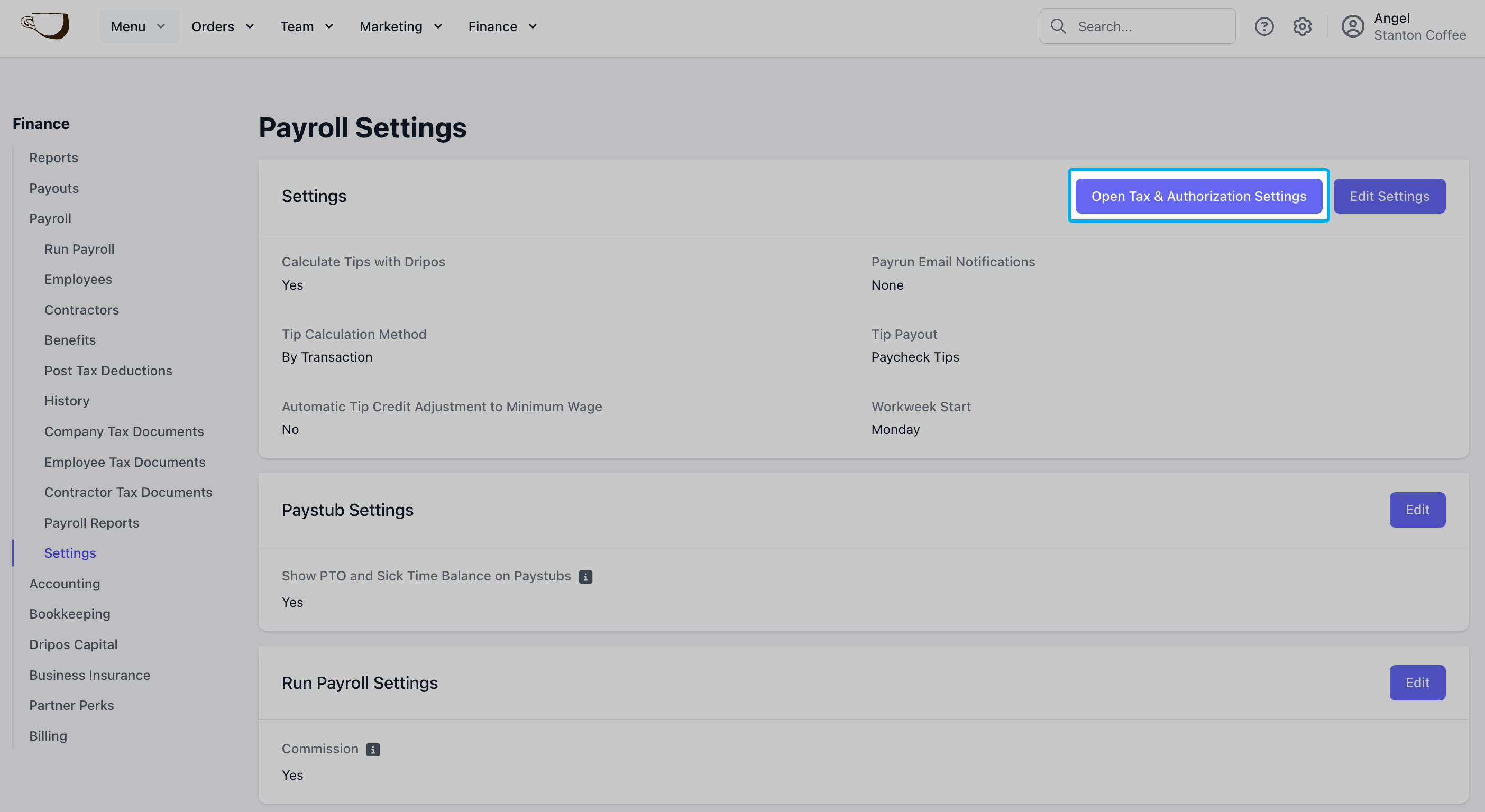
- Go to Finance → Payroll → Settings on the Dashboard.
- Click Open Tax & Authorization Settings.
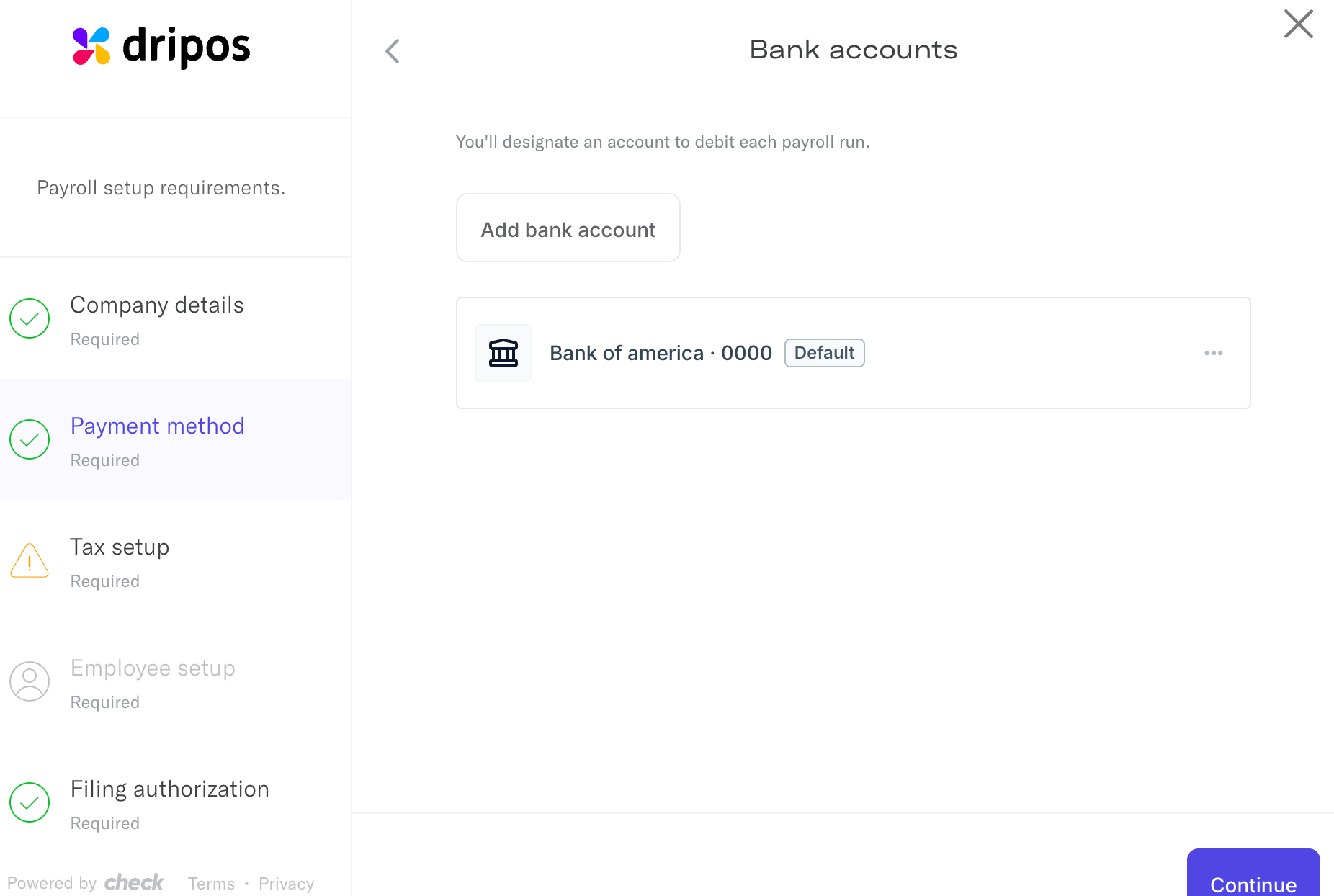
- Under Payment Method, click Add Bank Account and enter the new account.
- Set the new account as Default and remove or de-prioritize the old account. Only one bank account can be used at a time to debit payroll.
Payroll Definitions
Payroll Definitions
Payroll Definitions
Reimbursements: Payment made to an employee through payroll as repayment for out-of-pocket business expenses. If properly documented, it is not considered wages. As long as the reimbursement meets certain IRS guidelines, they are not taxed (e.g., part of an accountable plan).+ Additional Tips
- Paycheck Tips: Tips to be paid out to this employee via payroll
- Cash Tips: Tips that have already been paid out in cash and are only being reported on payroll for tax purposes. Adding cash tips does not pay your employee additional tips through payroll.
- Bonus: Extra compensation given on top of regular wages
- Commission: Pay earned based on the amount of sales or performance achieved
- Group Term Life: Employer-provided life insurance that offers coverage to employees for a set term
- Severance: Payment given to an employee when they are laid off or let go, typically based on tenure
- Non Hourly Regular: Additional fixed amount paid to an employee, regardless of hours worked
- Other Imputed: The taxable value of a benefit provided to an employee. This amount is added to gross taxable wages so that taxes are withheld and reported correctly. It is not paid to the employee and does not affect net pay.
- Tip Credit Adjustment: The difference between an employee’s tips and the minimum wage they must receive
- Meal Period Premium Pay: Supplemental, specifically categorized compensation required by California law when an employer fails to provide an employee with a compliant meal period
Void a Payroll
If you submitted a payroll but need to make changes or void it altogether, find the scenario that best fits your situation and follow the steps.I submitted a regular payroll in the last 30 minutes, but I need to make changes immediately.
I submitted a regular payroll in the last 30 minutes, but I need to make changes immediately.
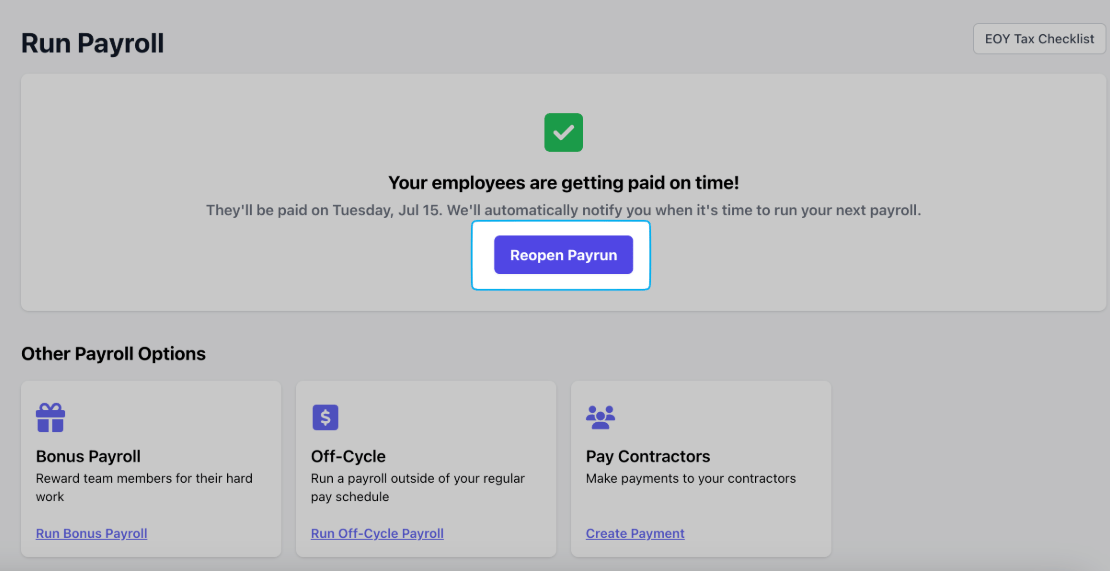
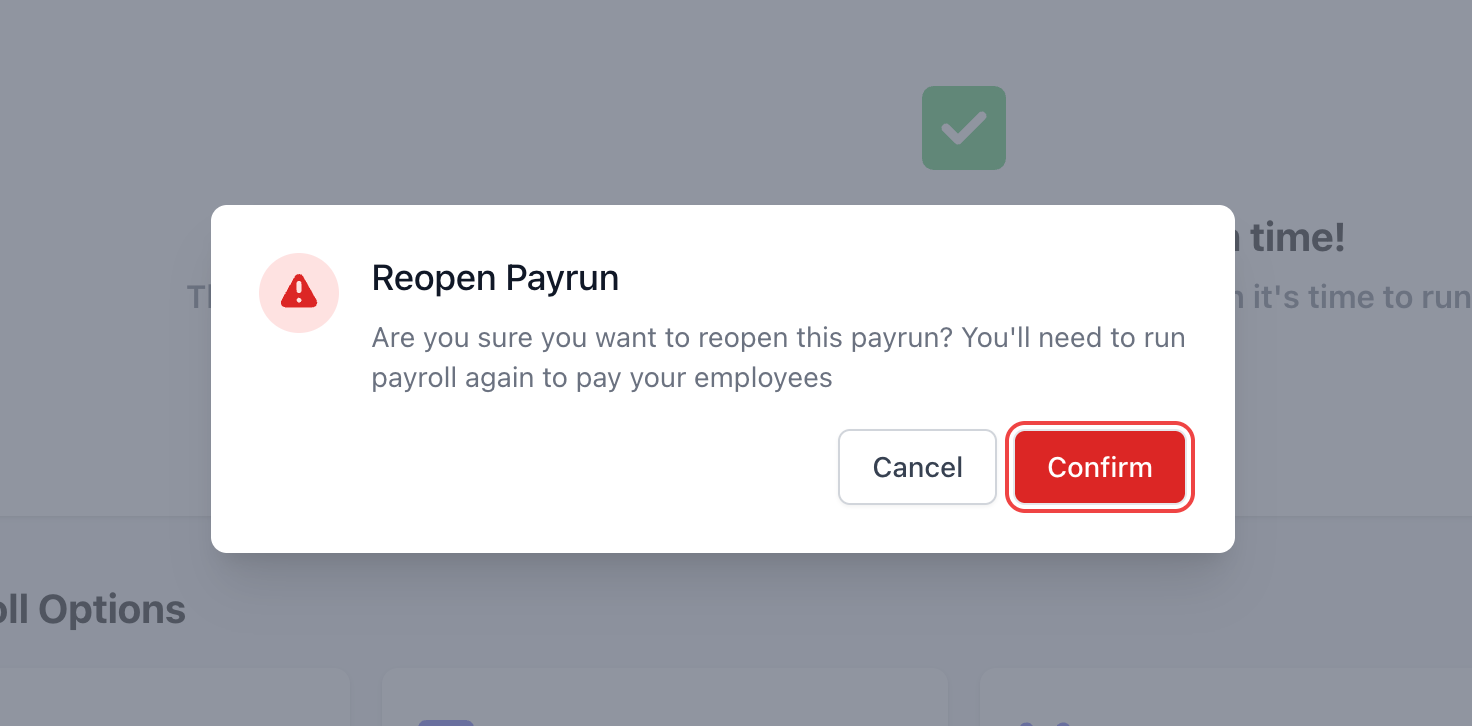
I submitted a regular or off-cycle payroll over 30 minutes ago, but I need to make changes or void it entirely.
I submitted a regular or off-cycle payroll over 30 minutes ago, but I need to make changes or void it entirely.
I overpaid an employee in their last payroll and need to adjust their next payroll to reflect this.
I overpaid an employee in their last payroll and need to adjust their next payroll to reflect this.
Running Payroll
I missed my payroll deadline. What can I do?
I missed my payroll deadline. What can I do?
How do bank holidays affect my payroll?
How do bank holidays affect my payroll?
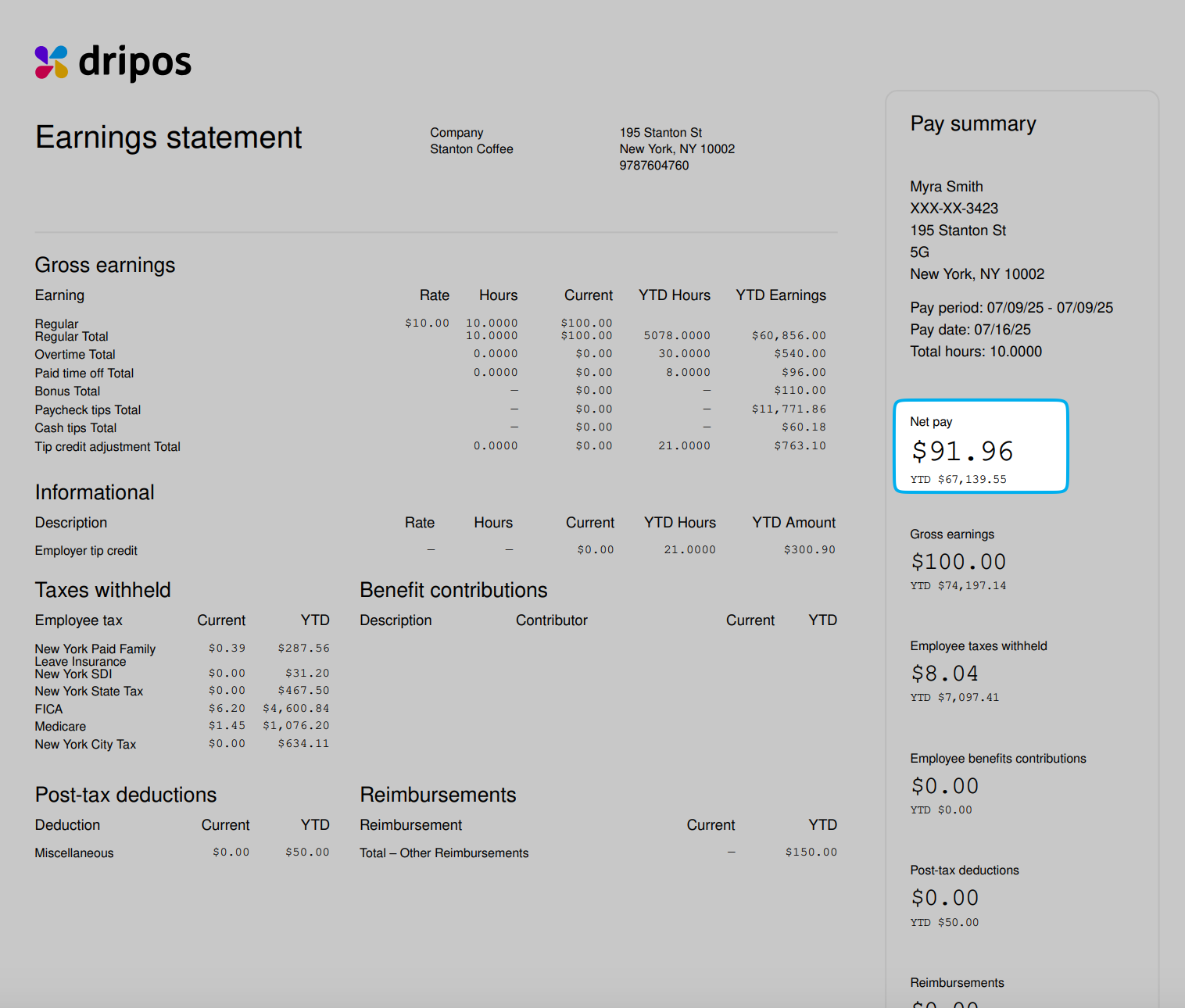
Does Dripos send checks to my employees if I pay them via manual check?
Does Dripos send checks to my employees if I pay them via manual check?
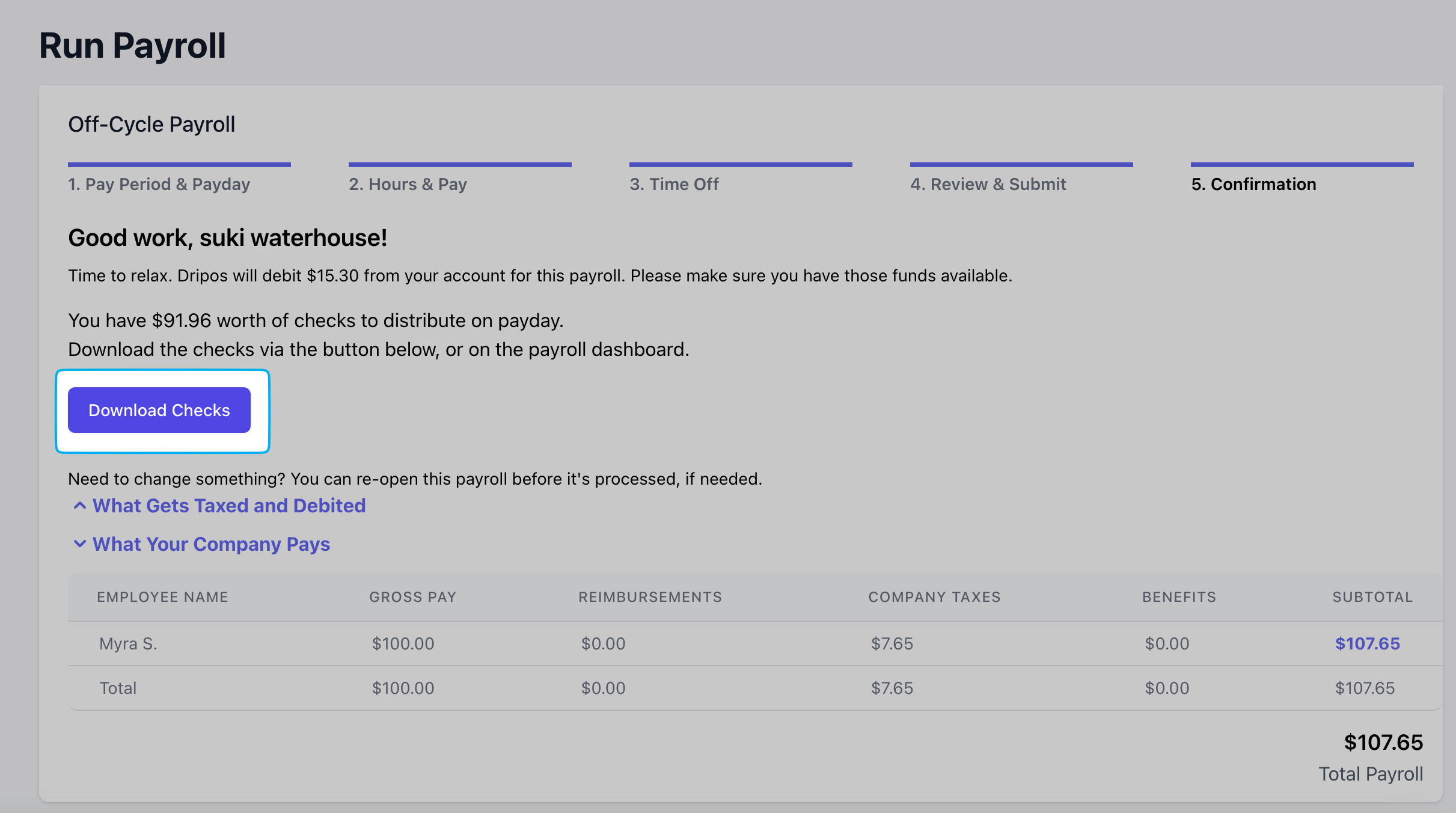
How fast will my employees receive their pay if sent via direct deposit?
How fast will my employees receive their pay if sent via direct deposit?
Payroll Employees
How can my employee make a change to their W-4?
How can my employee make a change to their W-4?
I am trying to send my employee their payroll onboarding link. Where can i find this?
I am trying to send my employee their payroll onboarding link. Where can i find this?
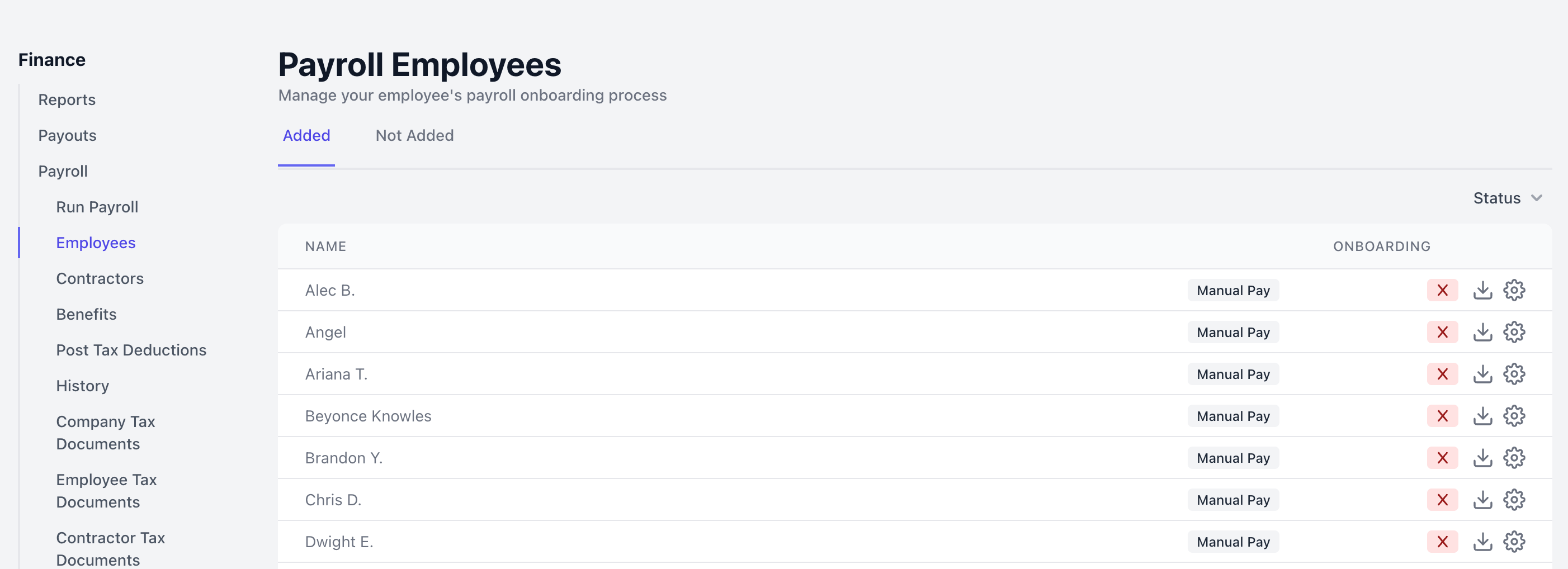
- Go to Finance → Payroll → Employees
- Locate the employee’s name and click the Gear icon next to it
- Choose Resend Payroll Onboarding Link → Save
Can my employee have their pay sent to two different bank accounts?
Can my employee have their pay sent to two different bank accounts?
Does Dripos file W-2 and 1099-NEC forms on our behalf?
Does Dripos file W-2 and 1099-NEC forms on our behalf?
Does Dripos offer workers' compensation?
Does Dripos offer workers' compensation?
Does Dripos offer 401k or Roth options?
Does Dripos offer 401k or Roth options?
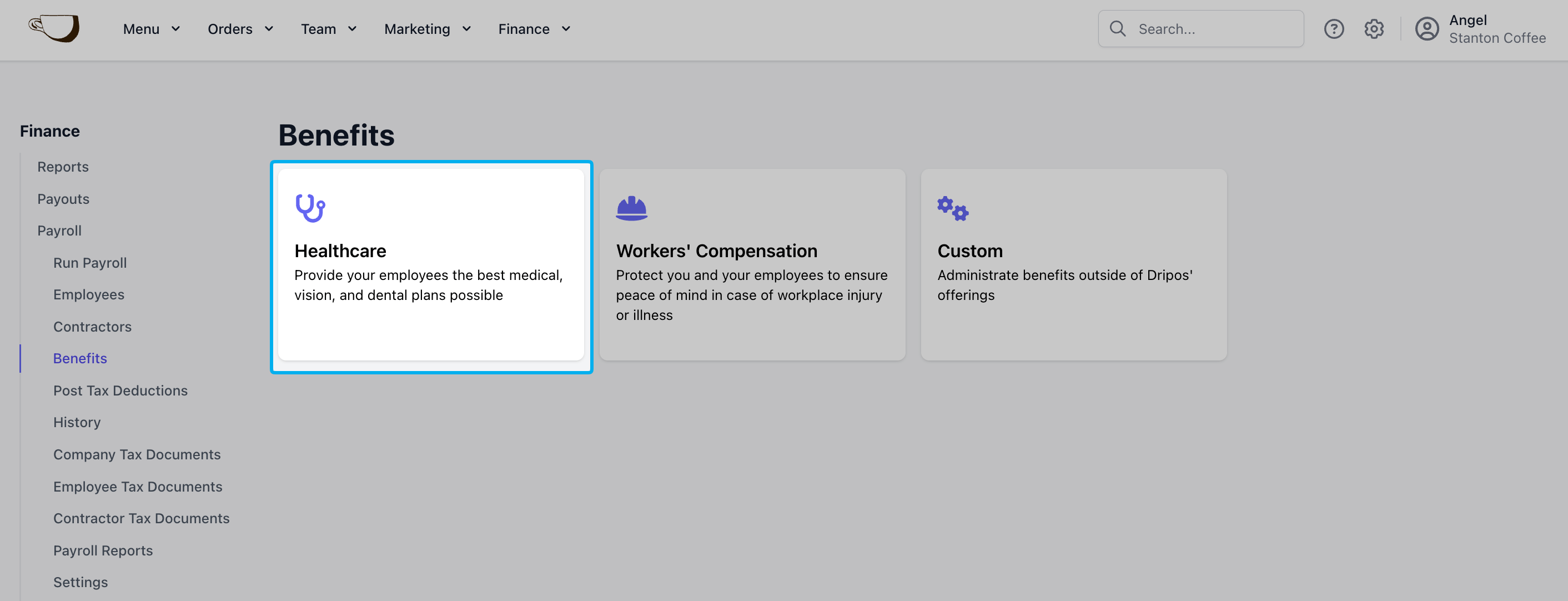
Can I offer health insurance through Dripos to my employees?
Can I offer health insurance through Dripos to my employees?
I've just terminated an employee, how do I go about paying their last payroll?
I've just terminated an employee, how do I go about paying their last payroll?
Payroll Taxes
Does Dripos file my payroll taxes?
Does Dripos file my payroll taxes?
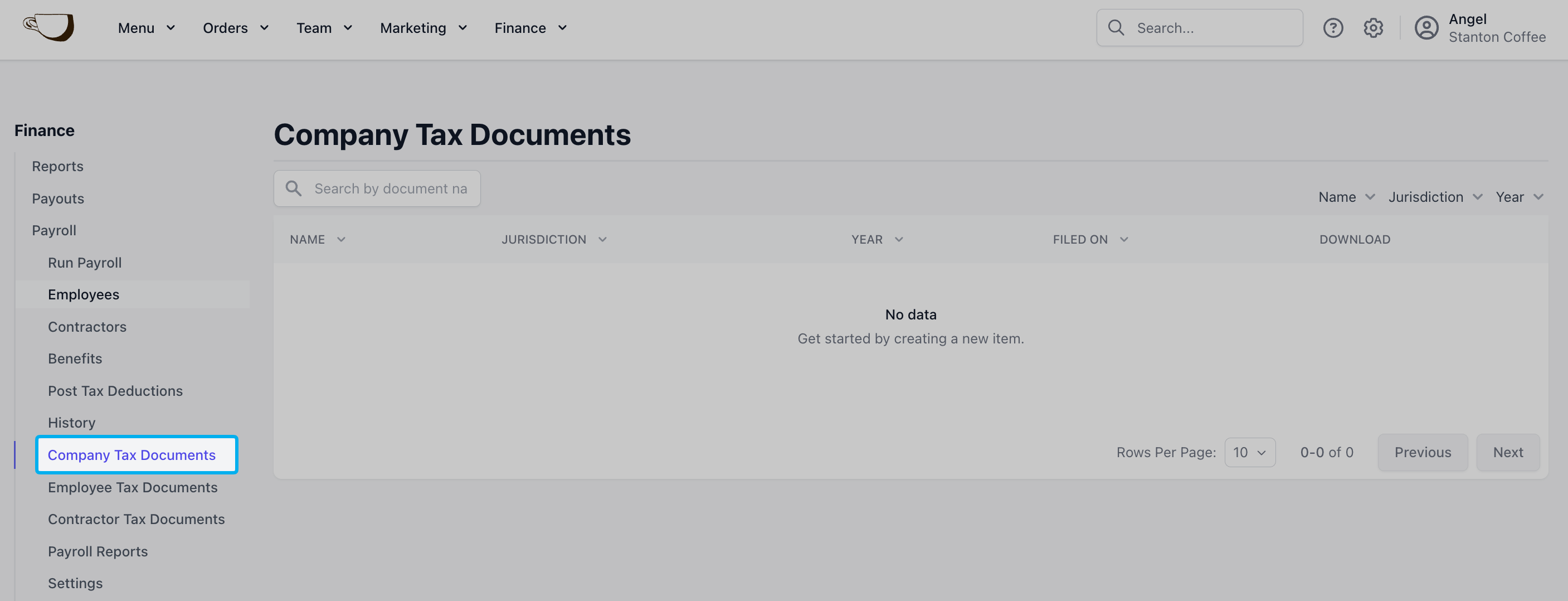
Where can I find company tax documents filed by Dripos?
Where can I find company tax documents filed by Dripos?
Manage Account
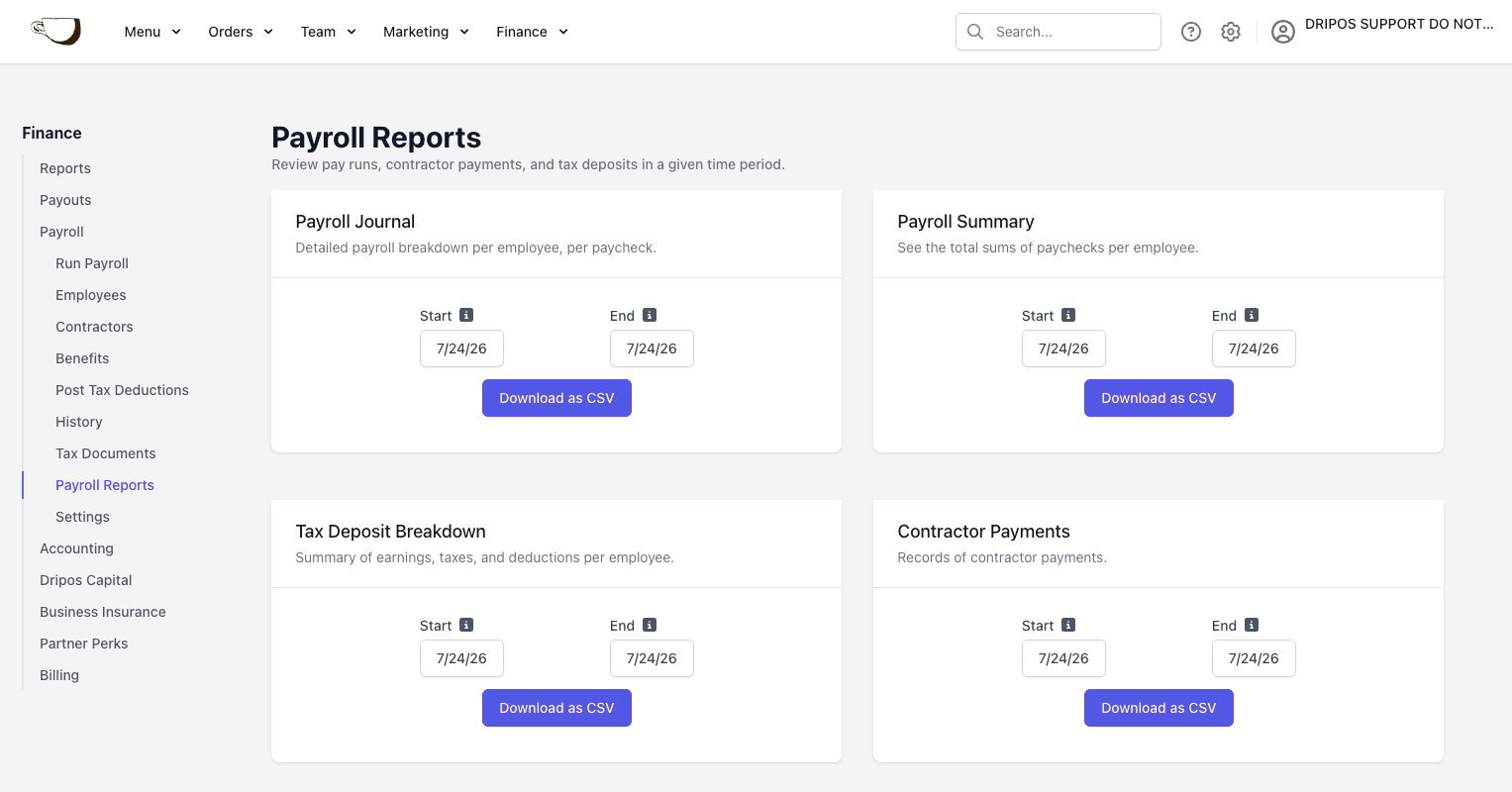
How can I export my entire payroll history?
How can I export my entire payroll history?
- A detailed record of each paycheck, listed by employee and payroll. The report includes hours worked, gross pay, net pay, tips, reimbursements, and all employee and employer taxes.
- Total earnings, taxes, and deductions for each employee within the selected date range. The report contains the same information as the Payroll Journal, combined into one line per employee.
- A record of all tax payments for each payroll, including the tax type, amount, and due date. Each payment displays a status:
- Funded: The funds have been collected from your account.
- Deposited: The tax has been paid to the agency.
- Pending: The tax is scheduled for payment by its due date. Unemployment taxes are paid quarterly or annually and will remain pending until that time.
- A record of all contractor payments, including the amount, reimbursements, and payment method.
How do I change the bank account my payroll is debited from?
How do I change the bank account my payroll is debited from?