Create Checklists
Create checklists from the dashboard to then be accessed via the POS and Hub App.How to Create a Checklist
How to Create a Checklist
1
Click Team > Checklists > Create Checklist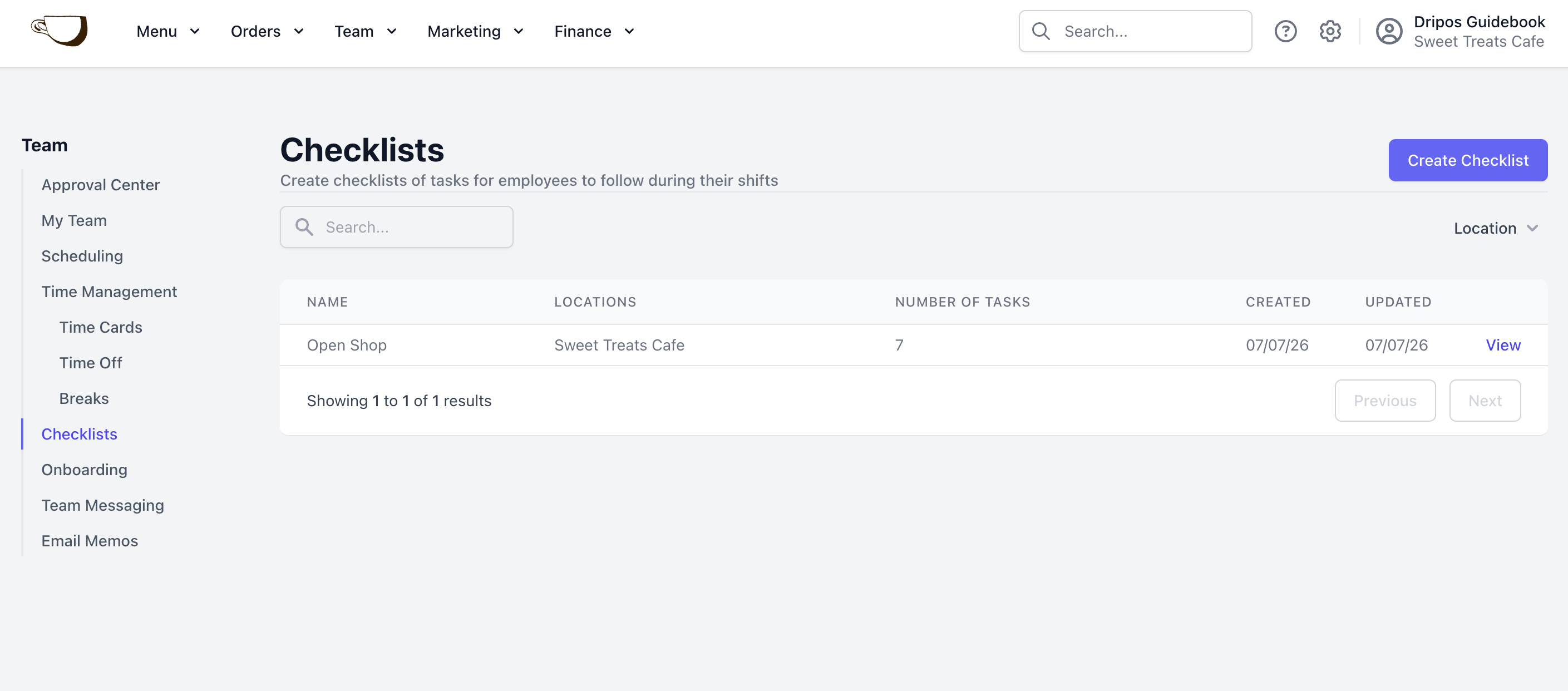
2
Complete the following fields to create a checklist: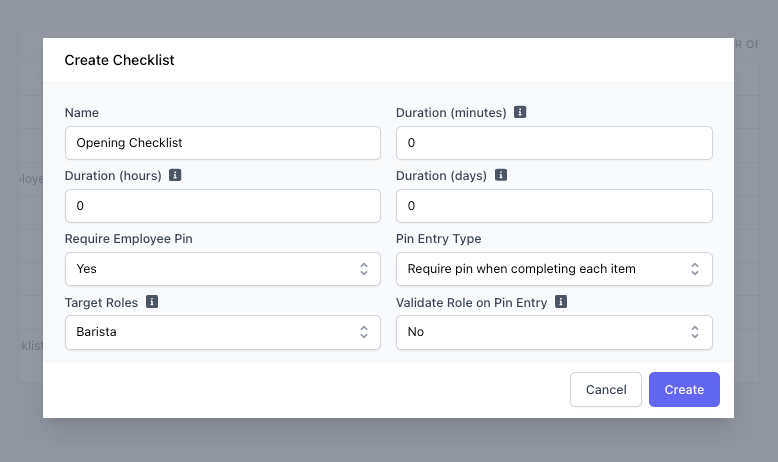
Duration (minutes): Number of minutes employee(s) has to complete the checklist.
Duration (hours): Number of hours employee(s) has to complete the checklist.
Duration (days): Number of days employee(s) has to complete the checklist.
Require Employee Pin: If No, the employee is not prompted to enter their Pin.
Pin Entry Type: If require employee Pin is Yes, employee Pin is required when completing each task. Or toggle to only require employee Pin when closing the checklist.
Target Roles: If selected, the employee attached to the role will be notified of a checklist requiring attention.
Validate Role on Pin Entry: If Yes, only employees attached to the target role can complete the checklist. Require Employee Pin must be set to Yes.
3
Click Create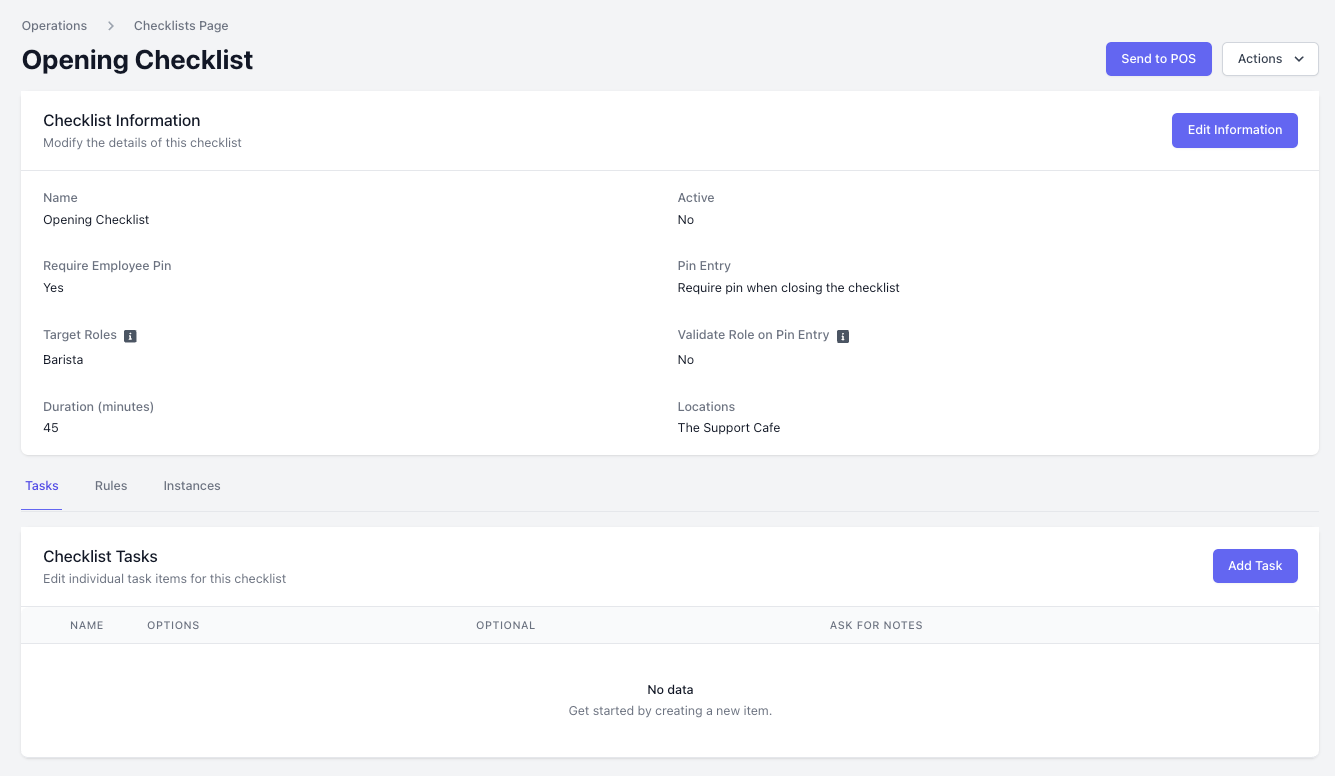
Create Tasks
Tasks are individual action items within the checklist to completeHow to Create Tasks
How to Create Tasks
1
Within a checklist, click Add Task
2
Complete the following fields: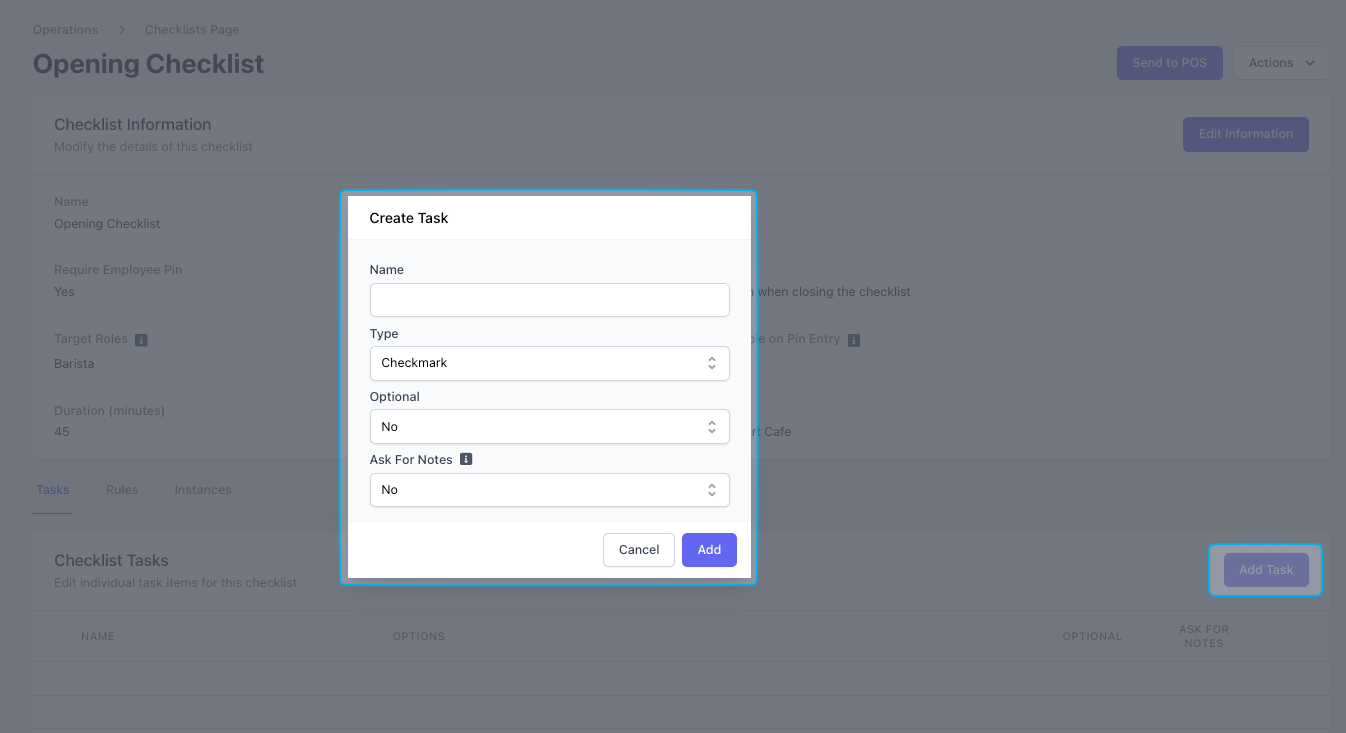
Name: Title of the task
Type: How the task can be completed
Optional: If No, the task will be required in order to complete the checklist
Ask For Notes: If Yes, the task will have a textbox to enter additional notes regarding the task
3
Depending on the necessary function of the task, there are different types of tasks that employees can complete.
- Checkmark
- Yes or No
- Number: displays a number to type in
- Dropdown: displays pre-determined options to choose from
- Radio Select: displays pre-determined options to choose from as a bubble-option
- Short Answer: displays a text box
- Long Answer: displays a text box
4
Click Add
Create Rules
Rules are the frequencies at which the checklist should appear on the POS and Hub App.At least one rule must be created in order for the checklist to appear on the POS and Hub App.
How to Create Rules
How to Create Rules
1
Within a checklist > click Rules > click Add Rule
2
Complete the following fields: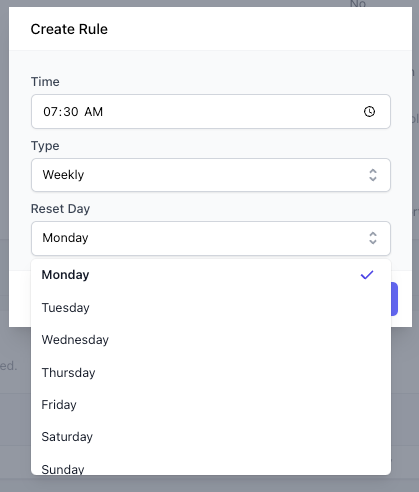
Time: The specific time the checklist will appear on the POS and Hub App
Type: The frequency at which this rule will prompt the checklist to appear on the POS and Hub App
Checklist Rule Types:
- Daily: Prompts the checklist to appear every day at a specified time
- Weekly: Prompts the checklist to appear once a week on a specified day at a specified time
- Bi-Weekly: Prompts the checklist to appear once every other week on a specified day at a specified time
- Monthly: Prompts the checklist to appear once a month on a specified day at a specified time
- One Time: Prompts the checklist to appear once on a specified day at a specified time
Checklist Instances
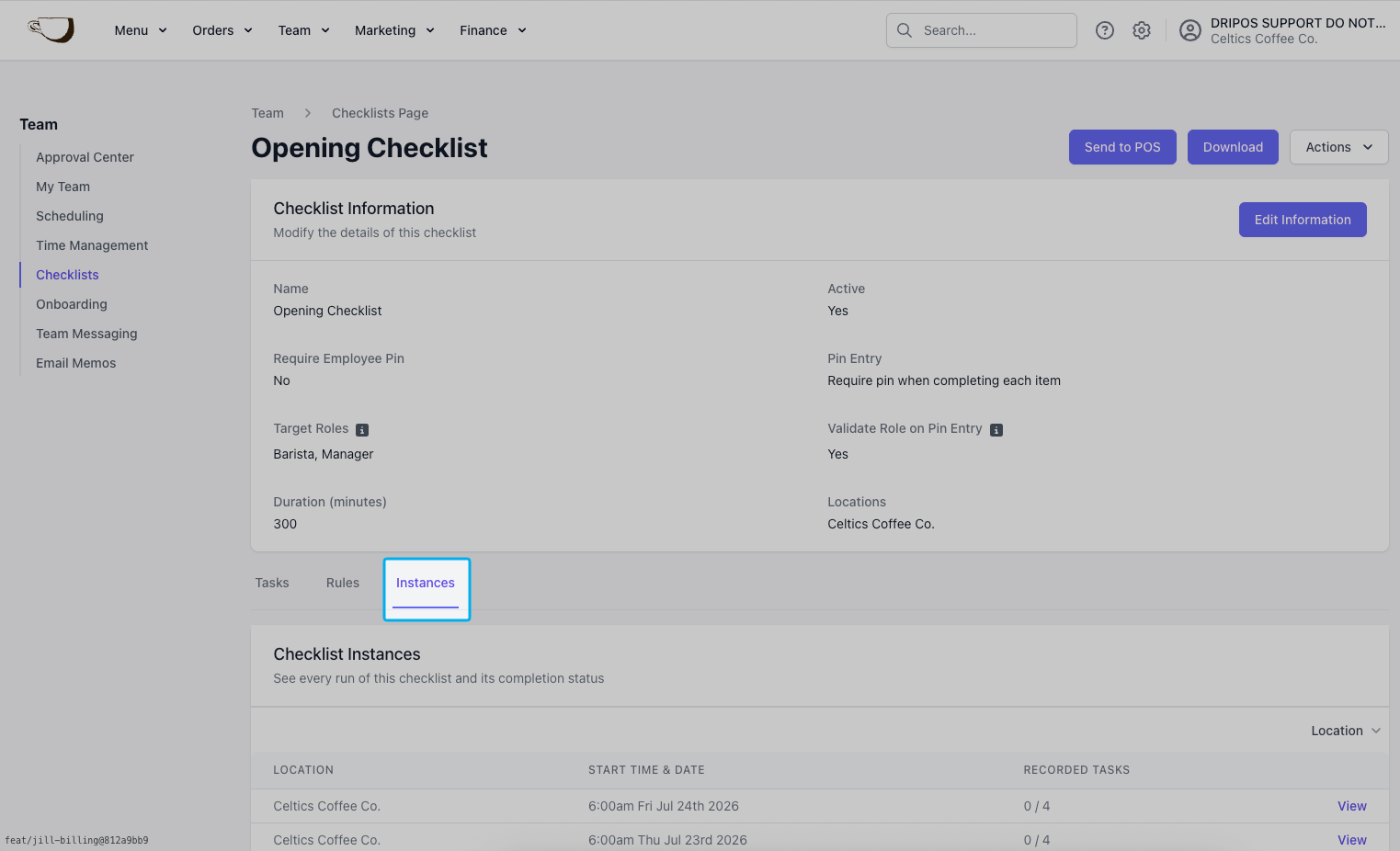
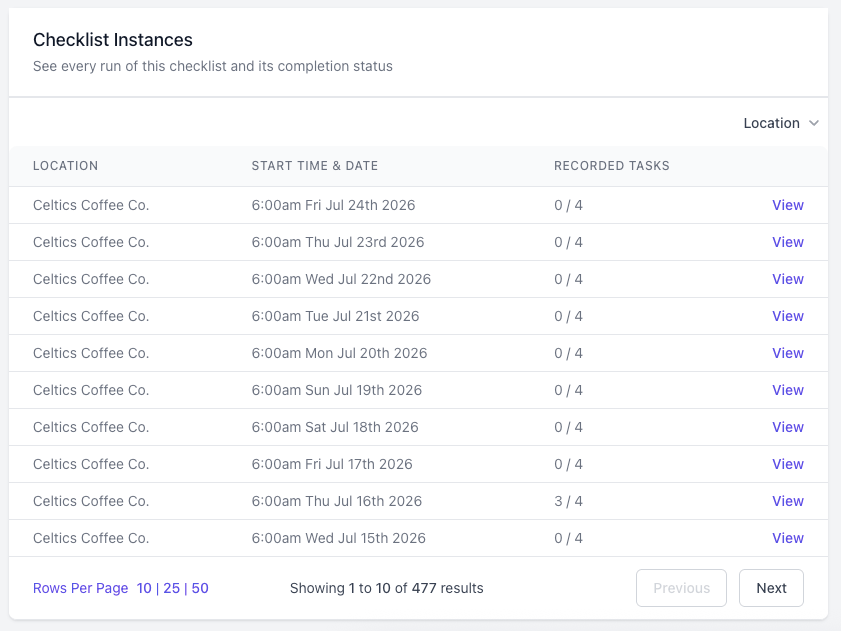
Instances are the individual occurrences when a checklist is sent to the POS or Hub app either automatically through rules or manually via the “Send to POS” button.For example, if an “Opening Checklist” checklist is scheduled to send every morning at 7:30 AM, each daily delivery counts as a separate instance.
View Checklist Instances
View Checklist Instances
1
Within a Checklist > Instances
2
View all Checklist Instances
3
View an individual instance
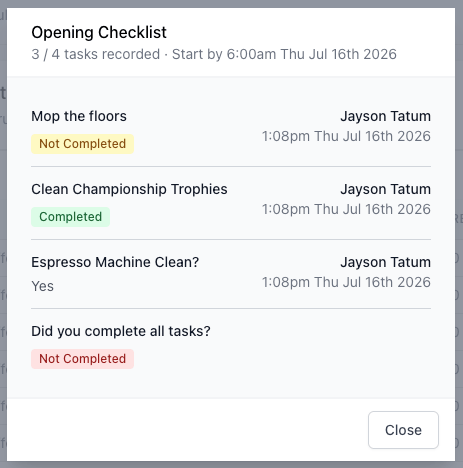
Complete a Checklist
Employees may complete checklists from the Point of Sale or the Hub App- Point of Sale
- Hub App
1
Press the tribar in the left corner > Checklists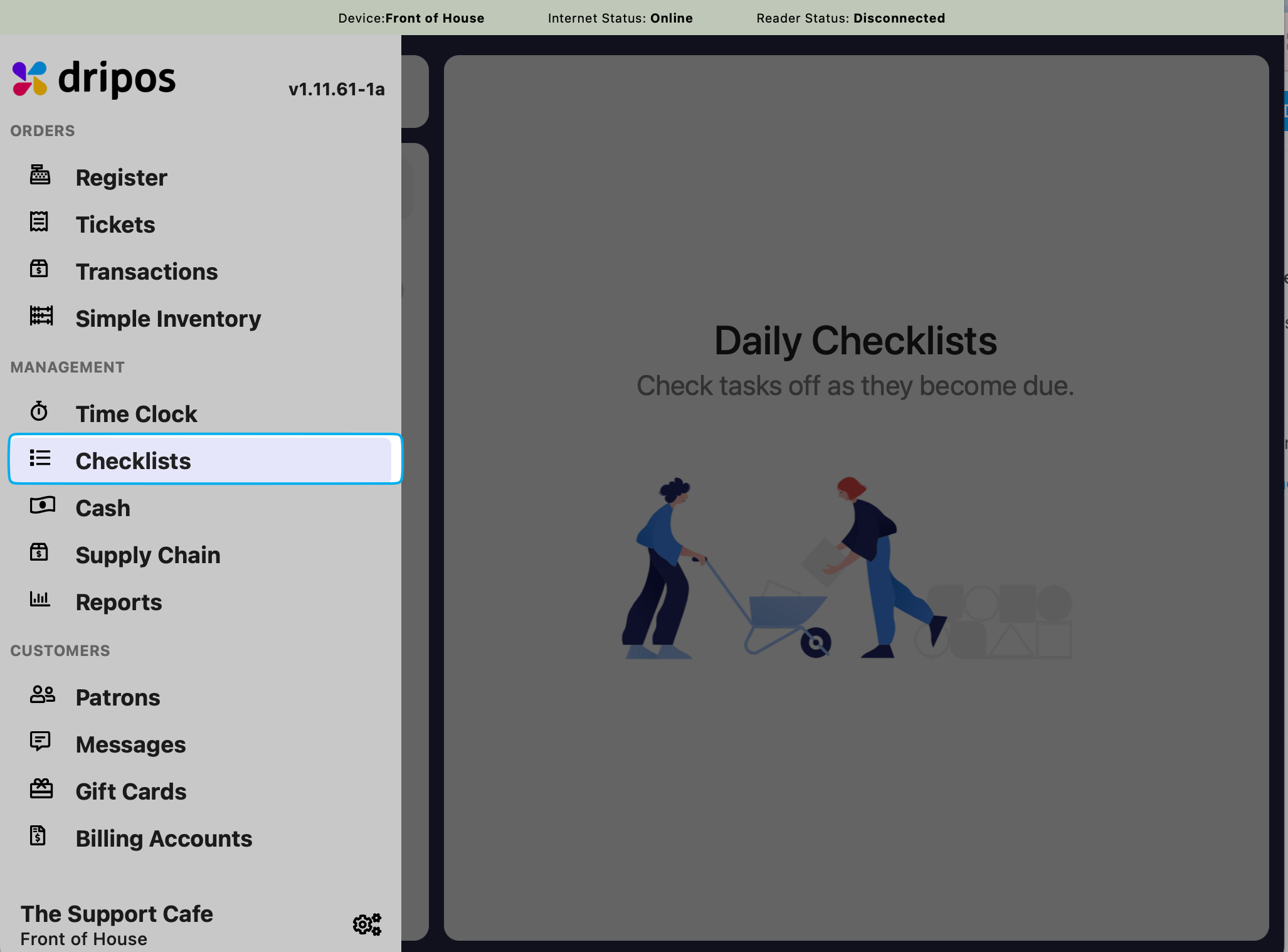
2
View the checklist to complete. Once all tasks are filled out, a prompt to mark the checklist as completed will appear.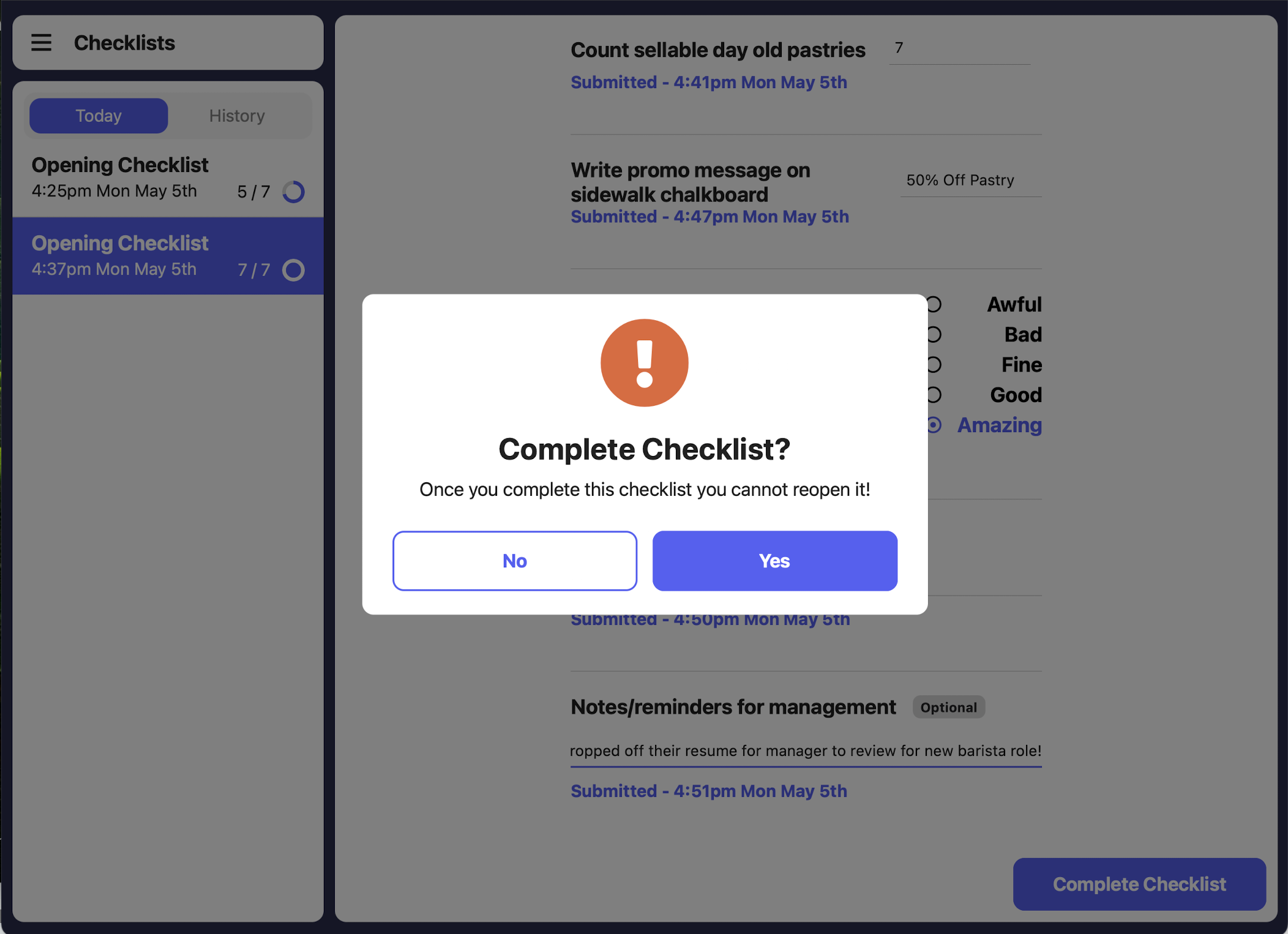
3
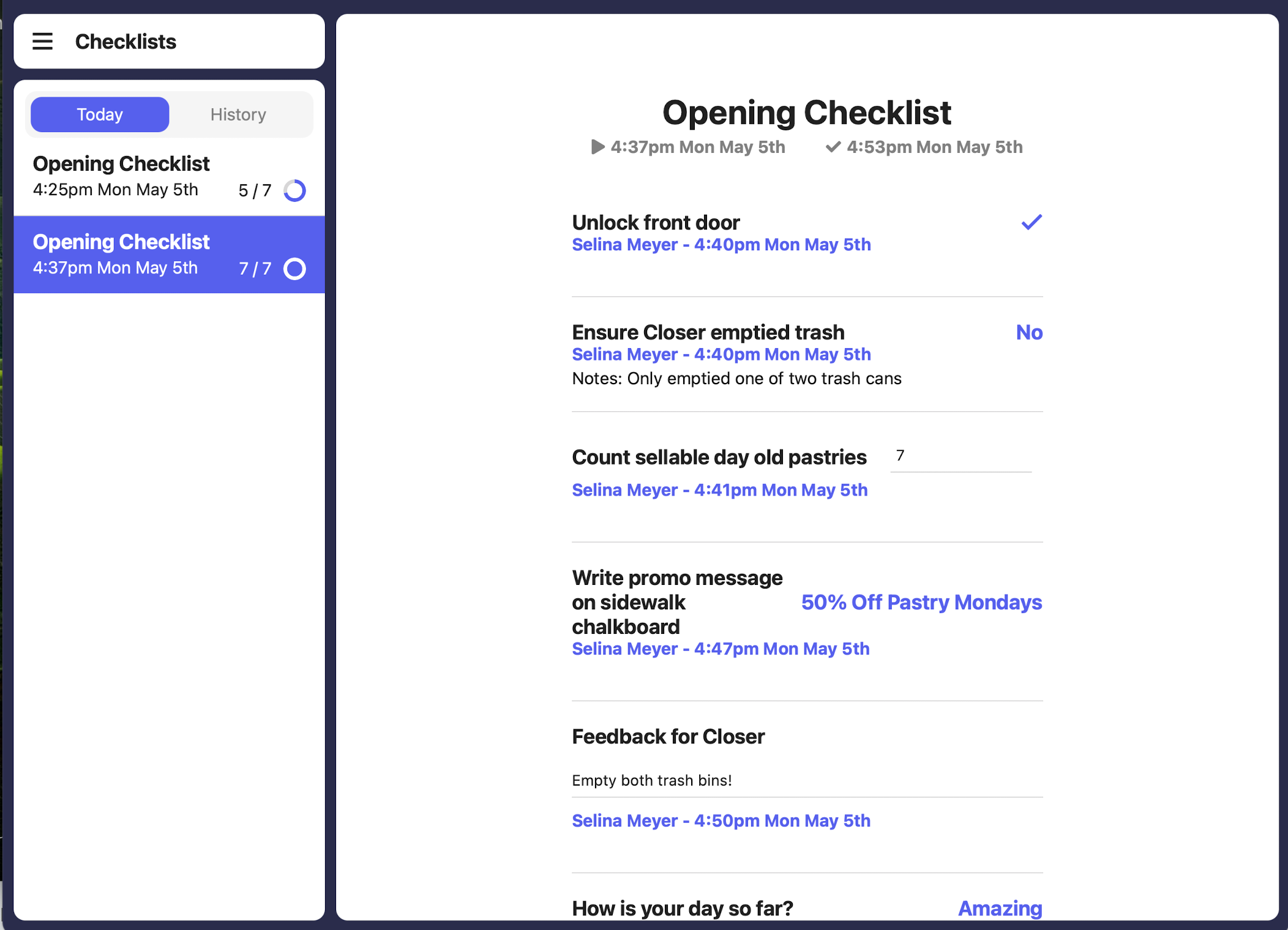
Answers to tasks will appear in blue color with additional notes displaying as “Notes:”The time and employee name will appear in blue color next to each task.