Orders, Points & Gift Cards
Your Dripos account travels with your phone number, so your order history, loyalty points, gift cards, and saved cards are available wherever you order, whether that’s in the Order App or on a shop’s Order Website. This guide walks through how to manage each of them.Your account is tied to your phone number. Logging in with the same phone number (or email) on either the Order App or the Order Website brings up the same order history, points, gift cards, and saved cards.
View Past Orders and Reorder
You can look back at any order you’ve placed, pull up its digital receipt, or reorder the whole thing in a couple of taps.- Order App
- Order Website
1
Open the Orders page
Open the Order App, tap the Account tab, then tap Orders. Past orders are grouped by month, newest first.
2
Open a previous order
Tap any previous order to open its receipt, with the items, totals, payment, and points earned.
3
Get a copy of your receipt
At the bottom of the receipt, tap Get Receipt to save or share a PDF copy. Tap Get Help to contact the shop about the order.
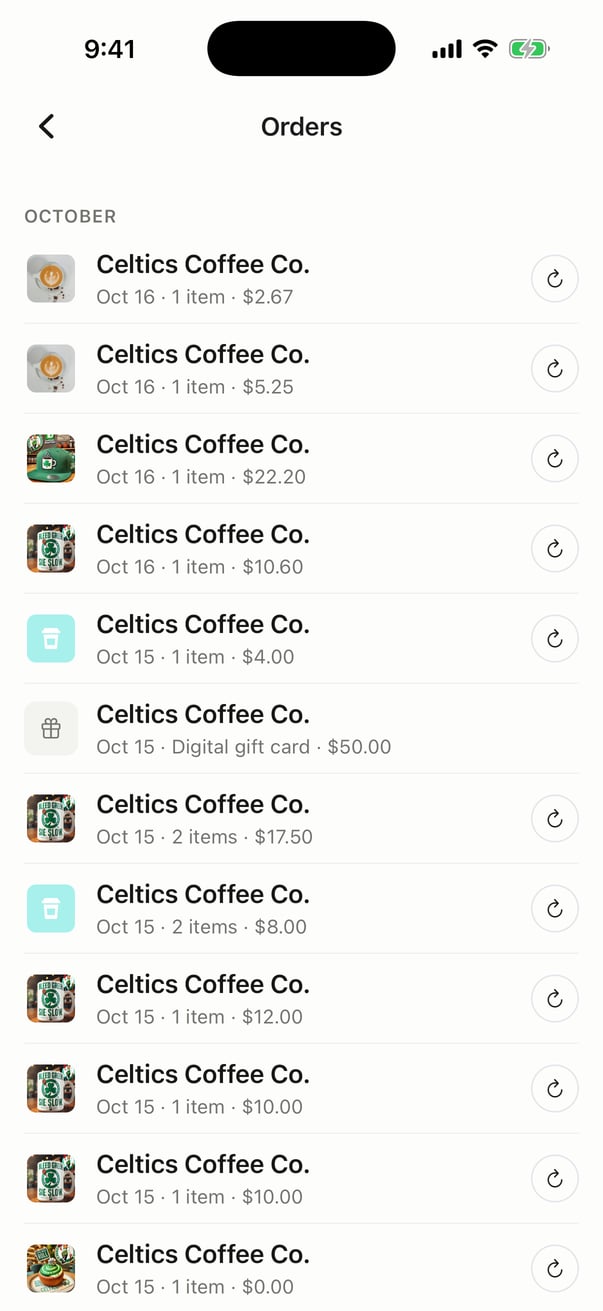
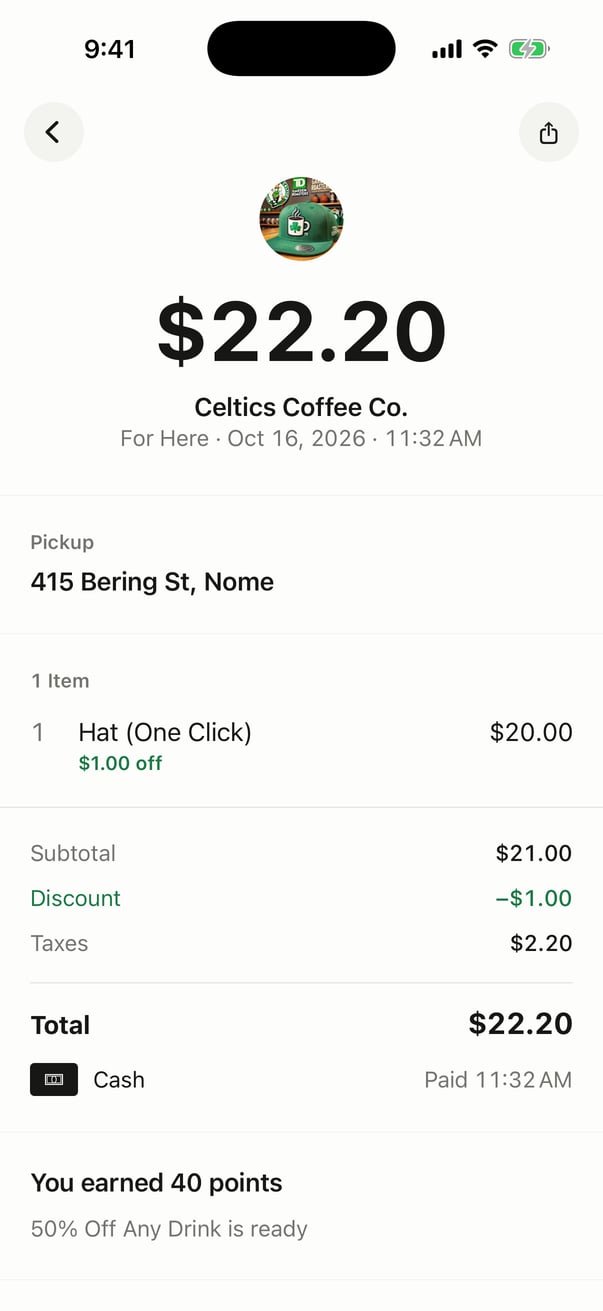
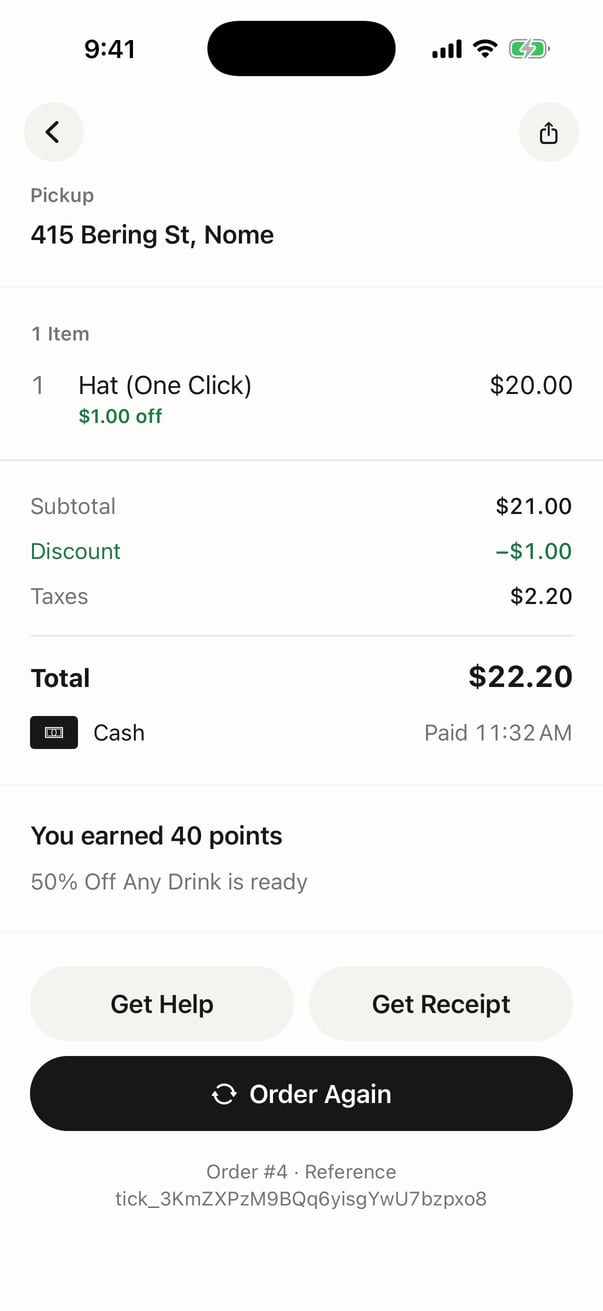
To reorder: Tap Order Again on a past order’s receipt, tap the reorder button next to an order on the Orders page, or tap the Order Again card on the shop’s page. The items from that order are added to your cart for that shop, and you can go straight to Checkout or Add More Items.
View Your Loyalty Points
You earn points automatically when the items in your order meet the shop’s loyalty rules, as long as your phone number is attached to the order.- Order App
- Order Website
1
Open the shop's page
In the Order App, select the shop you want to order from to open its page.
2
See your current points
Below the shop’s photo, the points tile shows your current points balance for that shop and how many rewards you have ready.
3
Check available rewards
Tap the points tile to open Rewards. You’ll see each reward, how many points it costs, and Ways to Earn.
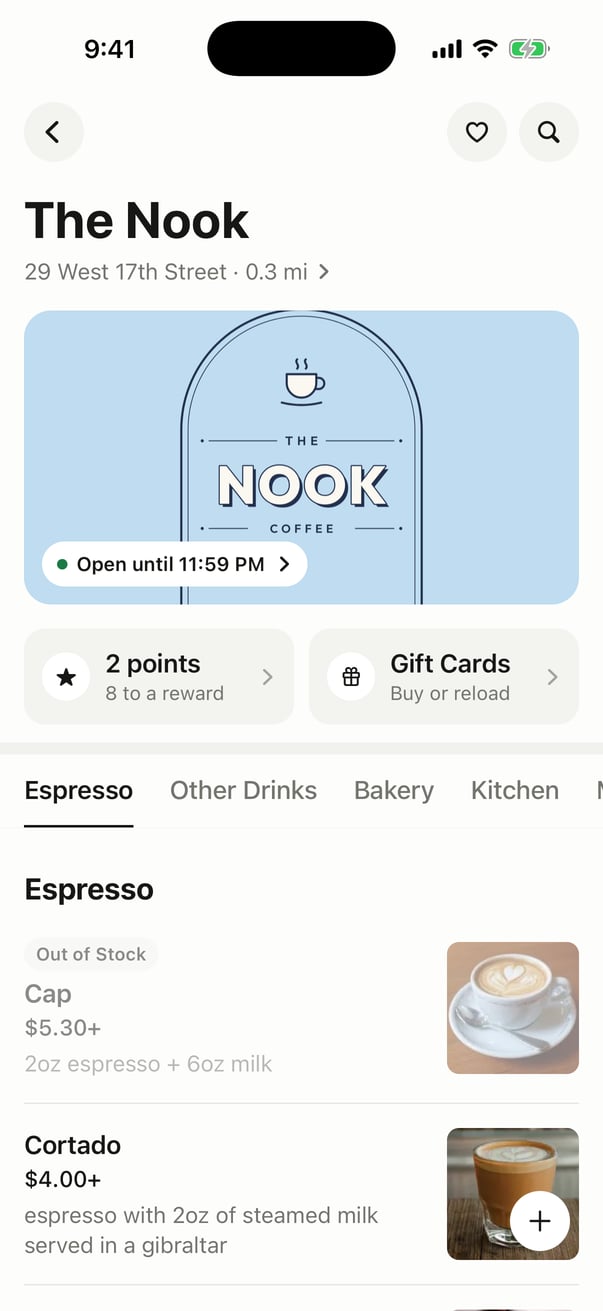
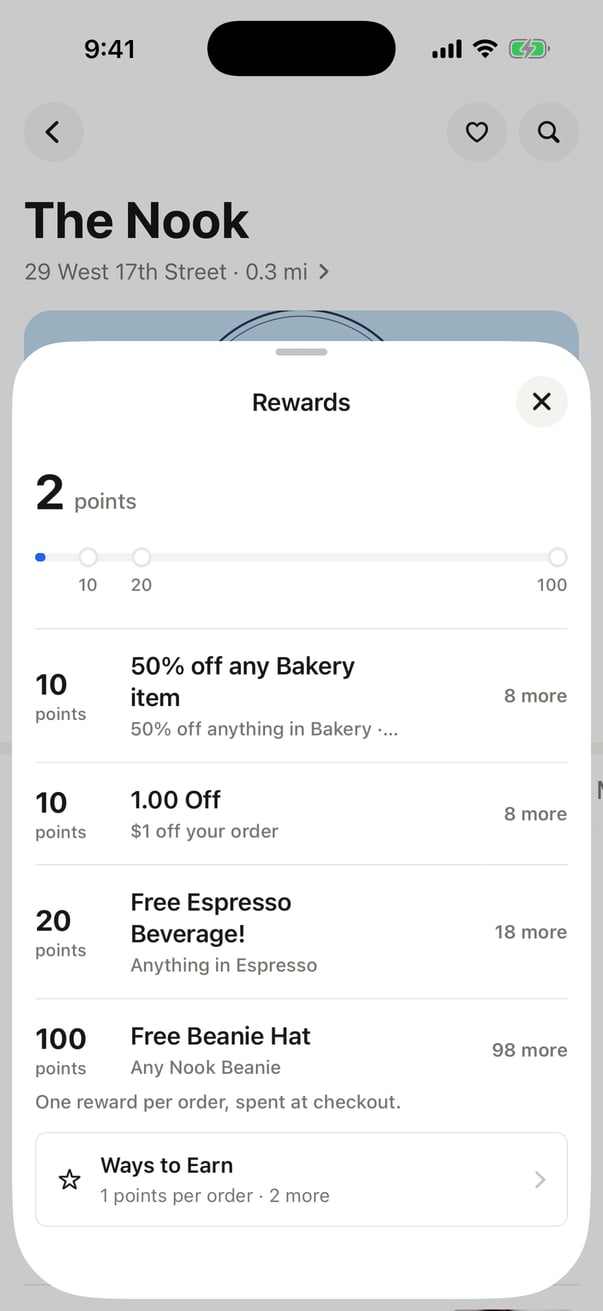
To see rewards across every shop you’ve visited, tap the Rewards tab. To use a reward, tap Rewards in your cart and then Use. One reward can be used per order.
Check Your Gift Card Balance
Gift cards are tied to your account, so any gift card linked to your phone number is ready to view and use.- Order App
- Order Website
1
Open your account
Open the Order App and tap Account.
2
Tap Gift Cards
Select Gift Cards to see all of your gift cards, along with each card’s balance. No order required. From here you can also Reload a card or tap Add a Gift Card to link a card by its number.
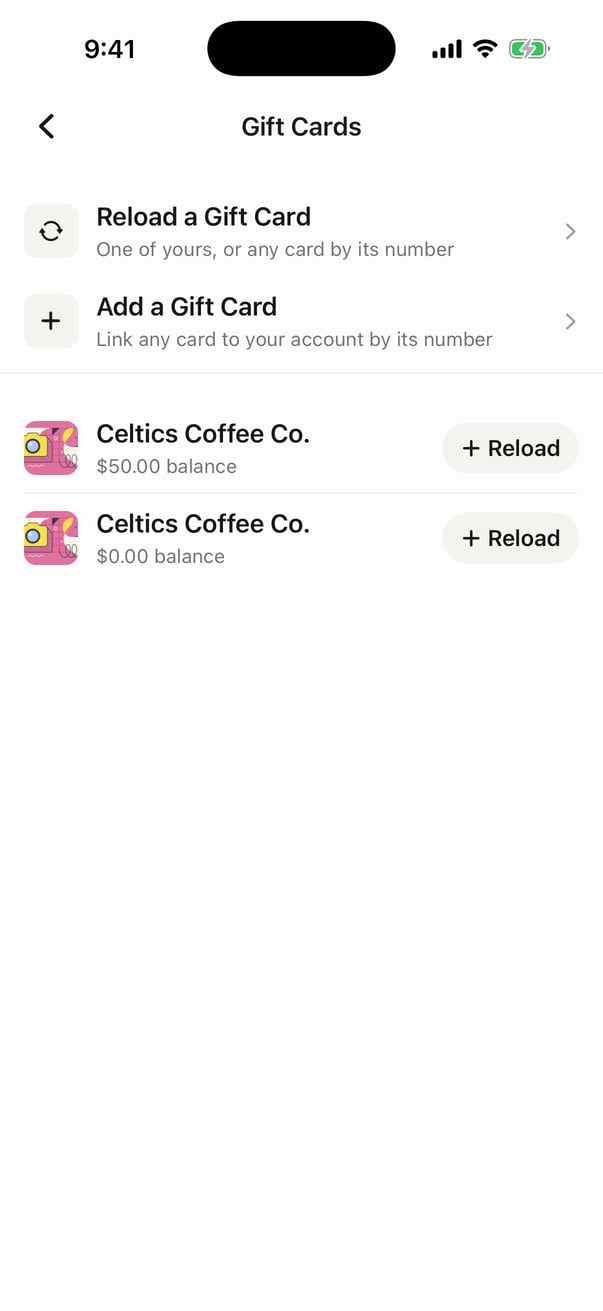
You’ll also see your linked gift cards at checkout when you tap Gift Card under Payment, ready to apply to your order.
Check an Unlinked Gift Card (As a Guest)
If you’re not logged in, or the gift card isn’t tied to your phone number, you can still redeem it at checkout by entering the PAN ID (the number printed on the gift card). Its remaining balance will be applied to your order. In the Order App, tap Gift Card at checkout and type the number into Enter gift card code.Manage Saved Cards
You can view, add, and remove the payment methods saved to your account. Cards come in two types: saved payment methods (cards you entered directly) and linked payment methods (cards connected from another source).- Order App
- Order Website
1
Open your account
Open the Order App and tap Account.
2
Tap Payment
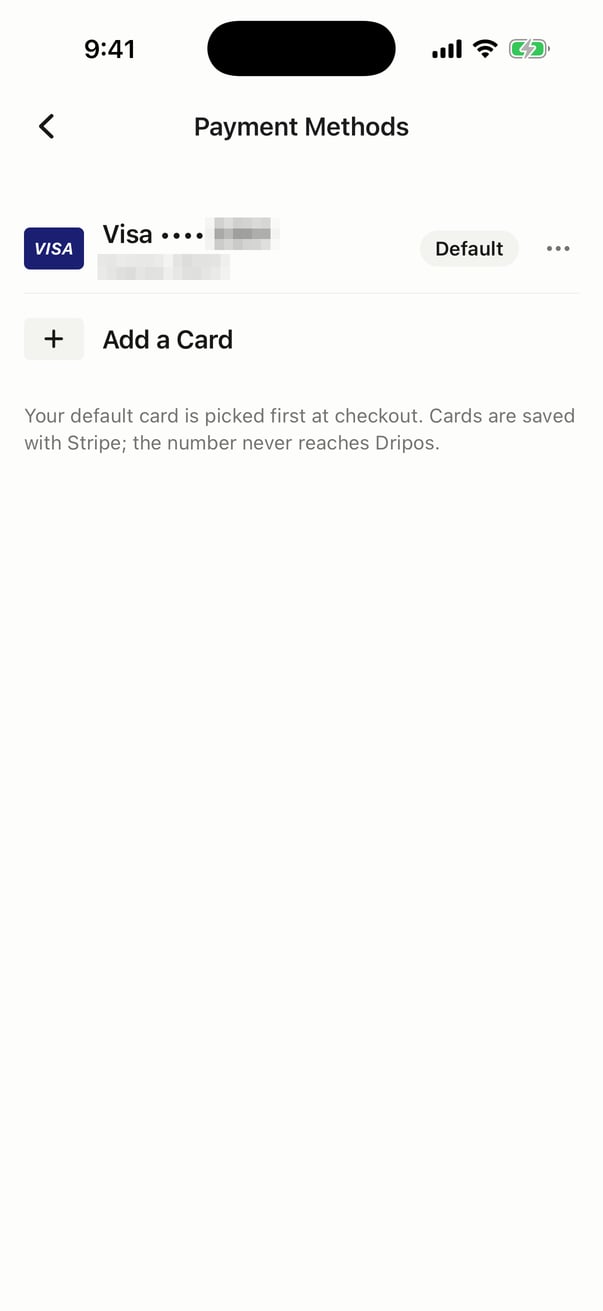
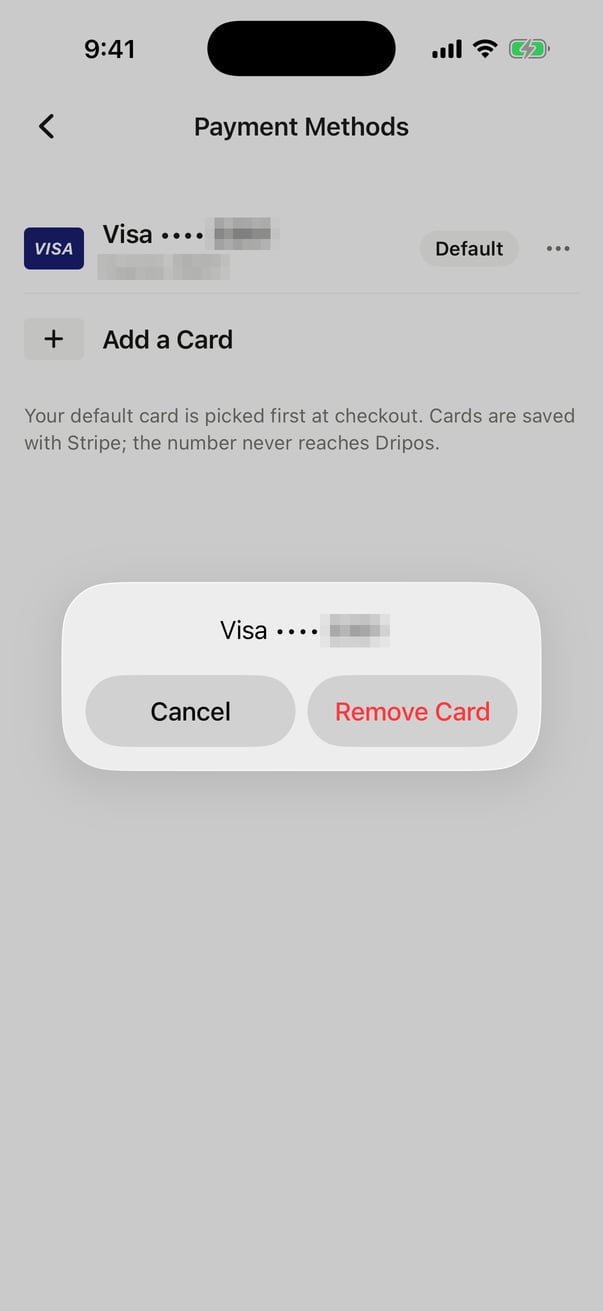
Select Payment to open Payment Methods and see your saved cards. Your Default card is picked first at checkout.
3
Remove a card or change your default
Tap the card, then tap Remove Card (or Make Default to use it first at checkout).
4
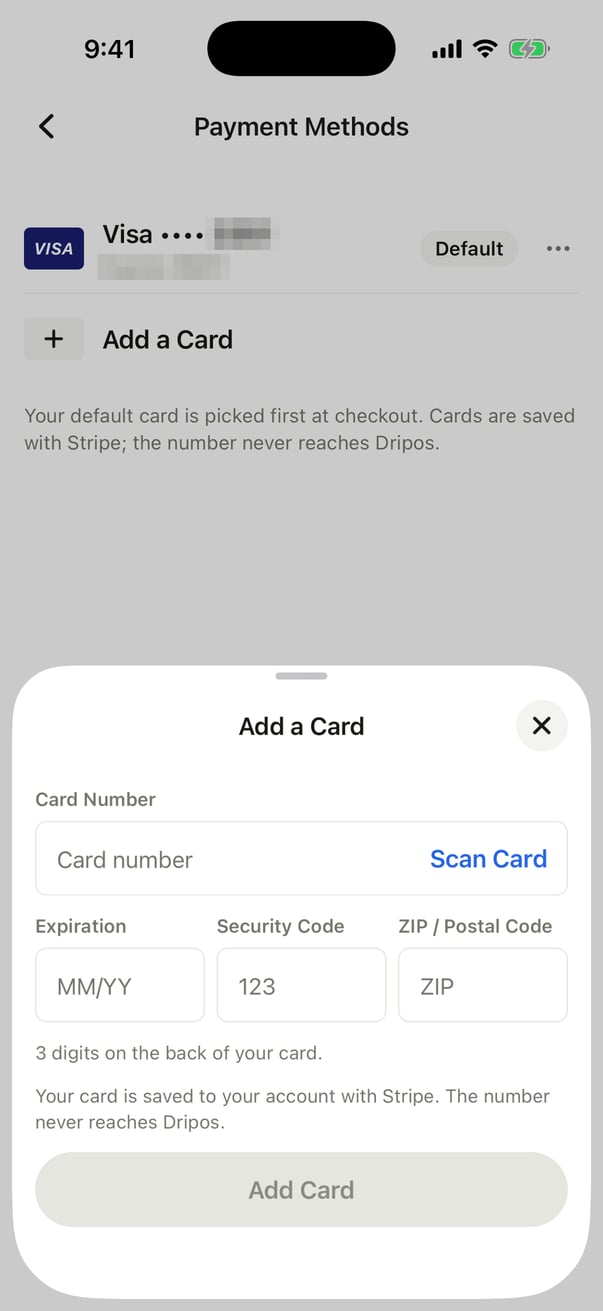
Add a card
On the same page, tap Add a Card, enter your card details (or tap Scan Card), then tap Add Card.
Update Account Details
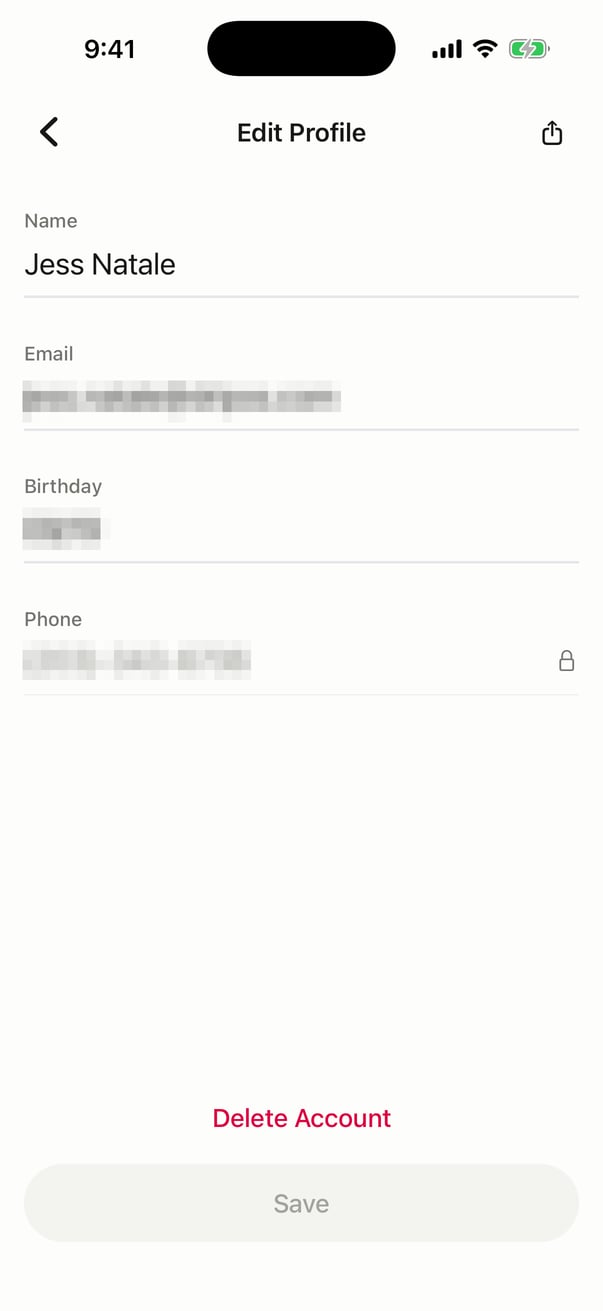
Your Name can only be edited on the Order App, while your Email and Birthday can be updated in either place. Your phone number can’t be changed.- Order Website
- Order App
1
Open your account menu
On the shop’s order website, click your name in the top-right corner, then select My Account.
2
Click Edit
Click Edit at the top of the page.
3
Update your details
Edit the Birthday or Email attached to your account, then save.